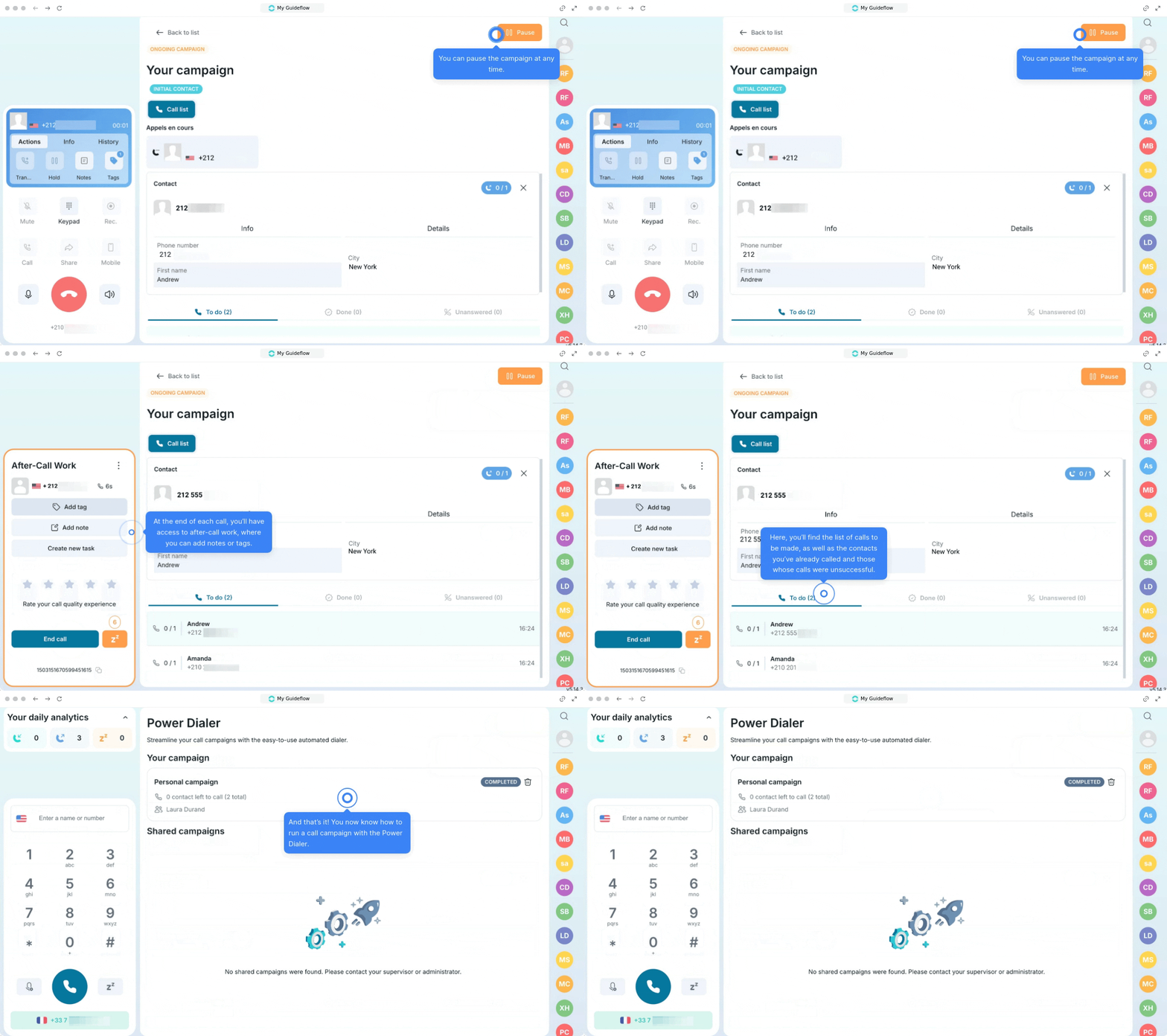
The Power Dialer is an automated dialing system available on Ringover. This auto dialer allows agents to manage a list of phone numbers automatically or manually in order to run calling campaigns.
This feature helps you reduce the time spent on manual dialing, allowing you to focus on what really matters: talking with your current or potential customers.
Power Dialer setup and usage
Step 1: Enable the Power Dialer
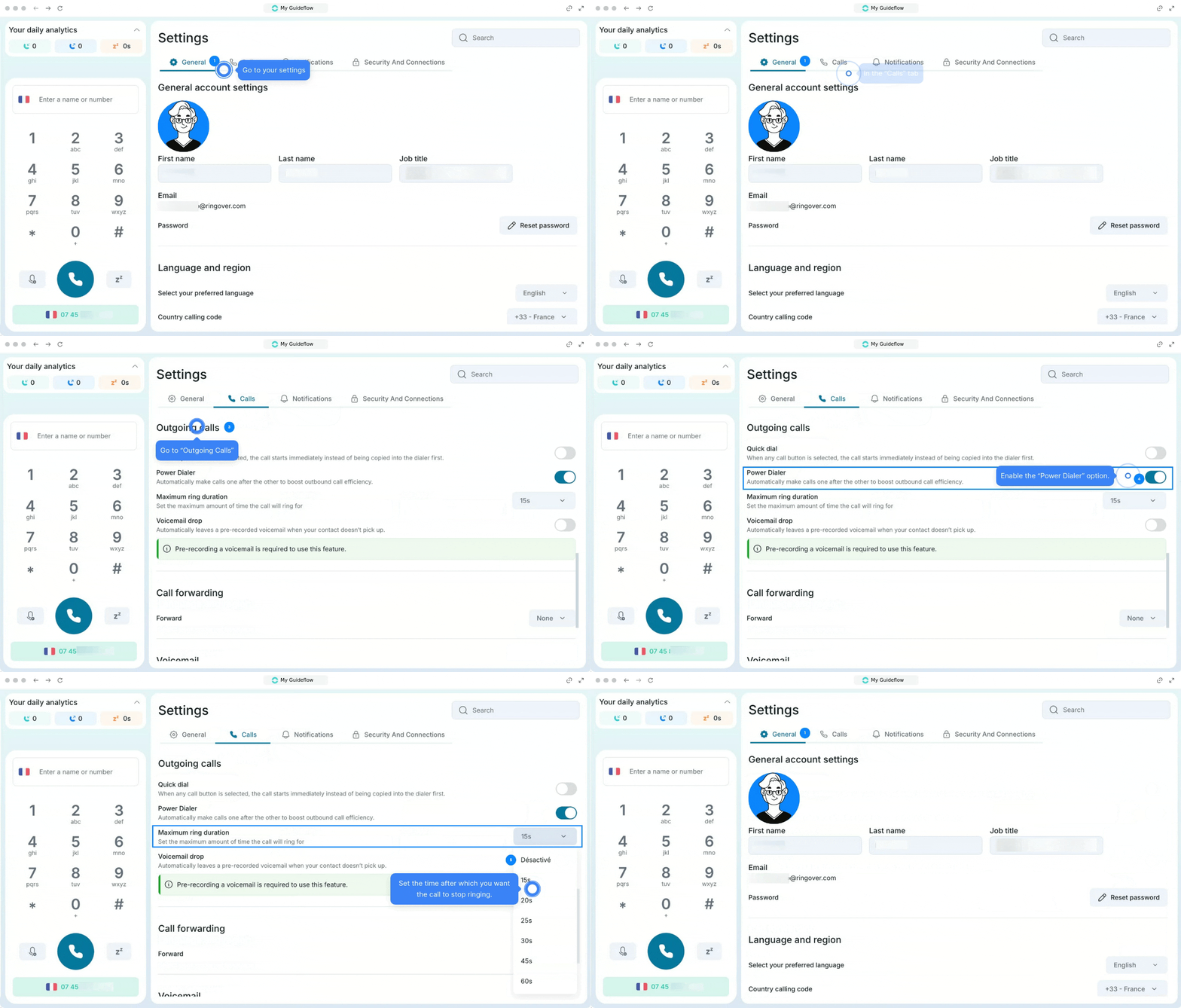
- Go to your settings
- In the Calls tab, go to Outbound Calls
- Enable the Power Dialer option
-
Set the time after which the call should stop ringing
Step 2: Import phone numbers into the Power Dialer
The Power Dialer offers several ways to load numbers into your sessions: via the Ringover Dialer extension or by file import.
1. Using the Ringover Dialer Chrome extension
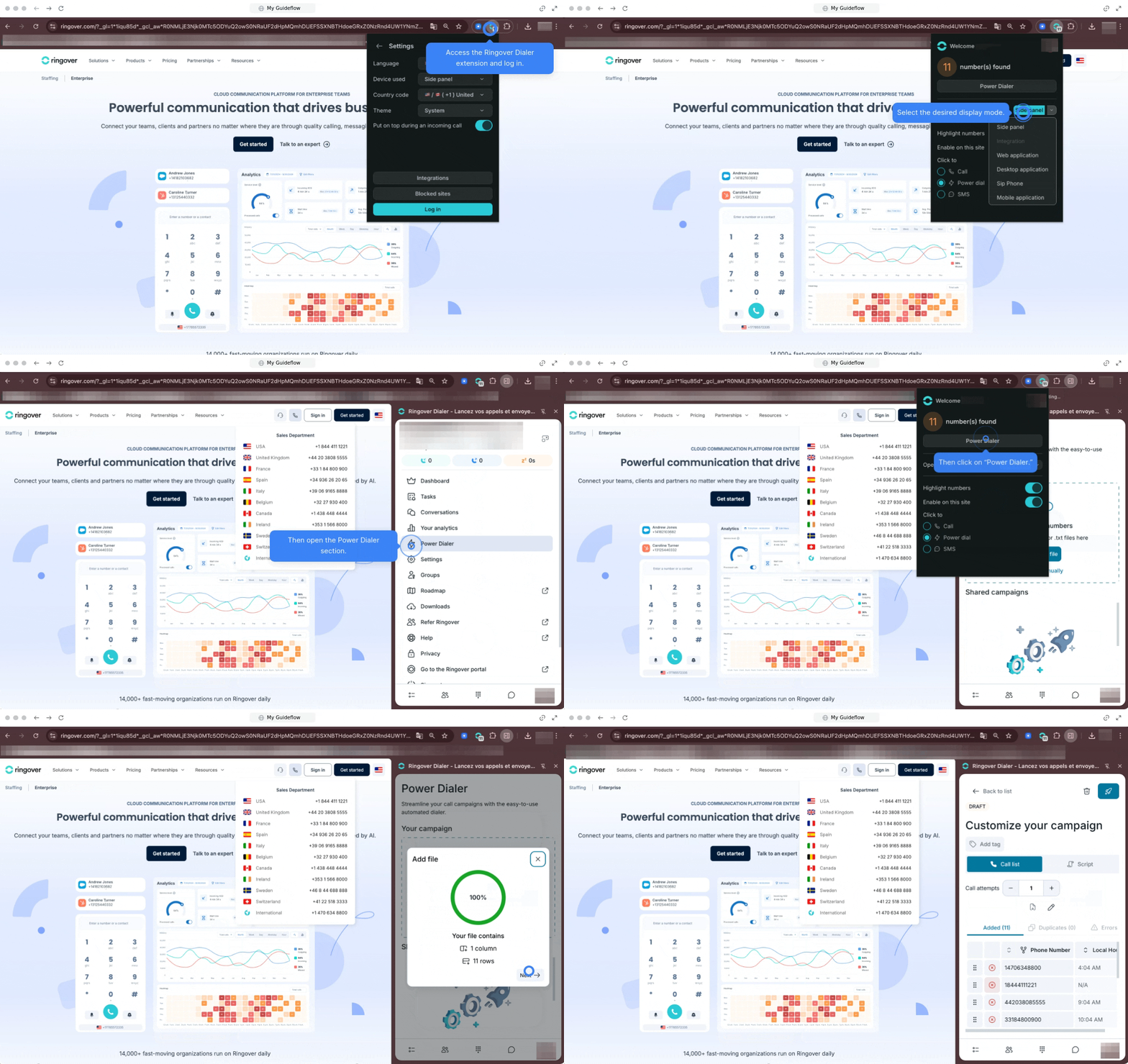
When browsing a website that contains phone numbers, the extension automatically detects them.
- Open the Ringover Dialer extension and log in.
- Select the display mode.
- Go to the Power Dialer section and make sure it is enabled.
- Select and launch the Power Dialer to automatically add detected numbers.
- Select the phone number column and click “Done”.
2. Import a file or add numbers manually
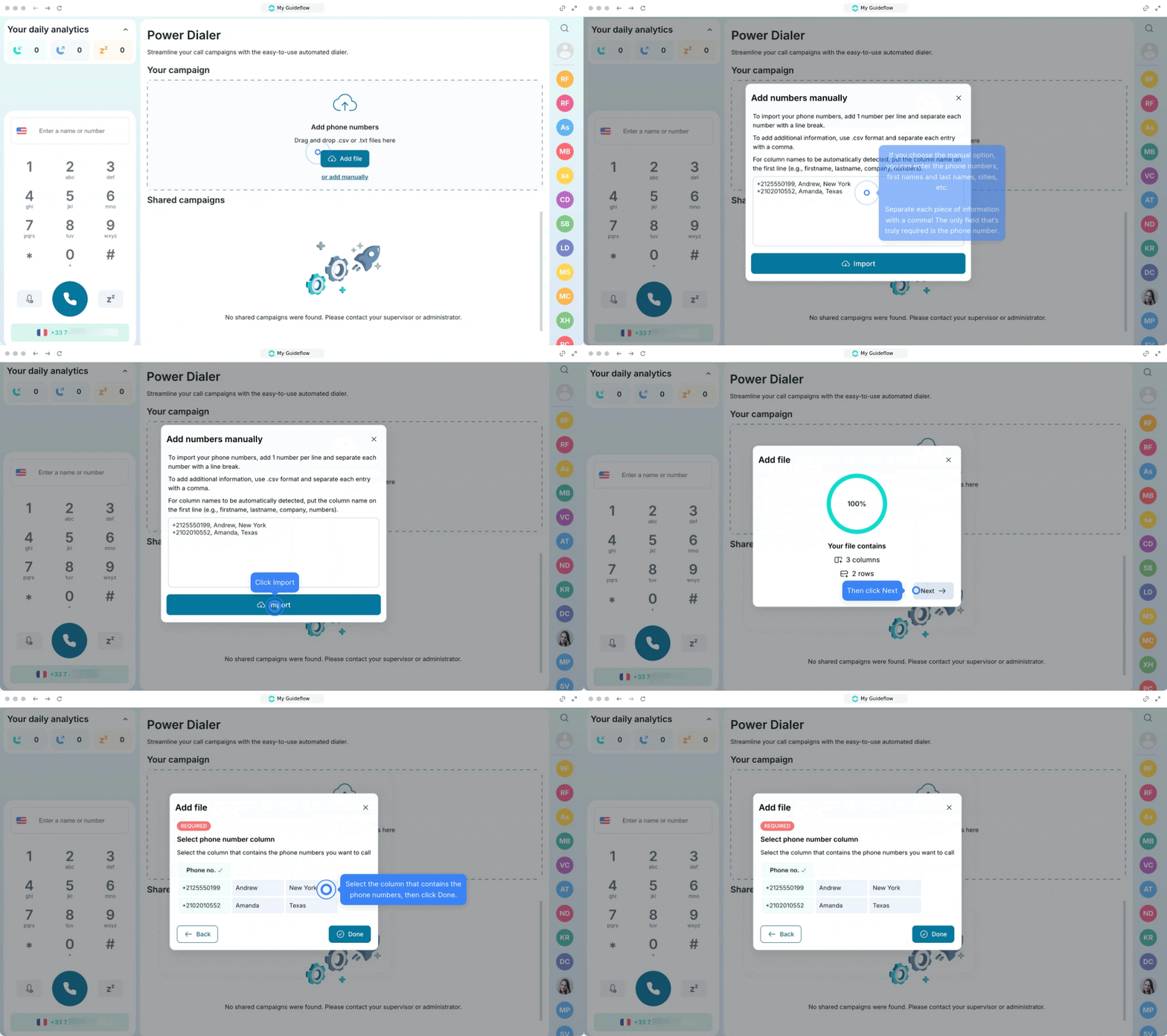
You can import number files directly into your Power Dialer.
- Click Add a file or Add manually
- If you add a file, it must be in CSV or TXT format
(This operation cannot be performed via the API) - When adding manually, fill in the fields (number, first name, last name, city, etc.) separated by commas. The phone number is the only required field.
2. Once the file is imported, select the column containing the phone numbers.
3. Then click “Done”.
3. Using the Power Dialer
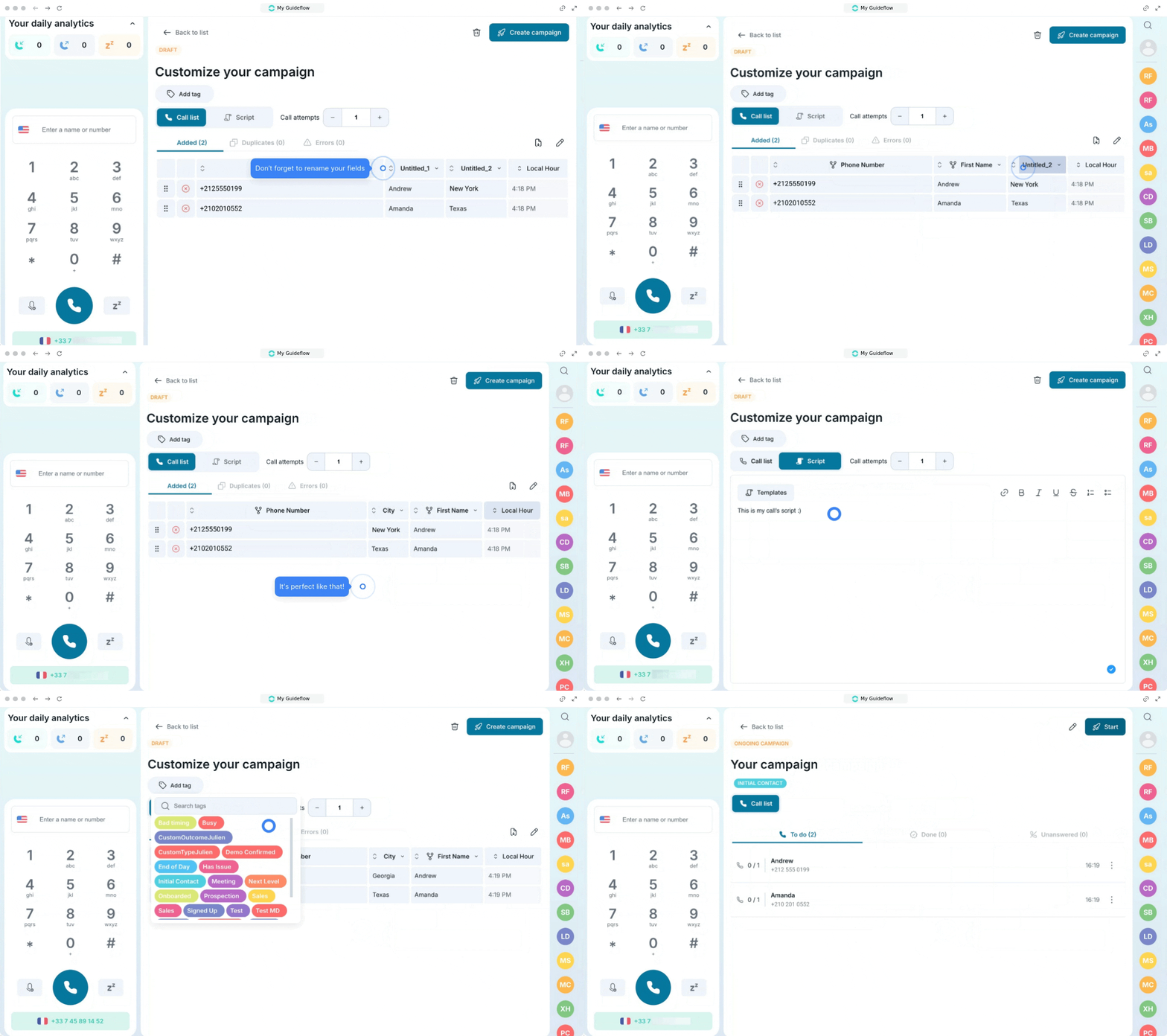
You can launch a calling campaign with the Power Dialer. After importing your numbers, you can customize your campaign by:
- Renaming your fields
- Adjusting the number of call attempts (how many times you want to retry reaching a contact). During a campaign, you must wait one hour before calling the same contact again.
- Editing the call script
- Adding a tag to your campaign to easily find all related calls in your history
- Clicking Create campaign, then Start
You can also:
- Pause your campaign
- Add notes or tags during After Call Work
- View calls to be made, contacts already called, and calls that were not successful
💡 Using Local Presence with the Power Dialer
If the Local Presence feature is enabled on your account, it also applies to calls made with the Power Dialer. The outbound number is automatically selected based on the contact's location.