How to make SMS activity visible in Salesforce:
Prerequisite:
- Your Cadence account and your Salesforce account have to be connected.
- Make sure to add the webhooks URLs to the Ringover dashboard. To navigate to the page, click here.
Note: 1. Add the following link in the SMS received field.
2: Add the following link in the SMS sent field.
About: This article provides a quick summary of how to enable visibility of your SMS activities in your Salesforce account.
Steps to make SMS activity visible:
The steps to enable SMS activity visibility in Salesforce are as follows:
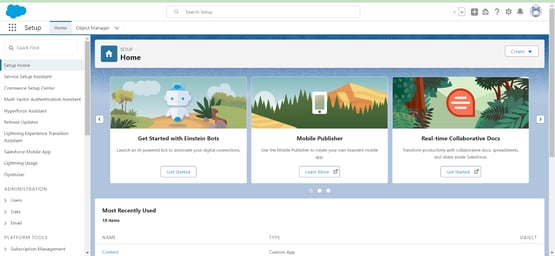
Step 1: Navigate to the Home page after logging into your Salesforce account.
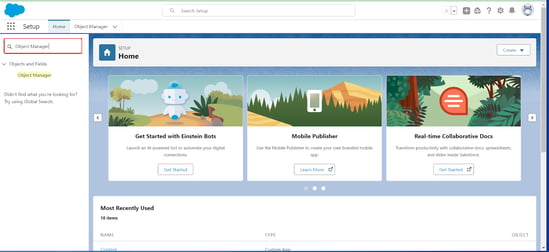
Step 2: Next, use Quick Find to search for "Object Manager" and then select it.
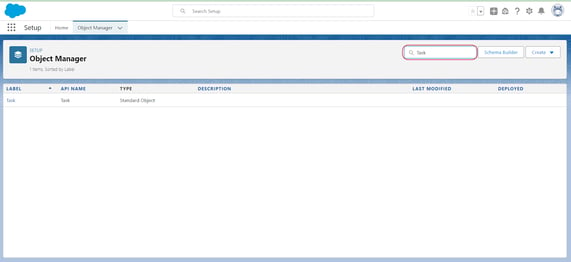
Step 3: You must type Task into the quick find section and select the search result "Task" in the following step.
Step 4: Click on the Field & Relationship option on the task page now.
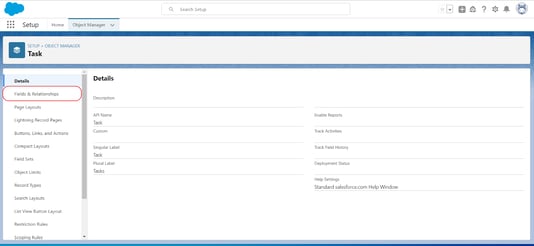
Step 5: Search Type in the quick find and click on the Type option.
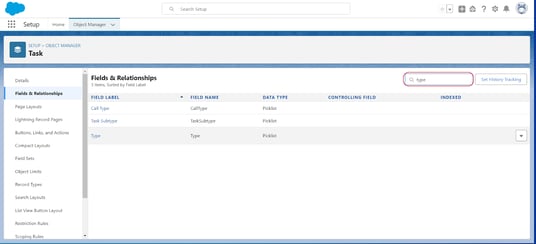
Step 6: Now on the Type page click on the Set Field-Level Security option.
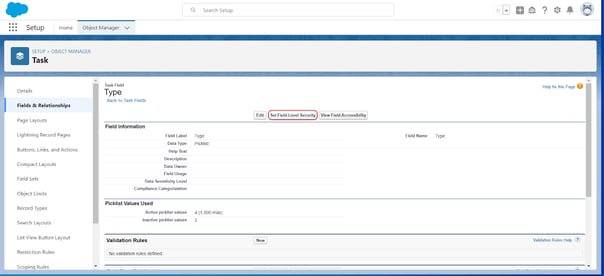
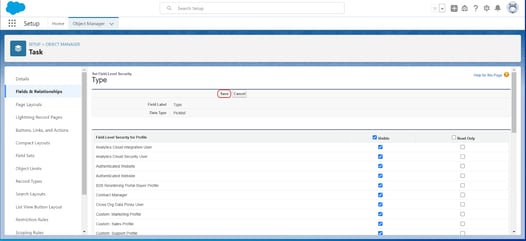
Step 7: Next up, you will be directed to this page, and you need to click on the check box called Visible.
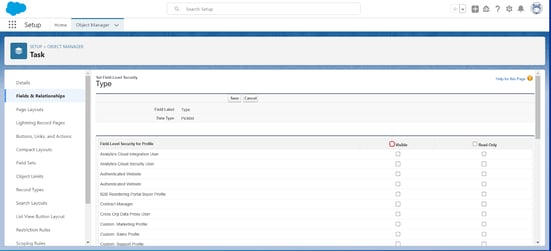
Step 8: Click the Save button once the Visible button has been clicked and as a result, Salesforce will display all of your SMS activity.