
Bullhorn CV in Cadence.
Prerequisite:
- Your Cadence account should be connected to the Bullhorn CRM
About:
The article provides a comprehensive guide on how to upload a CV (resume) from Cadence to Bullhorn CRM. This integration streamlines the process of managing candidate information and resumes by connecting the two platforms.
Uploading the CV in Bullhorn from Cadence:
These are the steps through which you can upload the CV in Bullhorn through Cadence.
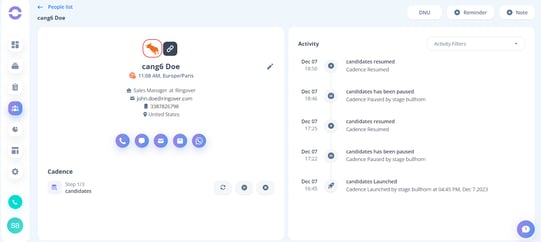
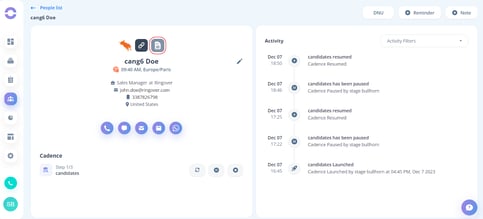
Step 1: Go inside any prospect on your Cadence account and click the Bullhorn icon.
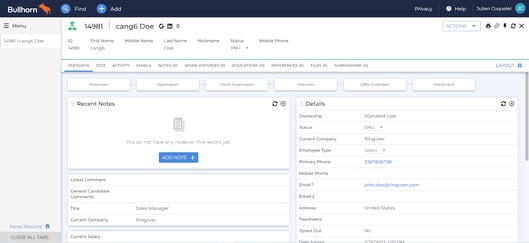
Step 2: Following that, you will be redirected to CRM.
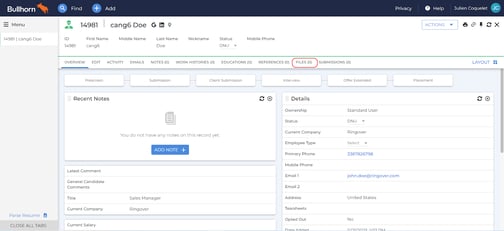
Step 3: You now need to proceed to the files tab.
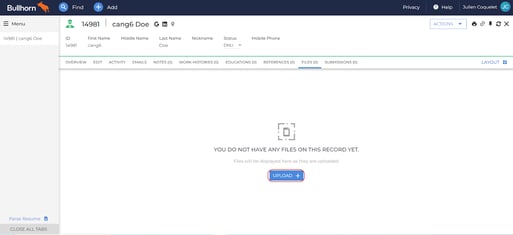
Step 4: Click on upload.
Step 5: In the next step, you must choose between a Resume and a Formatted Resume in the file type section after uploading the CV from your device.
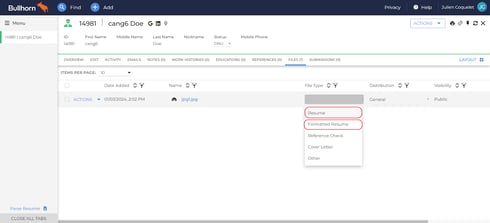
Step 6: Once your resume has been properly uploaded to Bullhorn, you can also see it on Cadence. On your prospect page, click the CV icon to view the CV.
- The supported file extensions are:
The supported file extensions are png, jpg, jpeg, and pdf.
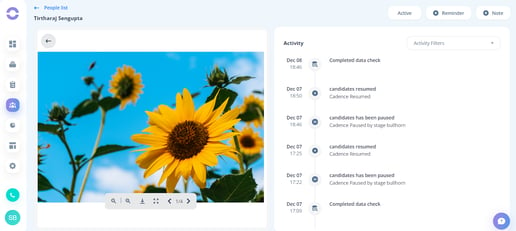
- png/ jpg/ jpeg: This is the visual representation of a jpg/ png/ jpeg-type CV
-
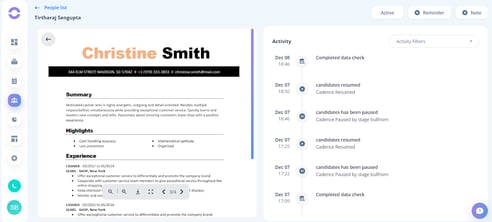
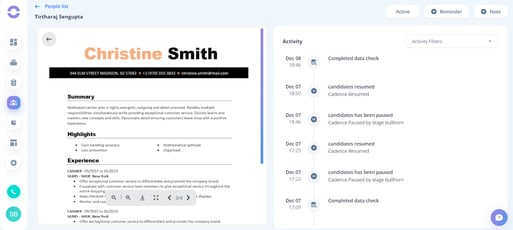
pdf: This is the visual representation of a pdf-type CV.
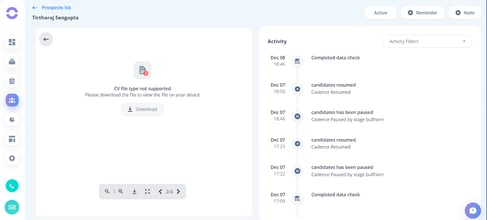
- CSV: The preview mode does not support the CSV file format. You can still download the file to your device.
- Functionalities of the resume control bar:
The resume control bar has the following features:
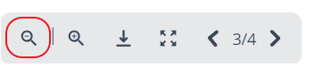
- Zoom out:
This option allows you to zoom out on any PDF. This feature is not supported for image-type files.
-
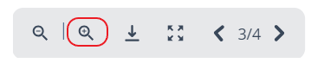
Zoom in :
This option allows you to zoom in on any PDF. This feature is not supported for image-type files.
-
Download:
This option allows you to download files.
-
Expand:
This option allows you to expand files. This feature is not supported for image-type files.
- Previous:
This option allows you to go to the previous page.
- Next:
This option allows you to go to the next page.
