
Clearing your browser cache allows you to resolve loading issues and ensure websites function smoothly. In this guide, you’ll learn how to enable the developer options and quickly clear your data in Safari.
Clear your cache in Safari
1. Enable the Develop Menu
Before you can empty your cache, you need to make the developer options visible in your settings.
Clearing the cache does not delete your browsing history or saved passwords. However, some websites may take a bit longer to load next time as Safari will need to re-download the content.
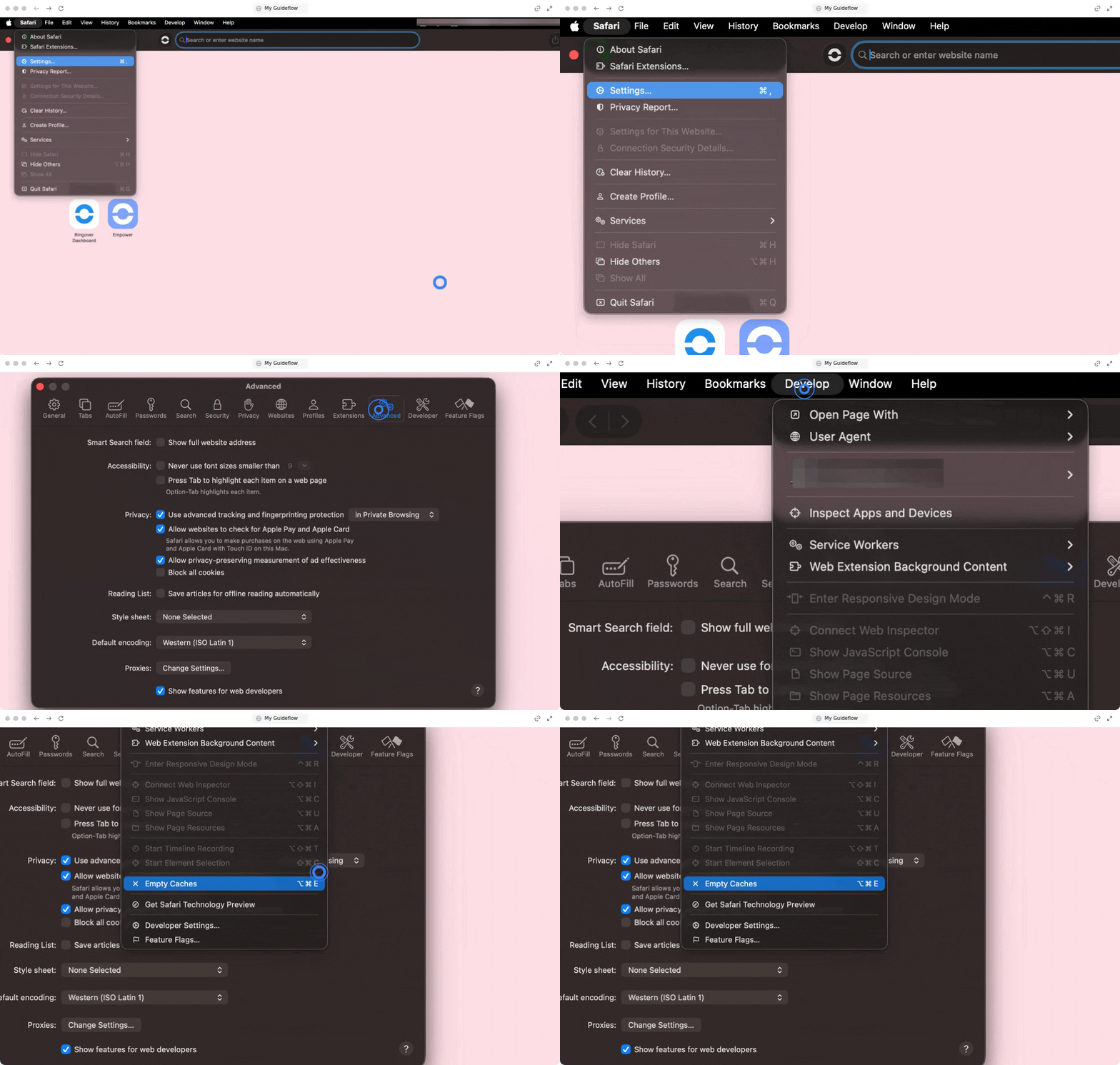
Open Safari on your computer.
Click on Safari in the top menu bar.
Select Settings from the dropdown menu.
Go to the Advanced tab.
Check the box that says "Show features for web developers"
Close the settings window.
Click on Develop in the menu bar.
Select Empty Caches.
🎉 You now know how to clear your cache in Safari and can enjoy a faster, optimized browsing experience!