
The Ringover integration with HubSpot allows you to make and receive calls from anywhere inside HubSpot without losing your connection or interrupting your workflow. In this guide, you’ll learn how to open the calling window on your operating system, manage active calls while navigating records, and troubleshoot dialer connection issues.
Prerequisites
- An active Ringover account with the HubSpot integration enabled.
- Access to your HubSpot portal.
- The latest version of the Ringover dialer installed and updated.
Make and receive calls seamlessly from anywhere in HubSpot
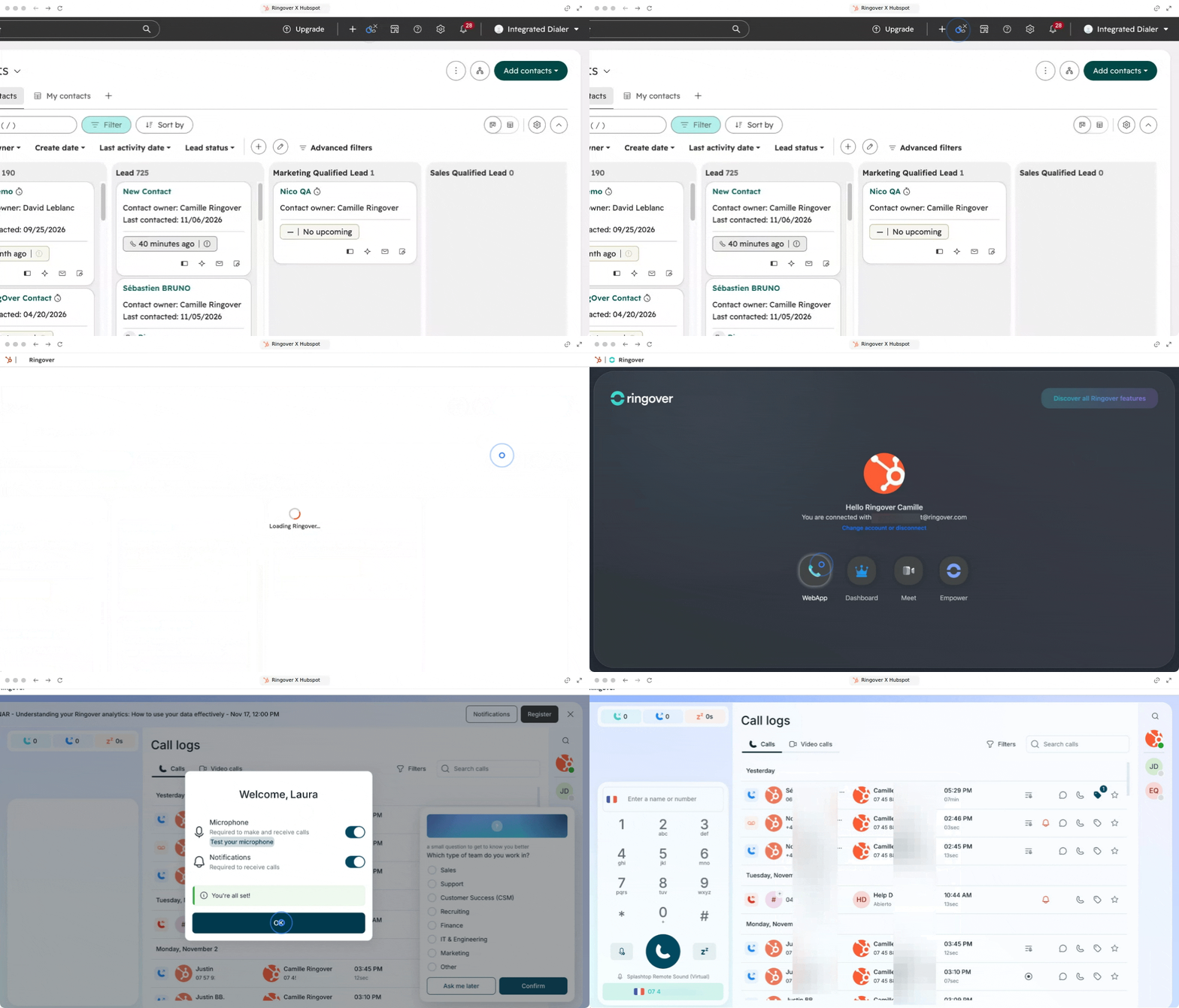
1. Launch the Ringover calling window in HubSpot
Open the dedicated calling window from any page in HubSpot to initiate phone communications.
- Open any contact, company, or deal record in HubSpot.
- Click on the Call (phone) icon in the left panel.
- Select Ringover as your calling provider.
- Click on Open calling window.
Calling window behavior by operating system
Understand how your system displays the active softphone so you can keep the connection live while browsing.
- Windows: The Ringover dialer opens as an independent pop-up window.
- macOS: The Ringover dialer opens in a separate browser tab to connect to your Ringover account.
2. Navigate HubSpot while keeping calls active
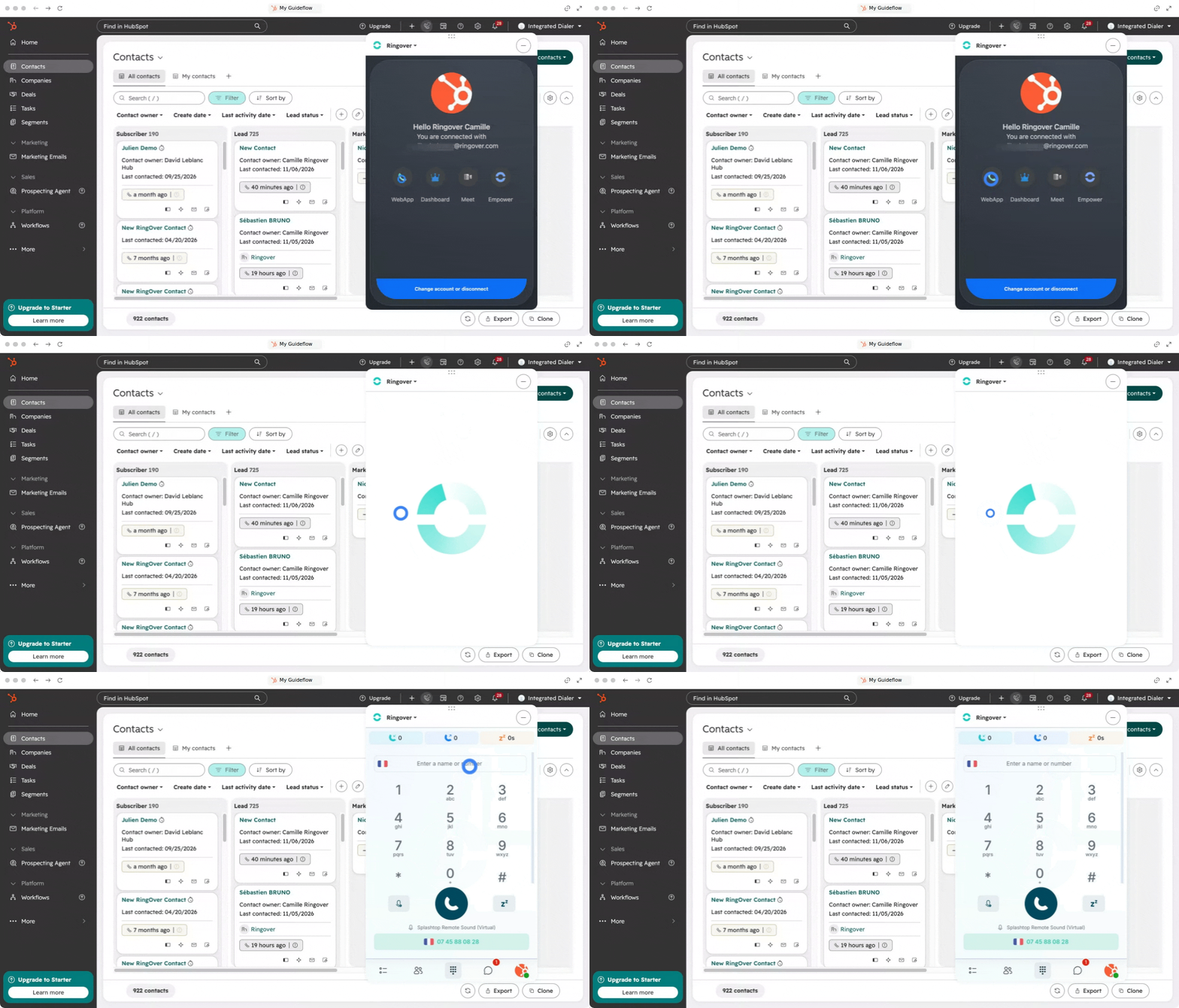
Browse through your CRM records during a live call without dropping the conversation.
- Leave the external calling window or tab open throughout your call.
- Drag your dialer everywhere.
- Navigate freely between contacts, deals, tickets, or reports in your primary HubSpot tab.
- Answer incoming calls directly when the dialer alerts you.
3. Track call activities, notes, and AI summaries
Review synchronized call interactions and logs automatically saved to your HubSpot timelines.
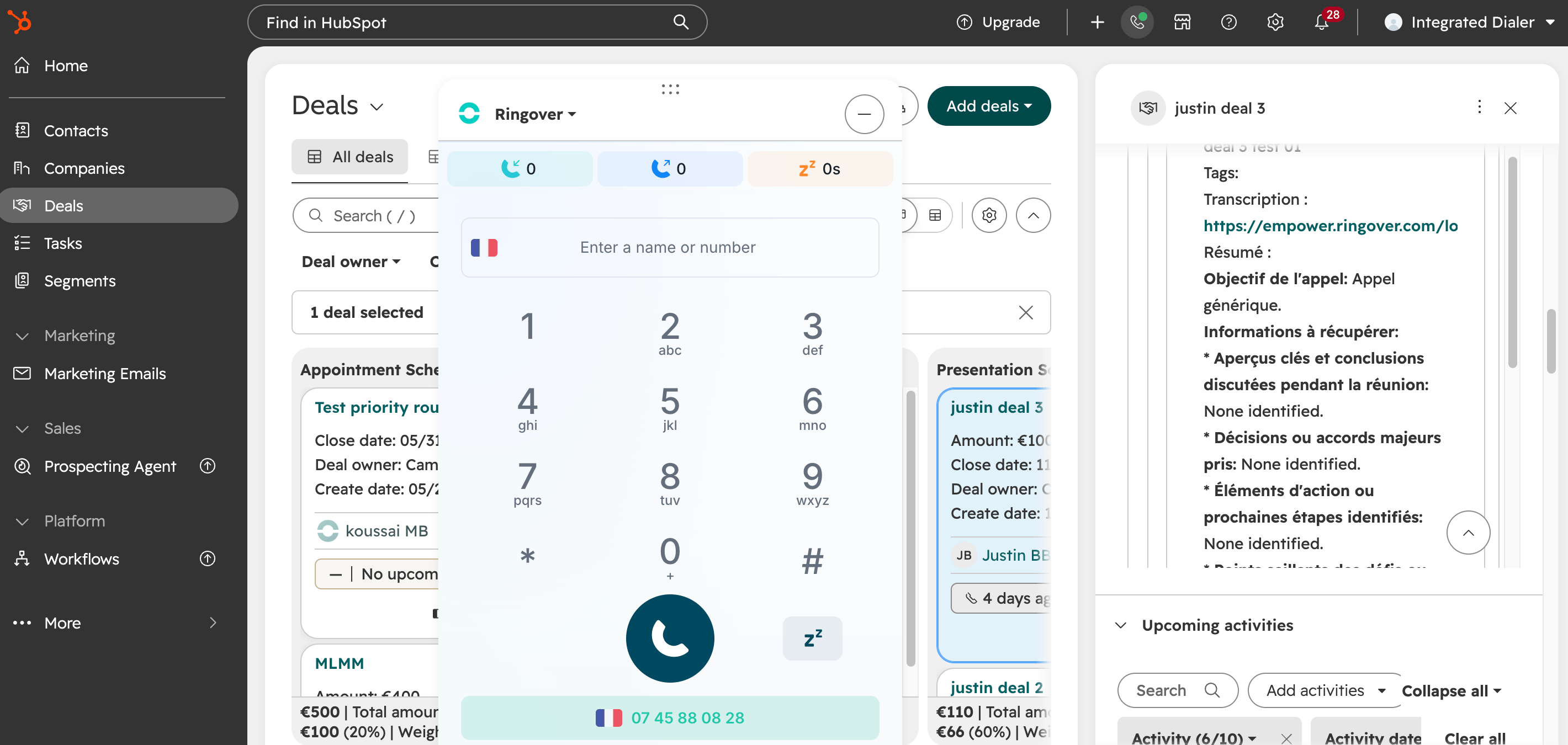
- Take real-time notes directly within the call interface during the conversation.
- Hang up the call once finished.
- Open the contact or company timeline in HubSpot to inspect the logged activity, recording link, and AI-generated summary.
Frequently Asked Questions
I cannot see the new dialer or I am experiencing issues. What should I do?
Please try the following steps:
- Refresh your HubSpot page or open a new browser tab.
- Ensure your browser allows pop-ups and redirects from HubSpot.
- Check that you are logged into both Ringover and HubSpot with the same email address.
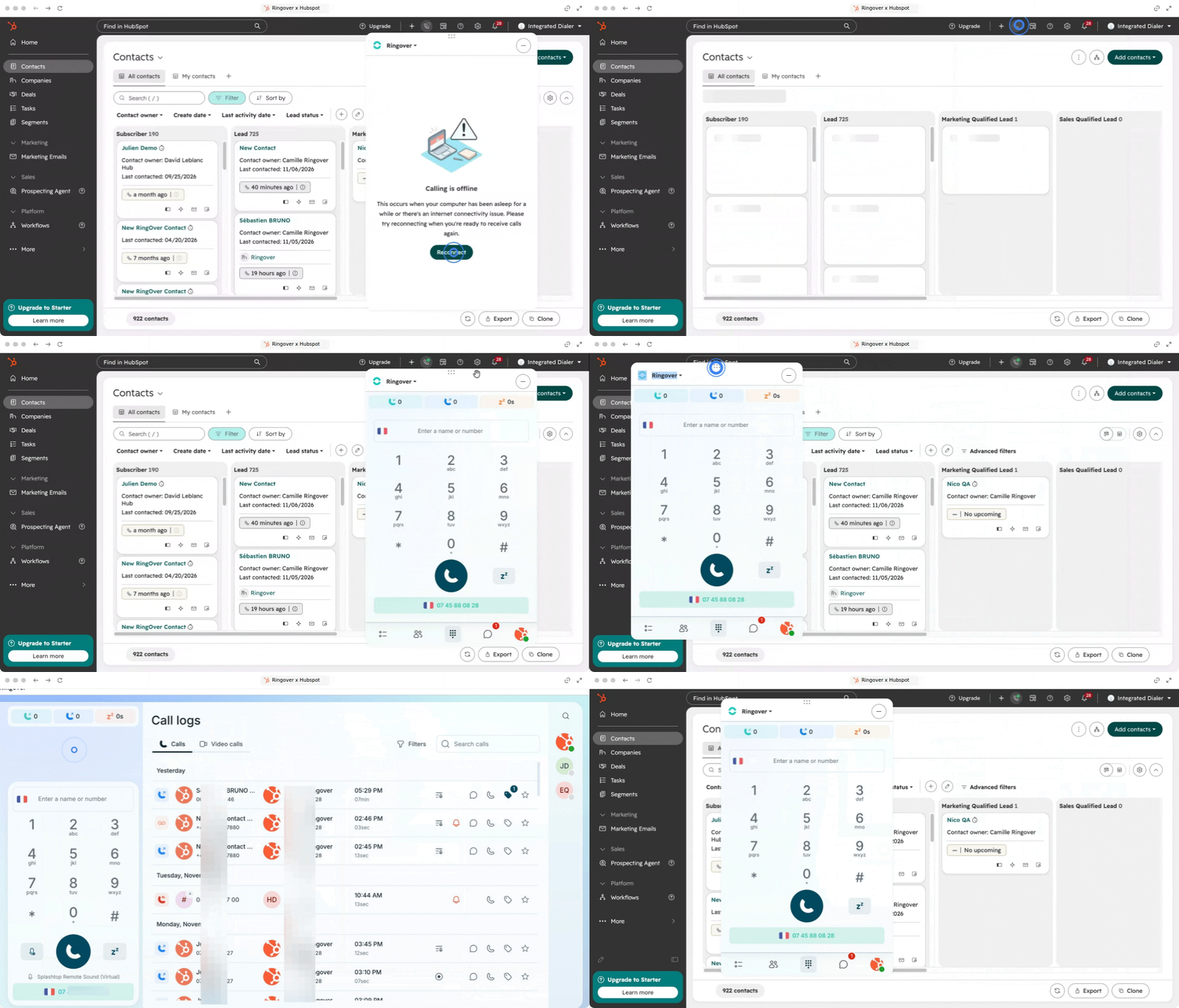
I cannot connect my dialer with Ringover. How do I fix it?
Follow these steps to re-authenticate properly:
- Log out of your Ringover WebApp.
- Check that the separate window dialer is completely closed.
- In HubSpot, click on the phone icon on any contact record.
- Click on Open calling window.
- When the second dialer (the "window dialer") opens, log in to your Ringover account ONLY from this window dialer (do not log in from the embedded HubSpot dialer or the WebApp).
- Refresh your HubSpot web page and your Ringover WebApp.
Why can't I answer calls on the HubSpot dialer?
This indicates that the "window dialer" has been closed or disconnected. Reconnect your account by following the connection procedure described above.
What does the error message "We are unable to connect you. Please try again or contact support" mean?
This error appears when attempting to authenticate through the embedded dialer. Log out, open the external window dialer, and authenticate exclusively from that window dialer.
Why does my dialer disappear when I switch windows in HubSpot?
This is normal behavior. The embedded dialer interface in HubSpot is simply hidden behind your current view, but your connection remains active and ready to receive calls.
Some features of the HubSpot dialer are not visible on the "window dialer". Will this affect logging?
No. Feature visibility differences between the two interfaces do not affect your call records. All calls, notes, and recordings will synchronize correctly with your CRM.
🎉 You now know how to make and receive calls from anywhere in HubSpot and can manage your customer conversations seamlessly without breaking your workflow!