The Ringover integration for Microsoft Teams keeps your two tools in sync in two ways:
-
Bidirectional presence synchronization 🔄 : your Microsoft Teams status and your Ringover status (snooze) stay aligned automatically, in both directions.
- Teams video call logs 📹 : once your users are mapped, the data from your Teams meetings is pulled directly into Ringover.
Prerequisites:
- You must have a Ringover Business or Advanced account to benefit from this integration 💳
- The integration should be installed by a Ringover administrator account
- The integration should be installed by a Microsoft administrator account
Activation
Head to Dashboard > Integrations and click on "Microsoft Teams":
Then click "Activate":
The Teams activation requires authenticating as a Microsoft Teams admin:
Enter your Microsoft account details and click "Sign in".
You will be shown the page where you have to accept the scopes of the integration.
Click the Consent box and accept:
That's it your Ringover x Microsoft Teams integration is activated ! 🎉
Step 1: Link your users
Once the integration is installed, you'll need to map users so that Ringover users and Microsoft Teams users are correctly paired. This step is required for both presence synchronization and video call logs.
From the Microsoft Teams panel, click on "Manage users" :
- If the email of the Ringover user and the Microsfoft Teams user are identical, they will be auto-mapped and appear on the "Automatic" tab
- If this is not the case, you should pair each Ringover user with their Microsoft Teams account, from the "Manual" tab and click "Save".
Step 2: Presence synchronization
Presence synchronization keeps your Microsoft Teams and Ringover availability aligned in both directions, so your colleagues always see whether you're reachablen wherever they're looking.
In the Microsoft Teams setting panel, toggle on Presence Synchronization (Synchronize my Microsoft Teams status with Ringover) to start mapping your statuses.
Microsoft Teams status → Ringover status & snooze
Define the Ringover status (snooze) that should be applied automatically depending on your Teams status. Most mappings are editable, so you can adapt them to your own snooze labels.
Default mapping:
| Microsoft Teams status | Ringover status (snooze) |
|---|---|
| 🟢 Available | Available (not editable) |
| 🔴 Busy | Doing admin tasks (editable) |
| ⛔ Do not disturb | In a meeting (editable) |
| 🟡 Be right back | Other (editable) |
| 🟡 Away | Other (editable) |
| ⚪ Offline | End of day (editable) |
Ringover status → Microsoft Teams status
Your Teams status is also updated automatically based on your call activity in Ringover, so your colleagues in Teams can see when you're on a call.
| Ringover status | Microsoft Teams status |
|---|---|
| In call | 🔴 In call (not editable) |
Good to know: mappings marked (not editable) are fixed and cannot be changed. To stop syncing your statuses at any time, simply toggle off Presence Synchronization.
Step 3: Microsoft Teams video call logs
📹 Once your users are mapped (Step 1), the data from your Microsoft Teams meetings is pulled directly into Ringover, where you can review your Teams call activity alongside the rest of your communications.
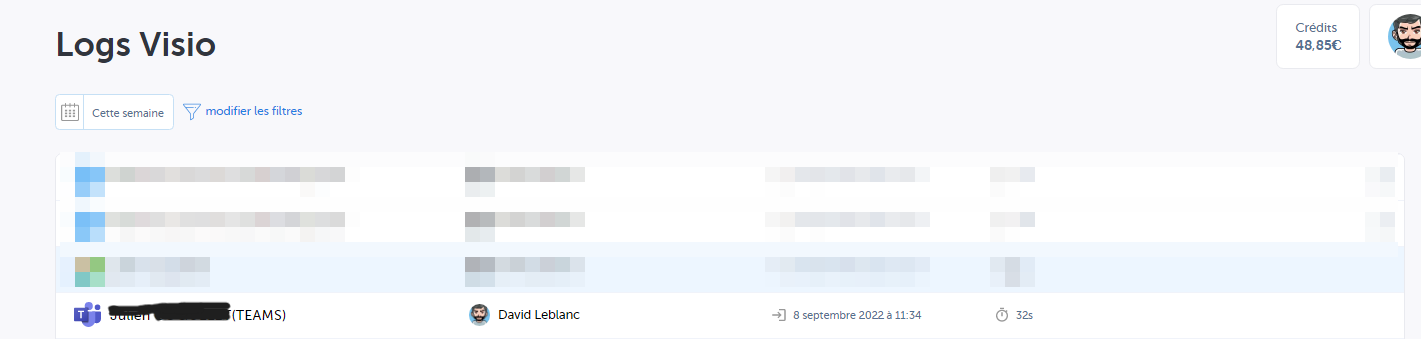
Good to know: approximately 15 minutes after the end of a meeting, a Teams meeting log will be created on the Ringover Dashboard page. Currently, only audio call data will be synchronized with your Ringover account.