How does the integration work?
With the Ringover Talk and Odoo integration, your contacts are automatically synced and will appear on the dialer during incoming calls.
You’ll instantly see the contact’s first name, last name, company, and a direct link to their Odoo profile. These details also appear in your call log for each inbound and outbound call.
How to set up the integration
Step 1: Generate an API Key in Odoo
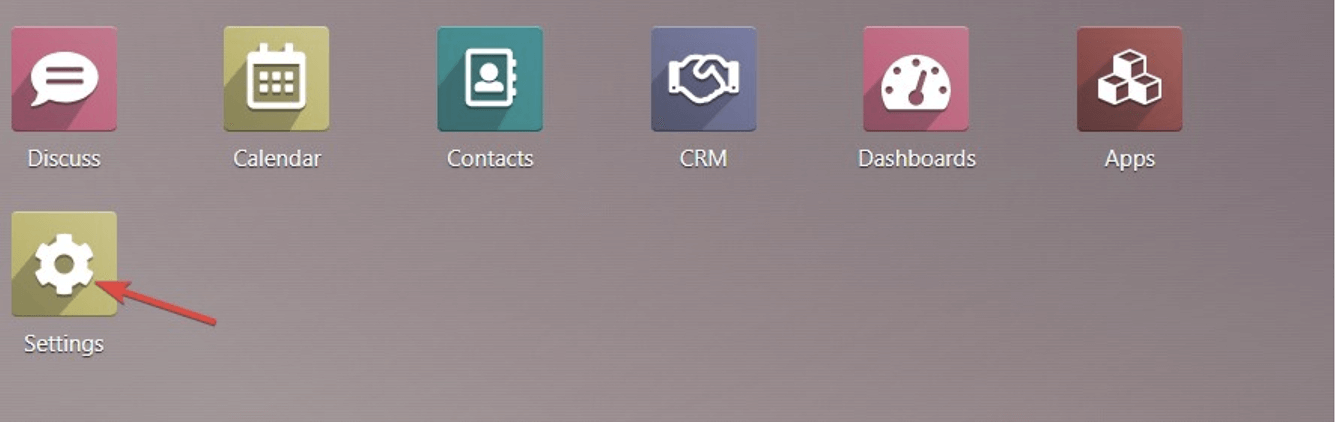
- Then, click on Activate the Developer Mode.
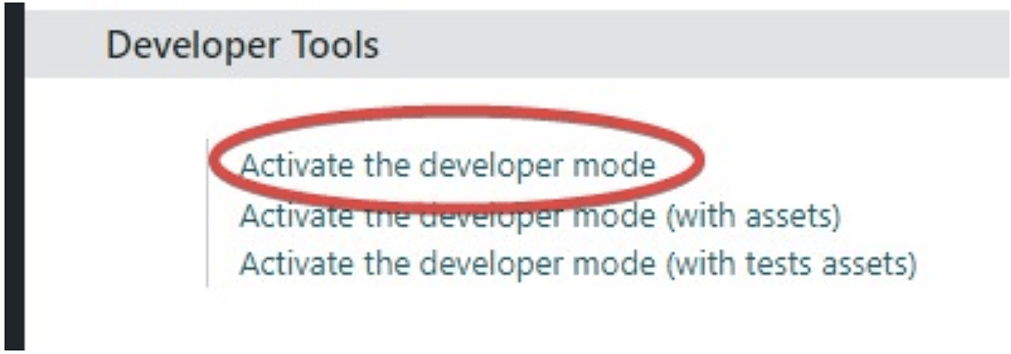
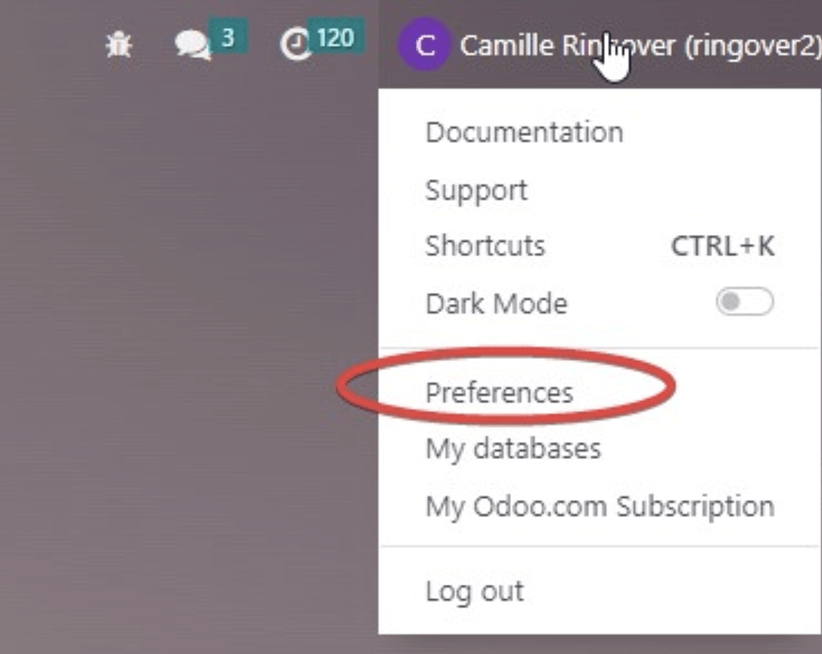
-
Go to the Account Security tab and click on New API Key.
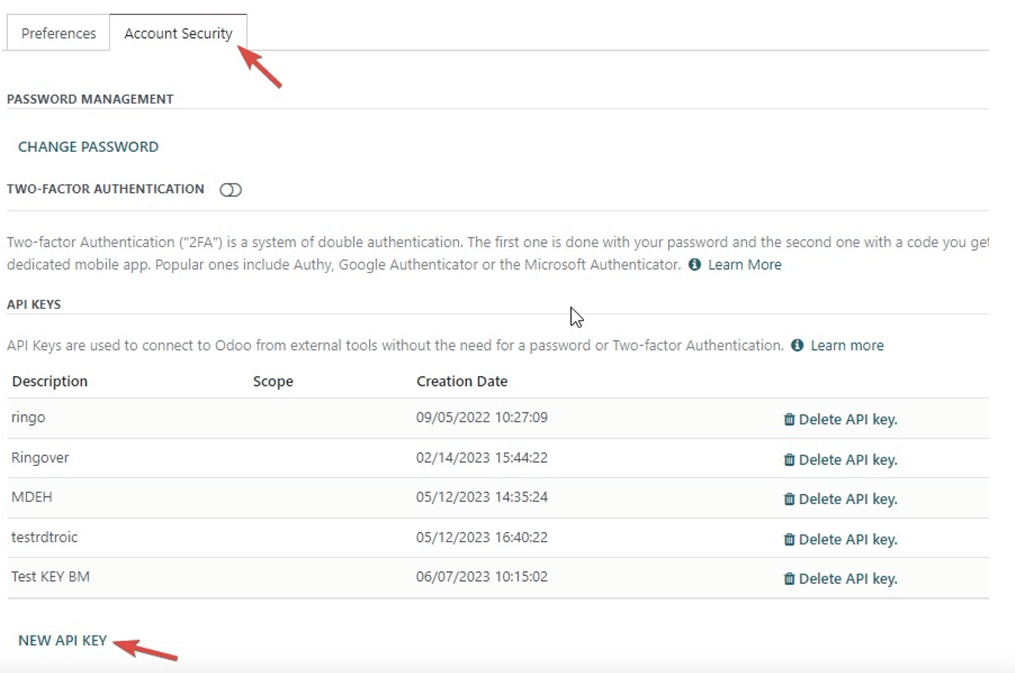
- Name it "Ringover Talk" and click on Generate Key.
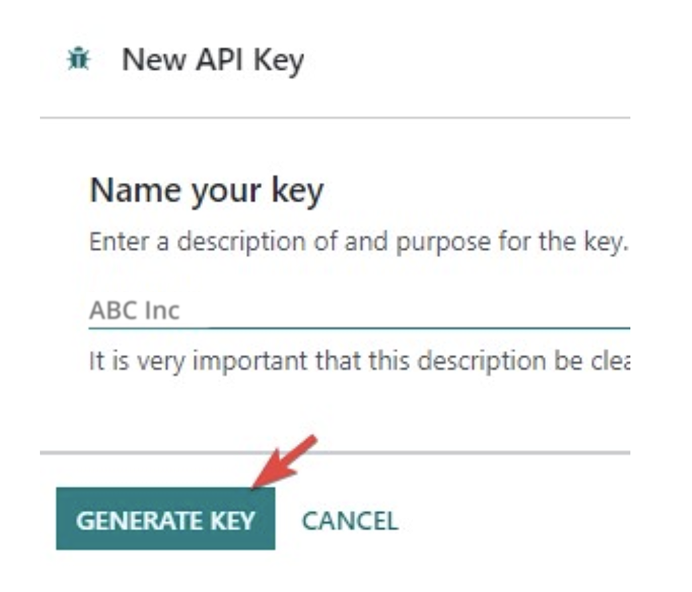
- Copy this key and save it, as you will need to enter it in the API Key field when activating Odoo on your Ringover Talk account.
Step 2: Configuration in Ringover Talk
- Go to your Integration section and click on Activate on Odoo.
- This window will open:
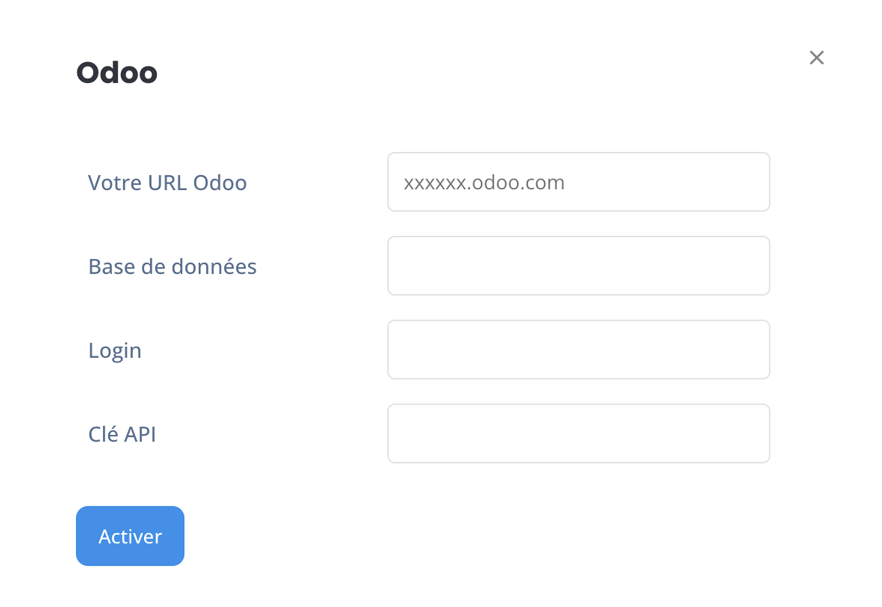
- For your Odoo URL, be sure to include the full URL with https:// (example: https://ringovertalk.odoo.com)
How to Find Your Database Name in Odoo
To complete the integration, you need the exact name of your Odoo database. Follow these steps to locate it:
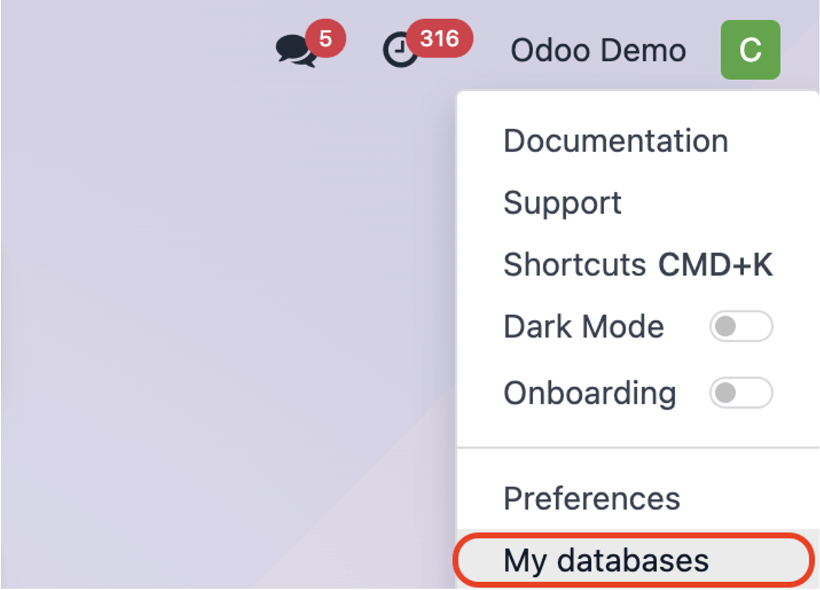
- Click on your profile picture or avatar in your Odoo account.
-
Select My Databases.
-
Copy the exact database name you want to activate.
❌ Do not copy any additional numbers or text—only the name as it appears in the Databases column.
-
Then, enter your Odoo Login and API Key and start the connection.
And that’s it, the integration is complete !