Jira is a project management platform primarily used for software development and task management. It enables teams to plan, track, and manage their projects collaboratively by assigning tasks, monitoring progress, and handling issues.
Integrate Jira with Ringover allows you to:
Speed up issue resolution thanks to automatic ticket creation (with notes, tags, recordings, AI summary, and transcription)
Centralize call data in Jira for better project tracking
Never miss a lead or an issue: callback requests from your IVR can be instantly logged in Jira
Now, let’s move on to setting up the integration 📳
Prerequisites:
You must have a Ringover Business or Advanced account to use this integration 💳
The integration must be set up by a Ringover administrator account 👨💼
The integration must be set up by a Jira administrator account 👨💼
For the integration to work for a user, their Ringover account email address must be identical to their Jira account email address
Step 1: Create an API key in Jira
This assumes you are using Jira Cloud (not Jira Server/Data Center).
- Go to your Atlassian account
- Go to https://id.atlassian.com/manage-profile/security
- Under "API token", click "Create and manage API tokens"
- Generate a new API token
- Click “Create API token”
- Give it a name, e.g.: "Ringover integration"
Click “Create”
Step 2: Enable in Ringover
💻 Go to your Dashboard / Store / Integrations
Search for "Jira" and click on it
Enter your Jira details in the pop-up window.
1. Your Jira instance URL
2. Jira admin email
3. The API key created for Ringover in Jira*
Click 'Enable'
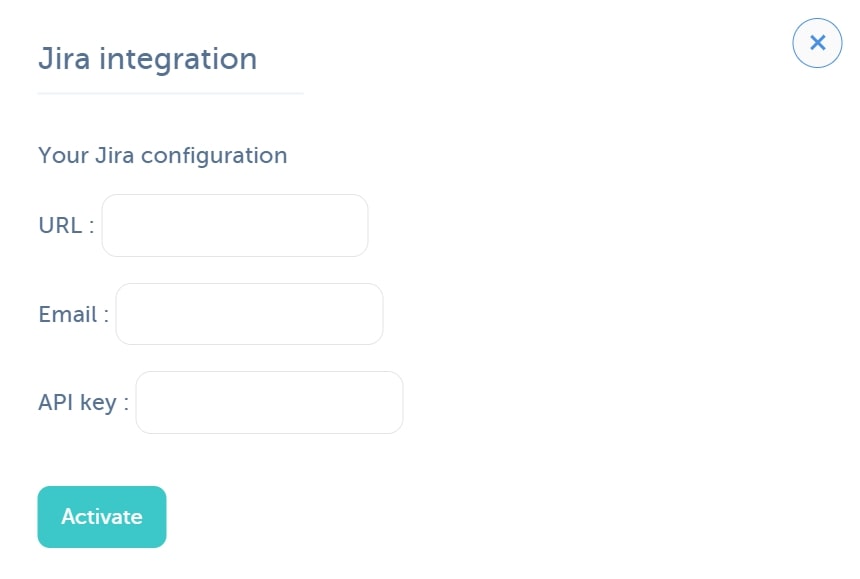
Step 3: Ticket configuration
The “Manage tickets” section lets you automate Jira ticket creation from your Ringover calls or SMS messages.
Click 'Manage tickets'
Click 'Add' to create your first ticket creation rule
In the first dropdown menu, choose which event should trigger ticket creation: Call or SMS
In the second dropdown menu, choose which type of event should trigger ticket creation. For calls, for example: Outbound, Inbound, Answered, Missed.
In the third dropdown menu, select the IVR (optional) that should trigger ticket creation.
Note that IVRs can be created and edited on your dashboard IVR page.
If you want to use this for standard calls that do not go through an IVR, leave this field blank.
Then, if you selected an IVR as the ticket creation source, you can define whether specific IVR queues/scenarios should trigger ticket creation. To do so, copy the IVR queue IDs into “Scenario IDs”, separated by commas.
If you leave this field blank, ticket creation will be triggered by the selected IVR regardless of the queue/scenario.
These IDs are available by opening your IVR, clicking the gear icon next to the scenario name, then next to the queue name. You can copy the ID as shown below:
Finally, fill in 3 more fields:
1. Your Jira project name (required). This must be the actual project name (in brackets in Jira), not the label. Example:
2. Jira ticket type ID (required)
To find your ticket type ID:
In Jira, go to Project settings > Issue types
Click an issue type to edit it
Look at your browser address bar. You will see something like:
Copy the number after “id=”
3. Your Jira labels (optional)
They must match the exact names of the existing labels in Jira. You can enter several, separated by commas.
Click 'Confirm' to save your ticket creation rules.
Step 4: Link users (User mapping)
Important: for the integration to work properly, you must complete this step after setting up ticket creation (Step 3).
Make sure Ringover users are correctly linked to their corresponding Jira accounts.
This step is essential to ensure activities are properly reflected on your Jira board.
Step 5: IVR callbacks
If you enable this option in your IVR, callers will be able to leave the queue and request a callback.
By default, this request creates a ticket in Jira with the “callback_Ringover” tag. This tag can be changed according to your preferences.
Step 6: General configuration in Ringover
Configure the integration according to your needs. For more information about configuration, check out our dedicated section "How to configure your tool?"
That’s it: Ringover is now integrated with Jira! 🎉