To ensure optimal use of Ringover on mobile, we recommend configuring the application by following the steps below, in order.
1. Profile
From the Profile tab:
Check that your information (name, photo, status) is up to date.
Make sure you are set to Available during your working hours.
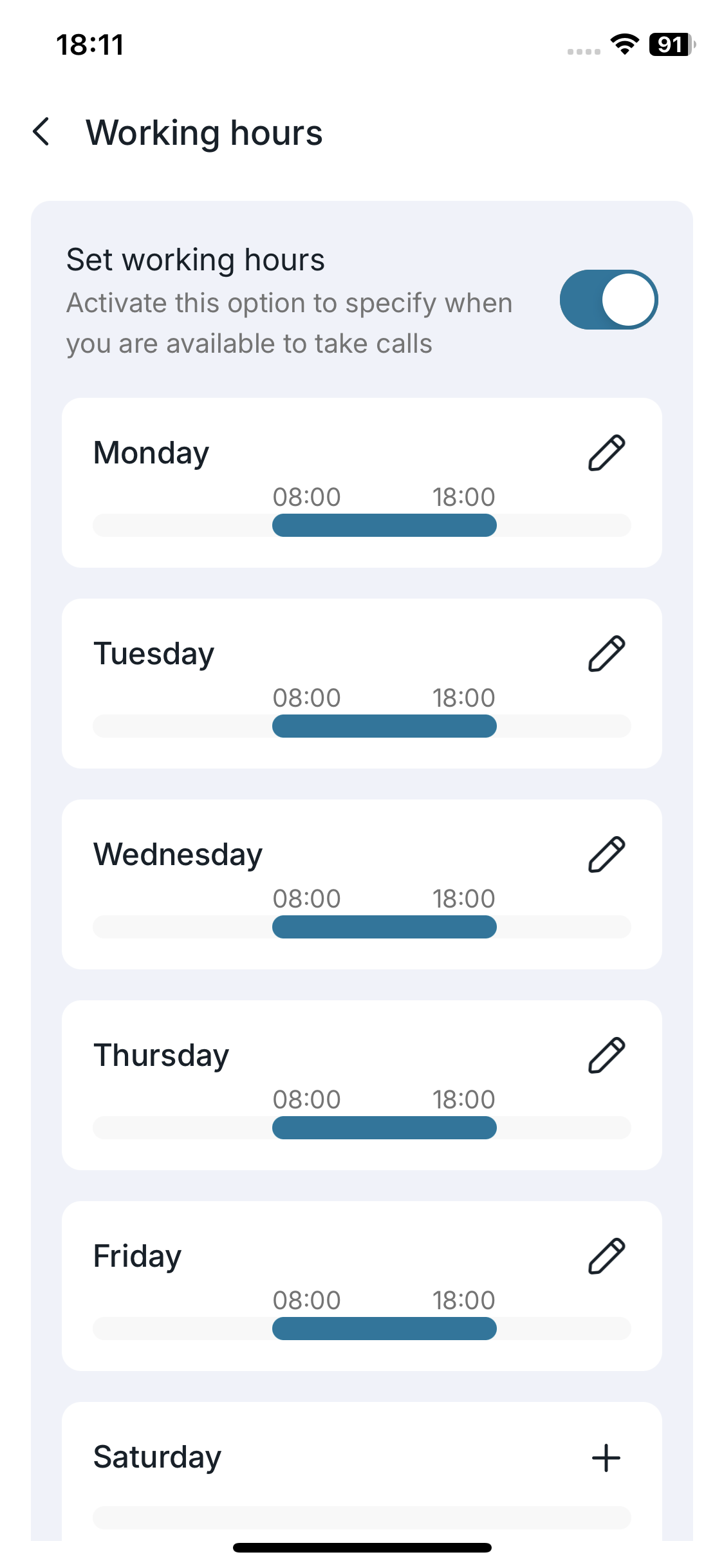 2. Working hours
In Working hours:
- Enable the Manage your schedule option to specify your availability.
- Set your start and end times for each day.
- Add extra days if you work on weekends.
A good configuration of your working hours improves call handling and prevents requests outside working time.
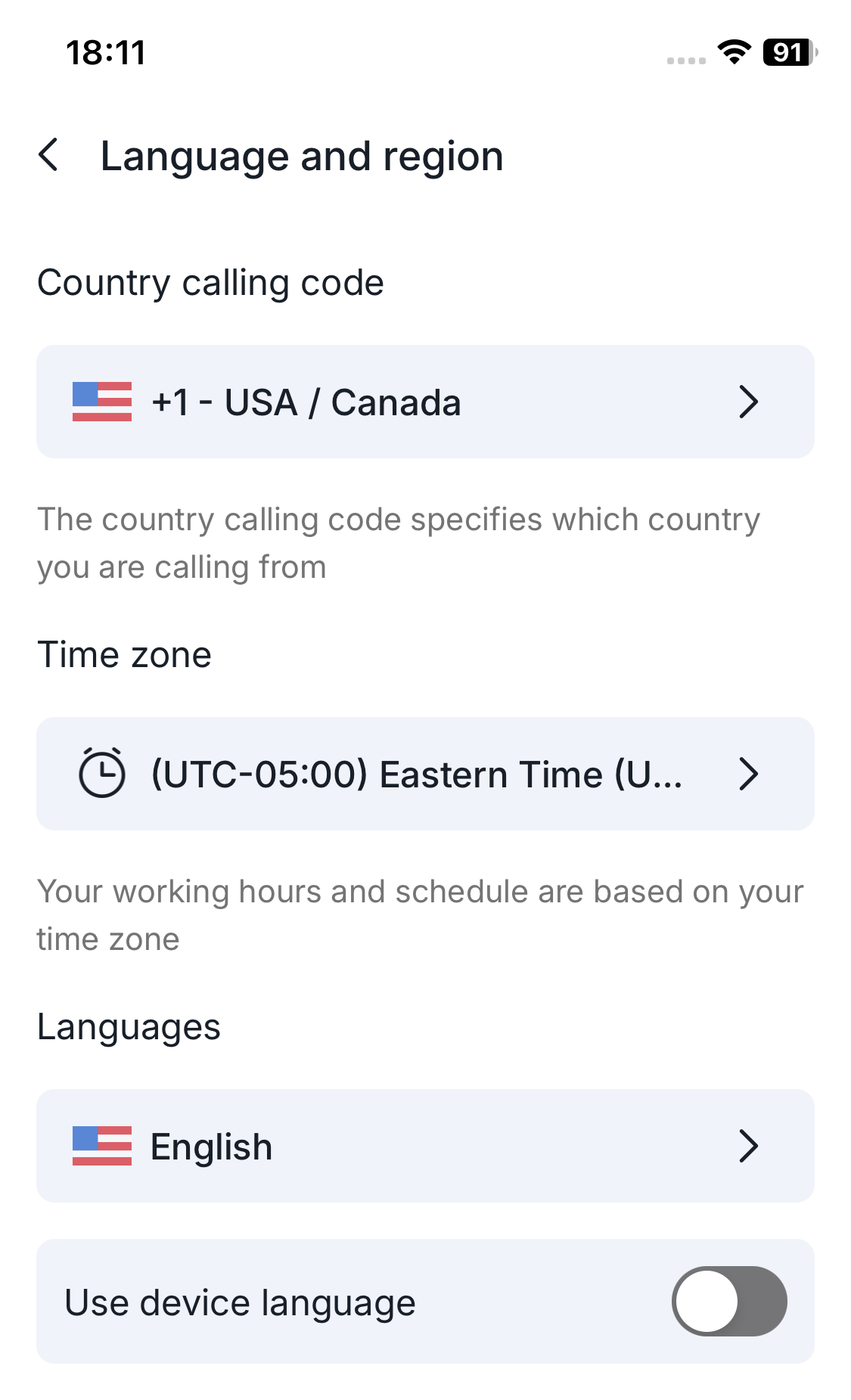 3. Language and region
In Language and region:
- Check the international dialing code for your outgoing calls.
- Select the correct time zone for your schedule and notifications.
- Choose the app language or enable Use device language.
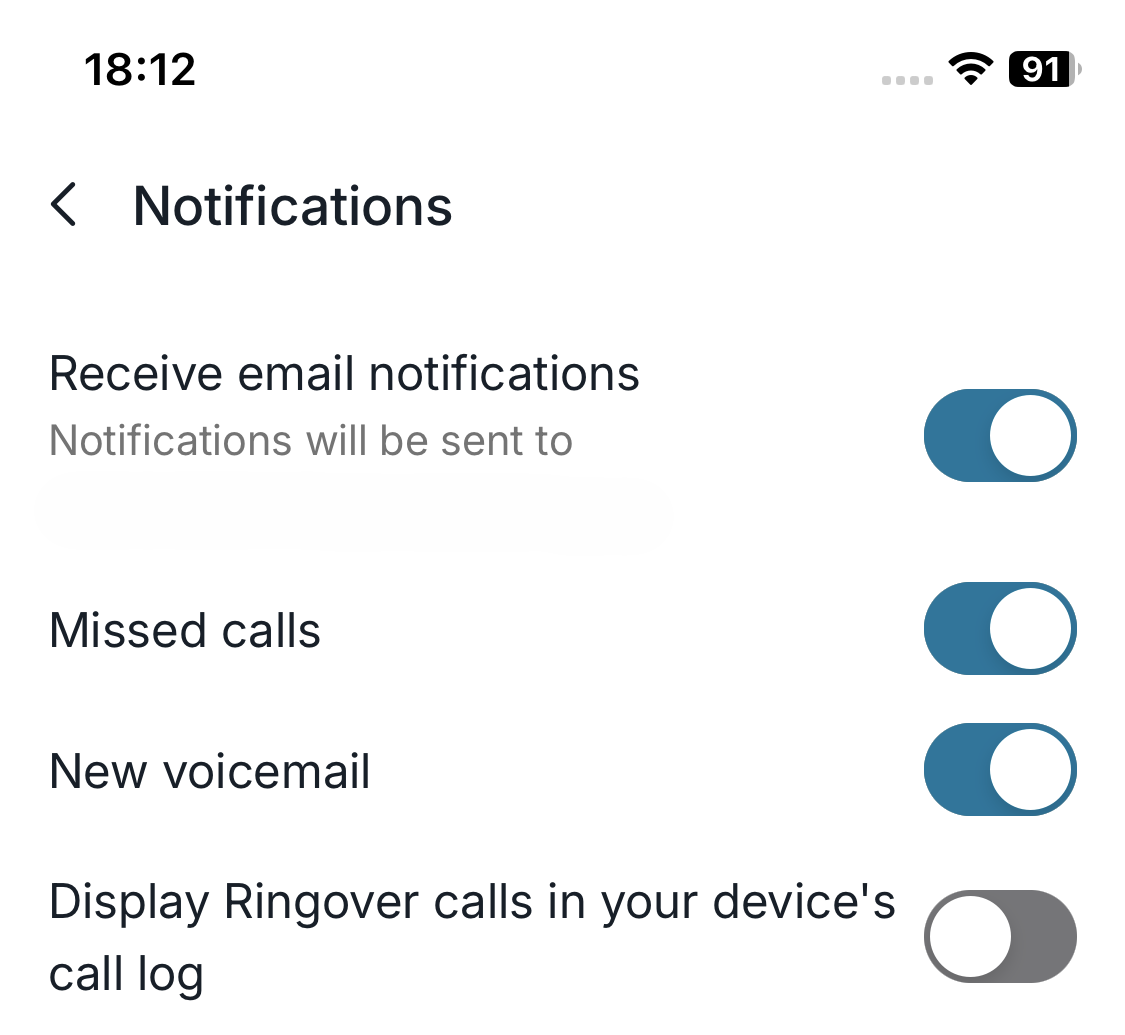 4. Notifications
In Notifications, we recommend:
- Leaving notifications enabled for missed calls.
- Enabling alerts for new voicemail messages.
- Enabling email notifications, if needed.
- Disabling Show Ringover calls in your device's call log if you want to avoid duplicates in your phone history.
5. Phone permissions
In Permissions, make sure Ringover has the necessary authorizations:
- Microphone so callers can hear you.
- Contacts to use your address book.
- Notifications to receive alerts.
- Images, Videos and Camera if you share files in your conversations.
If a permission is denied at the phone level, click the Settings button to adjust it in the system settings.
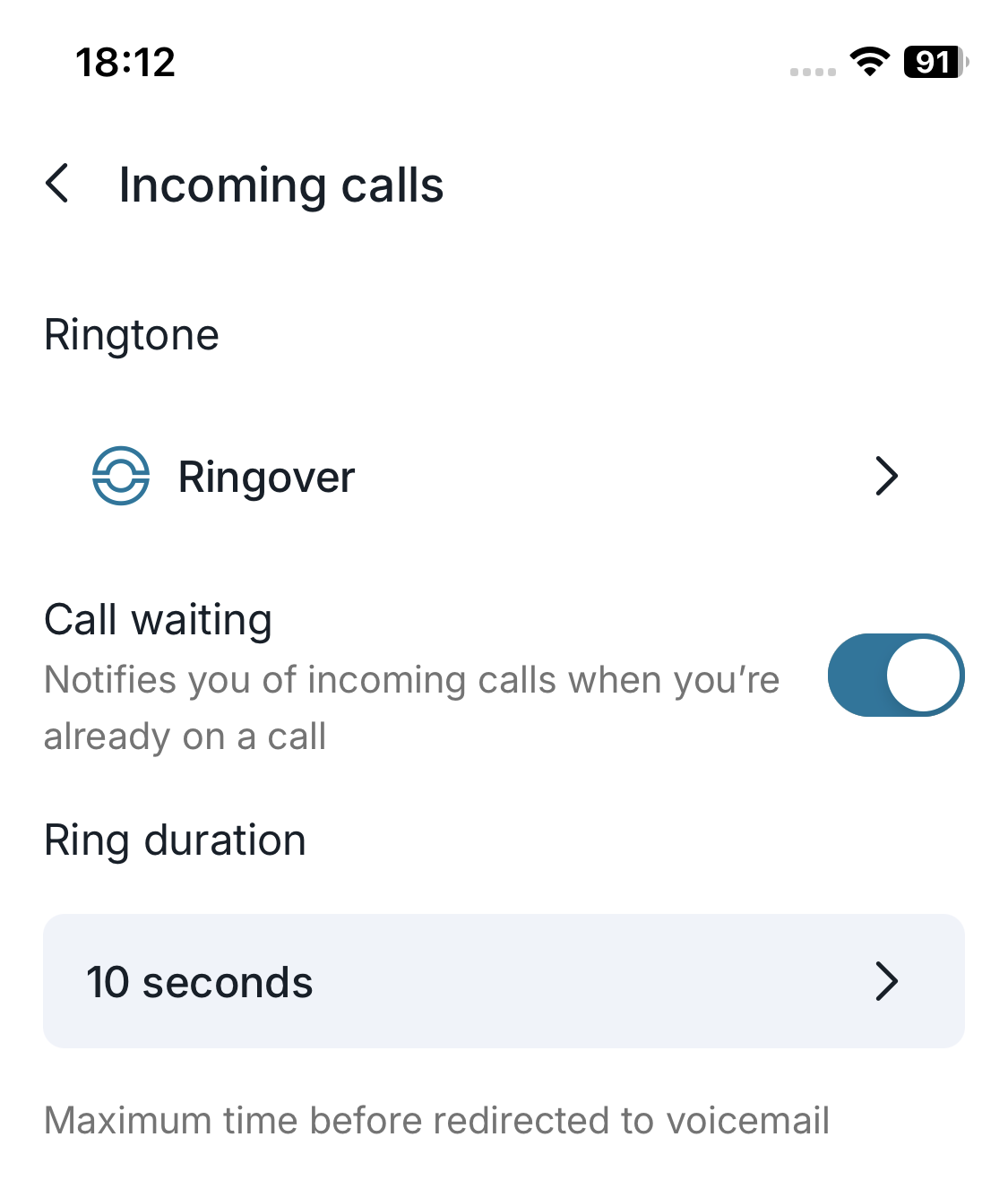 6. Incoming calls
In Incoming calls:
- Choose an easily recognizable ringtone.
- Enable Call waiting to be notified of a new call while already on a call.
- Adjust the ring duration (e.g., 10 seconds) before redirection to voicemail.
 7. Outgoing calls
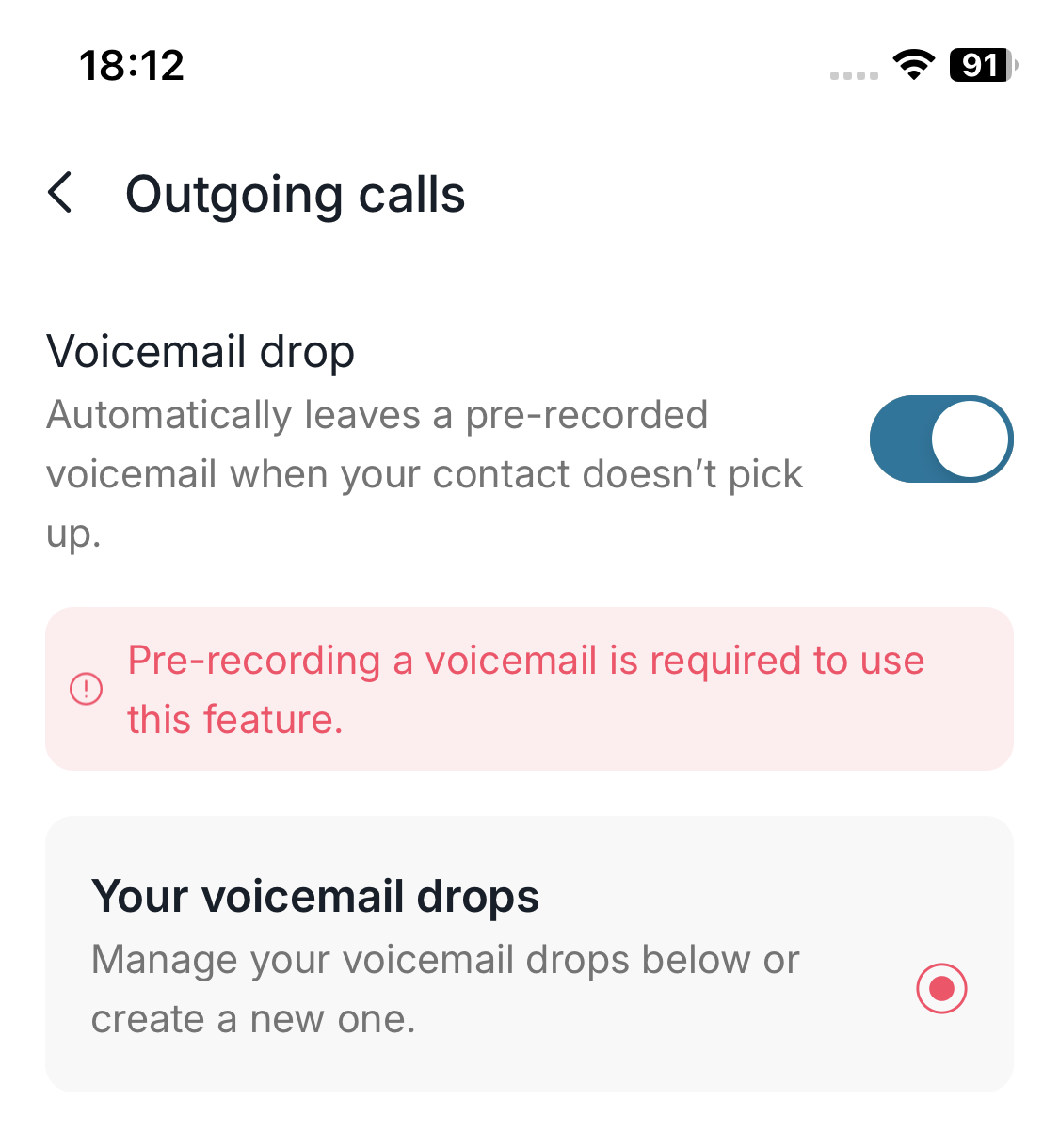
In Outgoing calls:
- Enable voicemail drop if you often reach voicemail boxes.
- Record a clear and professional voicemail message in the Your voicemail drops section.
 8. Voicemail
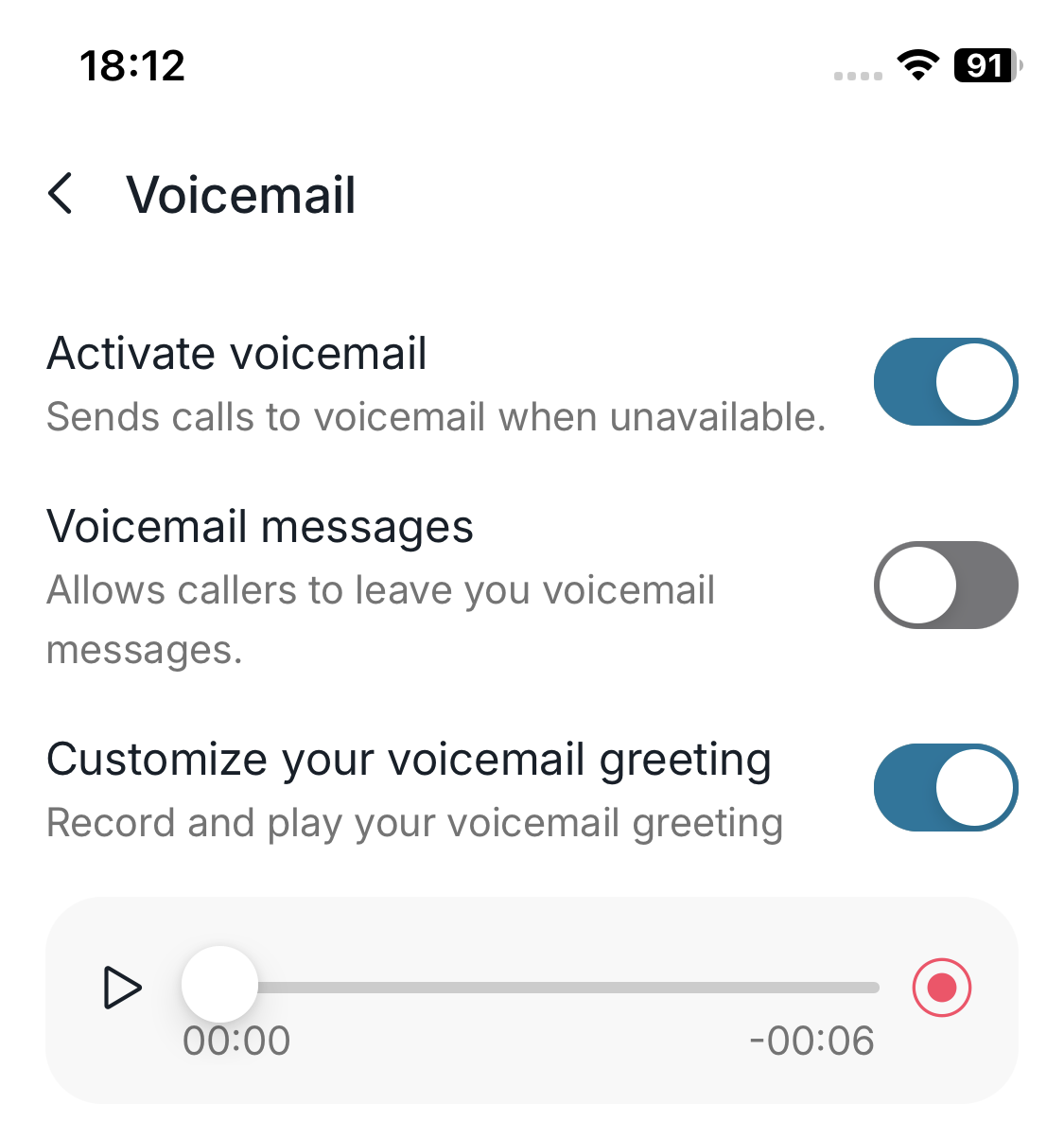
In Voicemail:
- Enable your voicemail so unanswered calls are redirected.
- Allow voicemail messages so callers can leave you a message.
- Personalize your voicemail greeting by recording it from the app.
A personalized greeting improves how your service is perceived.
 9. Call forwarding
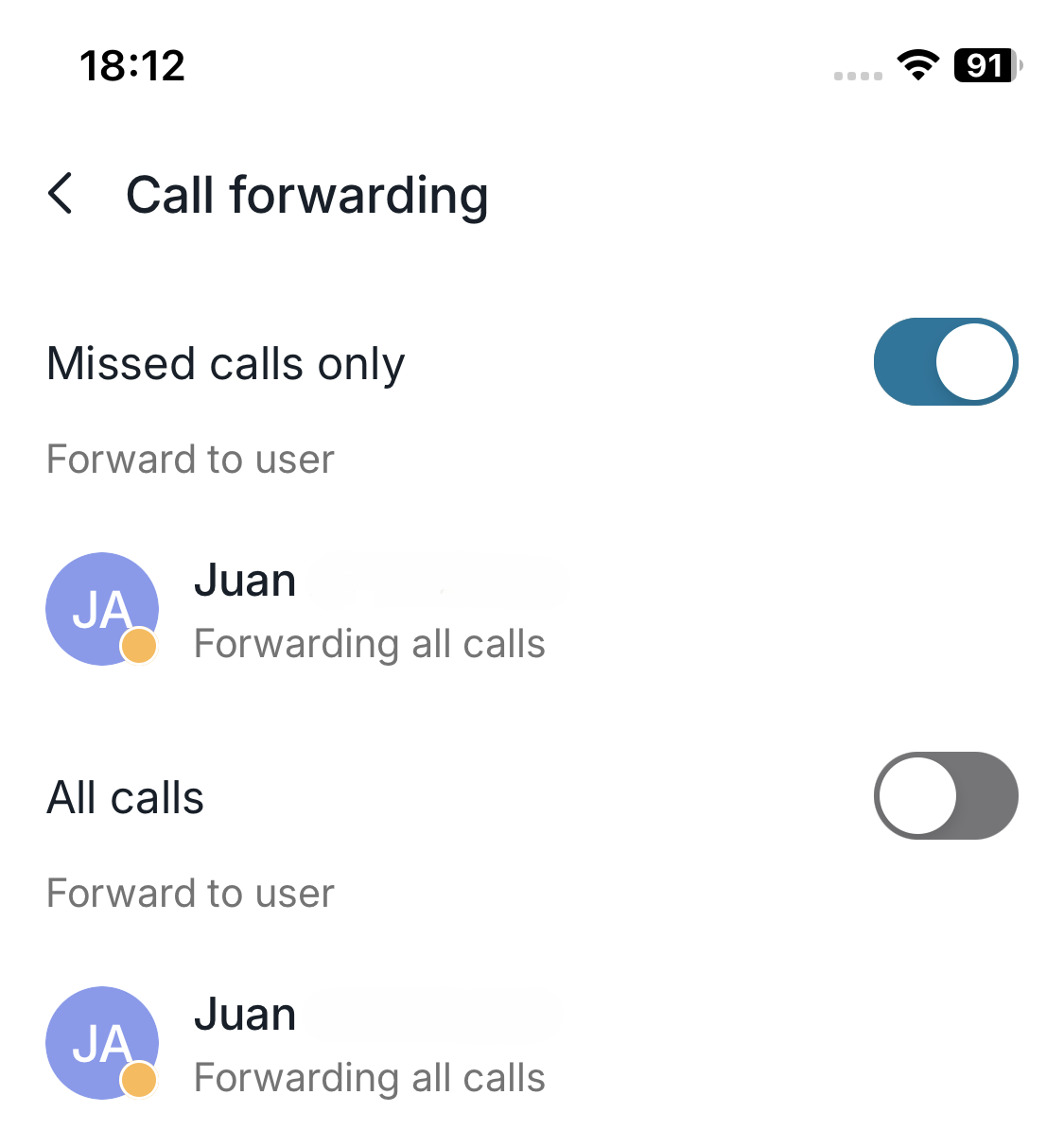
In Call forwarding:
- Choose Missed calls only to ensure service continuity while keeping control over your calls.
- Choose All calls if you want to systematically redirect your calls to another user.
 10. Blocked numbers
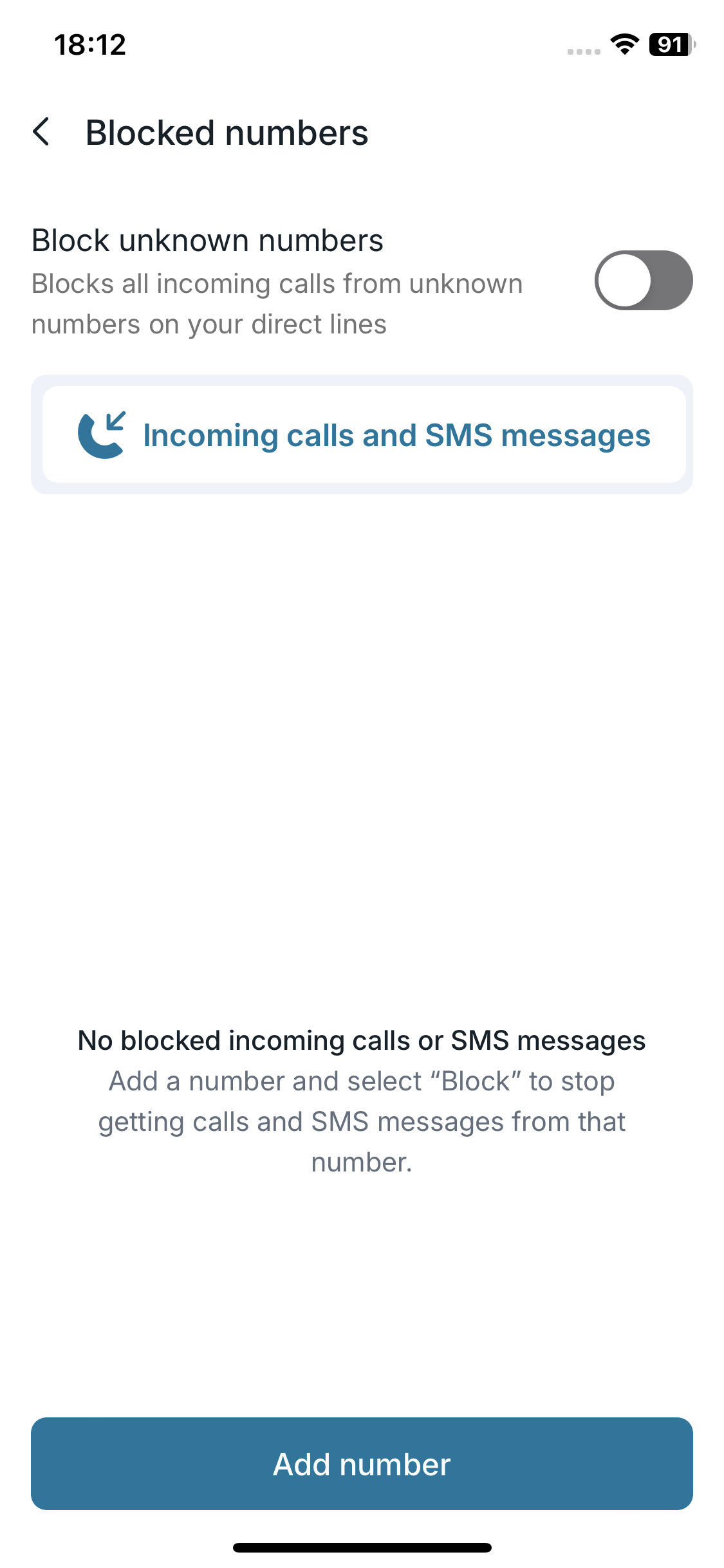
In Blocked numbers:
- Enable blocking of hidden calls if you do not wish to receive anonymous calls.
- Add specific numbers to the list to stop receiving their calls and SMS.
Conclusion
We recommend checking these settings during your first login or after an app update. A complete configuration ensures a smooth, professional, and uninterrupted Ringover experience on mobile.