How do I set up the integration?
Important: This integration is activated only on request.
Please contact support at support@ringover.com to request activation.
Once activated, it will appear in your Ringover Dashboard as Zoho.
Prerequisites:
You must have a Ringover Business or Advanced account to use this integration.
The integration must be set up using a Zoho CRM and Zoho One administrator account
For the integration to work, the email addresses of Ringover accounts must be identical to those of Zoho accounts
To ensure the integrity of your activity logs, do not enable any other standalone Zoho integrations from your Ringover dashboard (Zoho CRM, Zoho Desk, Zoho Recruit, or Zoho Bigin).
Benefits:
A single activation to connect your Zoho CRM, Zoho Desk, Zoho Recruit, and Zoho Bigin products
Logging of your call and SMS activities
Adding notes and tags to Zoho activities
Adding transcription links and AI-generated call summaries to Zoho CRM (automatically) and Zoho Desk (by implementing an automation script provided by Zoho)
Step 1
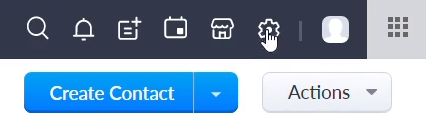
Go to your Zoho CRM and click on your settings
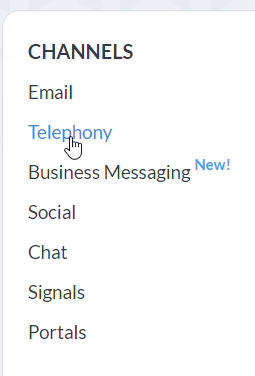
In the "Channels" section, click on "Telephony"
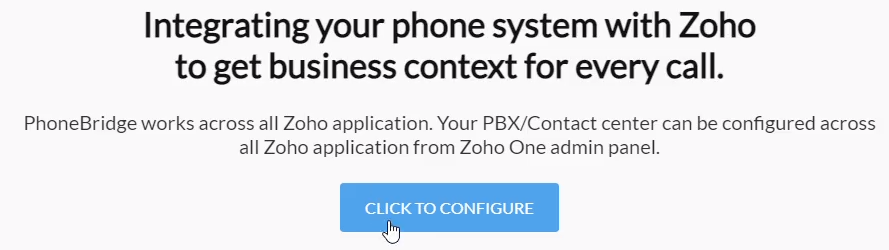
Start the setup by clicking on "Click to configure"
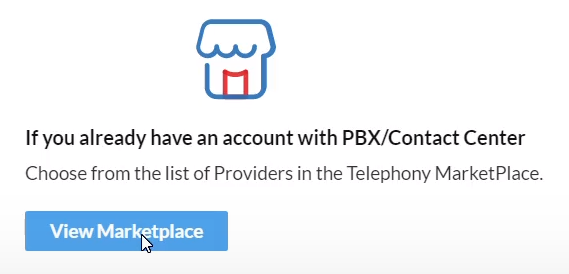
You will be redirected to the "Marketplace", where you will need to access it by clicking on "View Marketplace"
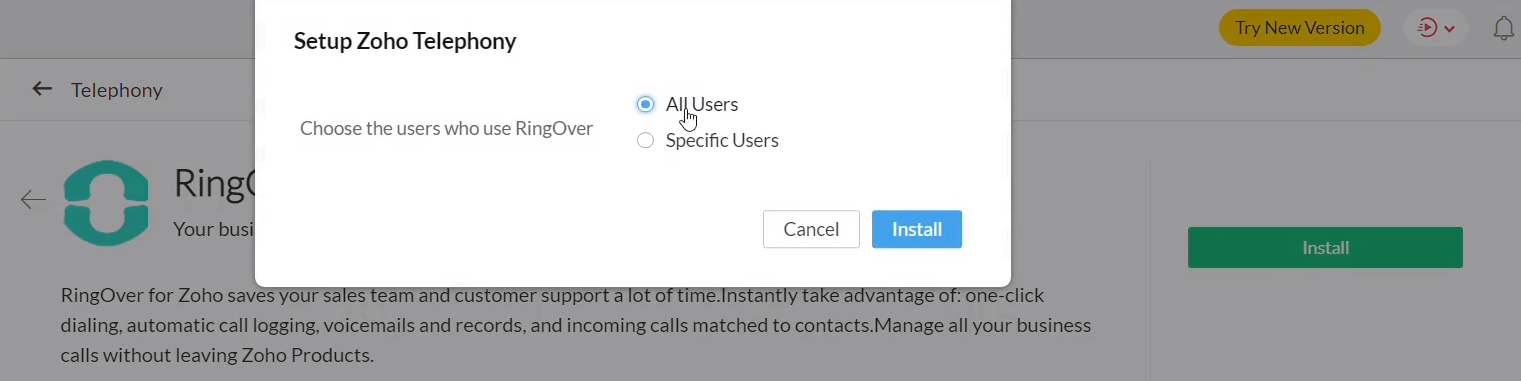
Then search for Ringover (click on the Ringover icon), start the installation and select "All Users".
Step 2
You will now click to activate Zoho in Ringover by going to the Store in your Dashboard and selecting "Zoho" by clicking activate again.
Select the Zoho products you want to activate and click "Activate":
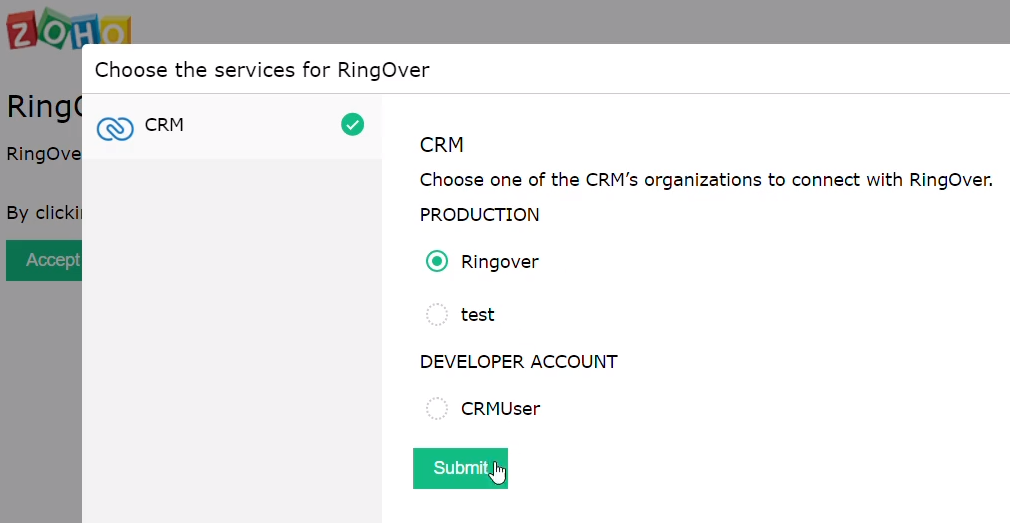
From the new Zoho page that appears, sign in to Zoho, select your Zoho organization, click on "Submit" and accept that Ringover can access your Zoho data.
Finally, you will find Zoho
in the Store of your Dashboard in
the "Activated" section, click on "Configure" and enable the last 3 options.
The 3 options to enable in order to use Ringover in Zoho Phone are the following:
You can now make calls via Zoho Phone (Phonebridge)!
The user experience is as follows: when a call is launched in Zoho Phone, a call rings in the Ringover web app > when the user answers, the call is initiated in Zoho Phone.
That’s it, the integration is now complete! 🎉