Mysolution is a recruitment and staffing software platform, designed to help agencies streamline candidate management, client relationships, placements, and business workflows.
It enables teams to centralize communication, automate processes, and improve productivity across the entire recruitment lifecycle.
The integration of Ringover with Mysolution allows you to:
- Sync your Mysolution contacts with Ringover
- Make and receive calls directly in Mysolution via the Ringover integrated dialer
- Access the history of all calls and SMS conversations (including WhatsApp) in candidate and client records
- Get AI transcriptions and summaries in activities
- Listen to recorded conversations
- Access voicemails left by your contacts
- Map your Mysolution fields in your Ringover dialer to see more information during the call
Prerequisites
- You must have a Ringover Business or Advanced account to benefit from this integration 💳
- The integration must be performed by an administrative or technical account in Ringover 👨💼
- The integration needs to be installed by a Mysolution administrator account 👨💼
Step 1: Linking Ringover and Mysolution
To link your Mysolution account to your Ringover account:
- Connect to your Ringover Dashboard
- Navigate to Dashboard > Store > Integrations
- Click on Mysolution
Since Mysolution is built on Salesforce APIs and infrastructure, the connection process is identical to the standard Salesforce integration.
You must choose whether you want to activate on a Production or Sandbox instance:
Then click 'Activate'.
Step 2: Configuring the “Call Center” in Mysolution
- Open the Setup menu in Mysolution
- Then open the sub-menu “Call centers”
- Click "Continue"
- Click on “Ringover Call Center CTI Adapter”
- Click on Import :
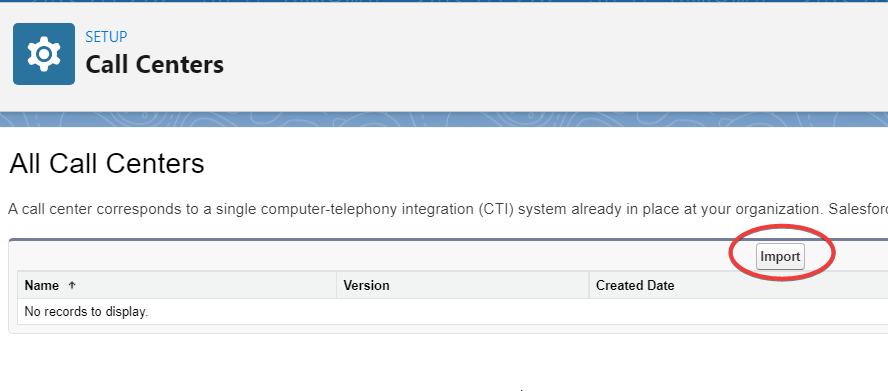
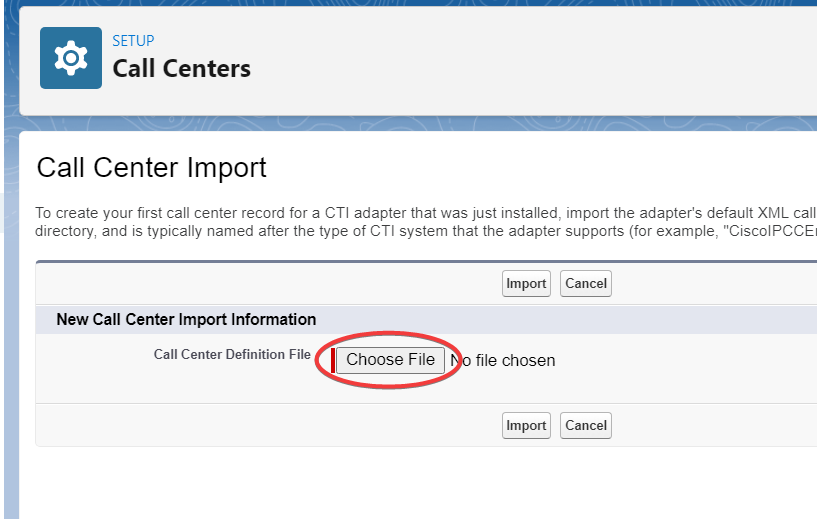
- Click on "Choose File":
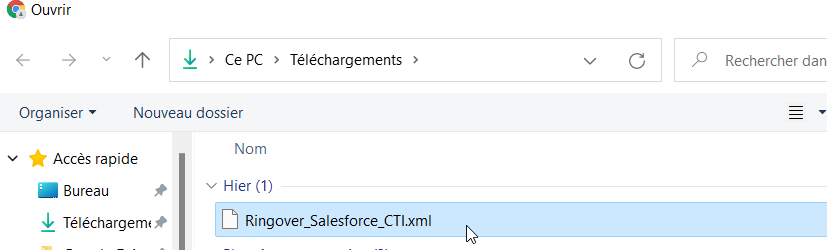
- Select the previously downloaded XML file:
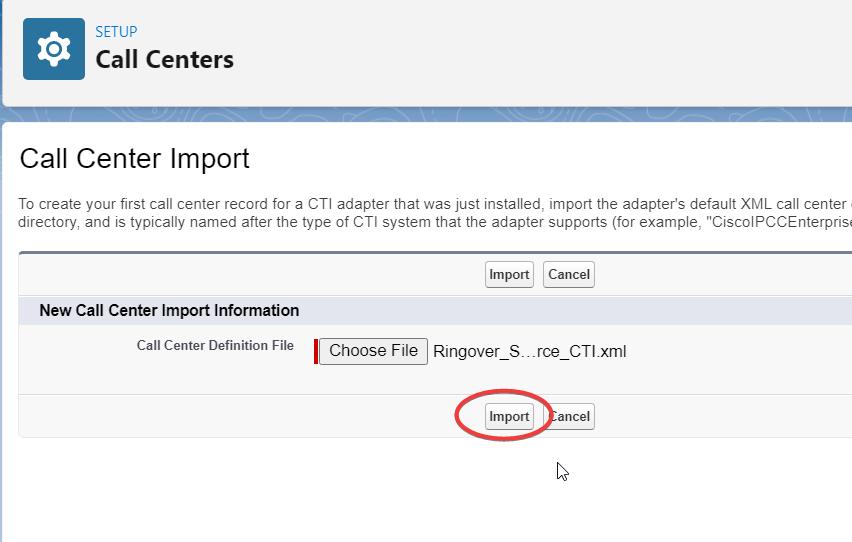
- Then click on Import:
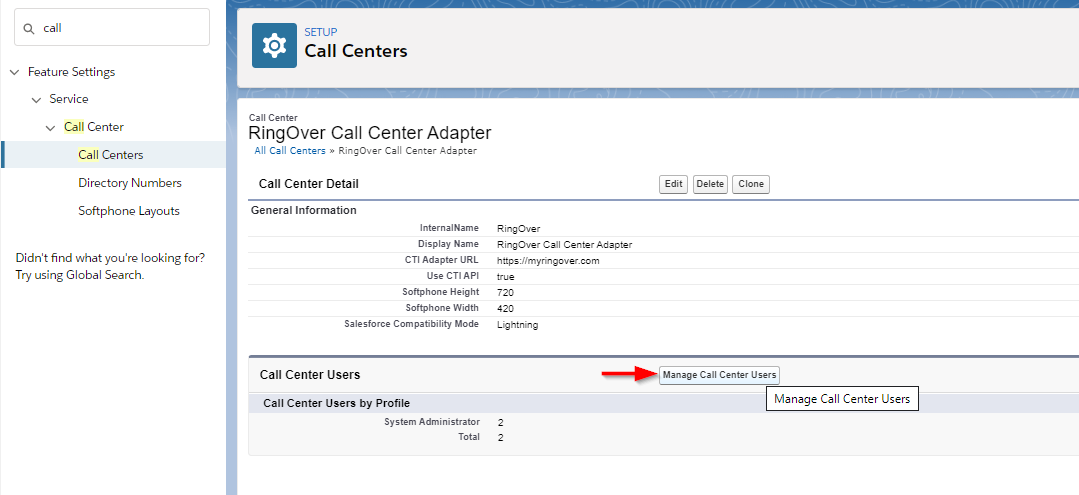
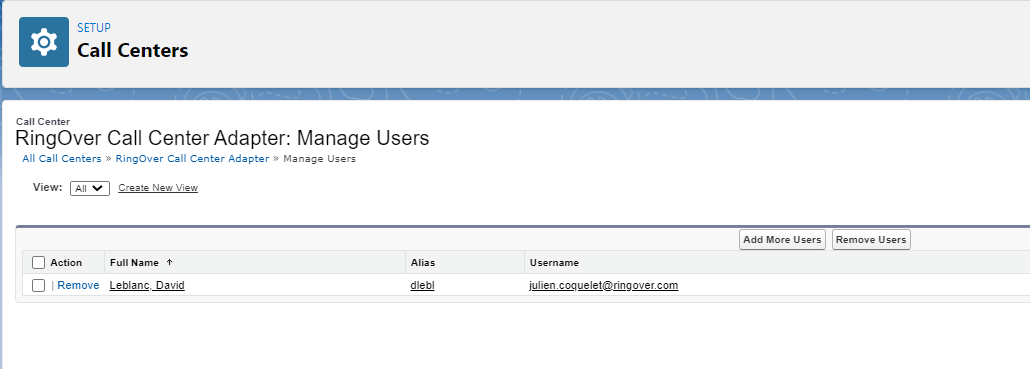
- Click next on “Manage call center users”
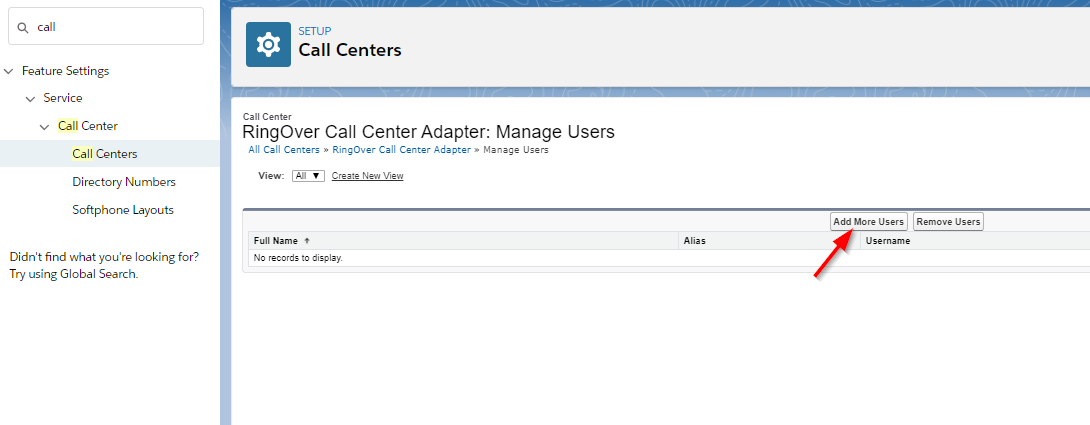
- Then click on “Add more users”
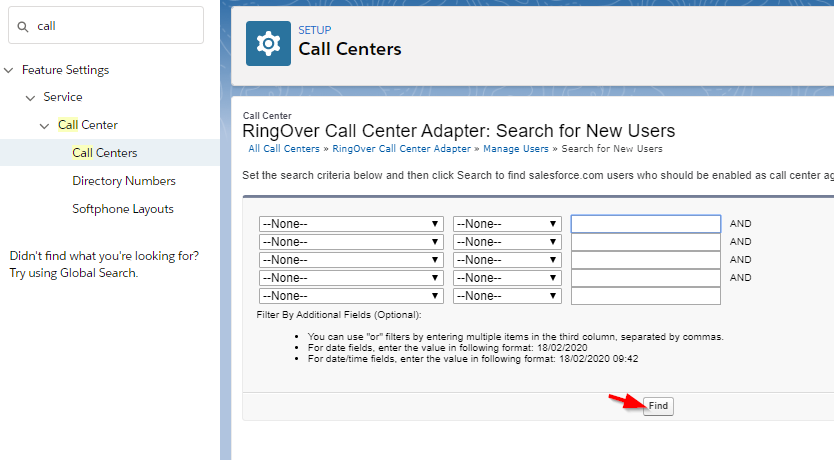
- Click on “Find”
- Select the users and click on "Add to Call center"
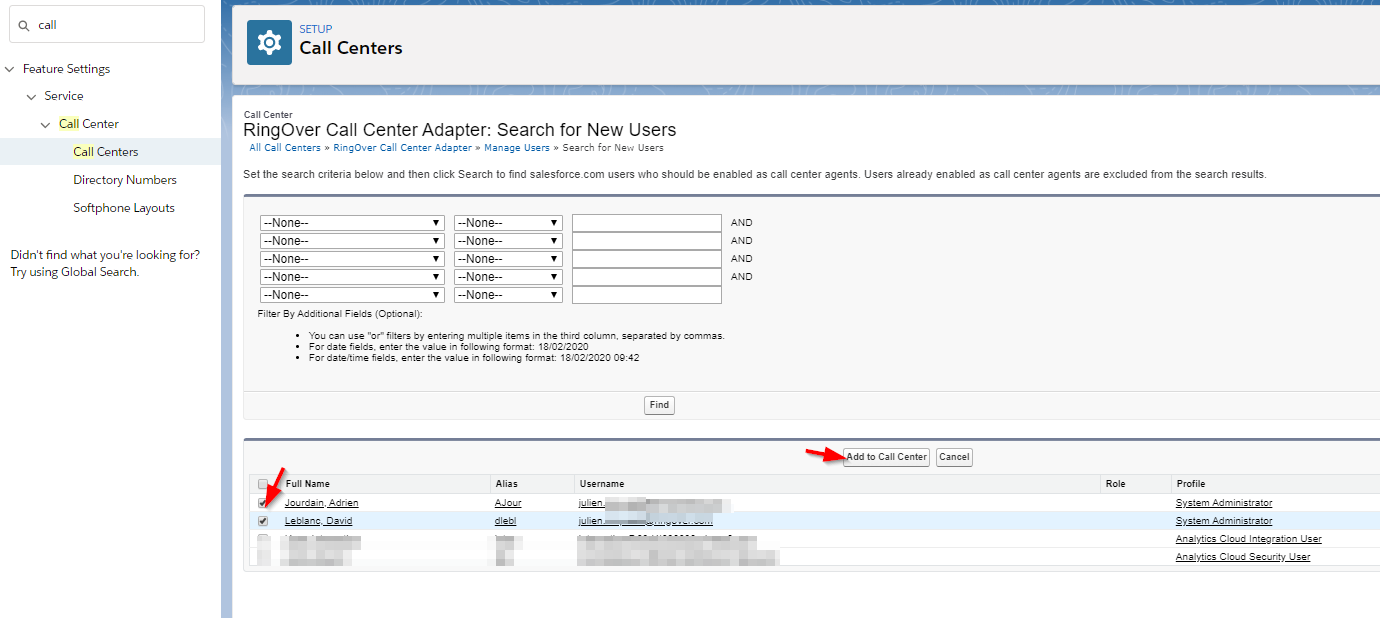
- The users added here can now use the Ringover app 🎉
Step 4: Adding the Ringover app to the toolbar
- Still in the configuration menu, go to “Applications management”
- Select the application to which you wish to add Ringover; here in our example we’ve chosen “Sales” (be sure to choose a “Lightning” application) and click “Modify”
- Click on “Utility Items (Desktop Only)”
- Then “Add Utility Item”
- Select “Open CTI Software”
- Change the name by “Ringover” and click “Save”
That’s it 🎉
Ringover will now appear directly in your Mysolution toolbar, allowing your teams to make and receive calls without leaving the platform.
Now let's have a look at configuring your integration.
Step 4: Set up your Mysolution integration
Configure the integration settings according to your needs:
- Go back to Dashboard > Store > Integrations
- Click on Mysolution
- Customize the synchronization and call logging preferences
For a quick start we recommend the following:
1. Make sure that you have mapped your Mysolution users with Ringover users by clicking "+ Manage users".
2. Turn on contact synchronization to ensure that your Mysolution contacts are available and up to date in Ringover.
Then, you can configure:
- SMS and WhatsApp synchronization preferences
- Notes and tags synchronization
- Custom field mapping
What you can do with the Ringover x Mysolution integration
Once installed, your teams can:
- Click-to-call directly from candidate or client records
- Automatically log inbound and outbound calls
- Synchronize SMS and WhatsApp conversations
- Access recordings and voicemails
- View AI summaries and transcripts in Mysolution
- Improve recruiter productivity by centralizing communications inside Mysolution
Here is example of a call recorded with Empower, logged as an activity in Mysolution, complete with its AI summary:
Here is an example of a meeting recorded with Empower, logged as an activity in Mysolution, complete with its AI summary and transcript link:
FAQ
Question : Ringover's dialer in MySolution displays an error.
Answer :
- Go to "Setup"
- Find and click on "Trusted URLs", and then click on "New Trusted URL"
- Fill out the fields as below and save :
Now you should be able to make calls with the Ringover's dialer in MySolution !