
The Snooze feature allows you to temporarily postpone call notifications to manage your incoming calls more effectively. In this guide, you’ll learn how to create custom Snooze reasons, assign user permissions, track Snooze analytics, and activate the feature in your dialer.
Prerequisites
- You must be an account administrator to access and configure Snooze settings.
Create and configure the Snooze feature
1. Create a Snooze status
Set up custom Snooze statuses and reasons for your organization so users can select their reason for pausing notifications.
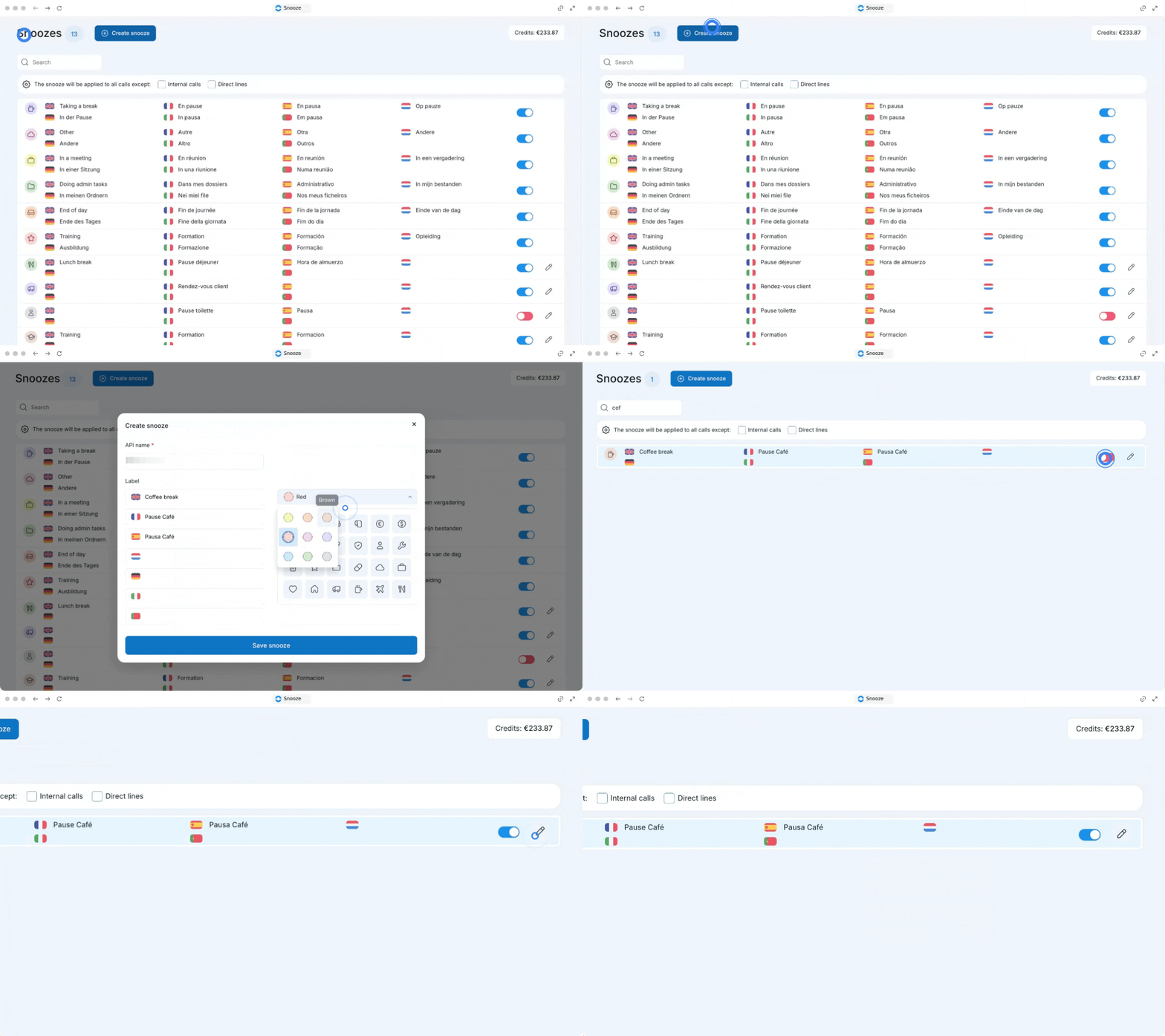
Go to the Snooze page.
Click on Create Snooze.
Enter an API name.
Add the name of the Snooze in other languages.
Choose a color and an icon.
Click on Save Snooze.
2. Grant Snooze permissions to users
Enable permissions for your team members so they have the option to put themselves on Snooze.
Go to your Users page.
Choose a specific user.
Go to Permissions.
Activate the option to choose a Snooze and put themselves on Snooze.
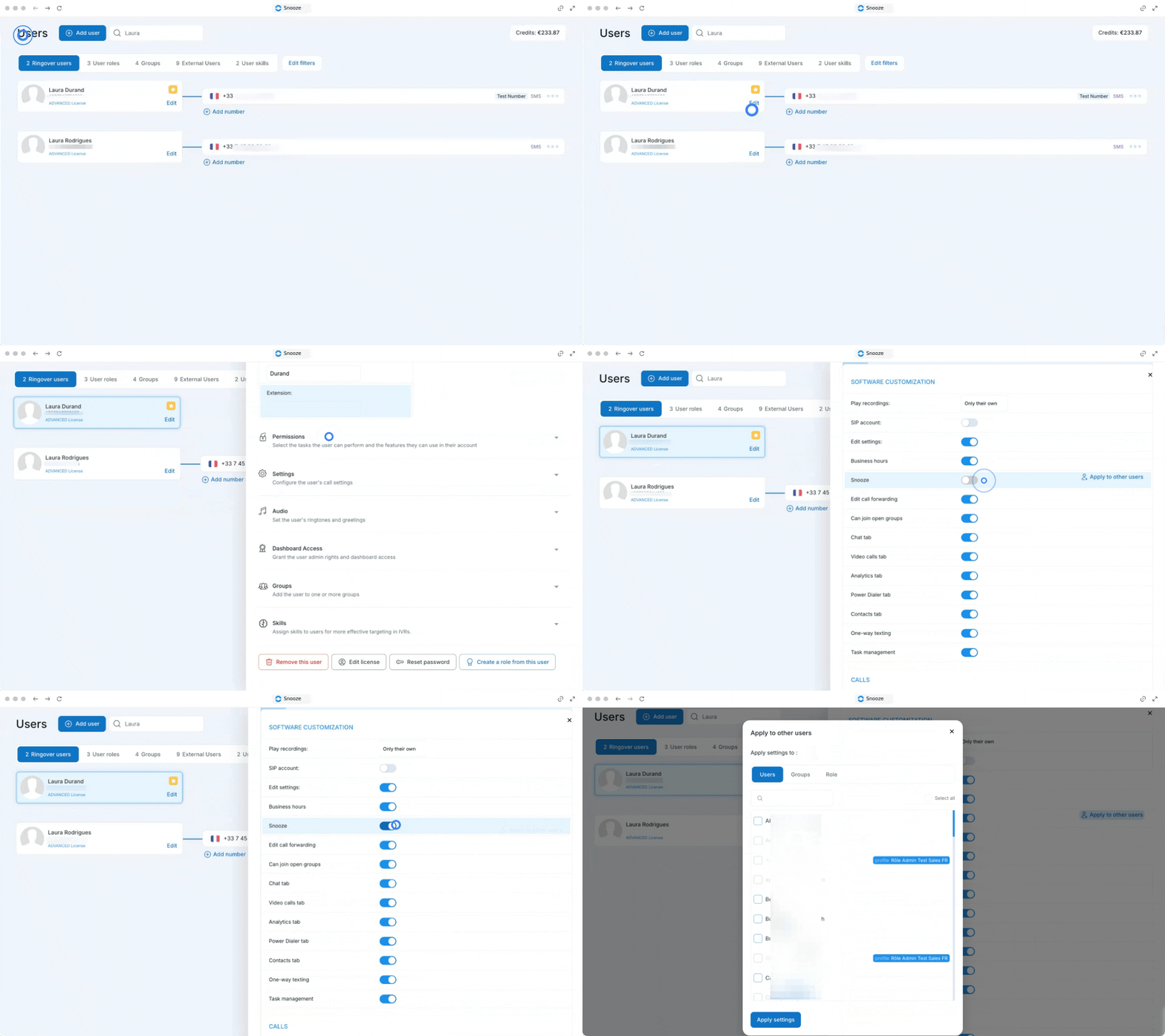
💡 Tip: You can easily apply this configuration to other users, groups, or roles in bulk to save time.
3. Use the Snooze in the dialer
Once permissions are granted, agents can easily manage their availability directly from their dialer interface.
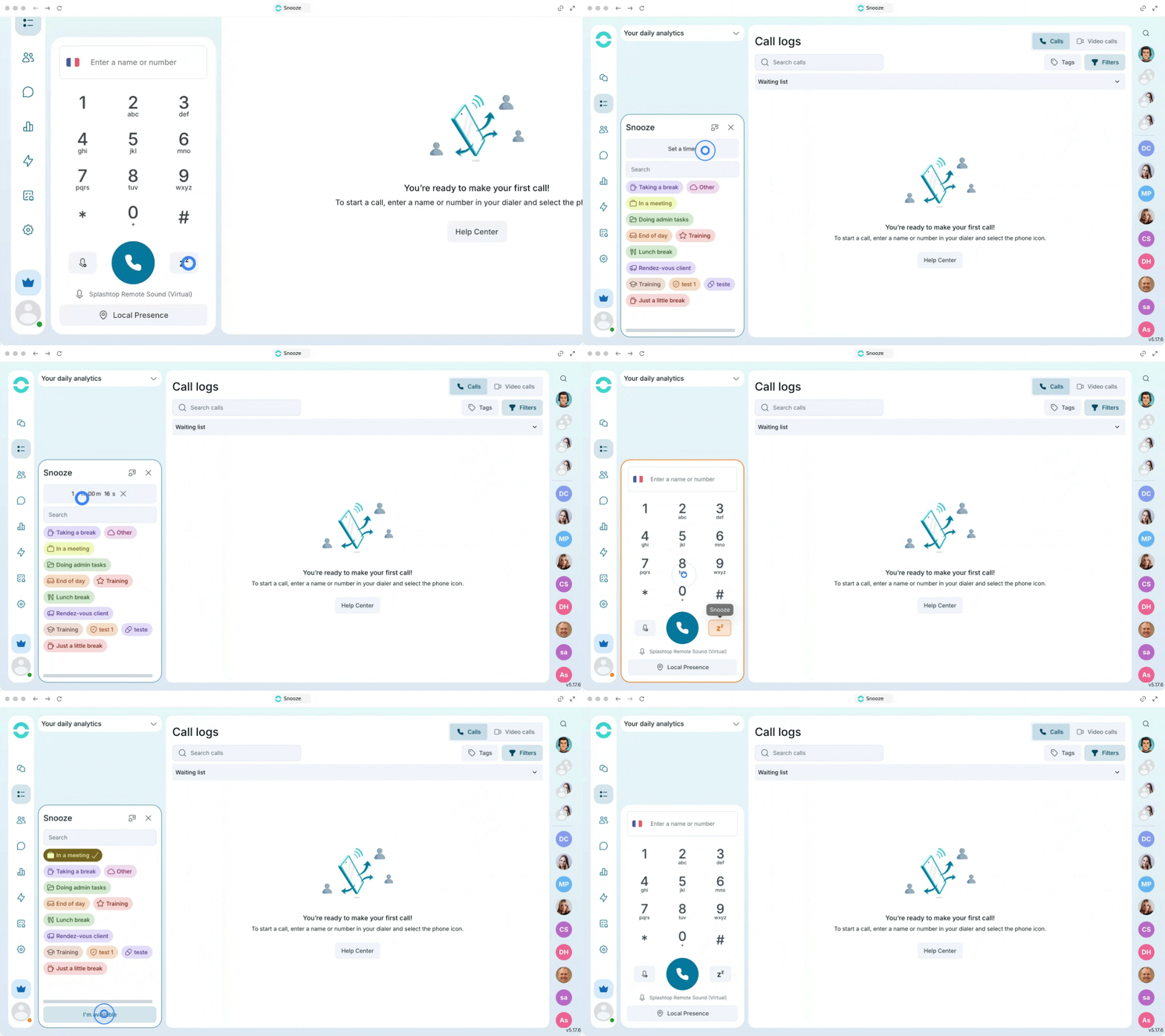
Go to your dialer.
Click on the Snooze icon located at the bottom right of your dialer (indicated by a red circle).
Select your Snooze status or reason, or set a timer. To set a duration, click on the "Set a timer" button. Enter the time you want to be in Snooze, and select your status. Once active, you'll see a timer above the Snooze icon to help you keep clear track of your downtime.
Click the icon again to put yourself back as Available.
4. Track Snooze analytics
Monitor how much time your team spends on break or focused work using the analytics dashboard.
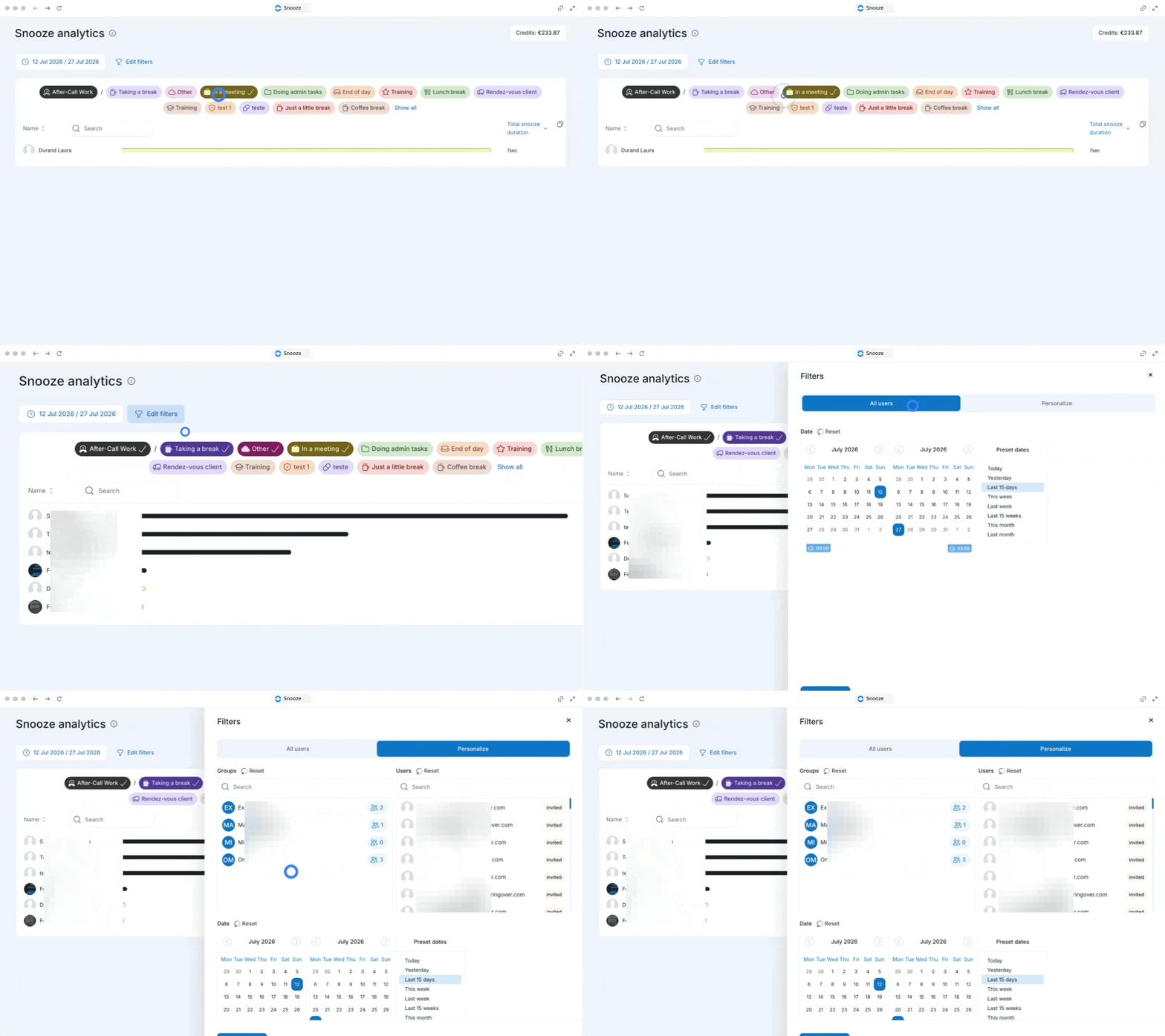
Go to the Snooze analytics page.
Select the specific Snooze status you want to focus on.
Edit your filters (choose the user, the period, the group, etc.).
🎉 You now know how to create and configure the Snooze feature and can help your team maintain focus and manage their workflows without interruptions!