
Sharing a call log via email allows you to easily send call details to a colleague, including the date, time, duration, tags, notes, and even the recording. In this guide, you’ll learn how to quickly share these details using either the classic or unified view.
Share a call log via email
1. Access the share option
Depending on which view you are currently using in Ringover, the steps to find the share button will vary slightly.
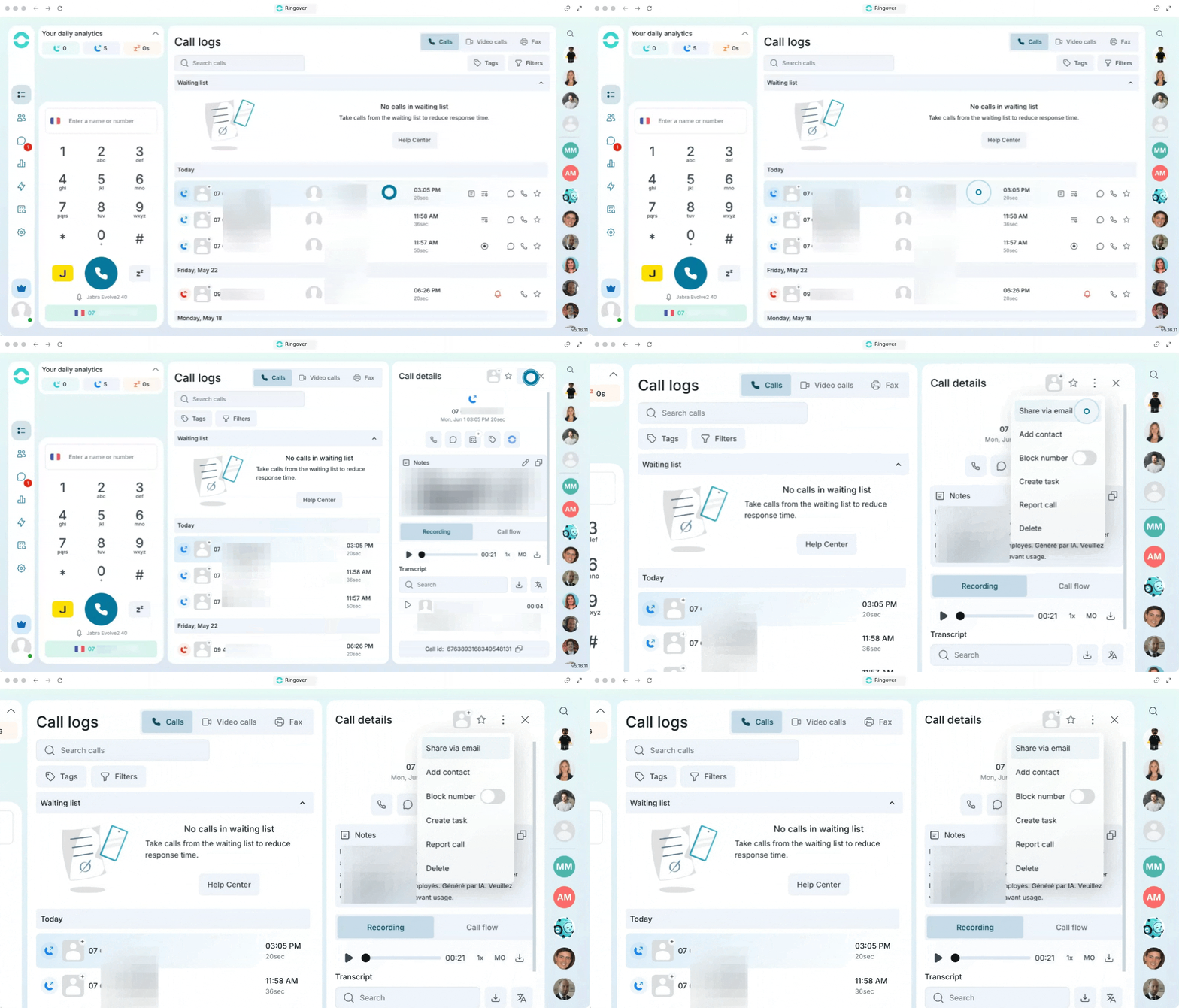
Unified view OFF
If you are using the classic call logs interface:
- Go to your call logs.
- Select the call you want to share.
- Click on the three little dots.
- Select Share via email.
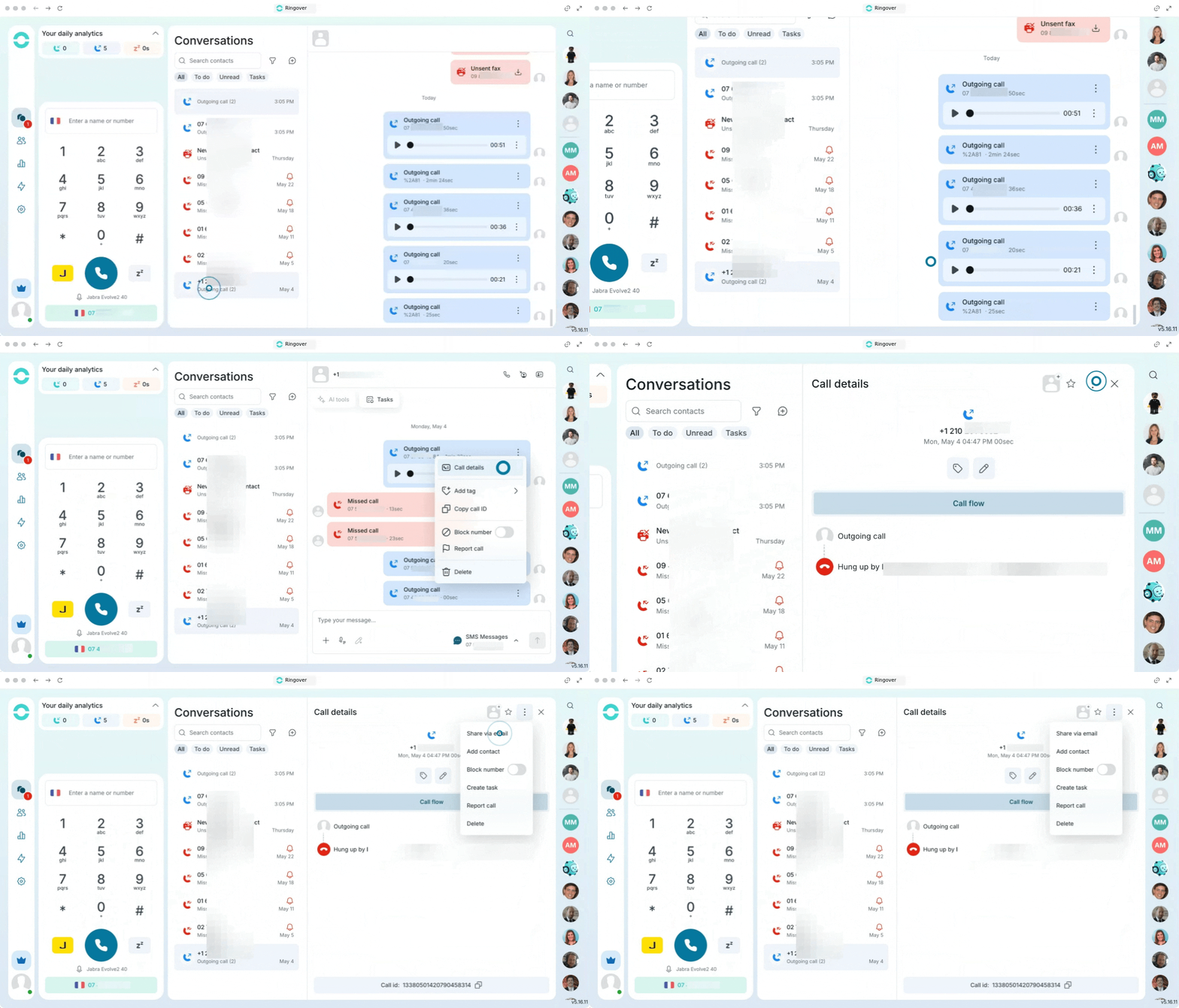
Unified view ON
If you have the unified conversations tab activated:
- Go to your conversations tab.
- Select the conversation.
- Click on the three little dots next to the call.
- Select Call details.
- Click on the three little dots in the right corner.
- Select Share via email.
2. Authorize your email account
Before sharing for the first time, you must link your email account.
- Wait for the new sign-in window to open.
- Enter your email account credentials.
- Authorize access so Ringover can share the details directly.
3. Send the email draft
Once authorized, the system will automatically generate your message.
- View the email draft that automatically appears (it will be pre-filled with all the call information).
- Enter your colleague’s email address.
- Click Send.
🎉 You now know how to share a call log via email and can seamlessly keep your colleagues up to date on your conversations!