
Monitoring the activity page allows you to easily track your agents' real-time availability and manage their statuses. In this guide, you’ll learn how to view agent activity, manage snooze settings, and disconnect calls if necessary.
Monitoring agent status
1. Access and understand the activity page
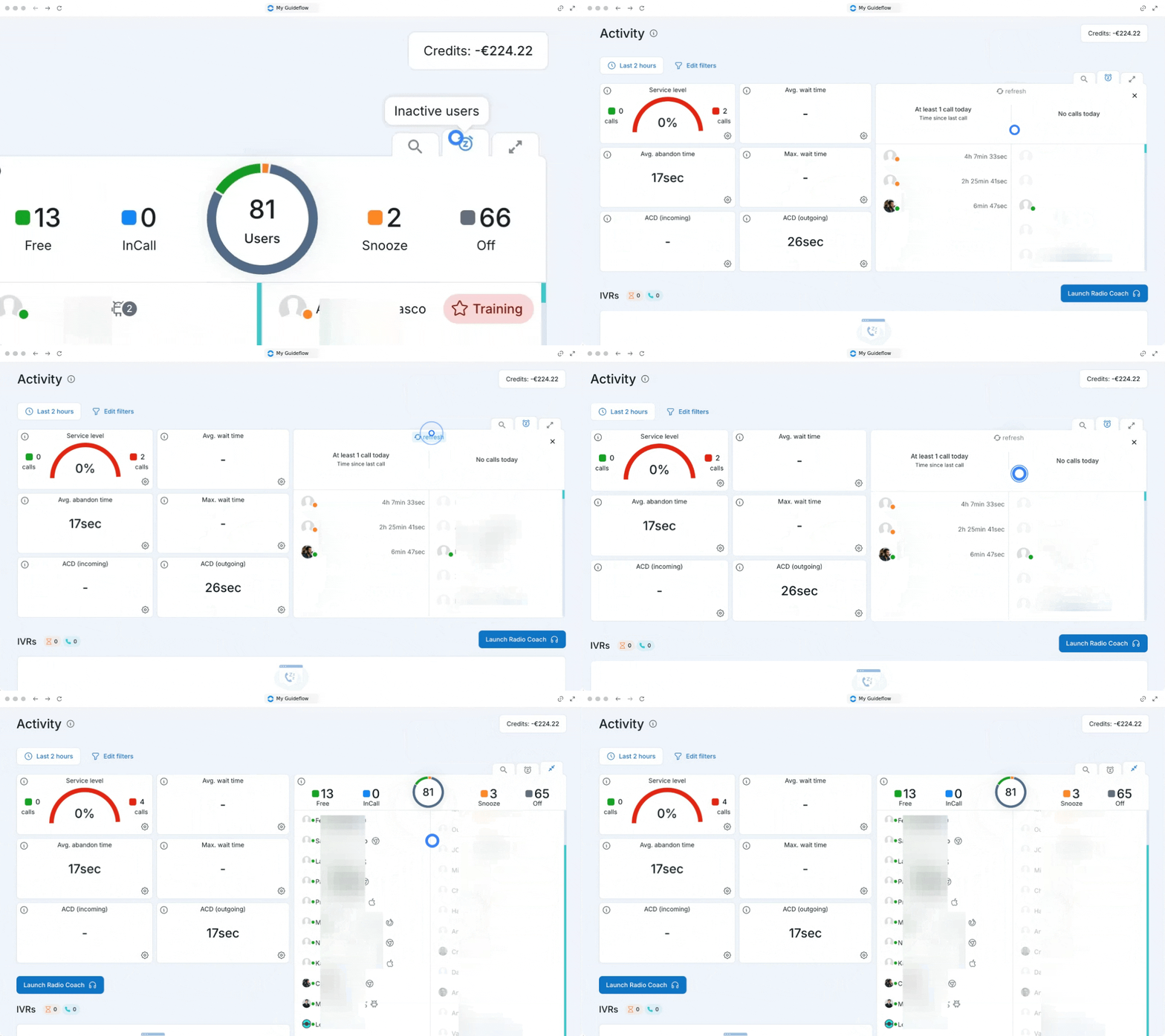
You can quickly see which agents are available, on the line, unavailable, or signed out.
- Go to your activity page.
- Look at the left column to find users who are available and on call, along with the platforms they are using (web interface, mobile application, etc.).
- Look at the right column to see users who are disconnected or in 'Snooze' mode, along with their unavailability reason.
2. Manage user statuses
At the top right of the dashboard, you can access several tools to find and manage specific users.
- Search for a specific user.
- Click on the snooze icon next to a user to put them in snooze mode.
- Choose the reason for snoozing.
💡 Tip: Once snoozed, the user will immediately move to the right side of the tableau, and their little status bubble will change from green to orange.
3. Force disconnect
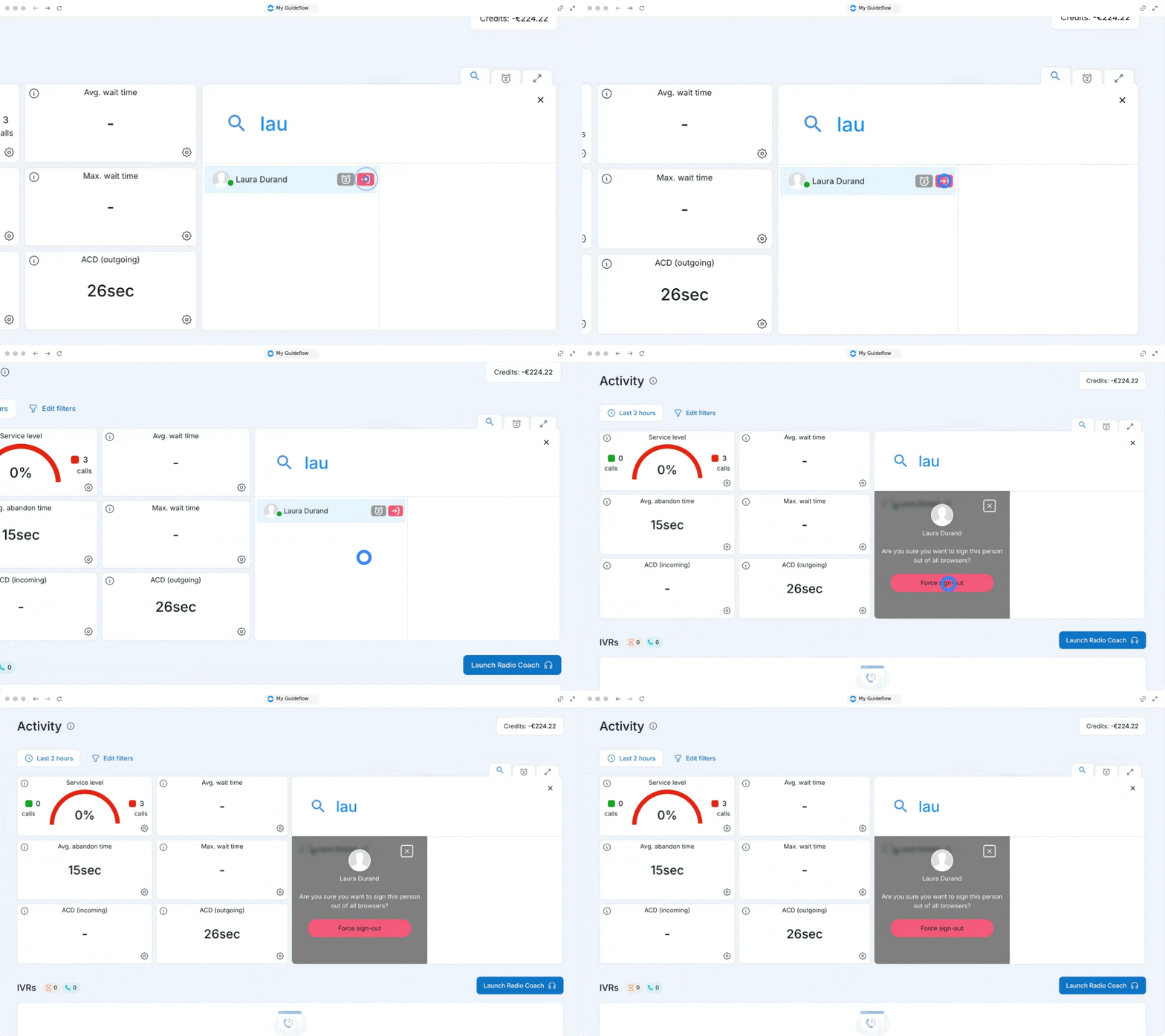
If necessary, you can instantly terminate an agent's active communication.
- Go to the list of your agents currently in communication.
- Hover over the user you want to disconnect.
- Click on the red button that appears to force the disconnection.
🎉 You now know how to monitor the activity page and can effectively manage your team's real-time availability!