
Call log details allow you to analyze individual phone interactions to improve your team's management and performance. In this guide, you’ll learn how to navigate your call history, inspect call flows, and review recordings or transcripts for in-depth insights.
Access and analyze detailed call logs
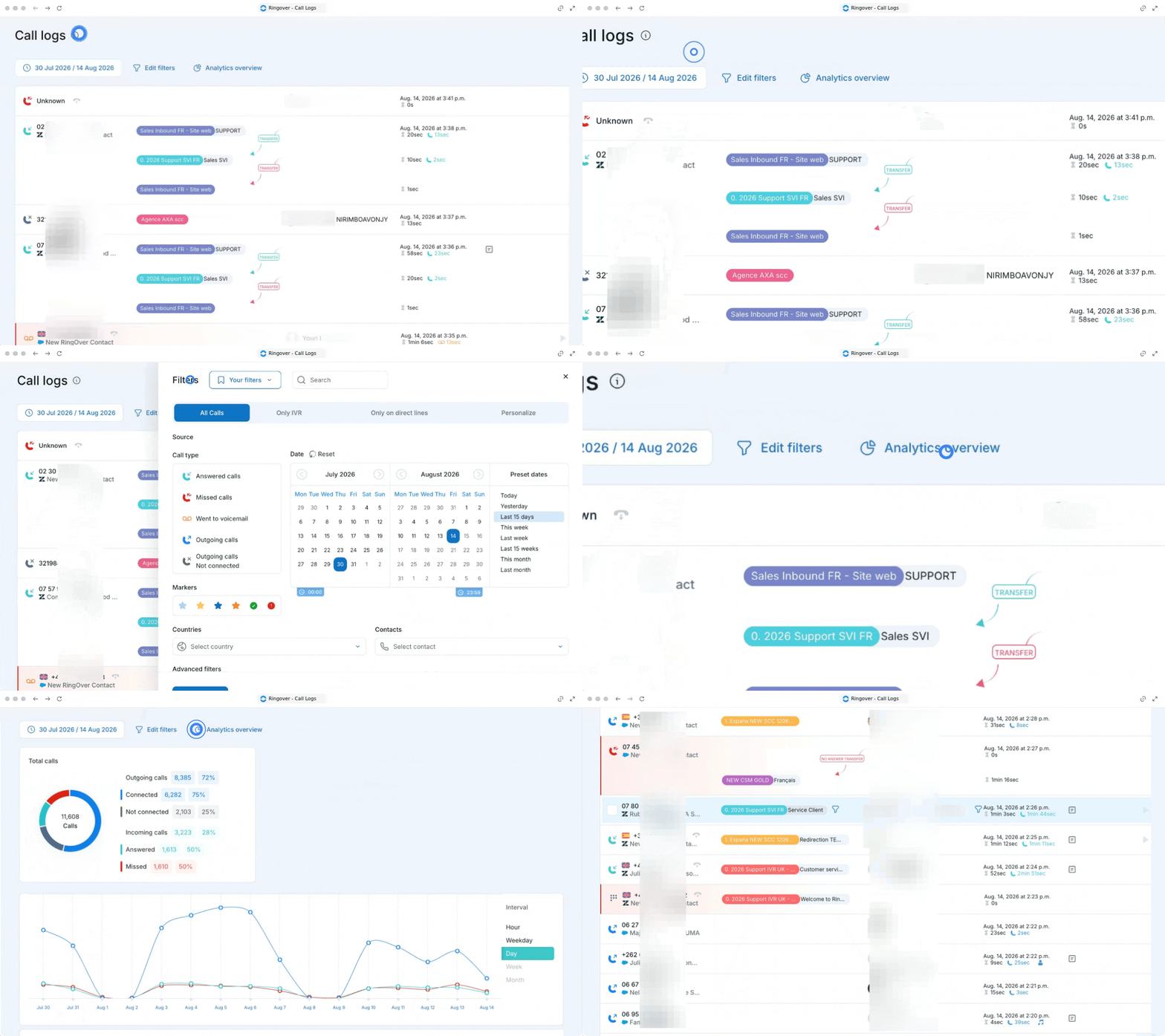
1. Access and filter your call log
Start by navigating to your logs to filter your history and view a high-level overview of your workspace's call activity.
- Go to your Call logs page.
- Click on Filters to narrow down your history by call type (missed, answered, etc.), IVR, transfers, or date and hour.
- Review the log list to check overall statistics such as call direction, dates, and wait times.
2. Inspect general call details and integrations
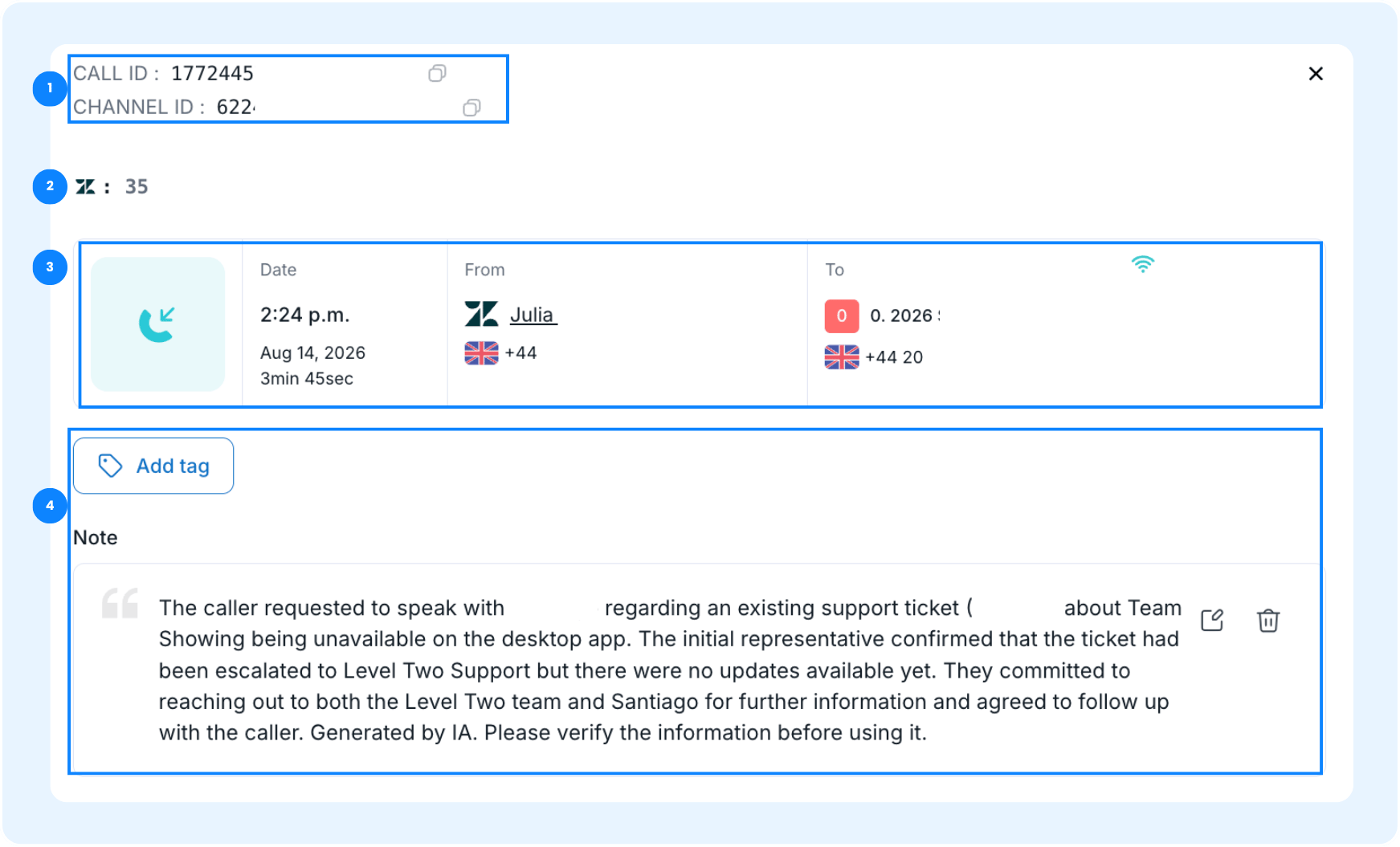
Click on the specific call record you want to analyze.
- View the Call ID and Channel ID in the details panel.
- Check the synced ticket numbers linked to your ticketing external business applications.
- Review the Contact information to see exactly who the call was "from" and "to", the date, the hour and call duration.
- Read or edit the notes and tags applied to the call to share context with your team.
3. Listen to recordings and read transcripts
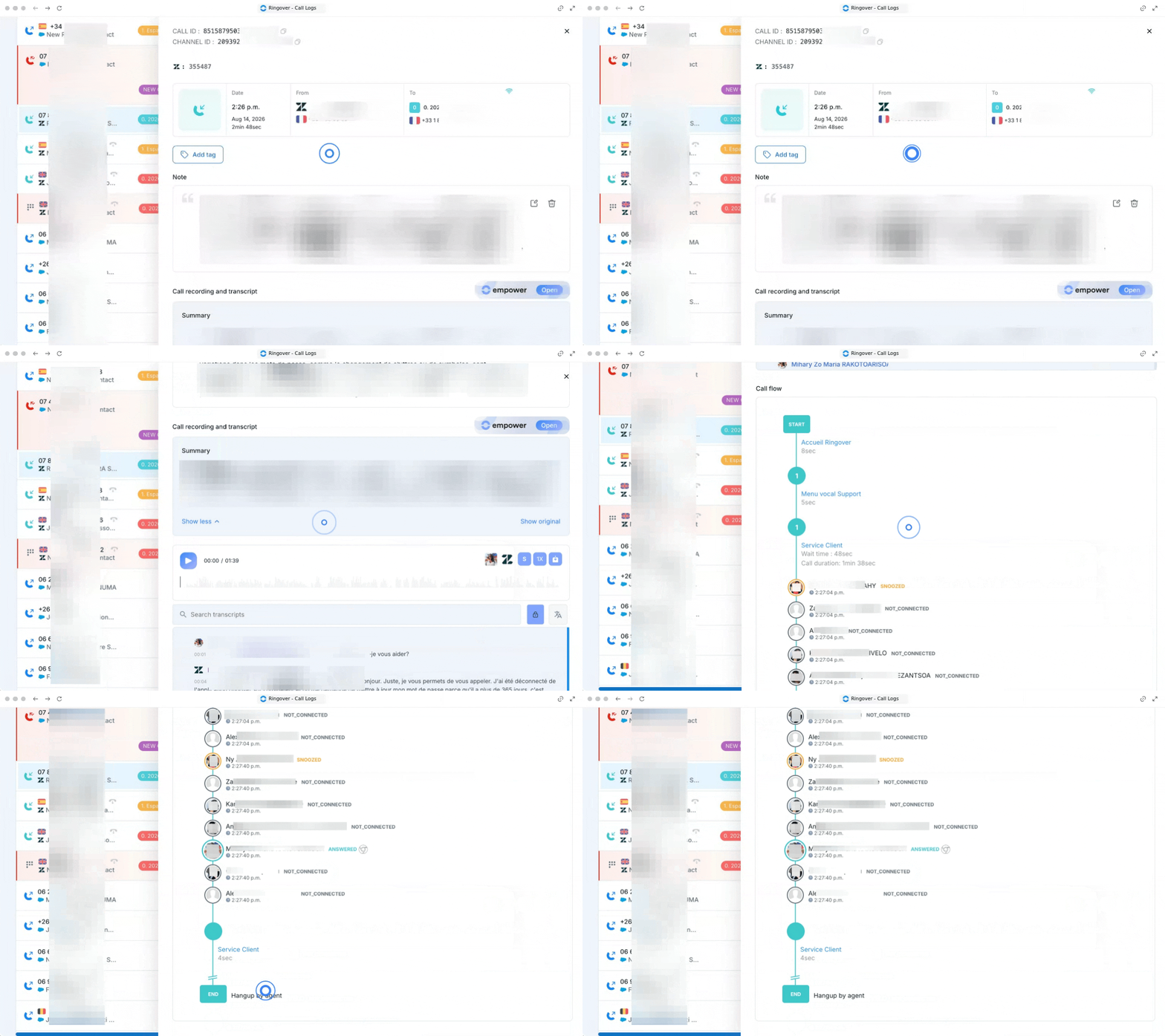
Access your audio logs and automated summaries to quickly evaluate call quality and customer interactions.
🔗 How to manage call recordings and transcriptions
🔗 How to activate IVR call recording
🔗 How to activate and download call recordings
🔗 How to activate internal call recording
🔗 How to activate the unilateral call recording
- Locate the Recording player in the call details panel
- Click the Play button to listen to the recorded conversation
- Select the Transcript tab to read the text dialogue of the call
- Review the automated AI Call Summary to understand the conversation's context instantly
4. Map the Call Flow and agent routing
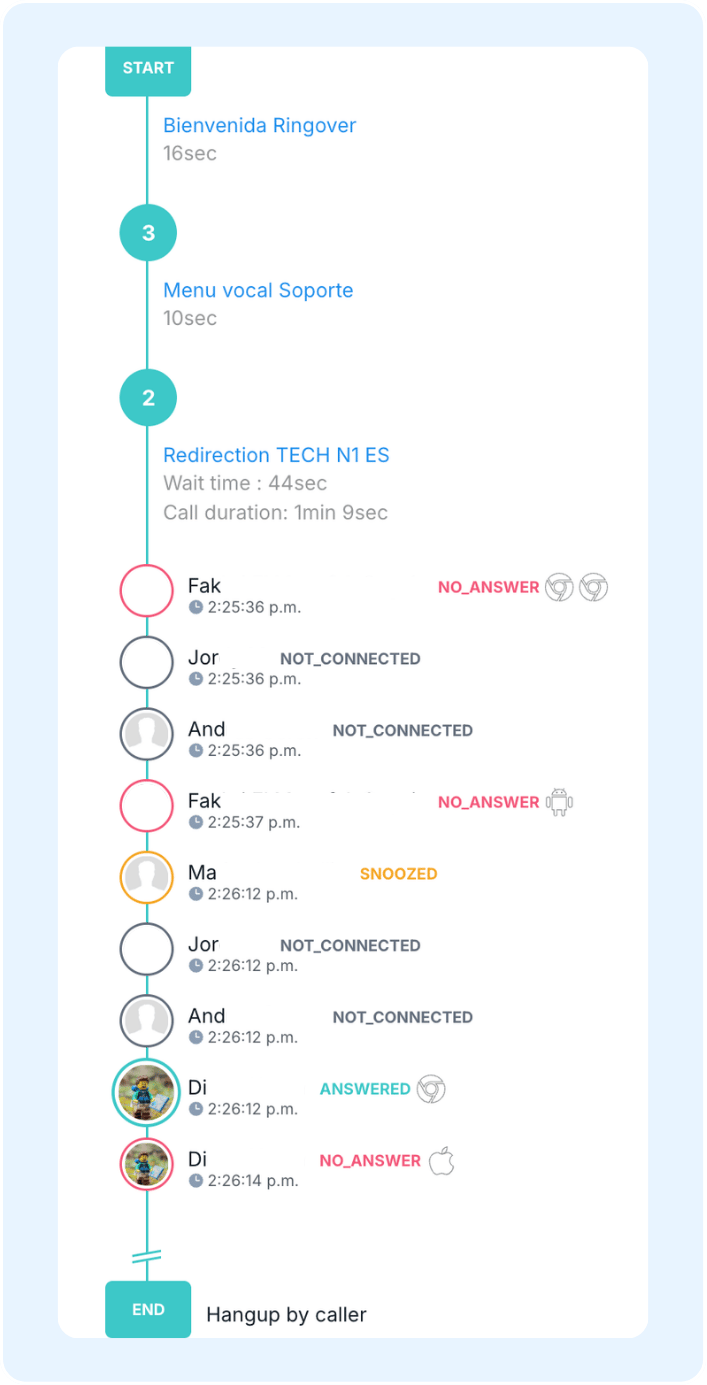
Review the exact path of the call from the moment it entered your system until it was terminated.
|
|
Call status codes
Here are the different statuses that may appear in the call logs
OUT: Outgoing call made by the user
ANSWERED: Call answered by the user
TOOLATE: Late response attempt; another user answered first
CALL_ANSWERED: Another user answered, and the user didn’t attempt to respond
NO_ANSWER: Missed call, no agent answered
REJECTED: Call manually declined
ALREADY_IN_CALL: Call received while the agent was already on another call
SNOOZE: Call received while the agent had Snooze mode activated
PLANNING: Call received outside the agent’s working hours
NOT_CONNECTED: Missed call while the agent was offline
-
SIP PHONE ERROR: SIP phone error or situations of user busy ("user_busy"), such as:
User hanging up a call and being unavailable
High call volume across multiple queues
ANNOUNCE: Call stopped during a voice announcement phase
ANNOUNCE_ANSWERED: Call completed after a voice message
VOICEMAIL_ANSWERED: Call completed to voicemail and marked as answered
VOICEMAIL: Voicemail considered as a missed call
FAILED: Outgoing call not completed
CANCELLED: Outgoing call canceled by the caller
QUEUE_TIMEOUT: Call reached the maximum queue time limit
NOANSWER_TRANSFERED: Call transferred due to no response
BLIND_TRANSFERED: Direct transfer without checking availability
PERMANENT_TRANSFERED: Call automatically redirected
MISSED: Missed call
USER_BUSY: Missed call due to a busy status, already on another call or in the process of hanging up.
🎉 You now know how to access and analyze detailed call logs and can leverage these insights to optimize agent routing and improve customer interactions!