
Reassigning a license in Ringover is an efficient way to make the most of your team's resources. If an employee no longer needs access to the platform, you can reassign their license to another team member, avoiding additional costs and maintaining efficient control over your subscription.
Prerequisites
- To access this feature and manage platform seats, you must be the Ringover account administrator.
Reassign an active license
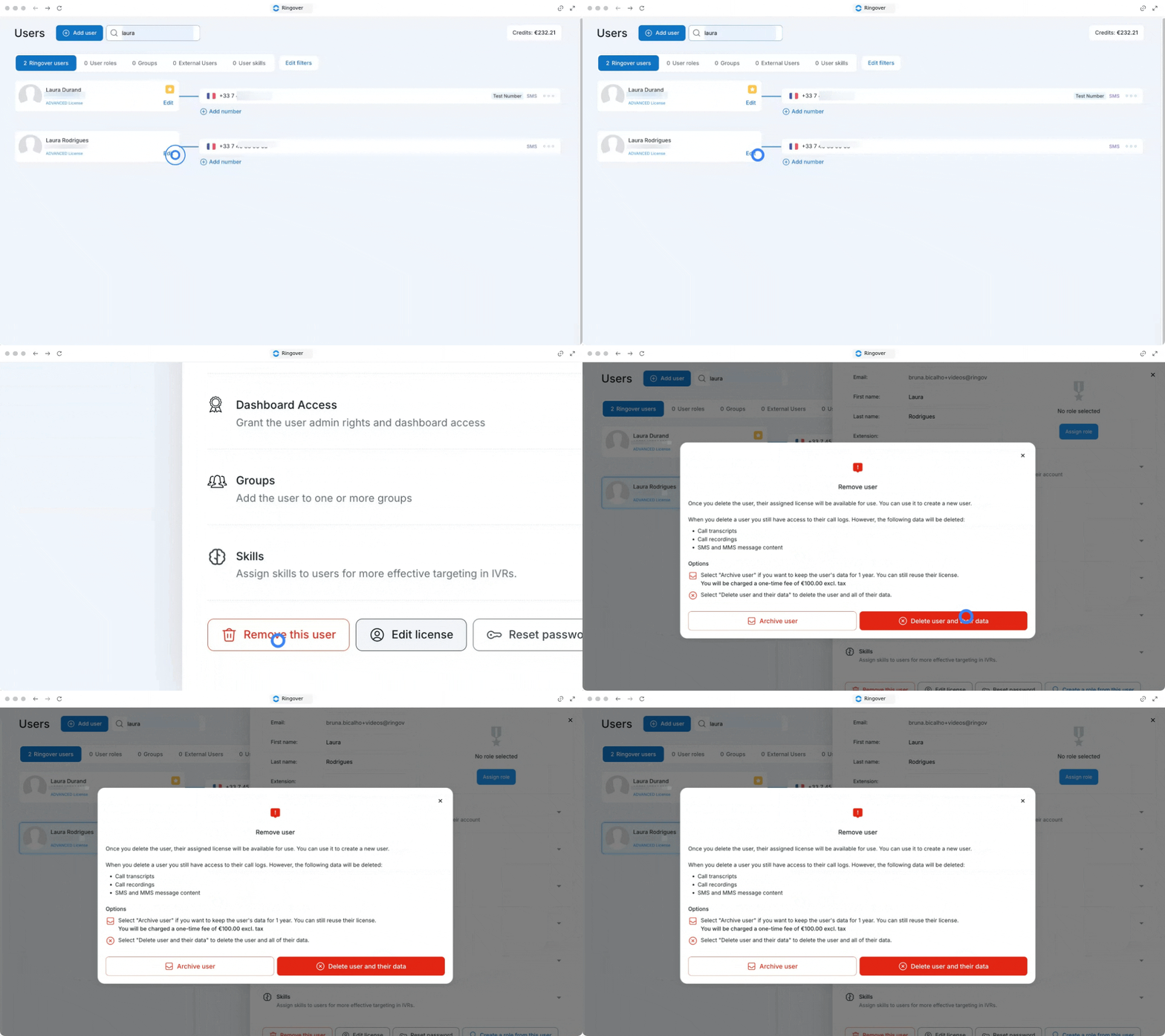
1. Delete the inactive user to release their license
Remove the team member who no longer requires platform access to free up their assigned license.
- Go to your Users' page.
- Select the user you wish to delete.
- Scroll to the bottom of the user's settings page.
- Click on Remove this user.
2. Reassign the vacant license to a new user
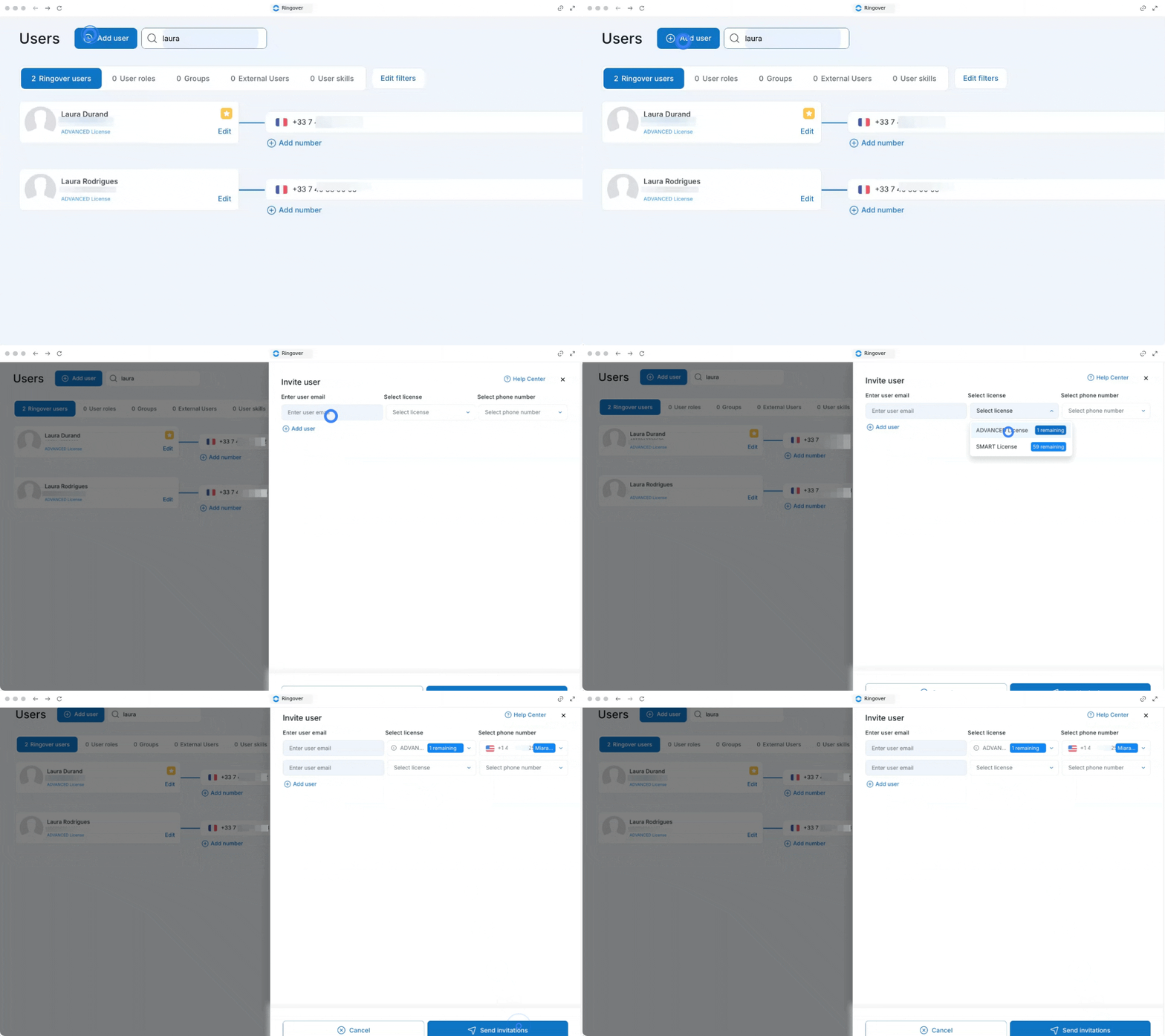
Add your new team member to the platform and assign them the newly freed license.
- Go back to your Users page.
- Click on Add a user at the top of the screen.
- Fill in all the requested fields in the pop-up window.
- Go to the License section and select the existing license.
- Save your changes to send the invite.
Once saved, the new user will automatically receive a confirmation email to finalize their profile setup and gain access to the platform.
🎉 You now know how to reassign a user license in Ringover and can easily manage your active seats while keeping your subscription costs optimized!