
Ringover webhooks allow you to receive real-time automated notifications whenever an event occurs in your Ringover account. In this guide, you’ll learn how webhooks work, how to configure them in your dashboard, and how to adjust browser settings for CTI integration.
Configure webhooks in Ringover
1. Understand webhook events
Webhooks automatically send event notifications to your server or external tools like CRMs (Salesforce, HubSpot, Zoho), Zendesk, or Zapier.
Available events
Real-time triggers sent from your phone system. Enable these events to automate post-call actions, analytics, or instant alerts.
- Incoming calls: Receive notifications when a call arrives.
- Missed calls: Trigger automated workflows for immediate follow-up with potential clients.
- Voicemail messages: Send voicemail alerts or transcriptions to your CRM or email.
- Answered calls & Call duration: Log completed calls and sync duration data with analytics or BI tools.
2. Set up your webhook URL in Ringover
Connect your destination server to start receiving automated HTTP POST notifications.
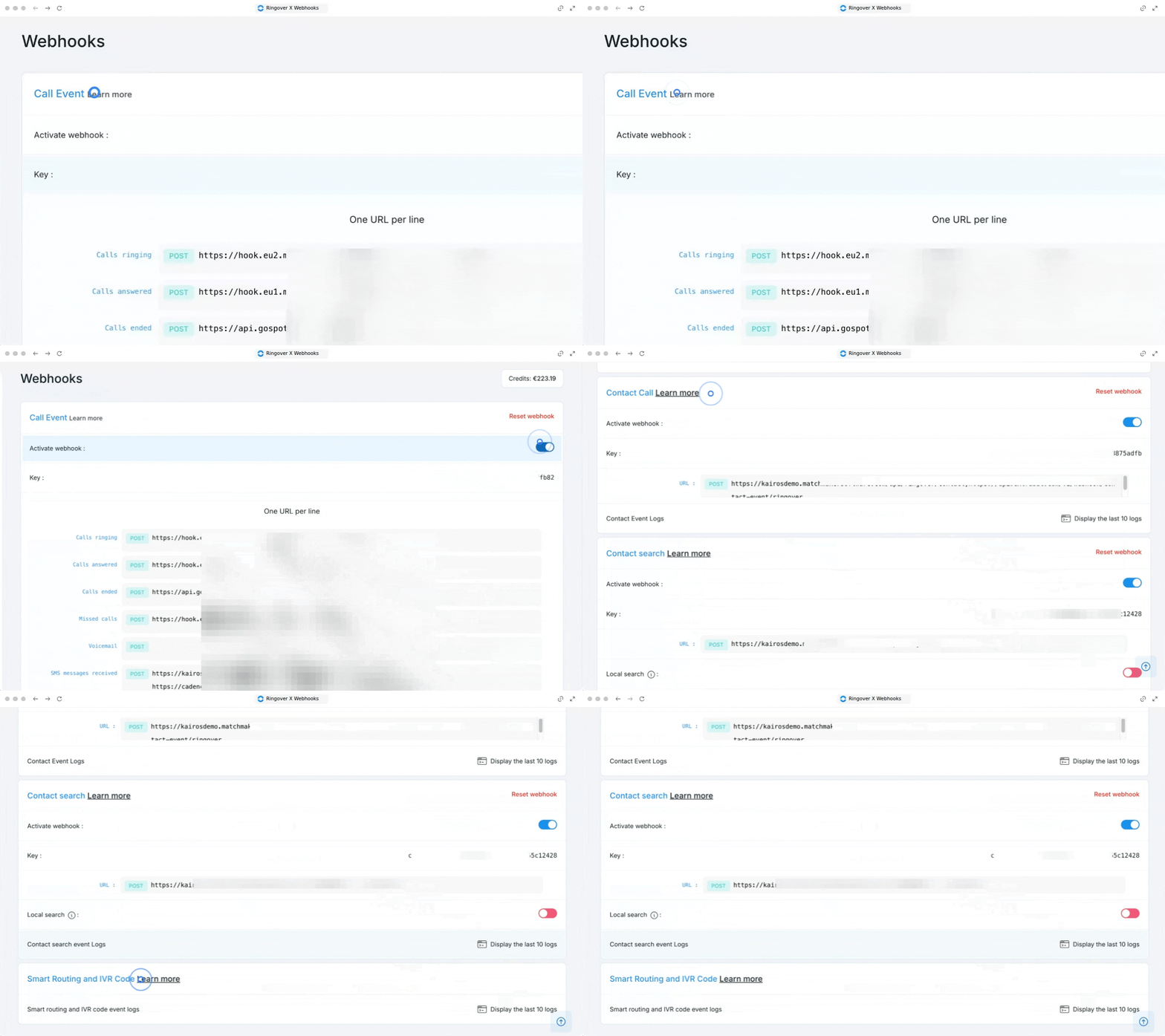
- Go to your Webhooks' page.
- Select and enable the events you want to monitor (e.g., Incoming calls, Missed calls, Voicemail messages).
- Enter your server or application Webhook URL.
- Click Save to activate the webhook.
Webhook payload structure
When an event is triggered, Ringover transmits a JSON payload structured like this:
{
  "event": "incoming_call",
  "call_id": "12345abcde",
  "caller_number": "+34123456789",
  "receiver_number": "+34987654321",
  "timestamp": "2024-06-17T15:30:00Z"
}
3. Configure Safari privacy settings for CTI
If you use a CTI dialer or SDK in the Safari browser, adjust your privacy settings to ensure uninterrupted tracking.
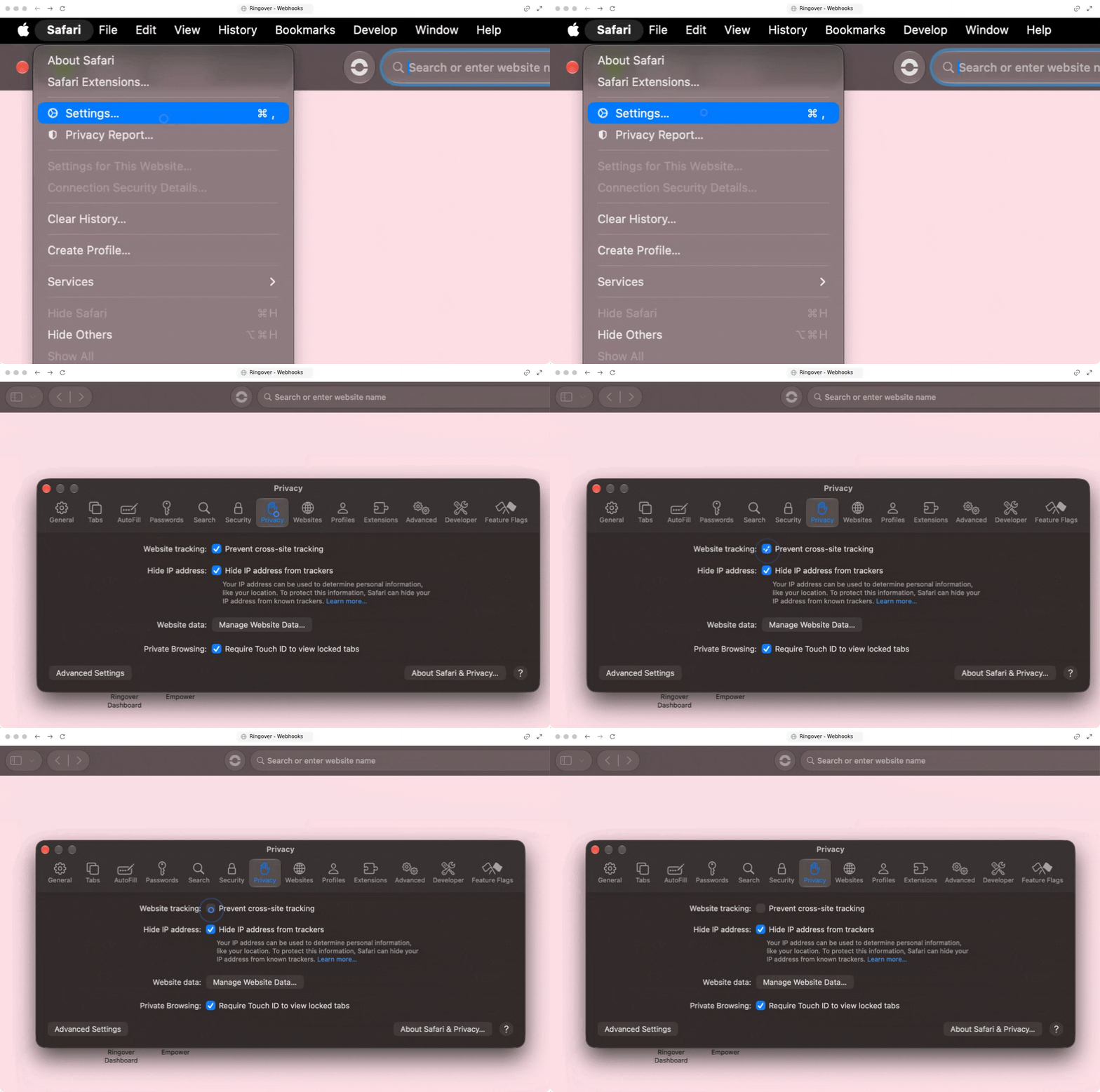
- Open Safari and click on Settings in the top-left corner of the screen.
- Select the Privacy tab.
- Uncheck the option Prevent cross-site tracking.
🎉 You now know how to configure webhooks in Ringover and can seamlessly automate your call workflows!