
Clearing your browser cache allows you to resolve loading issues and ensure websites function smoothly. In this guide, you’ll learn how to quickly clear your data in Google Chrome.
Clear your cache in Google Chrome
1. Access Chrome Settings
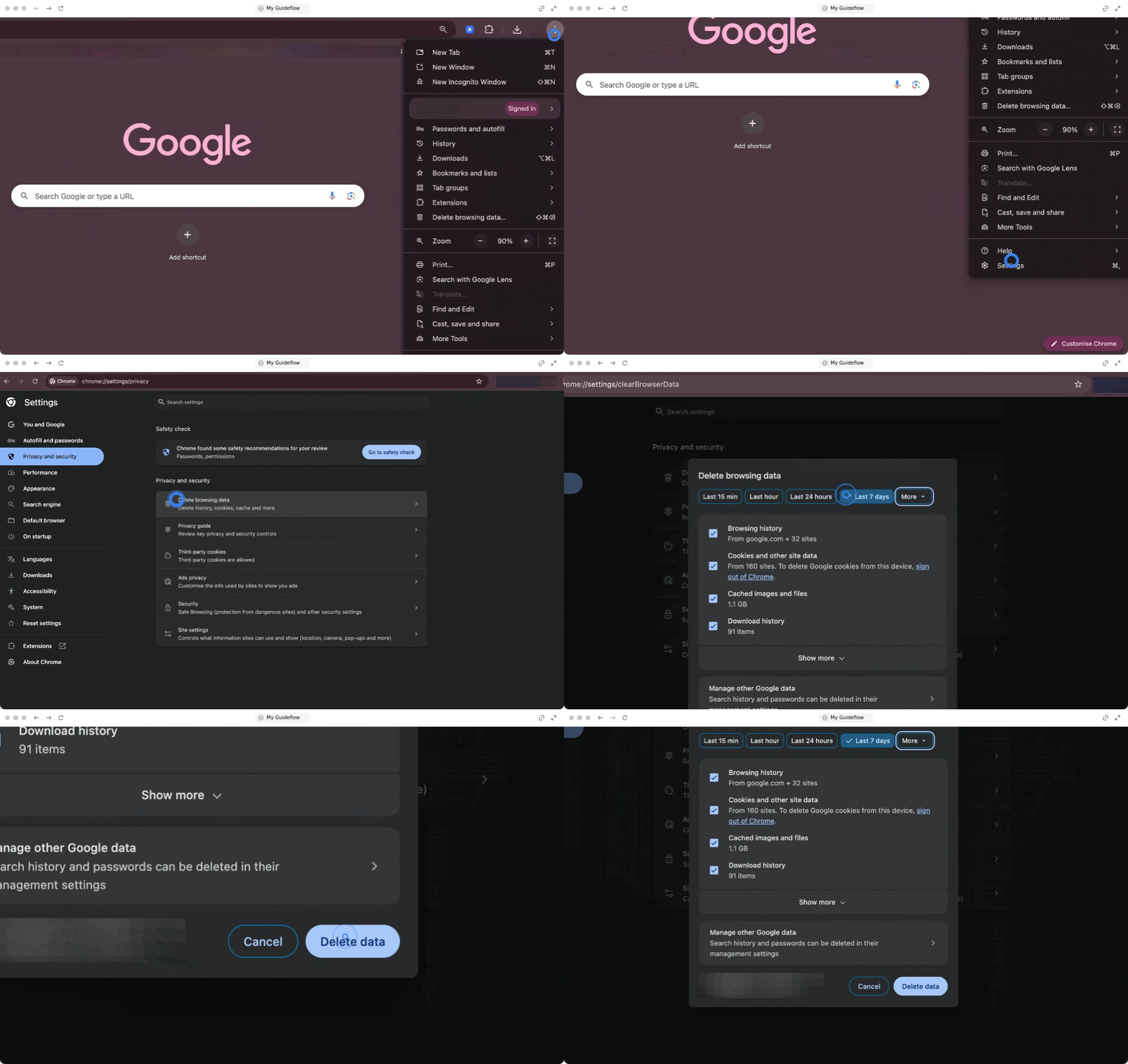
Start by opening your browser menu to locate the privacy options.
- Open your Chrome browser.
- Click on the three vertical dots in the top right corner of the window to open the menu.
- Select Settings.
- Look for the Privacy and Security section on the left side of your screen.
2. Clear your cache data
Choose exactly how much data you want to delete before confirming your choice.
- Choose the time range (last hour, 24 hours, 7 days, 4 weeks, or all time) for which you want to clear the cache.
- Select the items you want to clear.
- Click on Clear Data.
This process may take anywhere from a few seconds to a few minutes, depending on the amount of data being cleared.
🎉 You now know how to clear your cache in Chrome and can enjoy a faster, smoother browsing experience!