
The Ringover VoIP Phone extension for Odoo lets you make and receive calls directly in Odoo. This guide shows you how to install the extension, enable it on a custom Odoo domain and use the embedded dialer.
For information about connecting the integration, see How to connect Ringover with Odoo.
How to install and use the Ringover VoIP Phone extension for Odoo
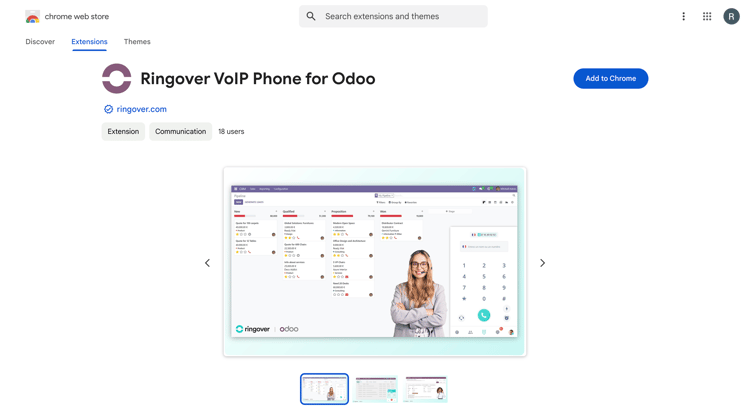
1. Install the extension
- Go to the Ringover VoIP Phone for Odoo page in the Chrome Web Store.
- Click Add to Chrome.
- Click Add extension.
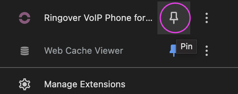
Pin the extension to keep it accessible from the Chrome toolbar.
- Open the Chrome extensions menu.
- Pin Ringover VoIP Phone for Odoo.
Important: Use the Ringover VoIP Phone extension for Odoo on its own. You do not need to install the Ringover app from the Odoo marketplace.
2. Allow your custom Odoo domain if needed
If you use a custom or self-hosted Odoo instance, such as Odoo SH or https://crm.yourcompany.com, the extension may not activate automatically. Add your domain to enable the dialer on that instance.
If you use Odoo cloud with a standard domain such as yourcompany.odoo.com, skip this section.
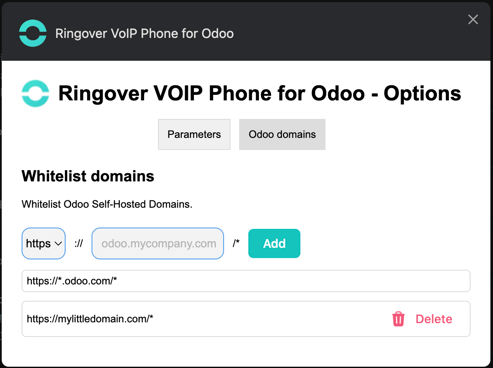
- Click the Chrome extensions icon.
- Open Details for Ringover VoIP Phone for Odoo.
- Click Extension options.
- Open the Odoo Domains tab.
- Add your Odoo domain, for example https://crm.yourcompany.com.
- Save your changes.
3. Open the dialer and make calls
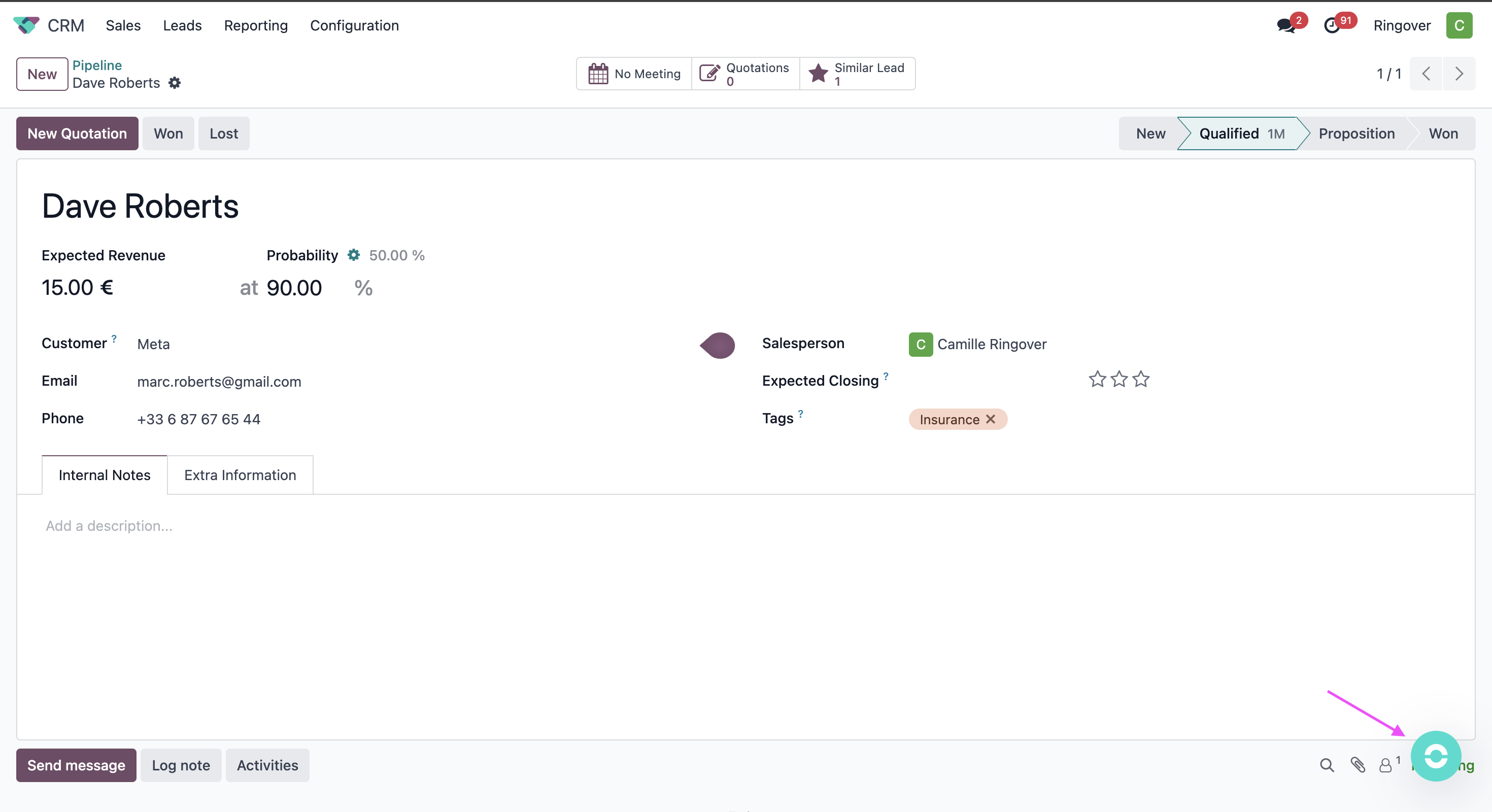
- Locate the Ringover button in the bottom-right corner of Odoo.
- Click the button to open the Ringover dialer.
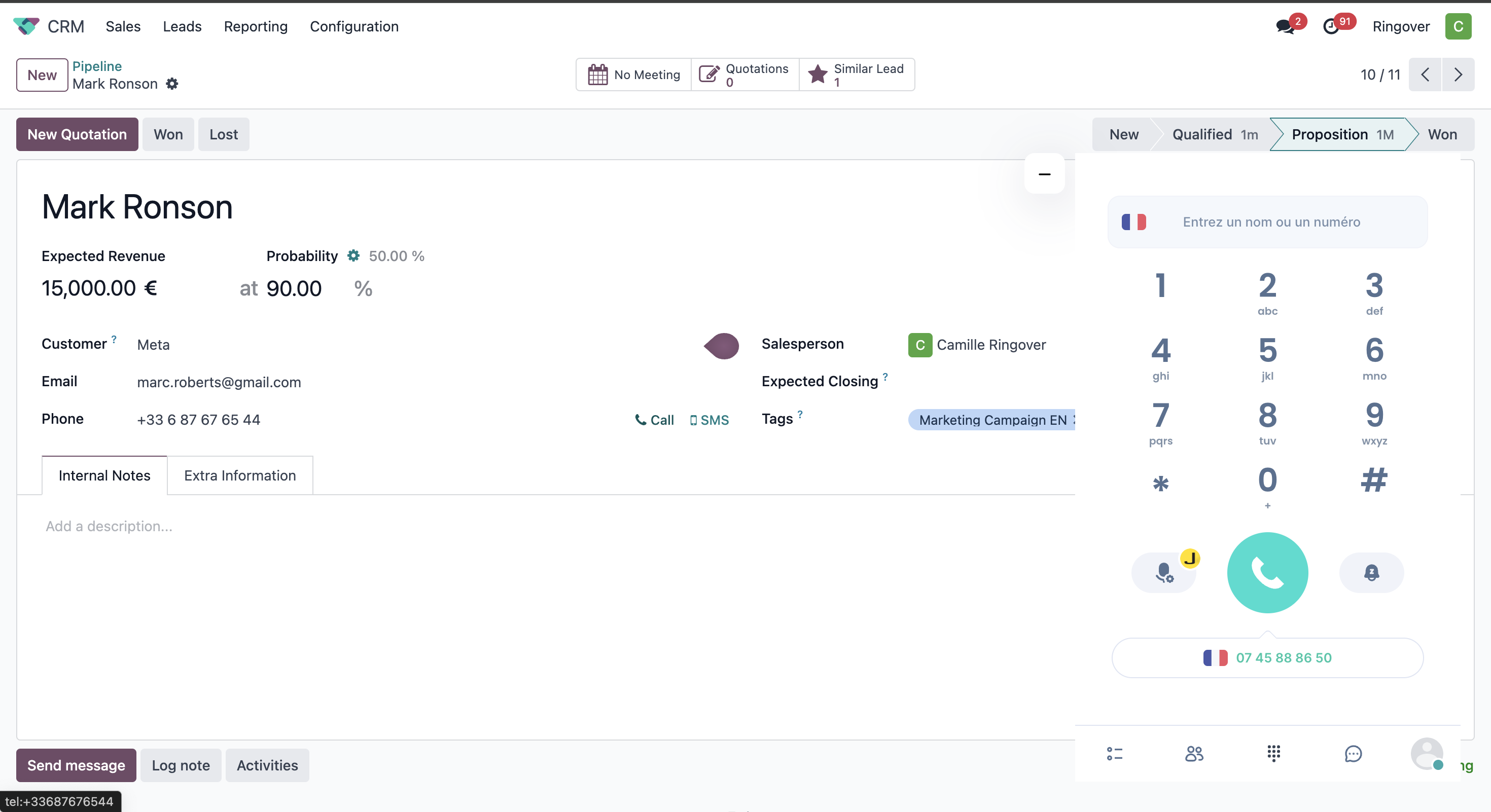
The first time you open the dialer, complete the following steps:
- Allow microphone access when prompted.
- Sign in with your Ringover credentials.
To make an outbound call:
- Click Call next to a phone number in Odoo.
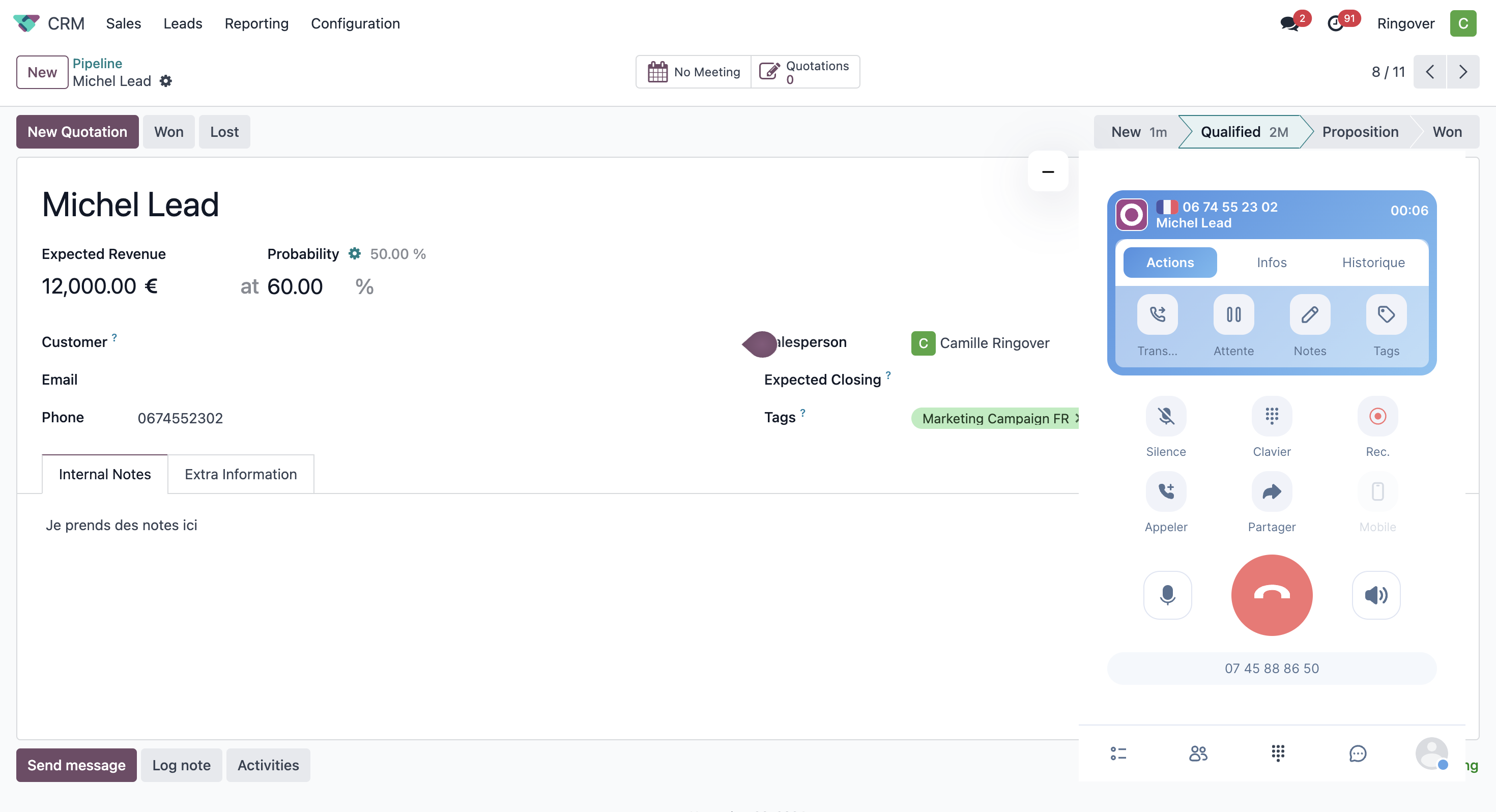
- The dialer also supports inbound calls. Once contact synchronisation is enabled, contacts are displayed in the dialer.
4. Adjust the dialer position
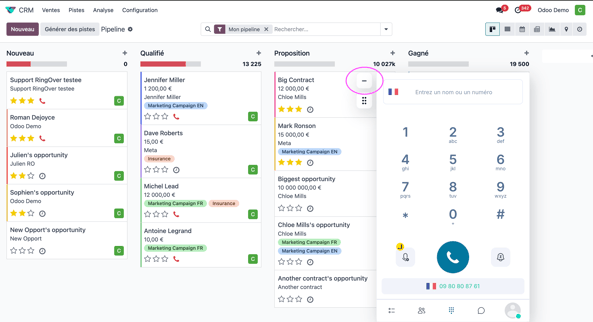
Use the minimise button shown below to minimise the dialer.
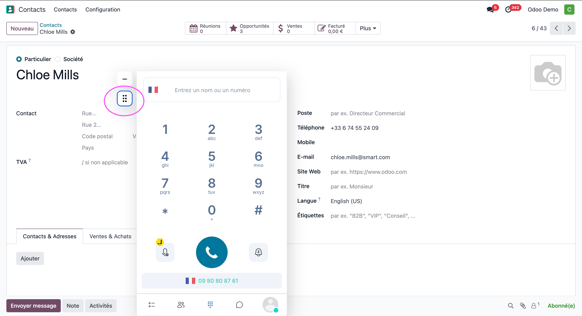
- Drag the button shown below to move the dialer horizontally.
FAQ
Why do I see two dialers?
You may also have installed the Ringover app from the Odoo marketplace. Use the Ringover VoIP Phone extension for Odoo on its own to avoid displaying two dialers.
Why am I redirected to Ringover when I click a phone number?
You may also have installed the Ringover Click-to-call Chrome extension. Use the Ringover VoIP Phone extension for Odoo on its own.
How do I uninstall the extension?
- Open the Chrome extensions list.
- Find Ringover VoIP Phone for Odoo.
- Click Remove from Chrome.
You can now use the Ringover dialer to make and receive calls directly in Odoo.