
Clearing your browser's cache allows you to resolve performance issues and free up valuable space on your device. In this guide, you’ll learn how to quickly clear your data and configure automatic cache clearing in Microsoft Edge.
Clear your cache in Microsoft Edge
1. Access Edge settings
Start by opening your browser menu to locate your core settings.
Open Microsoft Edge on your computer.
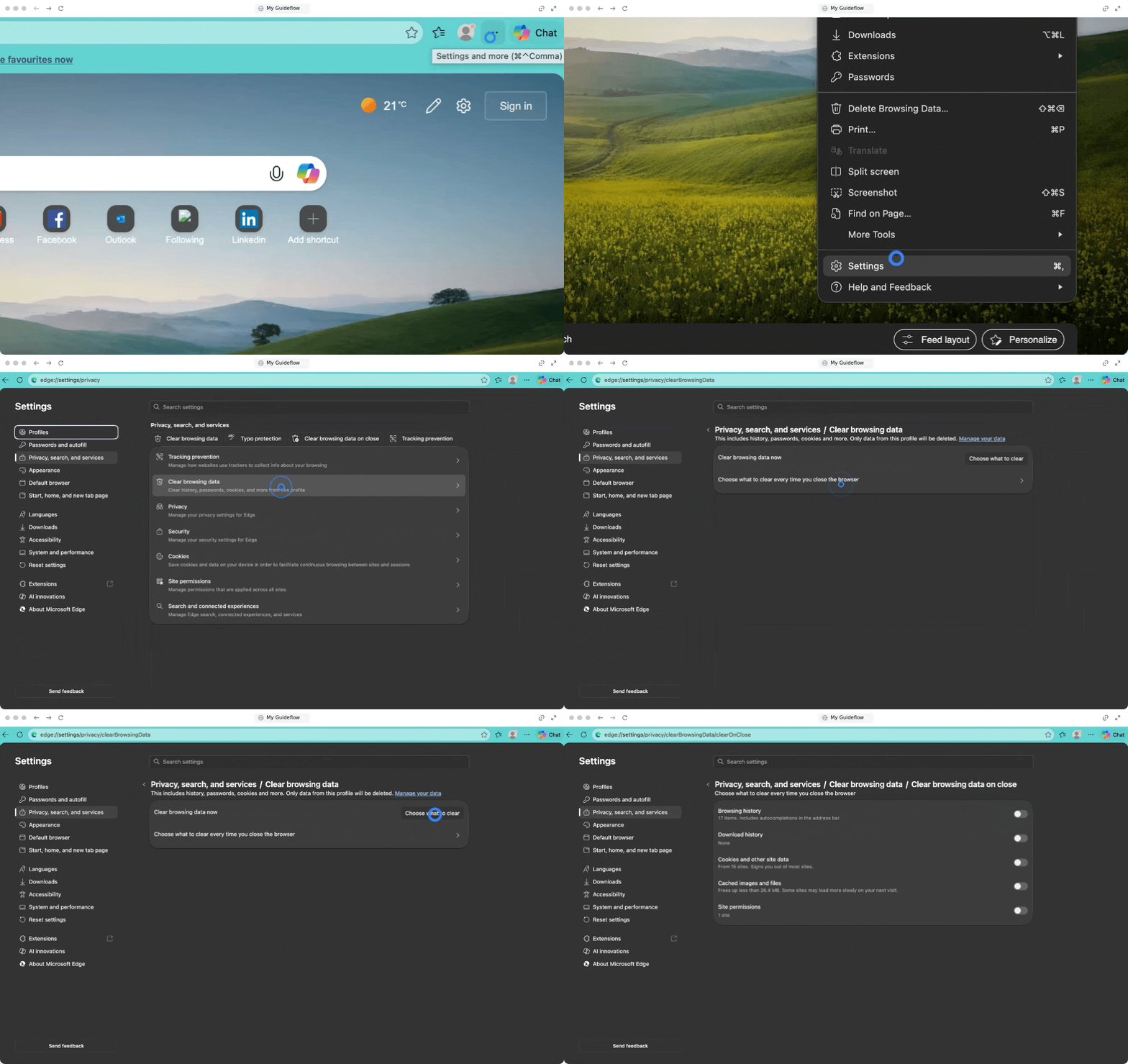
Click the three dots in the upper right corner to open the menu.
Go to Settings.
Go to the Privacy, search, and services section.
Scroll down to Clear browsing data.
Click on Choose what to clear.
2. Choose what to clear
Select exactly what data you want to delete and the time frame before confirming your choice.
Select the desired time range from the drop-down menu (for example, "All time").
Check the box for Cached images and files.
Click Clear now.
3. Clear cache automatically upon closing
If you prefer not to clear your cache manually, you can set your browser to do it for you automatically.
Choose the option to select what to clear every time you close the browser.
Select the specific options you want to be cleared automatically.
🎉 You now know how to clear your cache in Microsoft Edge and can enjoy a faster, optimized browsing experience!