
The Meeting Assistant in Empower automatically joins your scheduled meetings to record, transcribe, and generate AI-powered notes. In this guide, you’ll learn how to connect your calendar, configure participation rules, manage sharing options, and control privacy settings.
Set up Empower meeting assistant
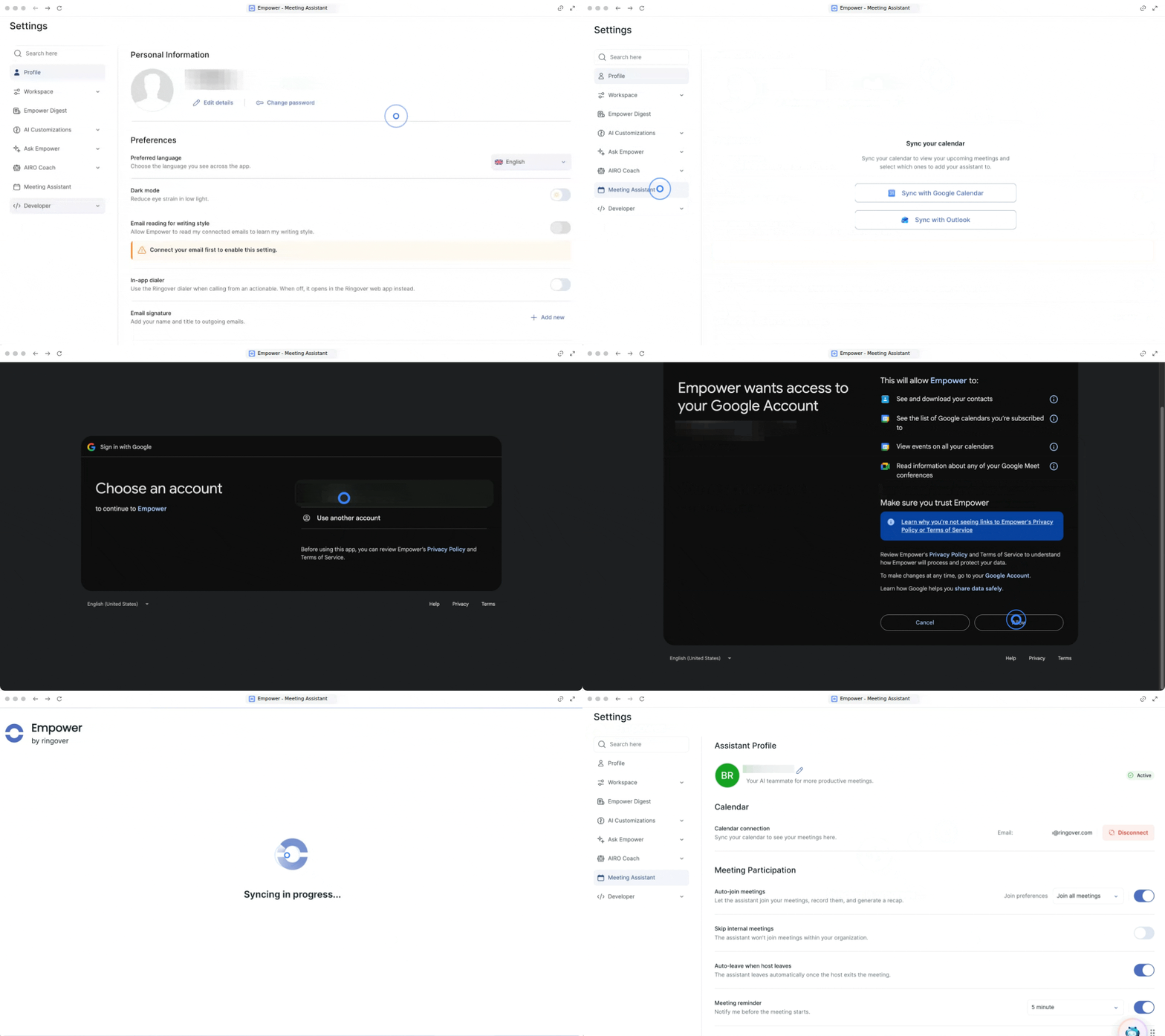
1. Access the Meeting Assistant and sync calendar
Connect your calendar to allow Empower to detect upcoming events and deploy your assistant.
Go to Settings.
Open the Meeting Assistant section.
Choose your calendar synchronization method (e.g., Google synchronization).
Connect your Gmail account to Empower and grant required permissions.
Personalize your Meeting Assistant Name if desired.
2. Configure meeting participation rules
Define when and how your assistant joins meetings, leaves calls, and sends automated notifications.
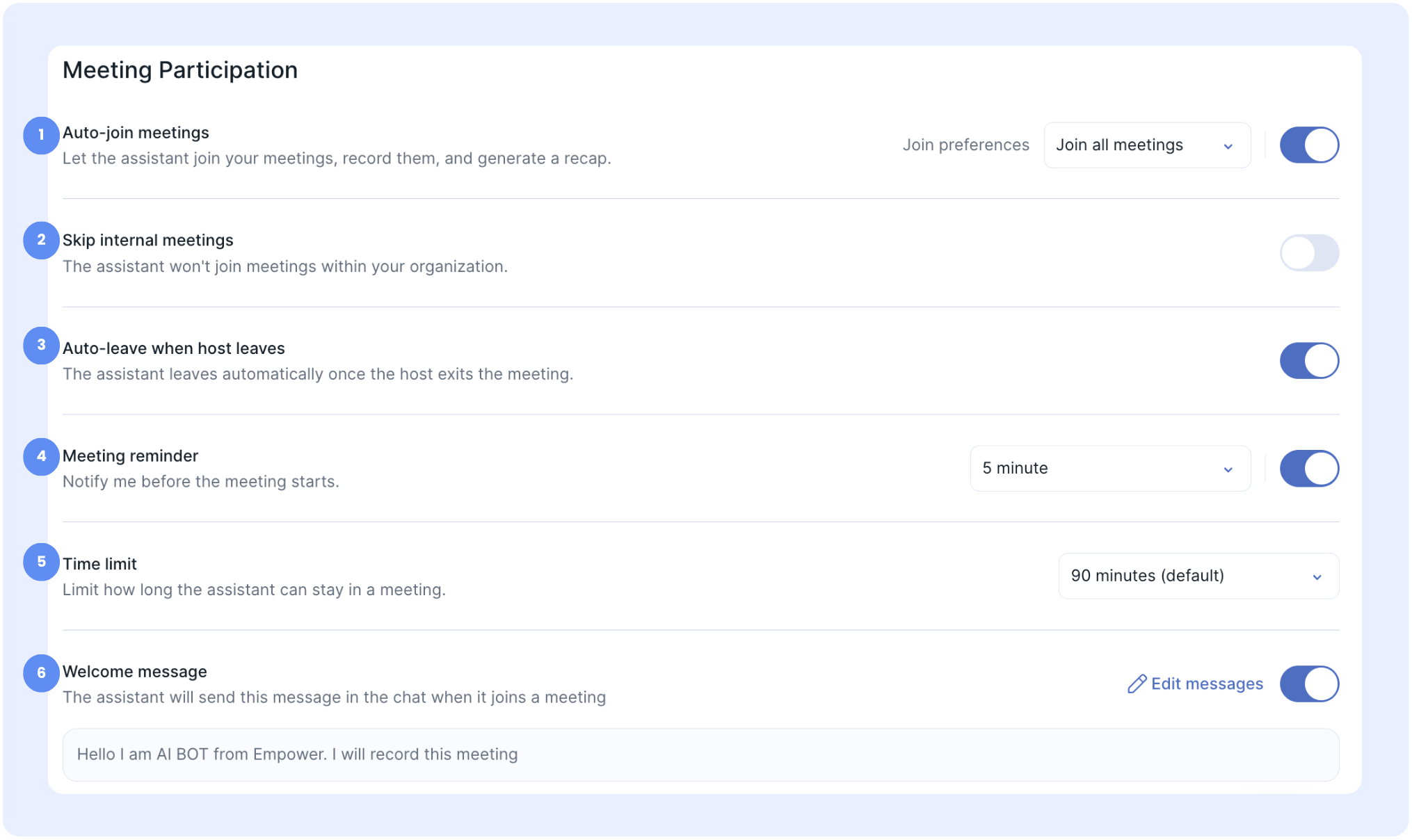
Meeting Participation
-
Auto-join meetings: Let the assistant join your meetings, record them, and generate a recap.
- Join preferences: Dropdown setting to specify which meetings to enter (e.g., "Join all meetings").
- Skip internal meetings: Toggle switch ensuring the assistant won't join meetings within your organization.
- Auto-leave when host leaves: Toggle switch causing the assistant to leave automatically once the host exits the meeting.
- Meeting reminder: Toggle switch and time selector (e.g., "5 minute") to send a notification before the meeting starts.
- Time limit: Dropdown setting (e.g., "90 minutes (default)") to limit how long the assistant can stay in a meeting.
-
Welcome message: Toggle switch enabling a automated message that the assistant sends in the chat upon joining.
- Edit messages: Action link allowing customization of the default greeting text (e.g., "Hello I am AI BOT from Empower. I will record this meeting").
Sharing and Recaps
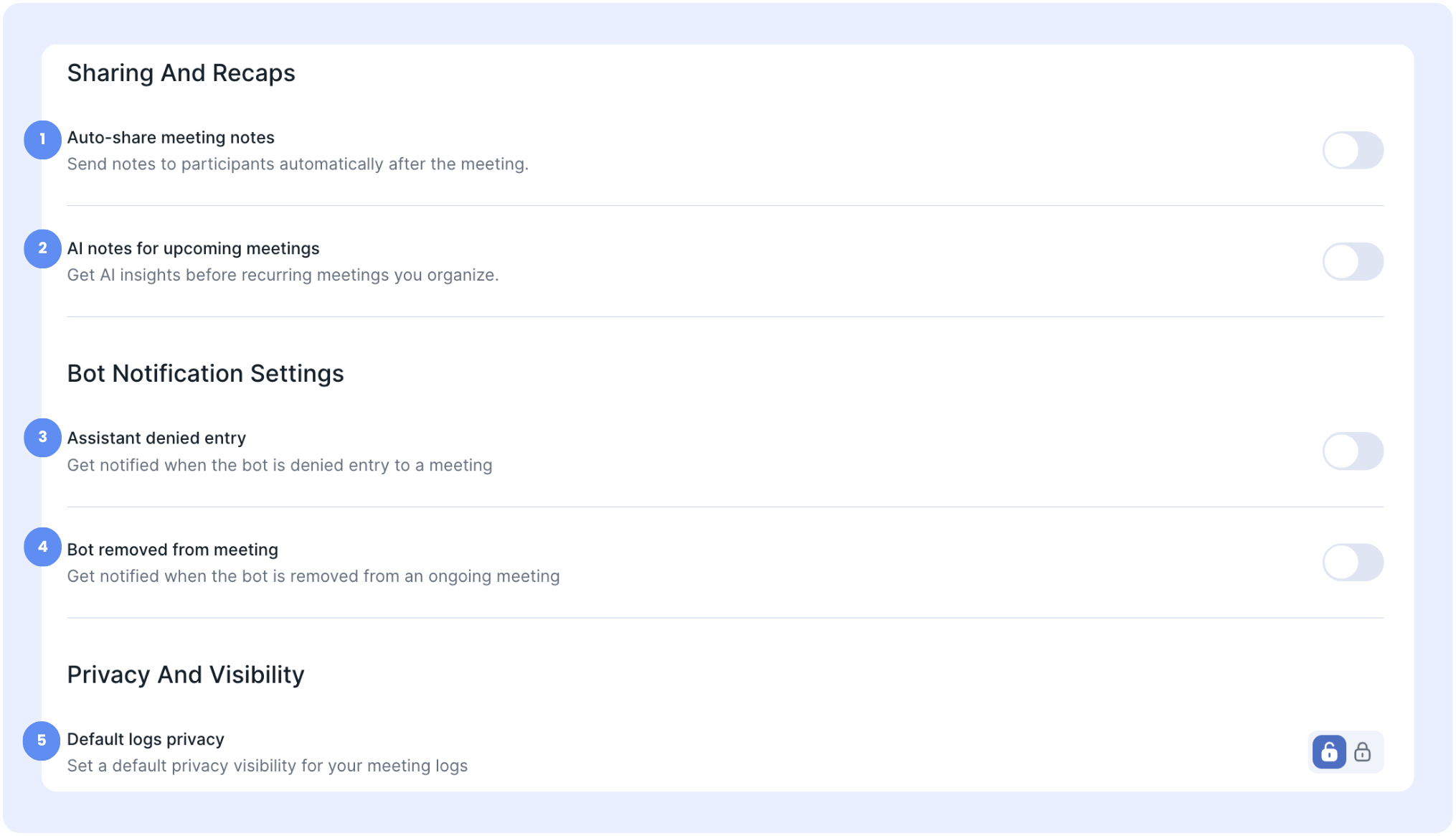
- Auto-share meeting notes: Toggle switch to send notes to participants automatically after the meeting ends.
- AI notes for upcoming meetings: Toggle switch to get AI insights before recurring meetings you organize.
Bot notification settings
- Assistant denied entry: Toggle switch to get notified when the bot is denied entry to a meeting.
- Bot removed from meeting: Toggle switch to get notified when the bot is removed from an ongoing meeting.
Privacy And Visibility
- Default logs privacy: Option with lock-icon privacy toggles to set a default privacy visibility level for your meeting logs.
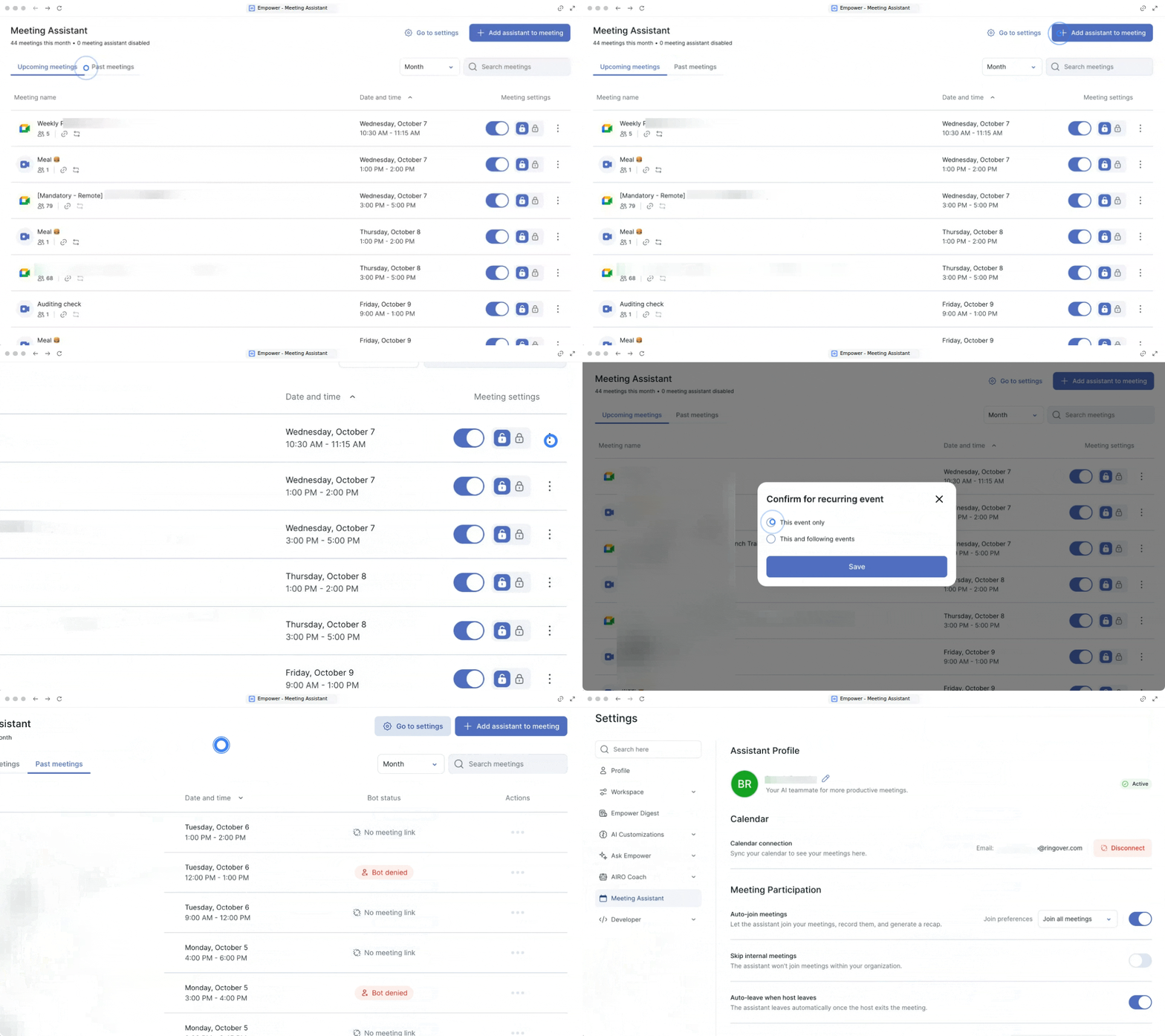
3. Manage upcoming and past meetings
View your scheduled events, add assistants manually, and adjust privacy settings.
Add assistant to a meeting
Manual setup for ad-hoc or video link meetings. Use this when inviting an assistant to a specific unlinked event.
Switch view display by Day, Week, or Month.
Select Add an assistant to meeting.
Choose the assistant and enter meeting details.
Enable or disable and personalize the welcome message.
Paste the meeting video platform link.
Privacy and recurring meeting options
Access levels and scope management for meeting records. Use these controls to keep confidential notes private or apply settings to recurring series.
Closed lock (Private): Restricts visibility so only you can access notes.
Open lock (Public): Makes notes visible to all allowed participants.
Three dots menu: Click to copy link, customize welcome message, or toggle attendance for single vs. recurring instances.
🎉 You now know how to set up Empower Meeting Assistant and can seamlessly automate your meeting notes and transcripts!