
Fax numbers allow your business to receive digital faxes directly through your interactive voice menus. In this guide, you’ll learn how to verify fax number availability, link a fax line to an auto-attendant, and define which users or groups should receive incoming fax documents.
Configure fax numbers
Verify and configure your fax number availability
Before linking a fax to your call flows, you must ensure you have an unassigned landline number set up specifically as a fax.
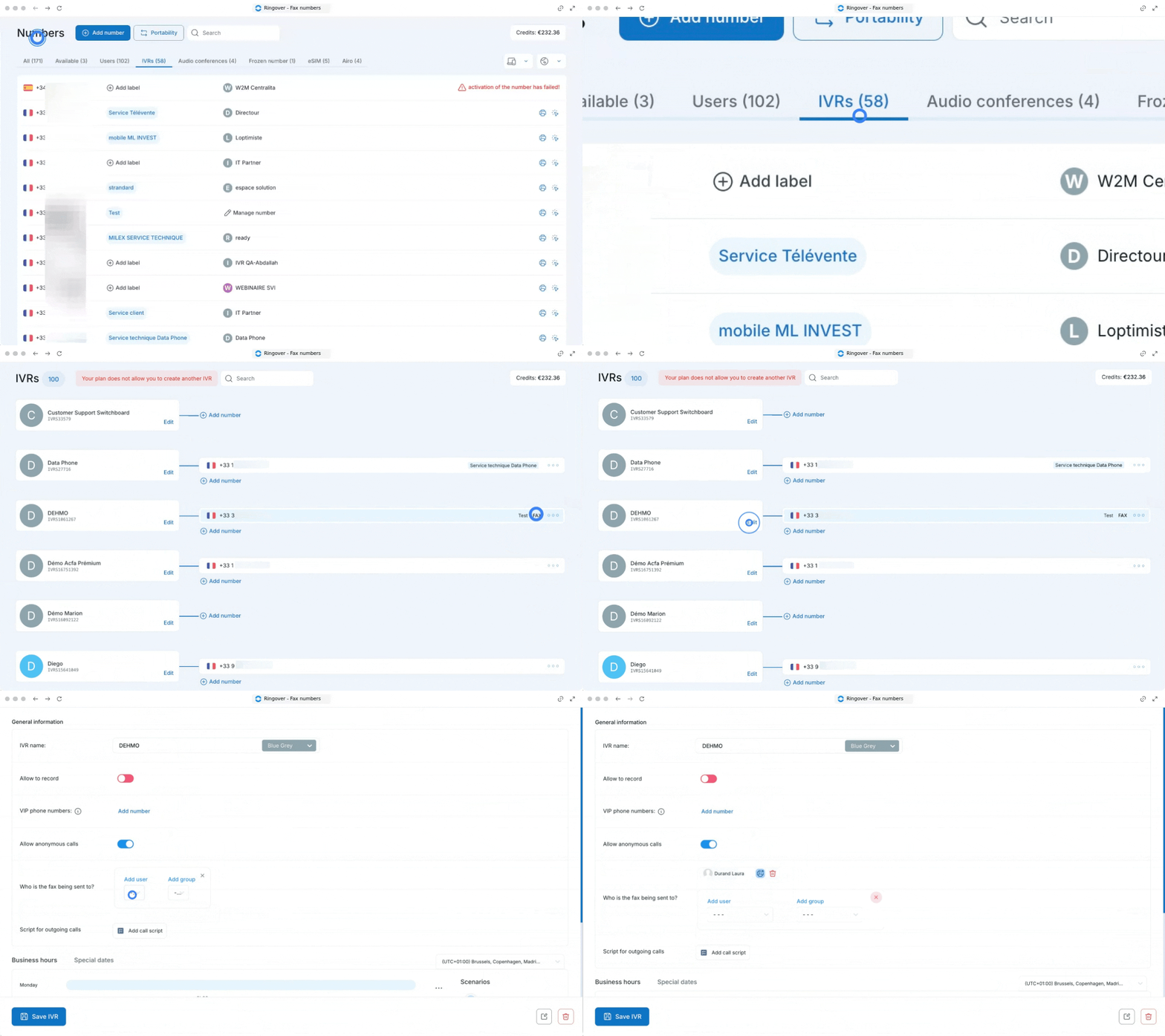
- Go to the Numbers section.
- Locate an unassigned landline number.
- Click on the three dots icon next to the chosen number.
- Select Set as a fax number.
- Then, go to the IVR's page and click on "Edit".
- Scroll down to the Who is the fax being sent to section.
- Click on Add a user.
- Select a user by clicking on their name, or search for a specific group.
- Click on Save at the bottom of the page to apply your changes.
Always click Save after modifying your auto-attendant settings to ensure your newly assigned recipients are successfully mapped and ready to receive documents.
If you do not have a landline number configured as a fax, please refer to our guide on 🔗 How to convert a phone number to a fax number & 🔗How to send and read a fax.
Make sure the number is set up as a fax but remains unassigned to any individual user for now.
Make sure the number is set up as a fax but remains unassigned to any individual user for now.
🎉 You now know how to configure fax numbers and ensure all incoming corporate faxes are automatically routed to the correct users and teams!