Divalto weavy is a modern CRM and Field Service Management (FSM) solution designed to empower sales teams and field technicians. It enables efficient intervention planning, centralized customer data management, real‑time field updates, mobility (including offline use), and route optimization for enhanced responsiveness and performance.
Integrating Ringover with Divalto weavy provides seamless call, SMS, and WhatsApp workflows within the CRM. Once activated, you will be able to:
-
Use click-to-call to initiate calls directly from Divalto weavy.
-
Automatically log your call (with notes, tags, call recordings, transcripts, and summaries) as well as SMS and WhatsApp activities
-
Synchronize contacts and third parties between Ringover and Divalto weavy.
-
Benefit from AI-powered transcriptions and summaries.
- Group your SMS and WhatsApp messages as daily or full conversations.
Now, let's move on to the tool integration 📳
Prerequisites:
- You must have a Ringover Business or Advanced account to benefit from this integration 💳
- The integration must be performed by an administrative or technical account in Ringover 👨💼
- Divalto weavy: Admin-level access. You must collect your webhook entrypoint codes from Divalto, as described in the section below.
I. Retrieve Required Fields from Divalto weavy
You’ll need to provide the following fields in the Ringover activation form:
-
Company Code
-
Baseuser (Webhook EntryPoint Code)
-
Event (Webhook EntryPoint Code)
-
Thirdparty (Webhook EntryPoint Code)
-
Thirdparty Contact (Webhook EntryPoint Code)
Where to get them in Divalto Weavy:
-
Company Code
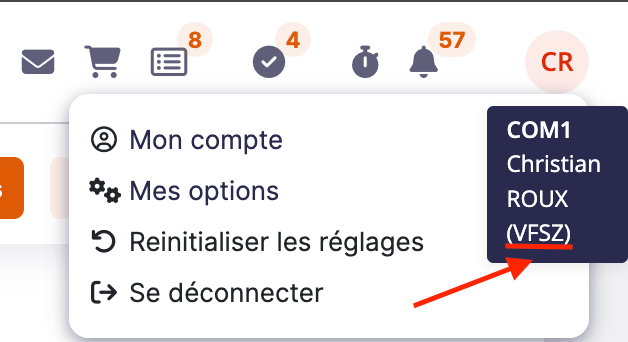
The company code corresponds to your company identifier. It can be obtained by navigating to the upper right corner in Divalto weavy and is presented between brackets, below your username.Example:
-
Webhook EntryPoint Codes (Baseuser, Event, Thirdparty, Thirdparty Contact)
Those codes are defined in Divalto Weavy’s webhook configuration, linked to the respective entities. Please contact your Divalto weavy partner to obtain them.
II. Activate the integration in Ringover
1. Go to Dashboard > Integrations
2. Search for 'Divalto weavy' and click on it
4. Enter your your company code and each webhook entrycode, as received from Divalto Weavy:
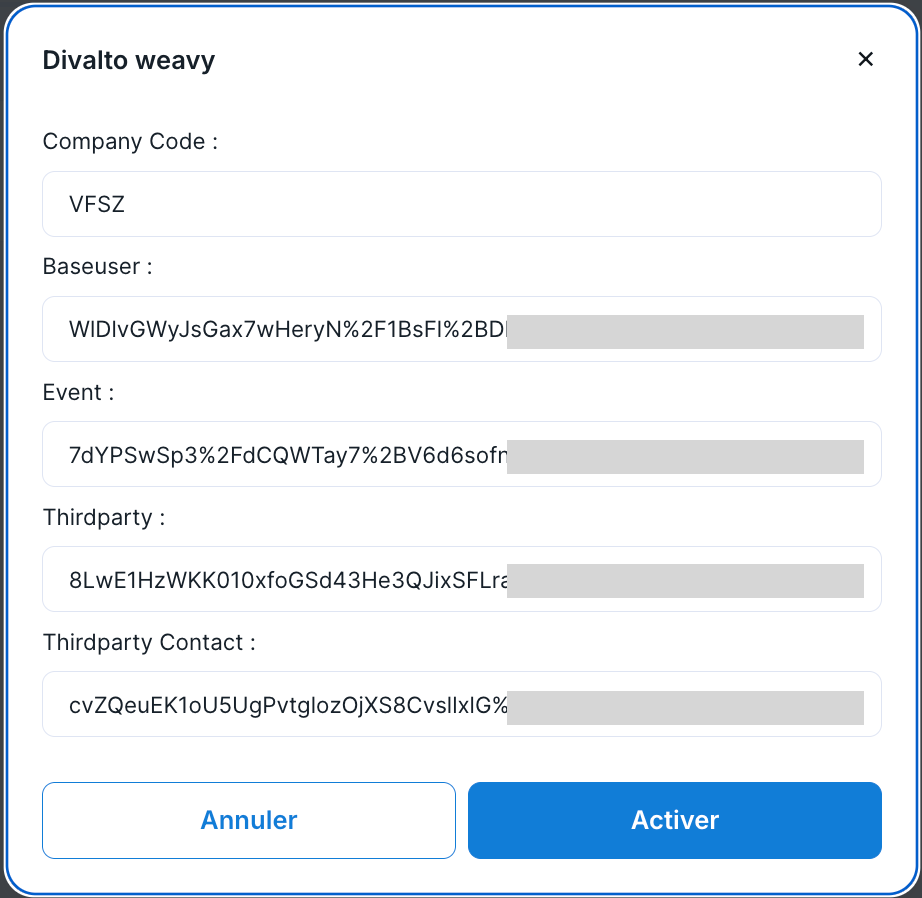
5. Click 'Activate'
III. Configure your settings
Customize the behavior of the integration based on your requirements through the settings. To do this:
- Go back to Dashboard> Store> Integration and click on "Divalto weavy":
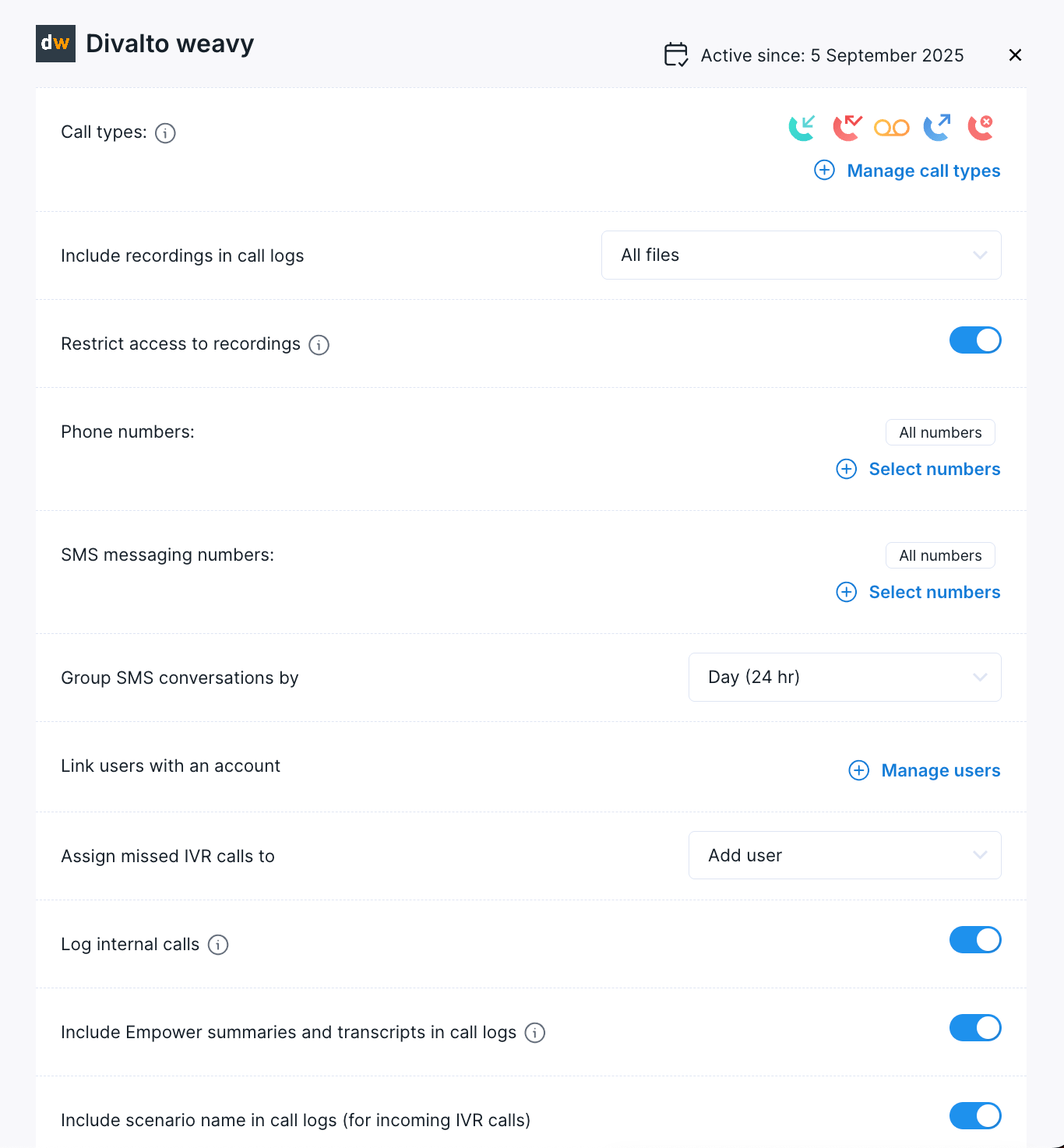
💡 For more information on the configuration, check out our dedicated section "How to configure your tool?"
For a quick start, from the integration panel:
- Make sure that you have mapped your users by clicking "+ Manage users" and activated the synchronization of your contacts.
- Turn on the synchronization of your contacts (candidates) to ensure that all profiles are up-to-date and available in your Ringover interface.
Additionally:
- Verify that the users who will use the integration have their call recording enabled in the Dashboard user settings, if you want to make them benefit from the call recording link, transcript link and summary in the call logs.
-
Install the Ringover click-to-call extension in your browser.
Once the extension is installed, the phone numbers in Divalto weavy will be highlighted.
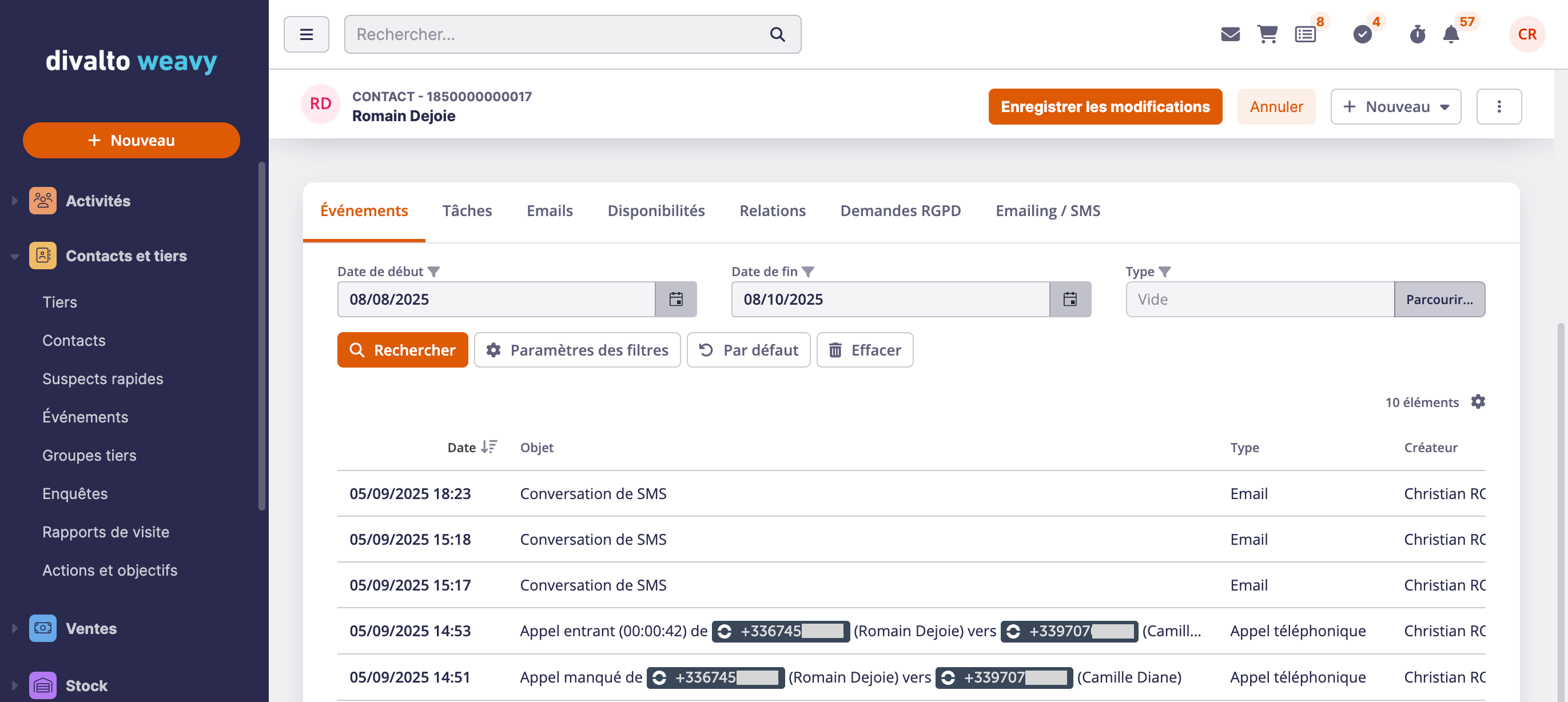
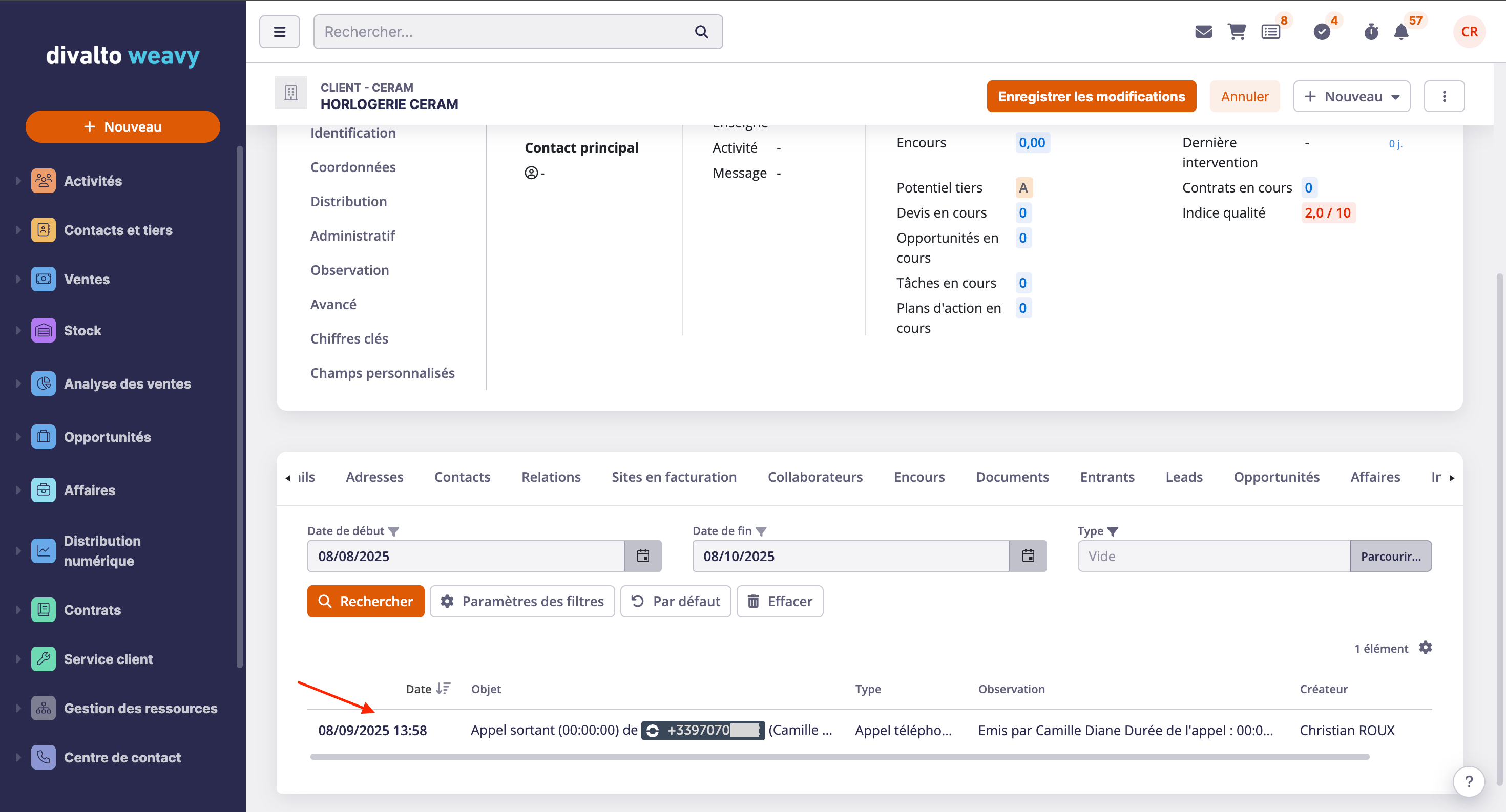
You can now make a test call by clicking on a contact's phone and verify that this is logged in Divalto weavy as an event:
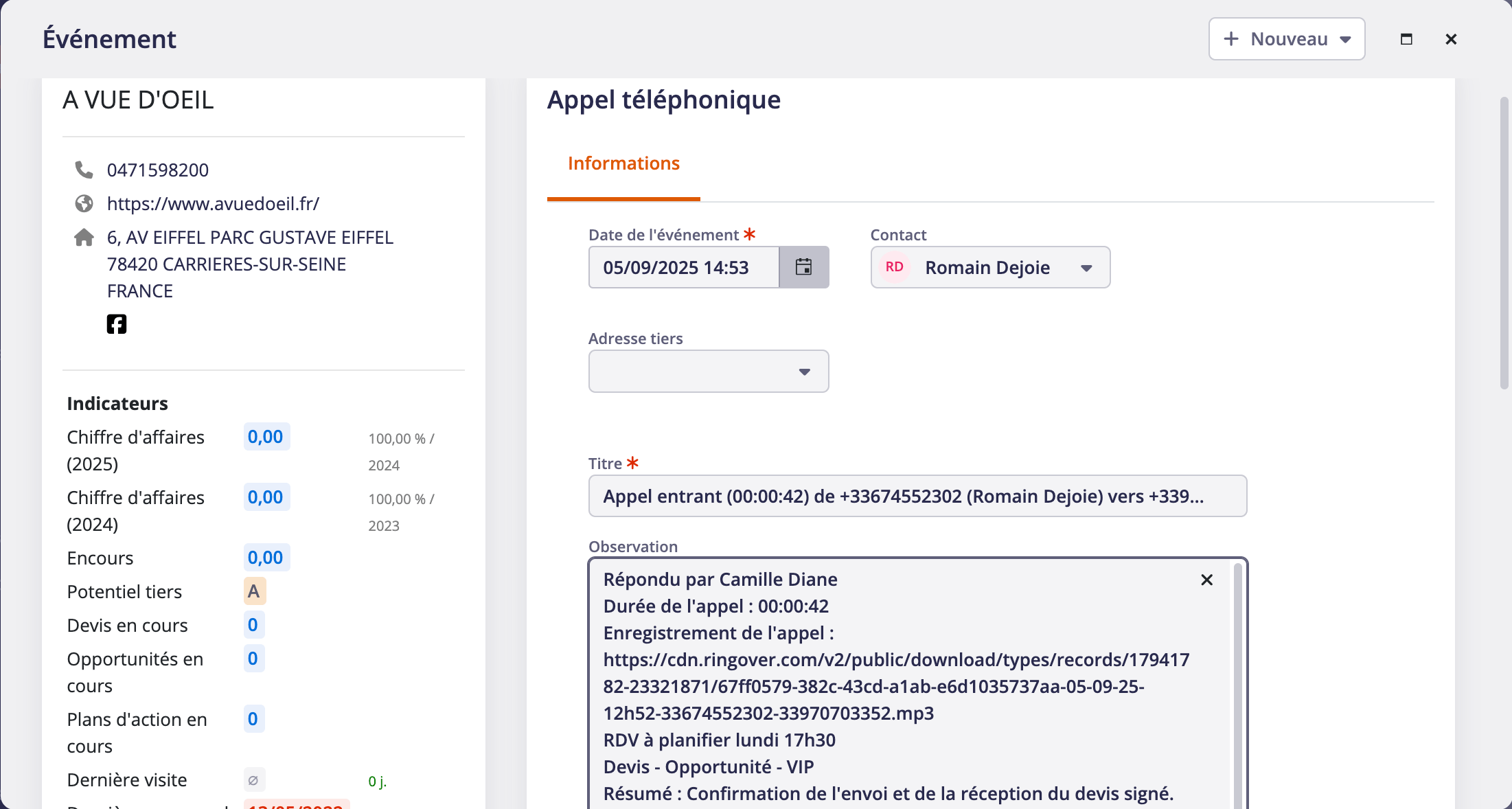
Ringover activities will also be associated with the third parties: