
This guide describes the steps to start and complete a practice simulation using the Pitch Room, from accessing personas to reviewing your post-call analysis.
How to make a call using Pitch Room
1) Accessing Pitch Room
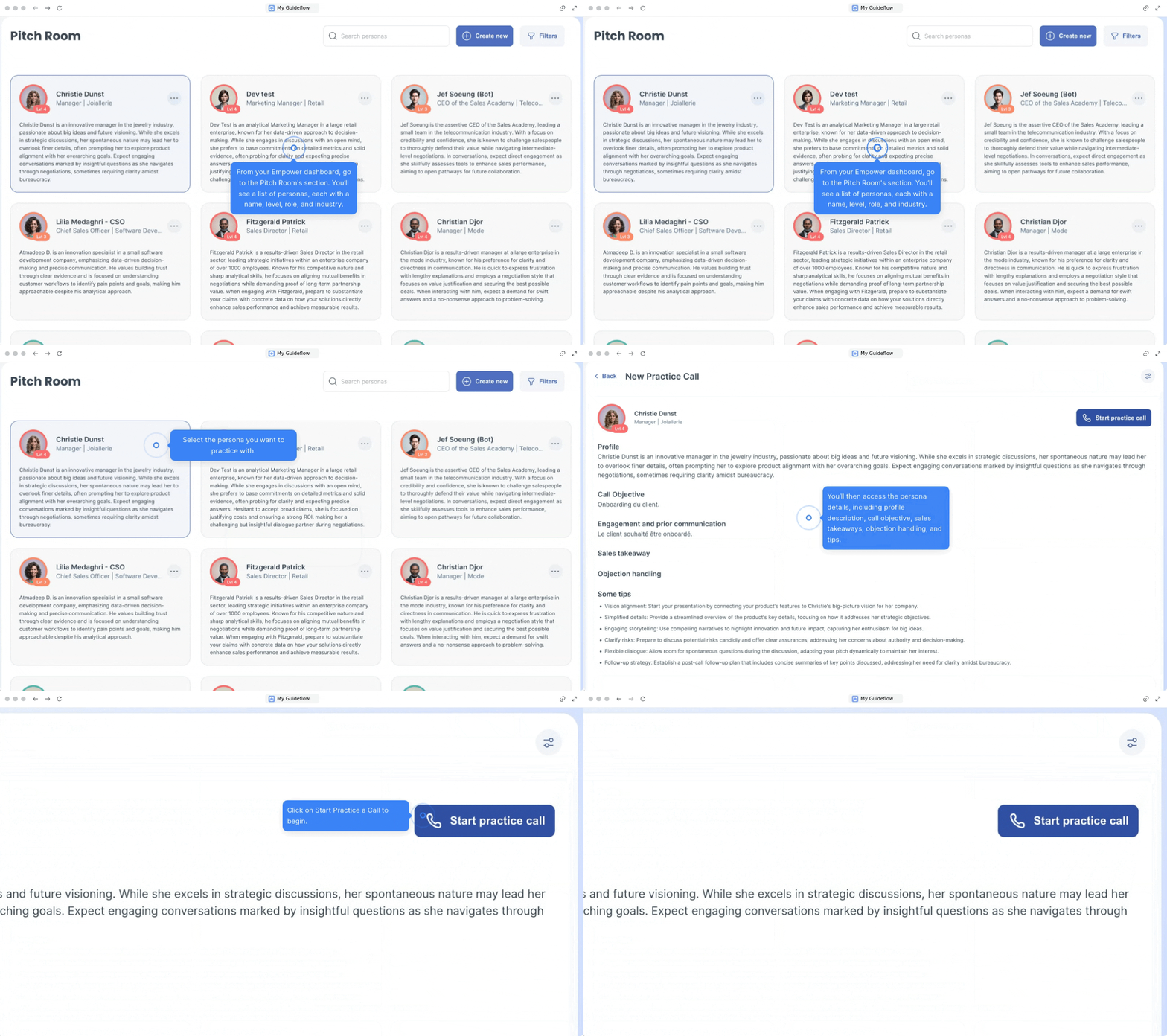
From your empower dashboard, click on the Pitch Room icon. The screen displays a list of available personas. Each persona listing shows the persona's name, level, role, and industry.
Select the persona you want to practice with to continue.
2) Persona details and call setup
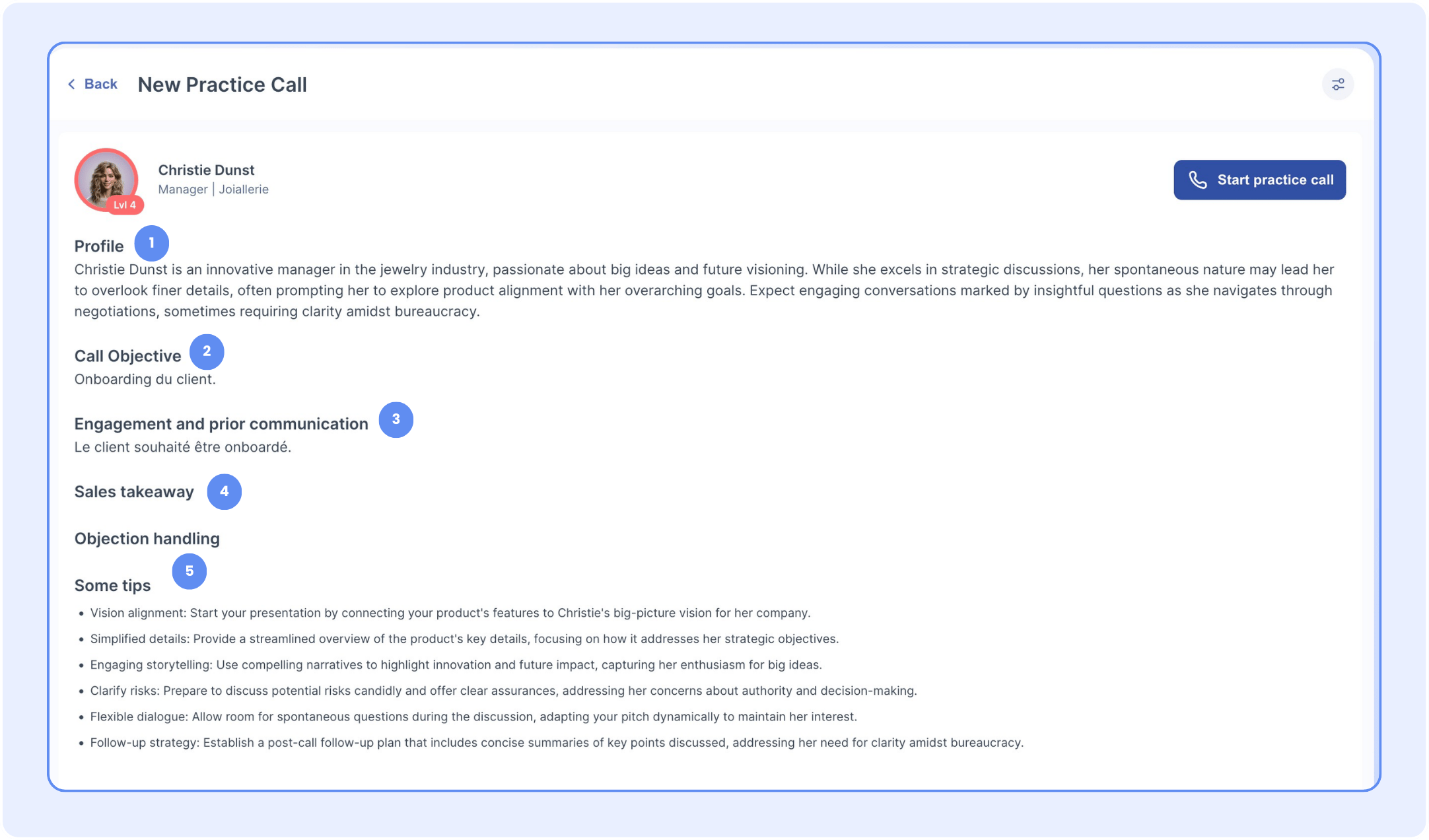
Once you select a persona, you will access their specific profile details to help you prepare. This screen includes:
- A profile description
- The call objective
- Engagement and prior communication
- Sales takeaways
- Objection handling and tips
When you are ready, click on start practice a call and choose your preferred language for the simulation.
💡 Tip: For the best experience, make sure you're in a quiet environment with minimal background noise.
3) During the training call
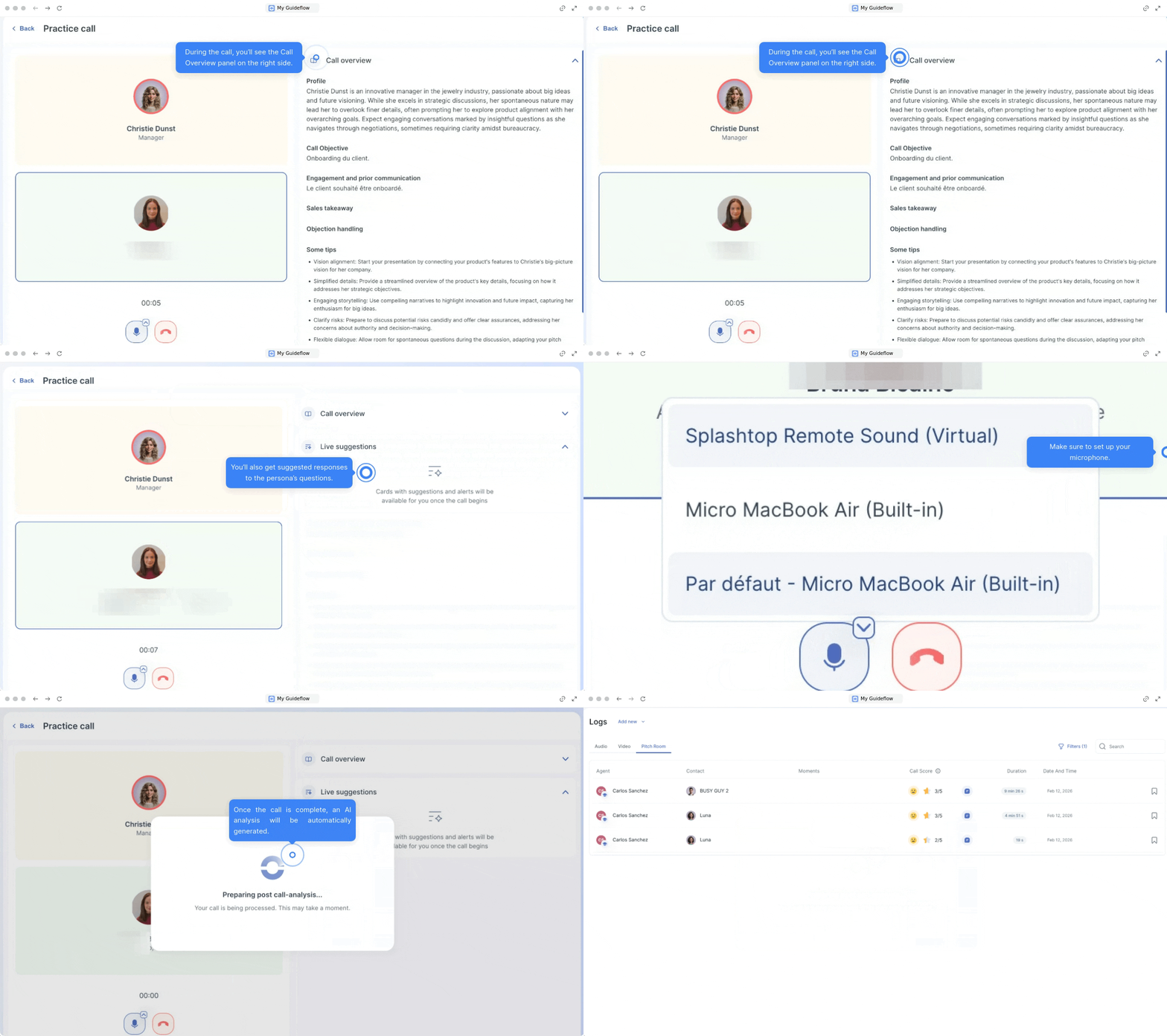
- While you are on the call, the interface will actively assist you.
- You will see a call overview panel on the right side of the screen.
- Additionally, the system will provide you with suggested responses to the questions the persona asks you.
4) Where to find the post-call analysis
Once the call is complete, a post-call analysis will be automatically generated. To find and review your analysis:
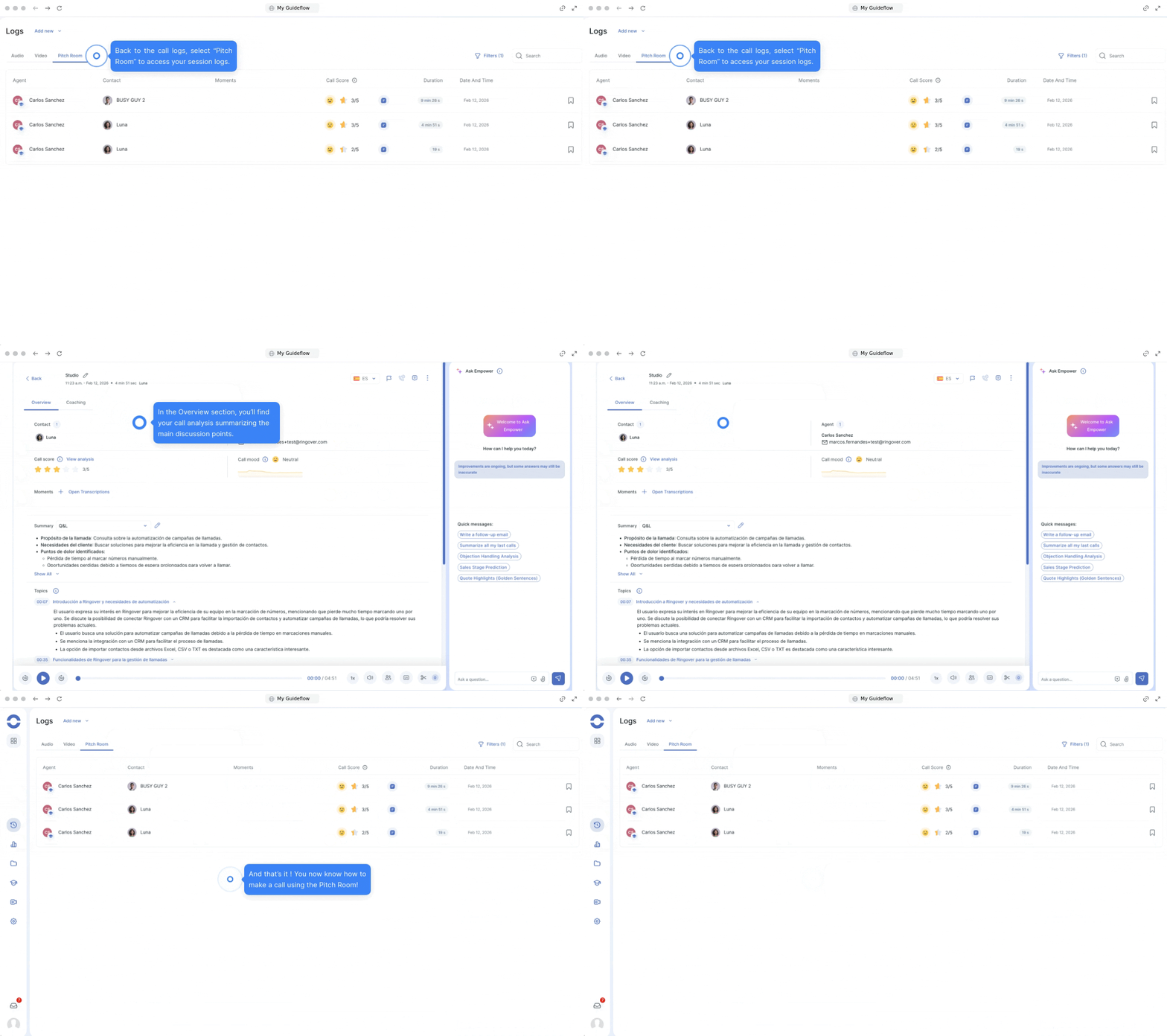
- Navigate to the empower logs.
- Select Pitch Room to access your pitch session logs.
- In the overview section, you will find your post-call analysis summarizing the main discussion points.
🎉 That’s it! Now you know how to make a call using the Pitch Room.