
Overview
This guide explains how to automatically send SMS messages from HubSpot workflows using Ringover.
Prerequisites
Before setting up SMS workflows, make sure you have:
- ✅ Installed and connected the Ringover ↔ HubSpot integration
- ✅ A Ringover number configured
- ✅ Purchased SMS credits
- ✅ Enabled HubSpot Workflows (Operations Hub / Marketing Hub)
- ✅ Activated the Omnichannel add-on in HubSpot
👉 Related articles:
- Connect Ringover with HubSpot
- Configure SMS in Ringover
- Manage SMS credits
- 🇺🇸 US only : Get a TCR-approved number to send SMS
⚠️ Important limitation
SMS workflows do not work when sending messages to another Ringover number.
👉 Always test workflows using external phone numbers only.
Step 1: Create a workflow in HubSpot
- Go to Automation → Workflows
- Click Create workflow
- Choose a Contact-based workflow
- Set your enrollment triggers (e.g., new lead, lifecycle stage, etc.)
Step 2: Add the SMS action
- Click + Add action
-
Scroll down in the Actions list, until you see the 'Ringover integrated app':
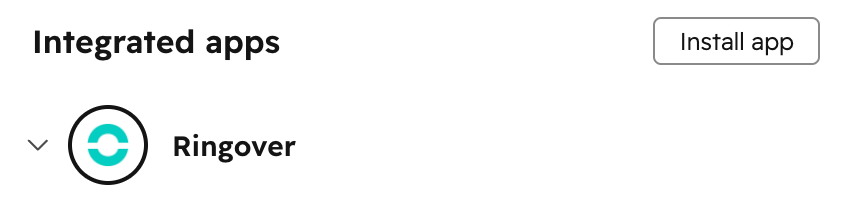
- Expand the list of Actions
-
Choose your Ringover SMS workflow depending on the region of your Ringover account:
- US: "Sens A SMS US (v2)" (recommended latest version)
- EU and rest of the world: "Sens A SMS (v2)" (recommended latest version)
- Select the action
Step 3: Configure the SMS action
Fill in the following fields:
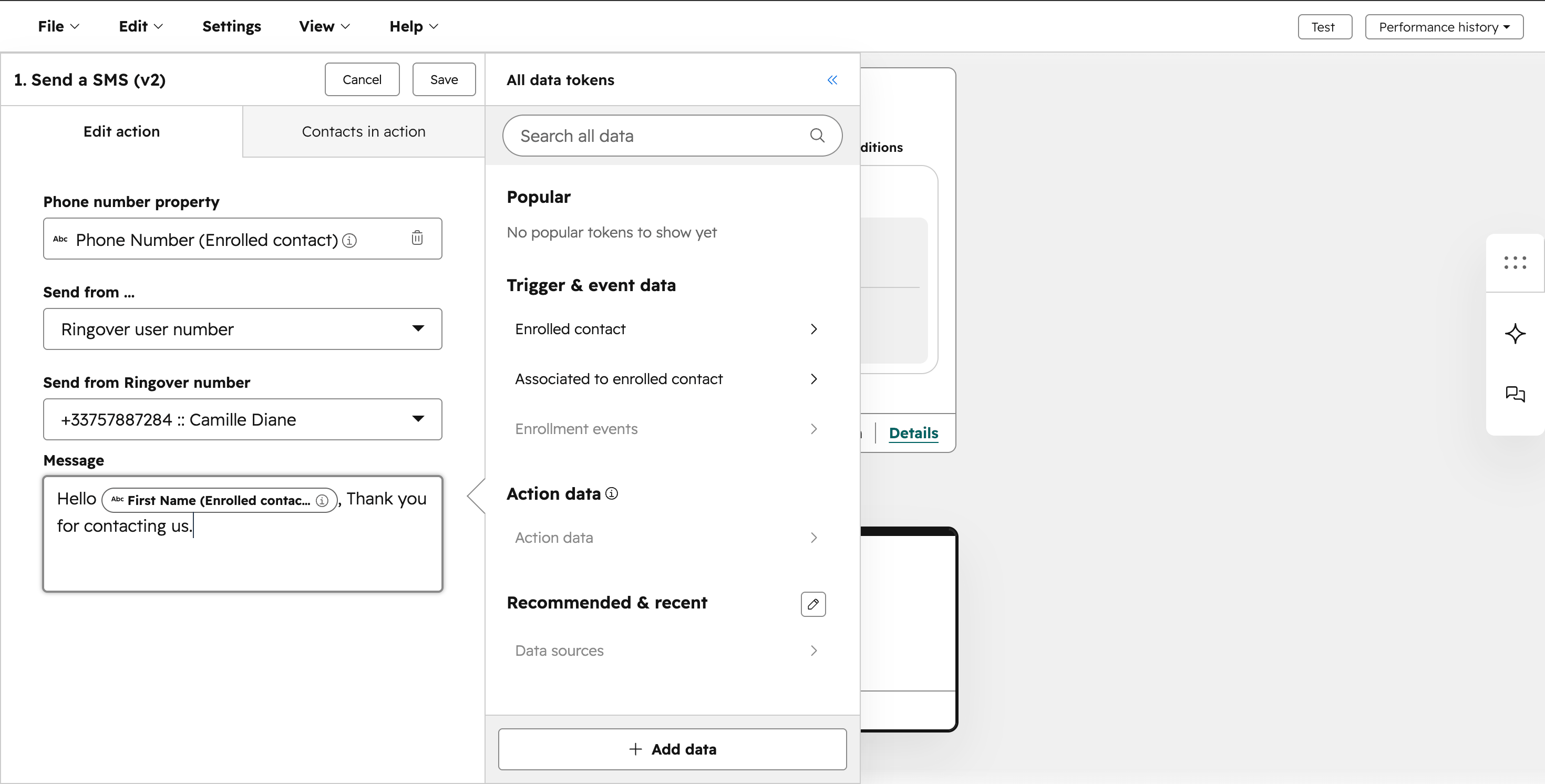
📱 Phone number property
- Select:
👉Phone Number (Enrolled contact)
(or your custom phone field)
📤 Send from
- Choose:
👉 Ringover user number
📞 Send from Ringover number
- Select the number that will send the SMS
💬 Message
- Write your SMS content
- You can personalize it using HubSpot tokens:
Example:
Hello , thank you for contacting us.
Step 4: Save and activate
- Click Save
- Review your workflow
- Click Turn on
Best practices
- Keep messages short and clear
- Always include personalization tokens when possible
- Make sure contacts have a valid phone number (with country code)
- Test with real external numbers before going live