
Connecting Empower to your Outlook allows you to seamlessly manage and send emails directly from your interface. In this guide, you’ll learn how to connect your account and send personalized emails straight from the studio.
Connect Empower to Outlook and Send Emails
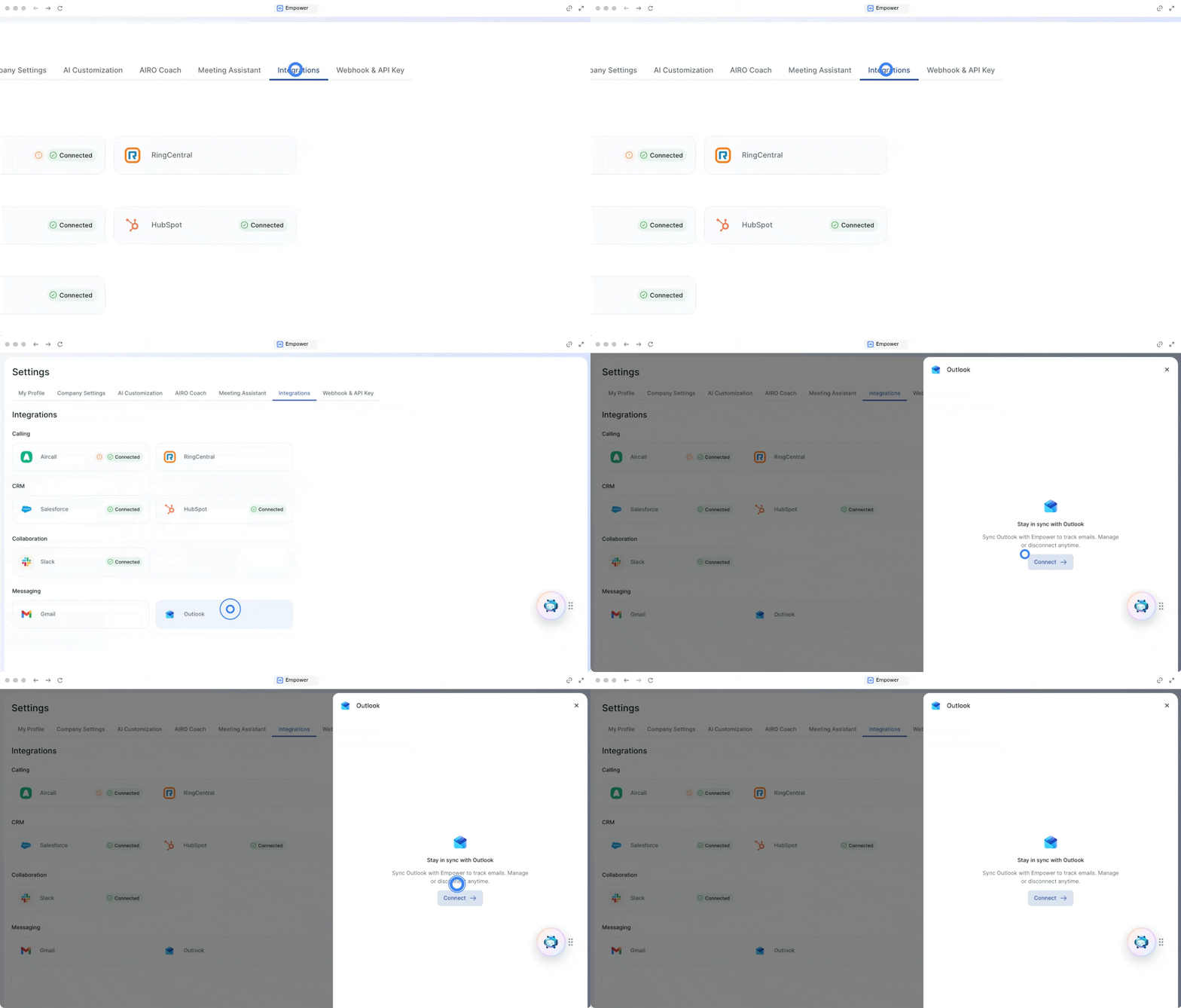
1. Connect your Outlook account
Start by integrating your Outlook account to enable direct communication.
Go to the integration section.
Click on Outlook.
Click on "connect" and accept the permissions.
Once connected, you have the flexibility to maintain or remove the integration from your settings.
Navigate to your active integrations.
Reload the integration to refresh the connection, or delete it to remove it entirely.
2. Send an email from the studio
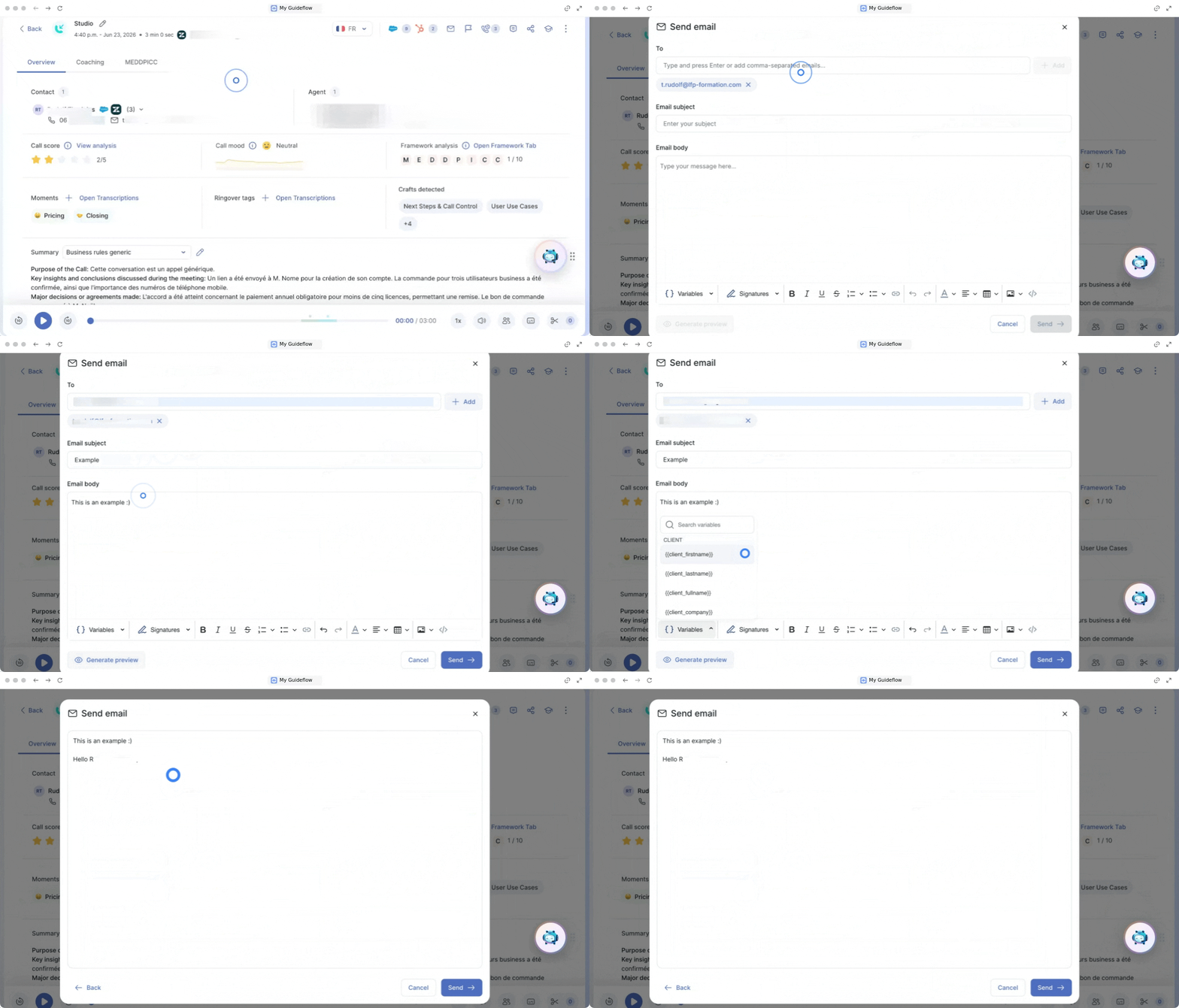
You can draft and send personalized emails directly while reviewing your calls.
Go to the Empower studio.
Click on the little mail icon on the top right.
Write your mail, using variables if needed to personalize your message.
Preview your email.
Send it.
🎉 You now know how to connect Empower to your Outlook and can efficiently send emails straight from the studio!