
The Slack integration allows you to seamlessly share insights and connect your workflows directly within your collaboration channels. In this guide, you’ll learn how to access your workspace details, manage your channels, and receive automated workflows.
Connect and Manage the Slack Integration
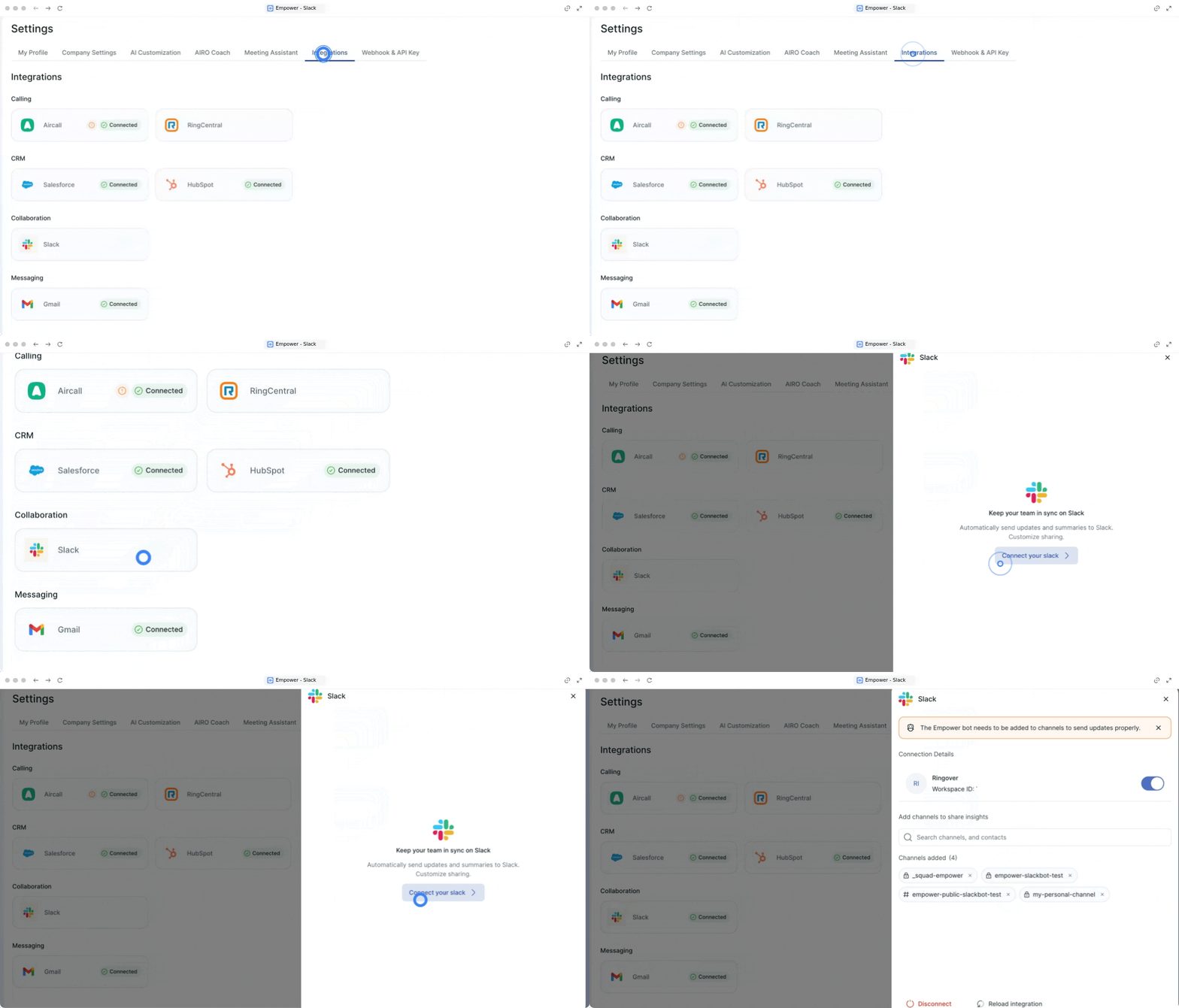
1. Access the integration details
Review your connection details and Workspace ID to ensure your account is properly linked.
- Go to the integrations section.
- Click on Collaboration.
- Click on Slack.
- View your connection details, such as your Workspace ID.
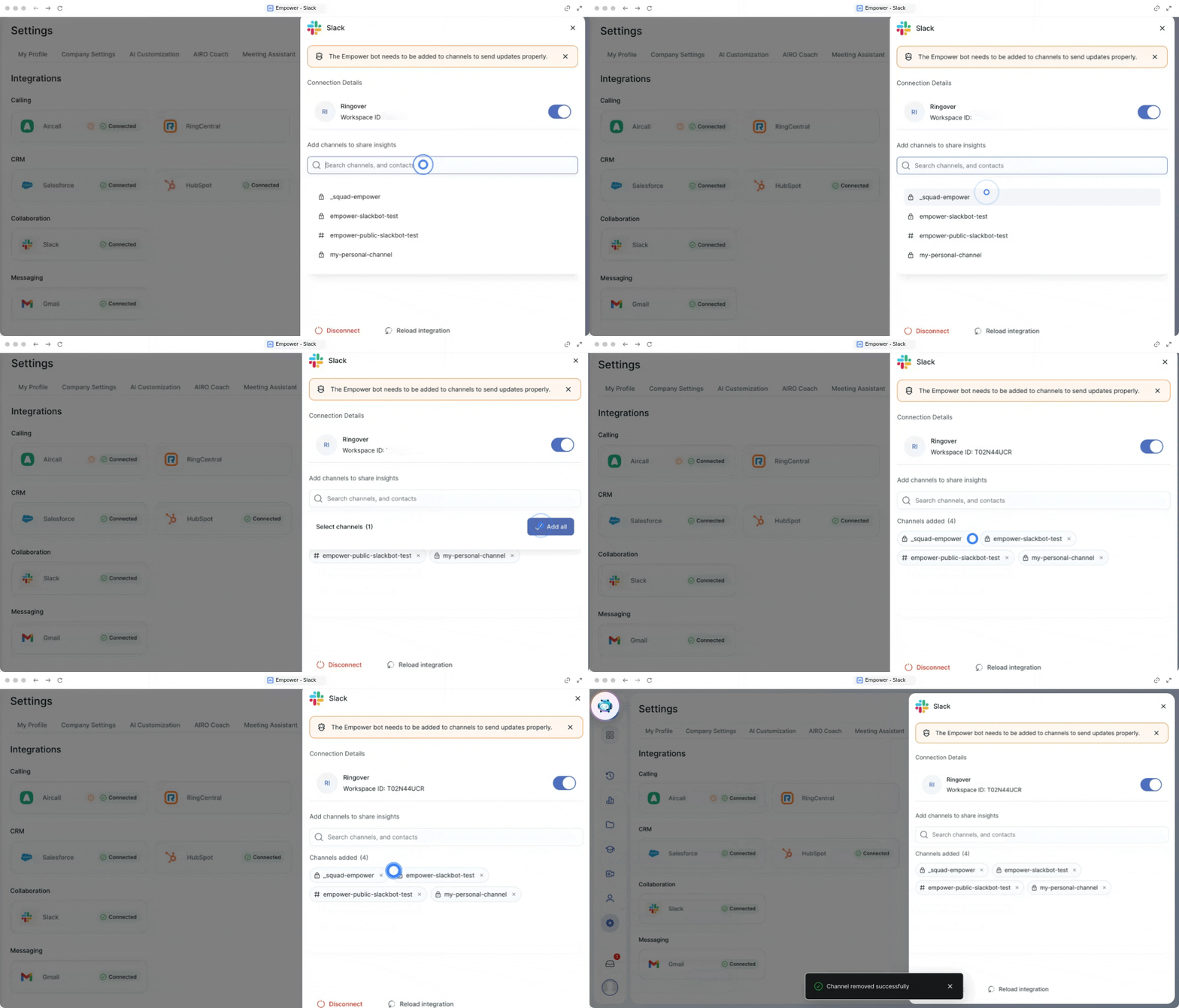
2. Add or remove channels
Configure exactly where you want to share your insights by managing your Slack channels.
- Search for the specific channels you want to use.
- Add the channels to start sharing your insights.
- Remove channels at any time if they are no longer needed.
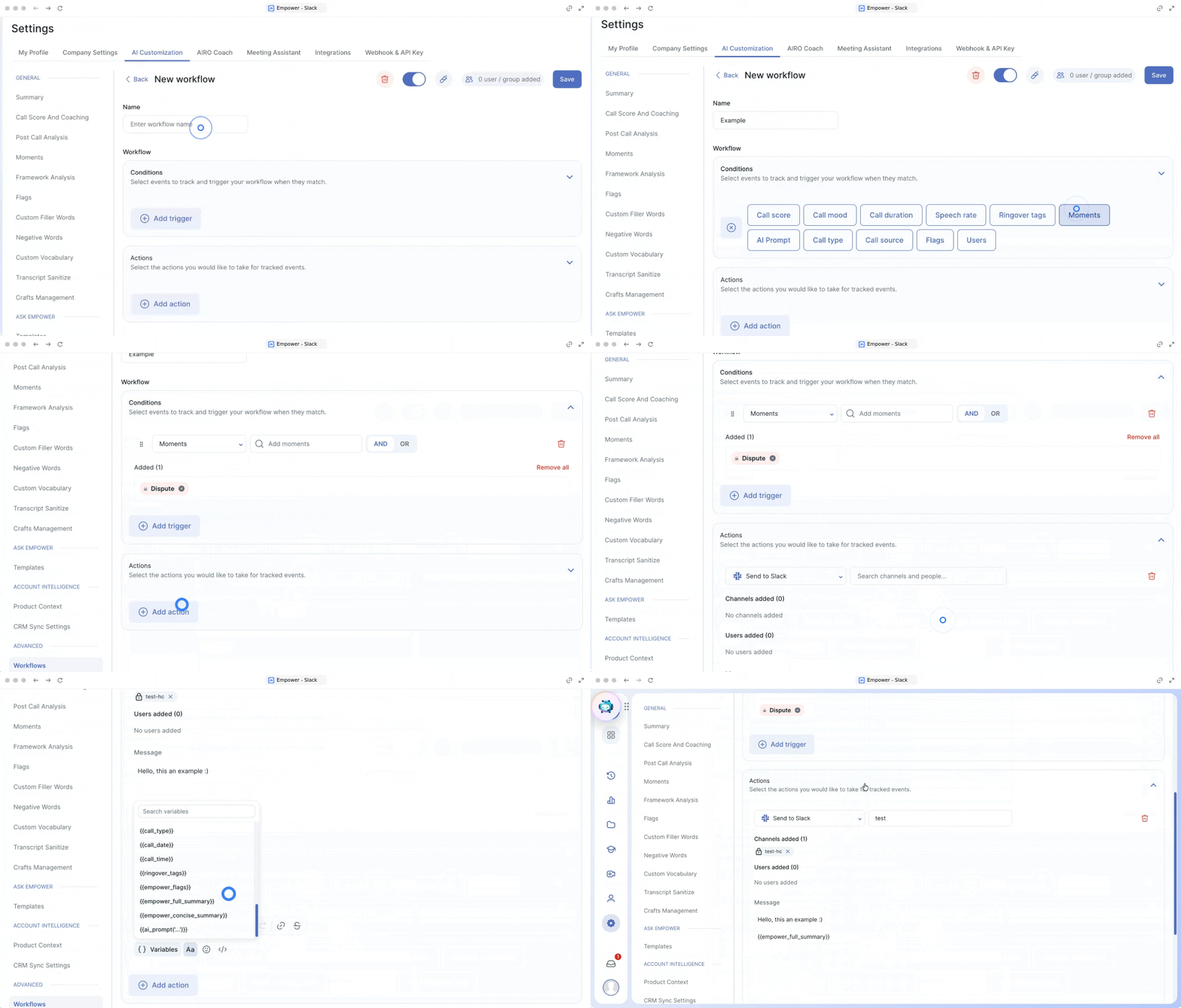
3. Create and receive workflows
Automate your communication by setting up specific workflows for your Slack channels.
- Create a workflow (👉 How to create workflows).
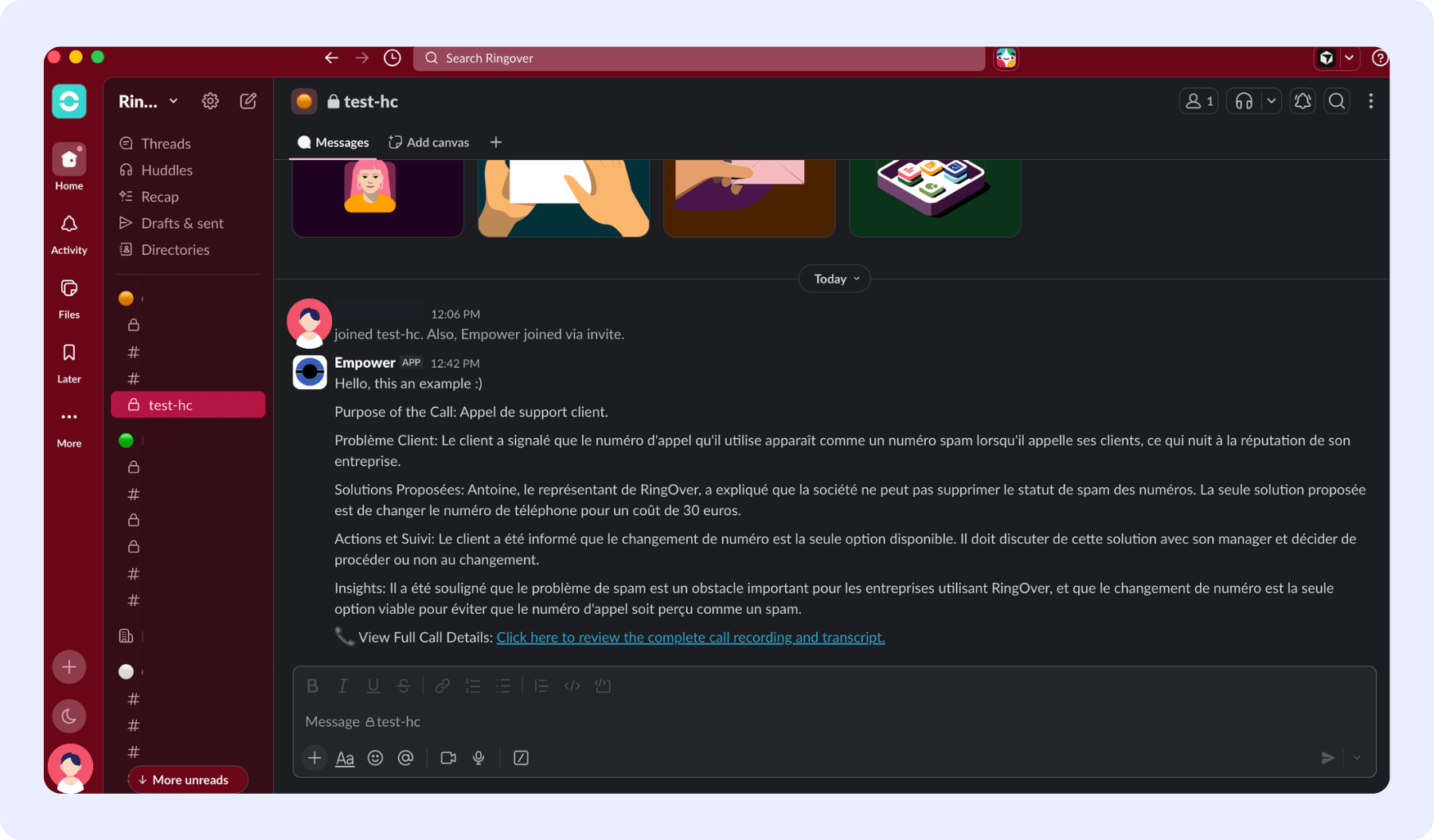
- Review how you will receive the customized messages you configured in your workflow directly in your Slack application.
Regularly review your active workflows and connected channels to ensure the right insights are reaching the correct teams.
Here’s an example of how the workflow will work within your Slack channel.
🎉 You now know how to configure the Slack integration and can easily share valuable insights across your team channels!