
The Ringover Dialer waiting list allows you to easily view and manage all your incoming calls on hold without wasting time. In this article, you will learn how to locate, consult, and use this optimised waiting list so you never miss a call.
Prerequisites: Essential settings and permissions
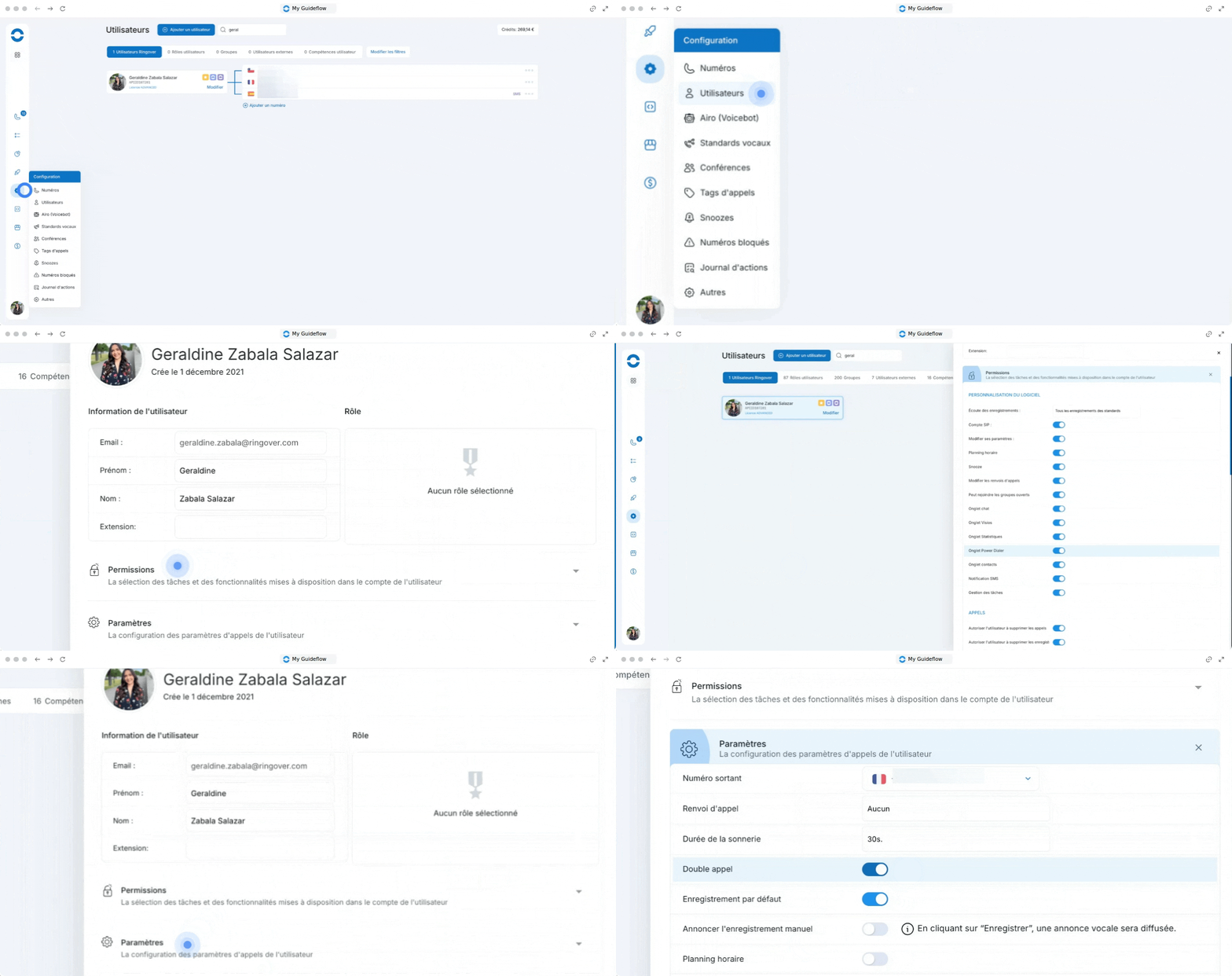
Before you can view and use the waiting list on your Ringover Dialer, make sure that the following two settings are enabled:
- Access permission : The "Pick up calls on the waiting list" permission must be granted to your user account in the Ringover Dashboard (by your administrator).
- Call setting : The "Call waiting" option must be enabled in your Ringover settings.
1. Locate the waiting list on your main screen
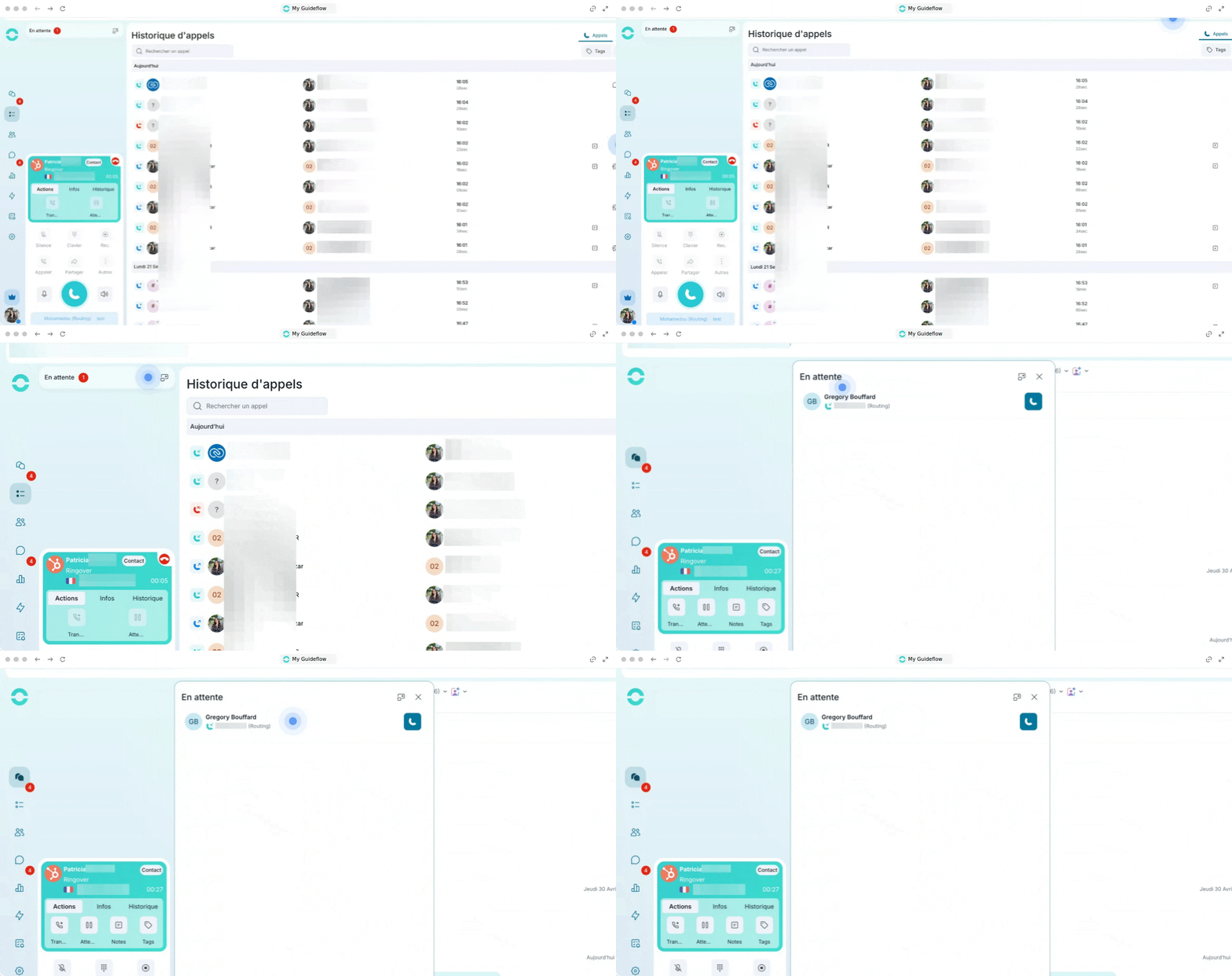
The waiting list is no longer buried in a submenu : it is now positioned right where you expect it.
- Open your Desktop app or Ringover web app.
- Spot the new Waiting list tab directly visible on the Dialer's main interface.
- Click the tab to instantly open the dedicated view for calls on hold.
2. Consult and handle calls on hold
The redesigned interface offers maximum readability to handle each incoming call with ease.
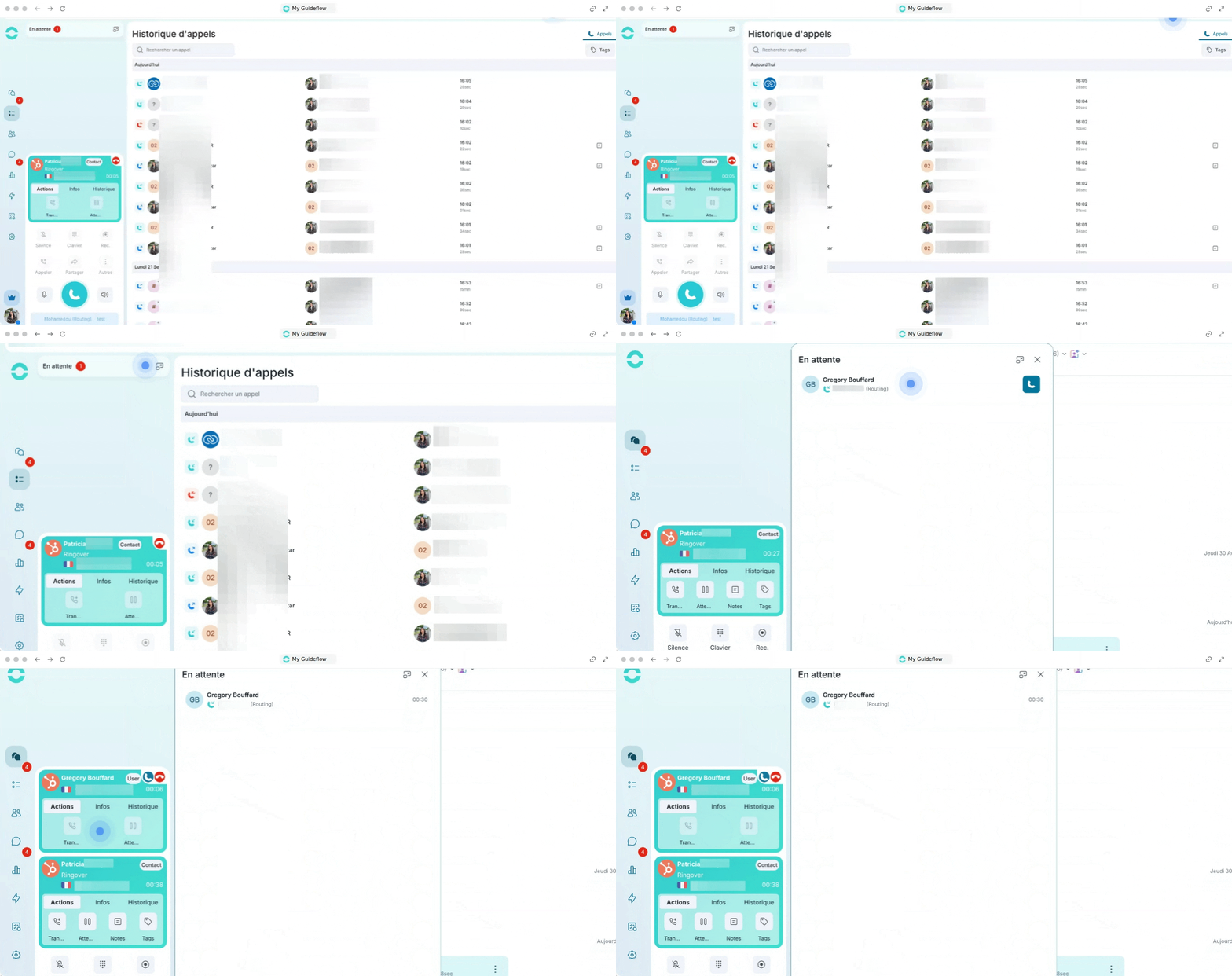
- Browse the clean list displaying the calls currently on hold.
- Check the essential information associated with each caller.
- Click the pick up button next to the chosen contact to connect immediately.
3. Optimise the management of your call flows
Find all the power of your usual feature in a modern and intuitive design.
- Quickly filter the list to focus your attention on your assigned lines or groups.
- Switch from one call to another seamlessly thanks to the redesigned navigation.
- Keep your work habits while benefiting from a faster user experience.
🎉 You now know how to check the prerequisites and use the redesigned waiting list of your Dialer to efficiently manage your calls!