
Your profile settings in Empower allow you to customize your user experience, adjust your interface preferences, and configure your artificial intelligence models (summaries, scorecards, compliance) according to your business needs. In this article, you will learn how to manage your personal information, configure your usage preferences (language, dark mode, integrated dialer), set up your email signatures, and define your default AI models from your Empower workspace.
Setting up your Empower profile
1. Manage your personal information and credentials
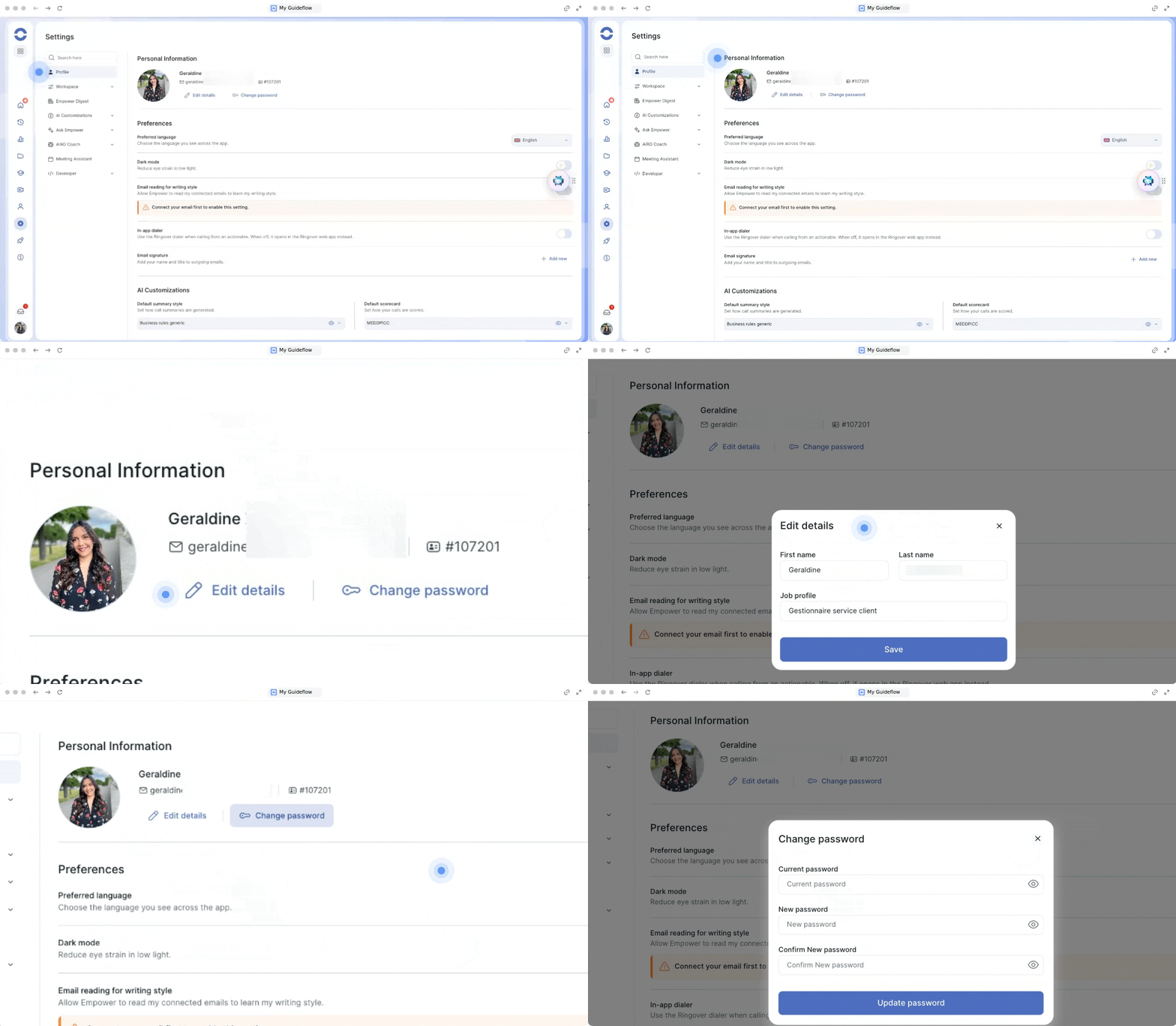
The Personal Information section groups all the data linked to your Empower user account (first name, last name, professional email address, and unique user ID).
Edit details: Allows you to update your profile information such as your name or your user photo.
Change password: Allows you to securely change the login password for your Empower account.
2. Configure your interface and communication preferences
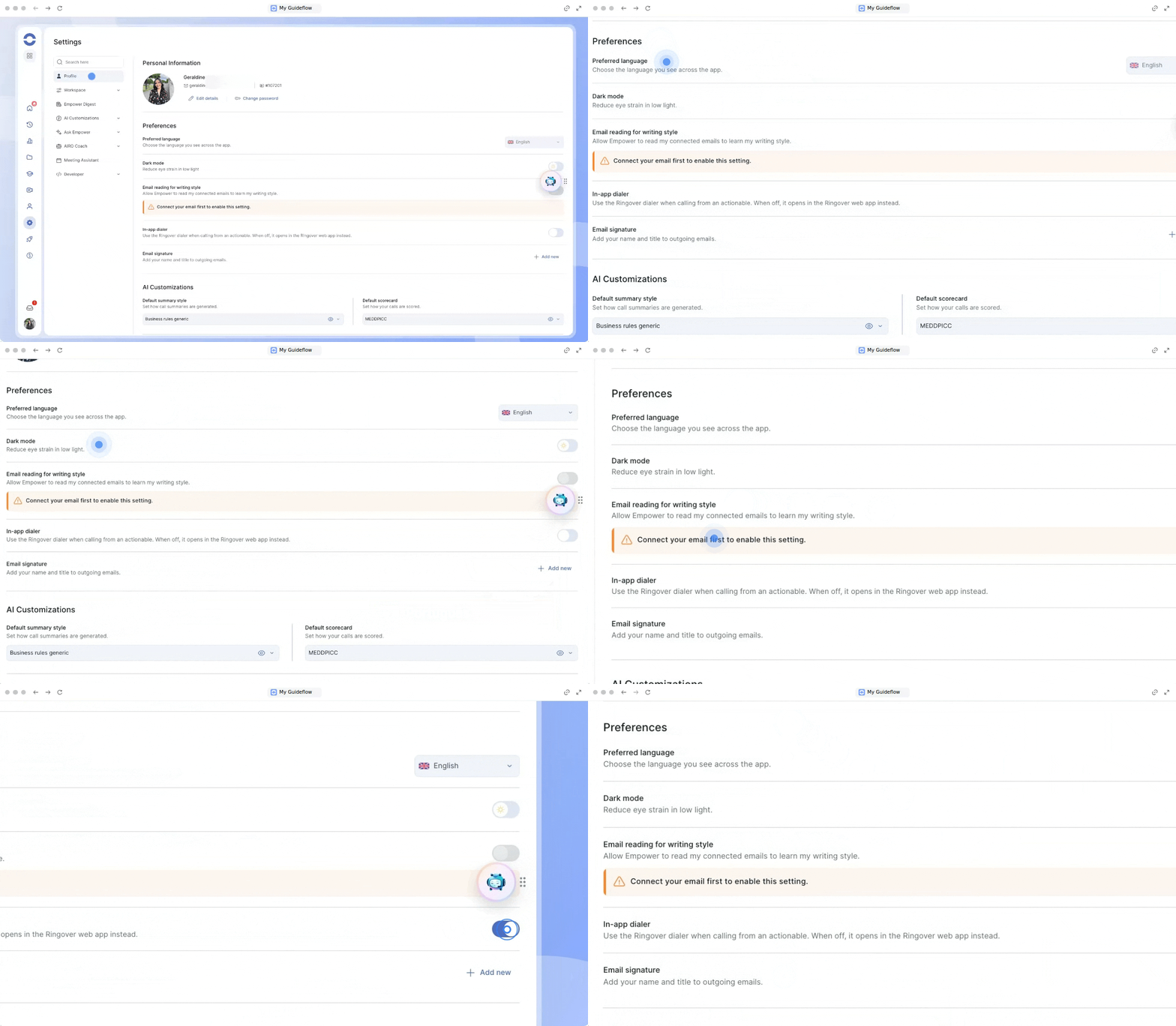
The Preferences section allows you to adapt the app's usability and call behaviors to your work habits.
Preferred language: Choose the display language for the application interface (e.g., English, French).
Dark mode: Enable or disable the dark theme to reduce eye strain when using it in low light.
Email reading for writing style : Authorize Empower to analyze the content of your connected professional emails in order to learn your writing style and adapt its AI-generated suggestions.
Integrated dialer: Choose to use the Ringover dialer directly embedded in Empower when triggering a call action. If this option is disabled, calls will automatically open in the external Ringover web application.
Email signature: Create and manage your custom signatures (name, title, contact details) automatically added to your outbound emails.
3. Define your default AI customizations
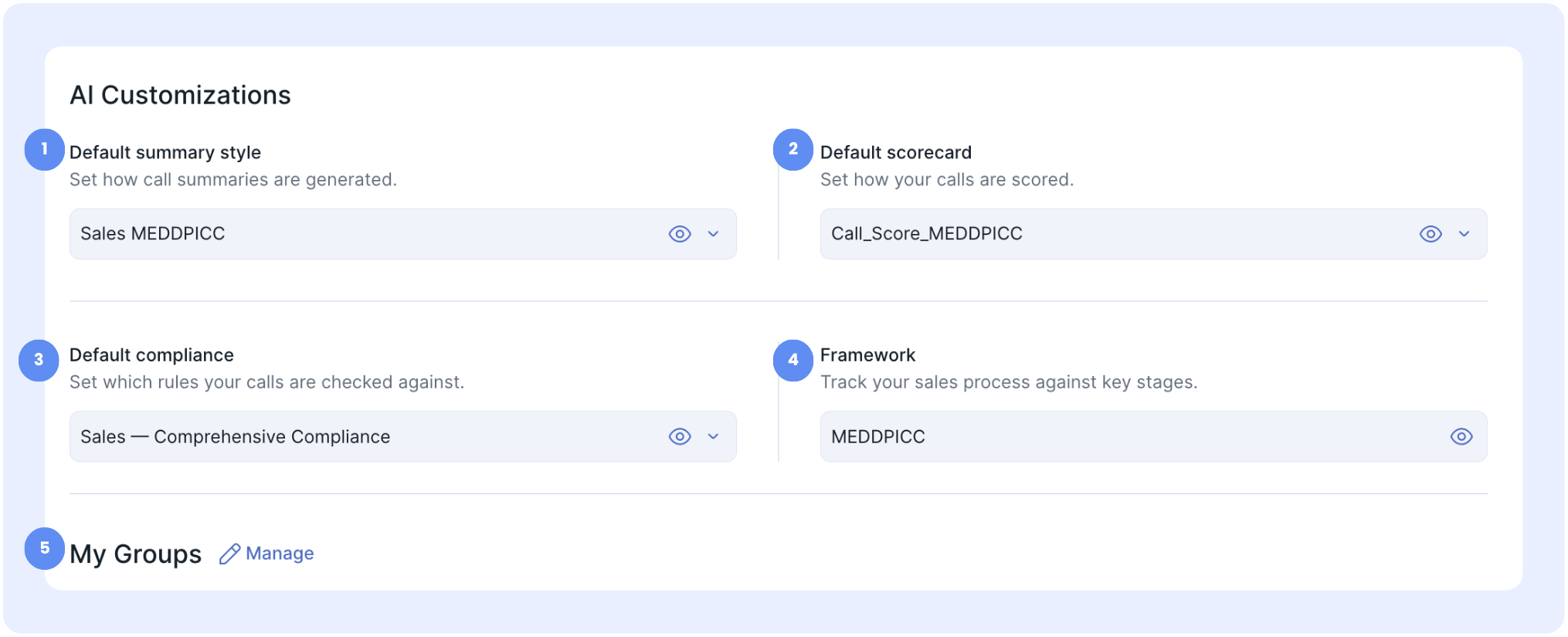
In the AI Customizations section, you can select the models and analysis scorecards automatically applied to all your recorded calls and meetings.
Default summary style: Define the format and presentation layout of the call summaries automatically generated by AI (e.g., Business rules generic).
Default compliance: Choose the legal or business rules that your conversations must comply with (e.g., Sales — Comprehensive Compliance).
Default scorecard: Select the evaluation and scoring rubric used to analyze your phone conversations (e.g., sales scorecard MEDDPICC).
Framework: Select the sales methodological framework associated with your opportunity tracking (e.g., MEDDPICC).
My groups : View and manage your groups. Click on Manage to display the full list of your groups.
Flexibility of AI models: The options selected by default in this section serve as a baseline configuration. You still have the ability to change the scorecard or analysis model on a case-by-case basis directly from the details page of each call.
🎉 You now know how to configure all your profile settings, adapt your interface preferences, and customize your AI models in Empower!