
Ringover Meet allows you to host video conferences and collaborate with your team. In this guide, you’ll learn how to start a meeting, authorize browser permissions, and configure your audio, video, and profile settings for a seamless video call experience.
Prerequisites
- You need to have a Ringover account.
Start and configure meetings in Ringover Meet
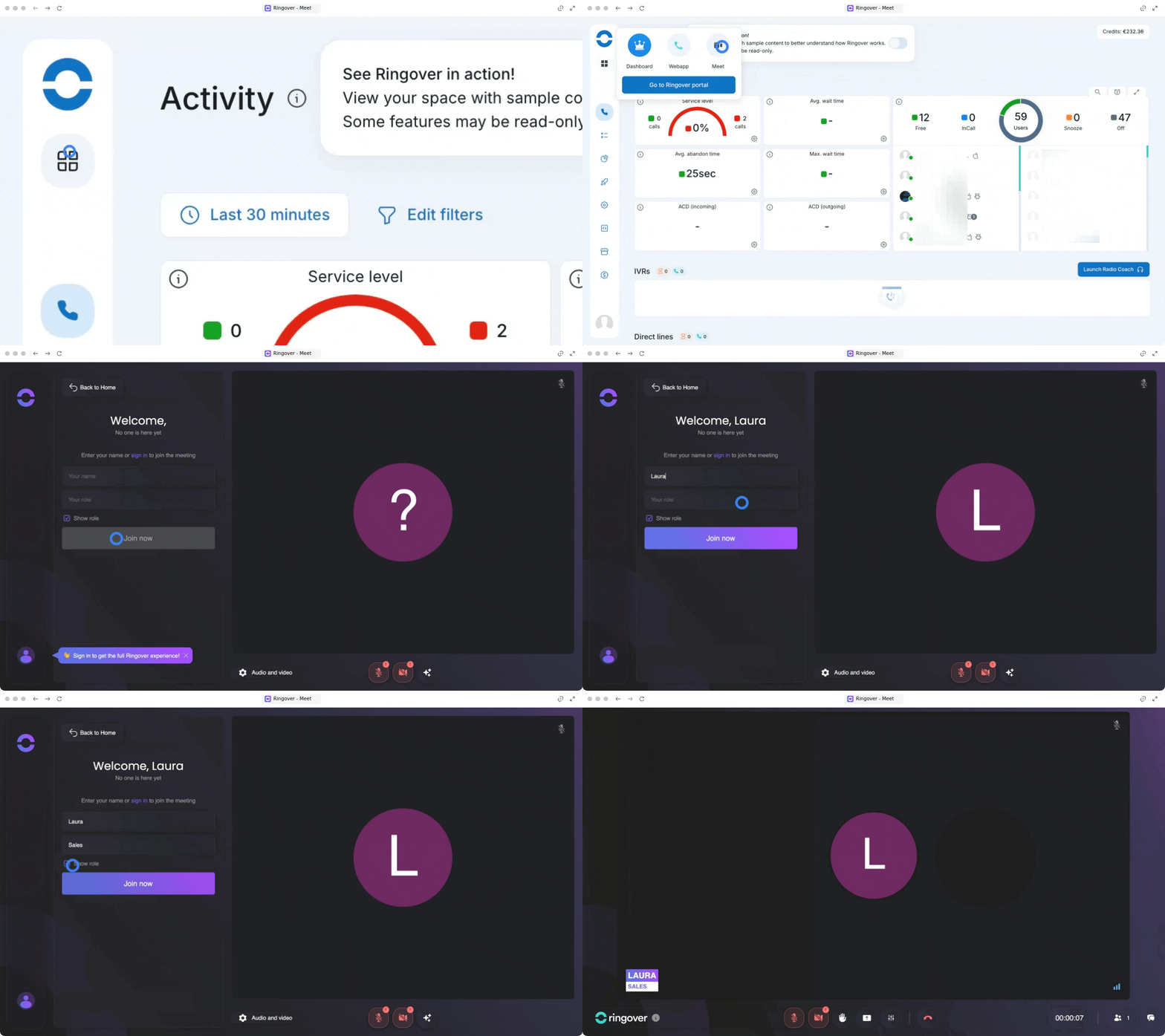
1. Start your meeting
Begin by launching the Ringover Meet app from your dashboard and setting up your join details.
- Go to your Ringover app
- Click on the four squares icon in the top-left corner
- Select Meet
- Click on Start your meeting
- Enter your Name and Role
- Choose whether you want to show your role to other participants
- Click on Join the meet
2. Authorize your browser permissions
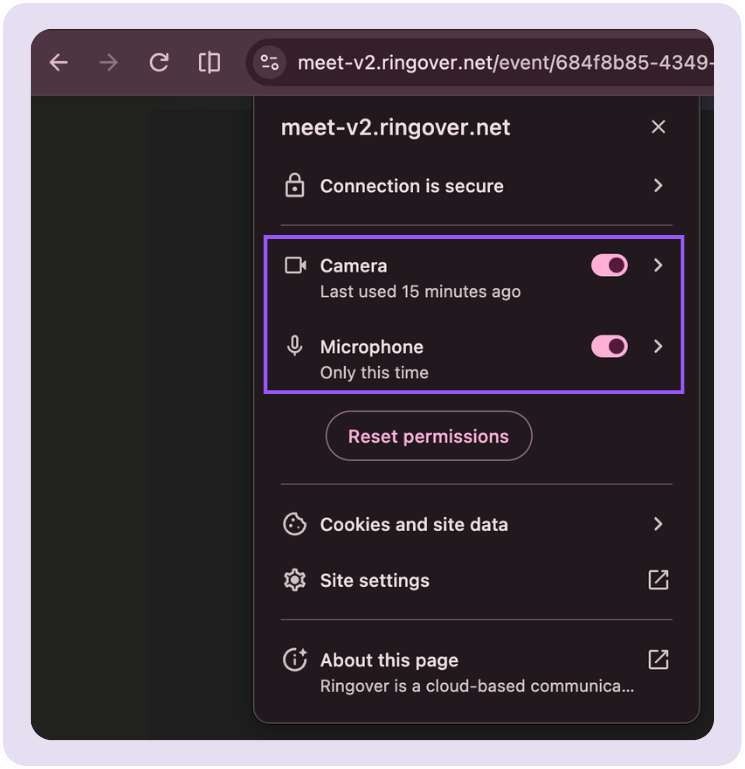
You must grant permission to your web browser to access your camera and microphone.
|
 |
|
If you are using a browser other than Google Chrome, please refer to our browser-specific authorization articles to configure your permissions.
🔗 How to activate your microphone in Mozilla Firefox
🔗 How to enable your microphone in Microsoft Edge
🔗 How to enable your microphone in Safari
🔗 How to select your default microphone
3. Navigate the in-meeting controls
Once inside the meeting, use the control bar at the bottom center of your screen to manage your live feed and interactions.
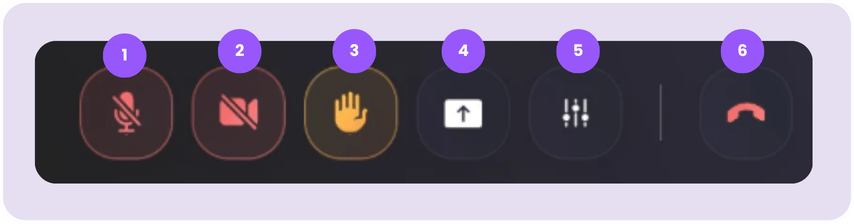
- Camera icon: Click to activate or deactivate your video camera.
- Microphone icon: Click to mute or unmute your microphone.
- Hand/Reaction icon: Click to raise your hand or send reactions using emojis.
- Screen Share icon: Click to share your screen with other participants.
- Settings gear: Click to access your layout, device, and profile options.
- Hang up : Click the red button to end or leave the meeting.
4. Adjust your layout and device settings
Optimize your viewing layout and test your hardware to ensure a high-quality meeting experience.
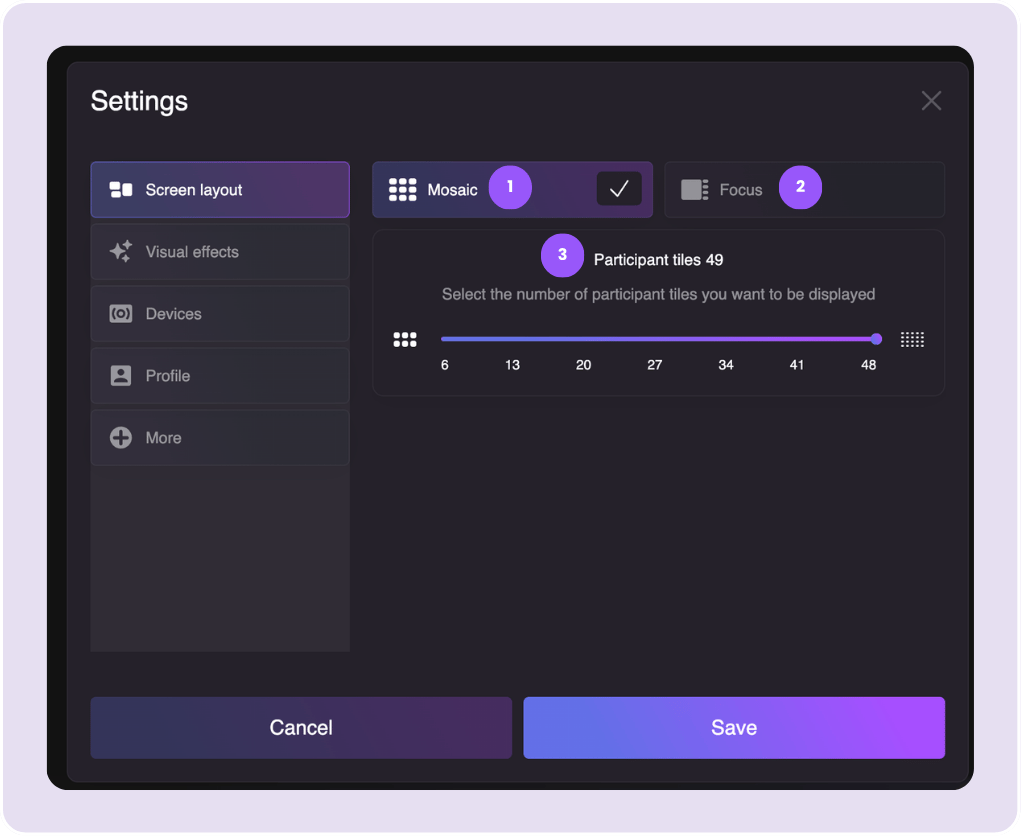
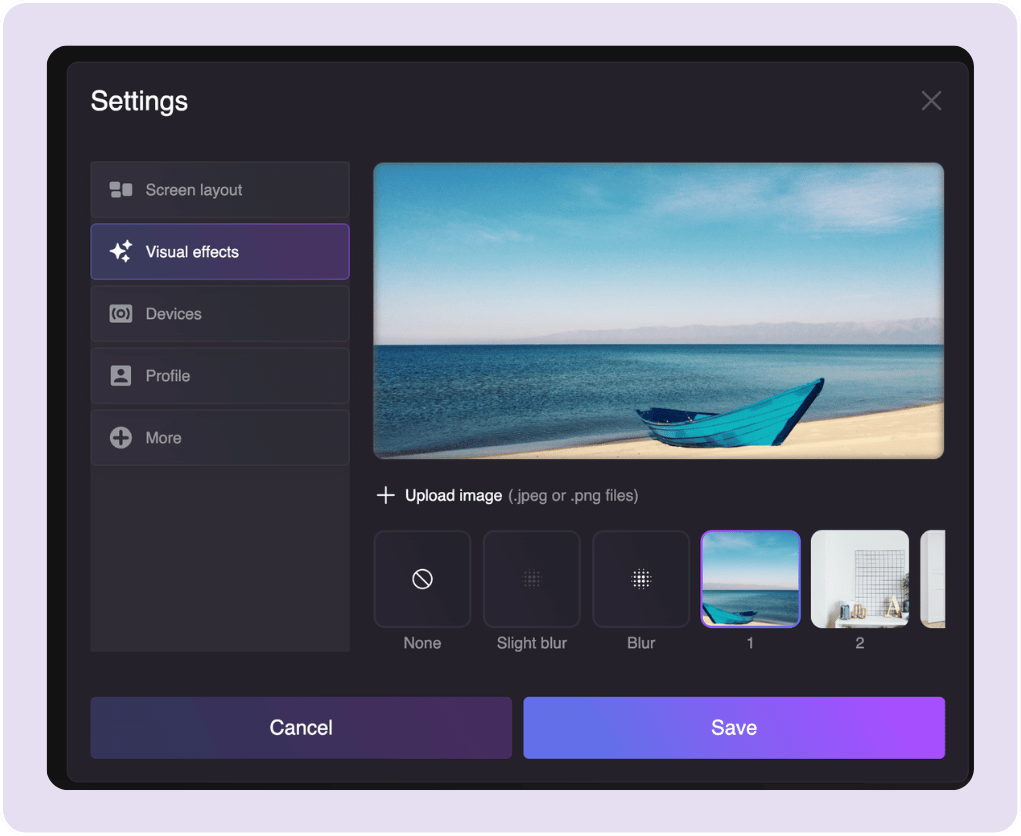
Screen Layout & Effects
|
Screen Layout Open settings and choose between Mosaic, Focus, or Participant titles layouts. |
Visual Effects Choose your virtual background or blur effect to customize your video feed. |
 |
 |
Device Configuration
Select the Devices tab in settings.
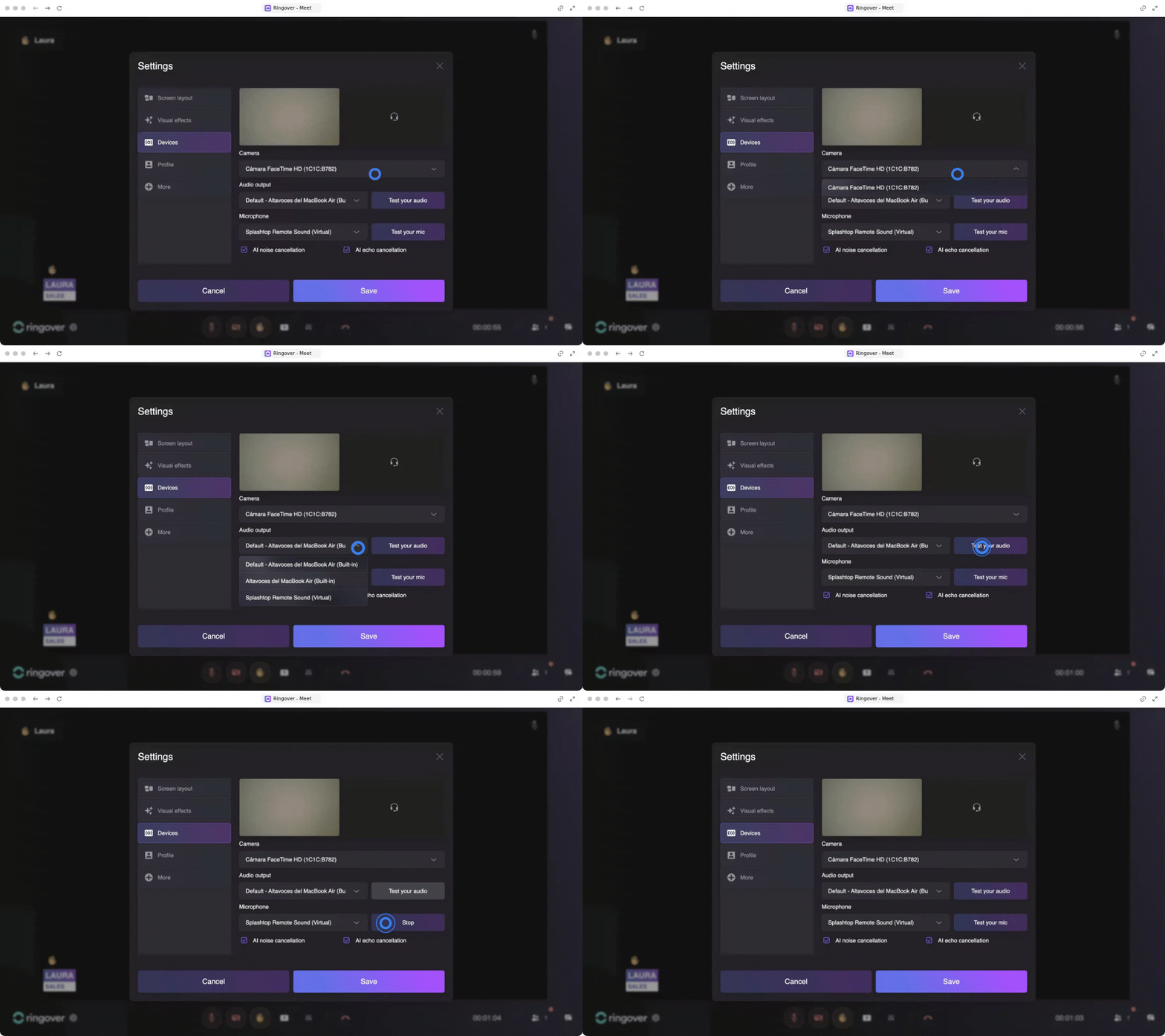
- Check your Camera selection using the on-screen preview.
- Select your Audio output device and click to test it.
- Select your Microphone device and click to test it.
- Check the box to enable or disable AI noise notifications.
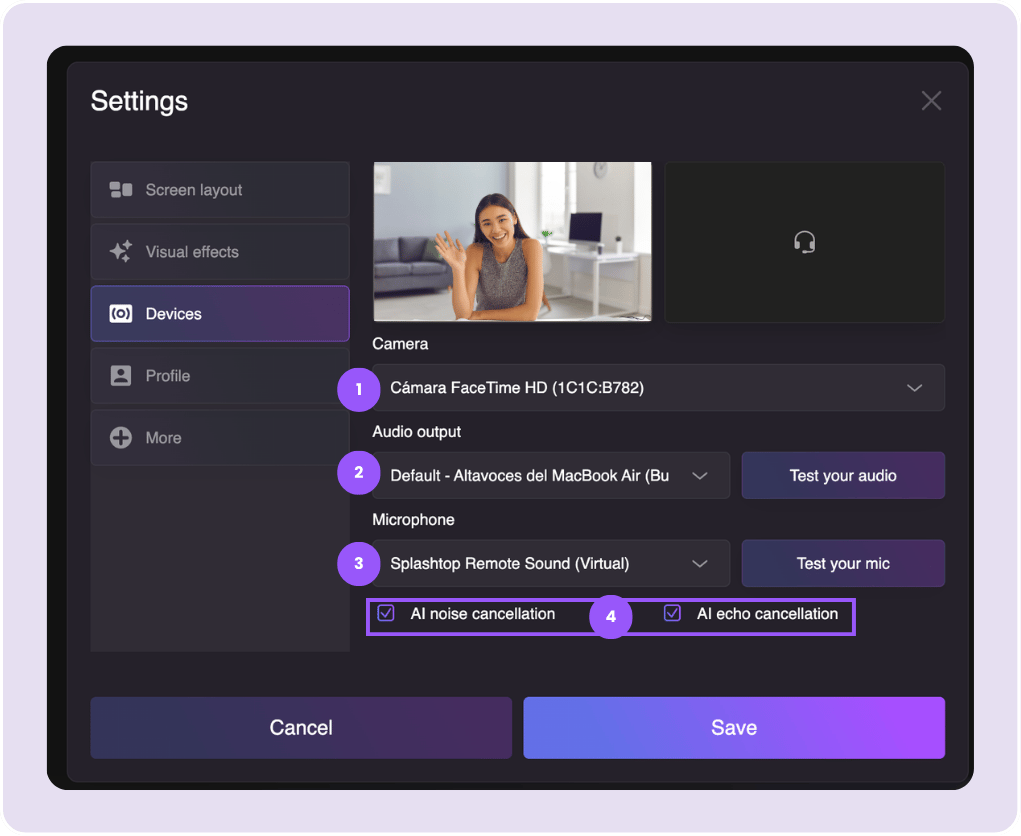
Click on Save to apply your device configurations
5. Customize your Profile and Advanced settings
Update your personal card details, set up keyboard shortcuts, and find your meeting details to invite others.
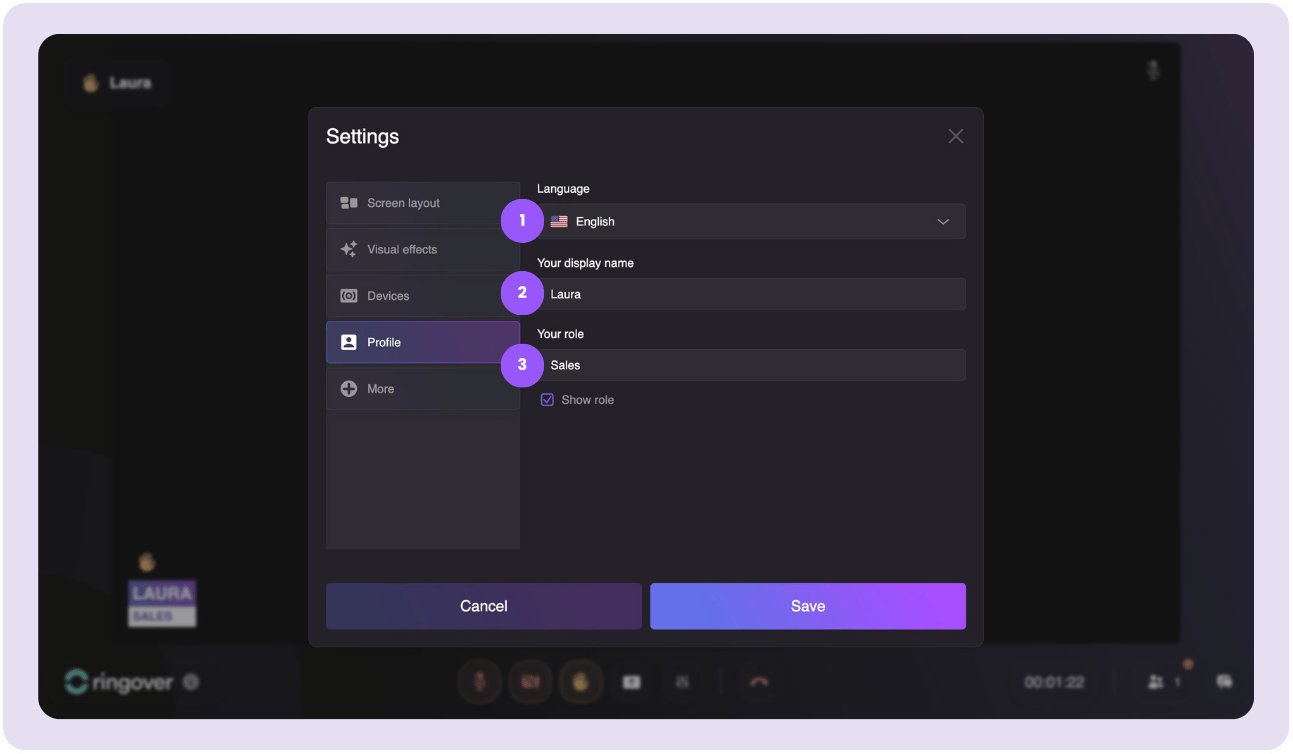
Customize Profile
- Select the Profile tab in settings
- Change your Name, Role, or Language
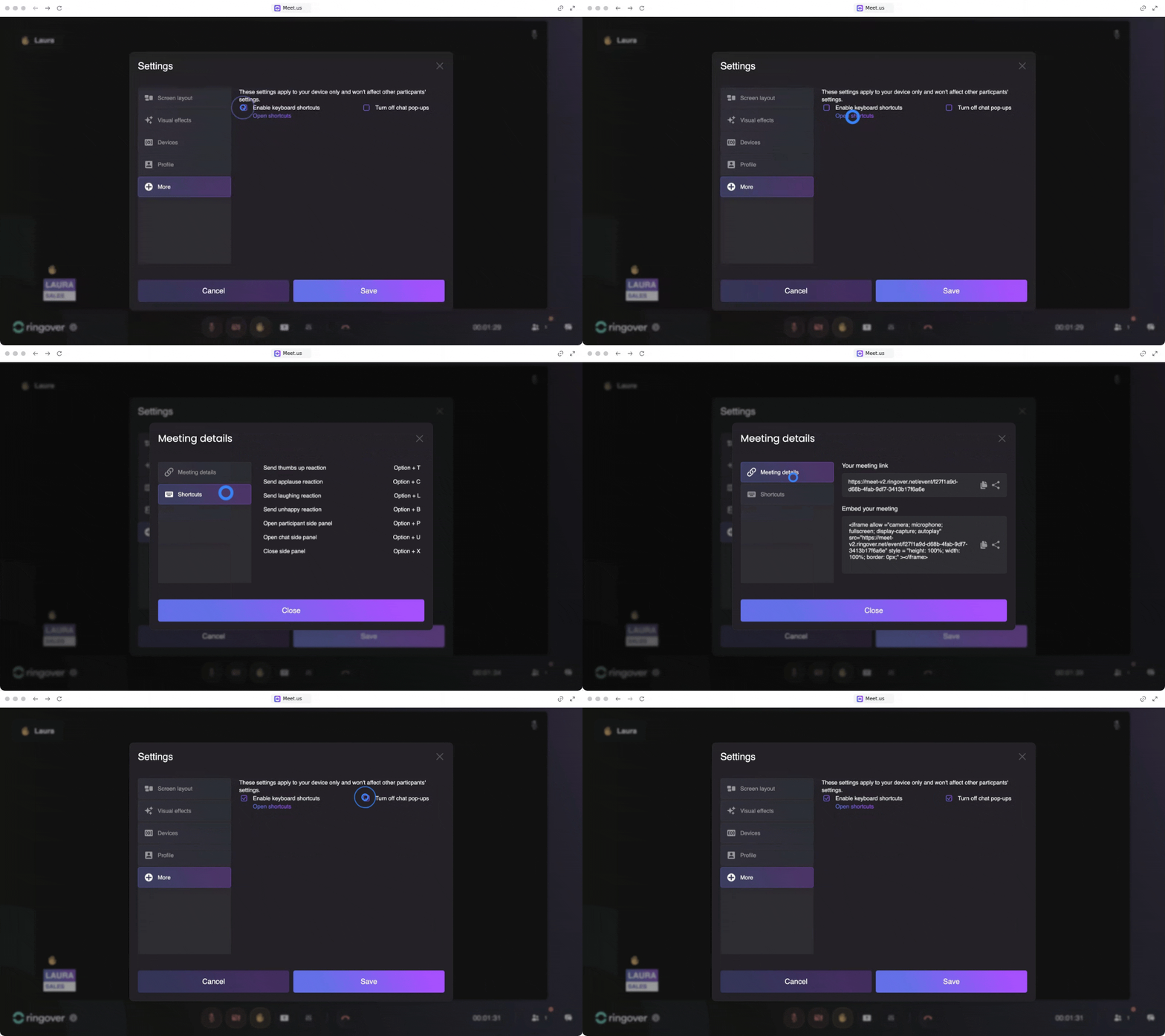
Advanced Settings & More
- Select the More tab in settings
- Enable and choose your preferred Keyboard shortcuts
- Check the Meeting details to copy your meeting join link or embed link
- Toggle the option to turn off Chat pop-ups to reduce distractions
- Click on Save to save your modifications
🎉 You now know how to start and configure meetings in Ringover Meet and can collaborate with your team easily with optimized video and audio settings!