
The Ringover integration with Crisp allows you to centralize your customer support channels and manage phone calls directly alongside your messaging inbox. In this guide, you’ll learn how to install the Ringover plugin in Crisp, connect your API key, configure webhooks, and place calls using the integrated dialer.
Prerequisites
- An active Ringover Business or higher account.
- Administrative or technical account permissions in Ringover.
- An administrator account in Crisp.
Install and configure the Crisp integration
1. Install the Ringover plugin in Crisp
Locate and install the official Ringover plugin directly from the Crisp marketplace.
- Log in to your Crisp dashboard.
- Go to the Plugins menu.
- Search for Ringover and click See details.
- Click Install.
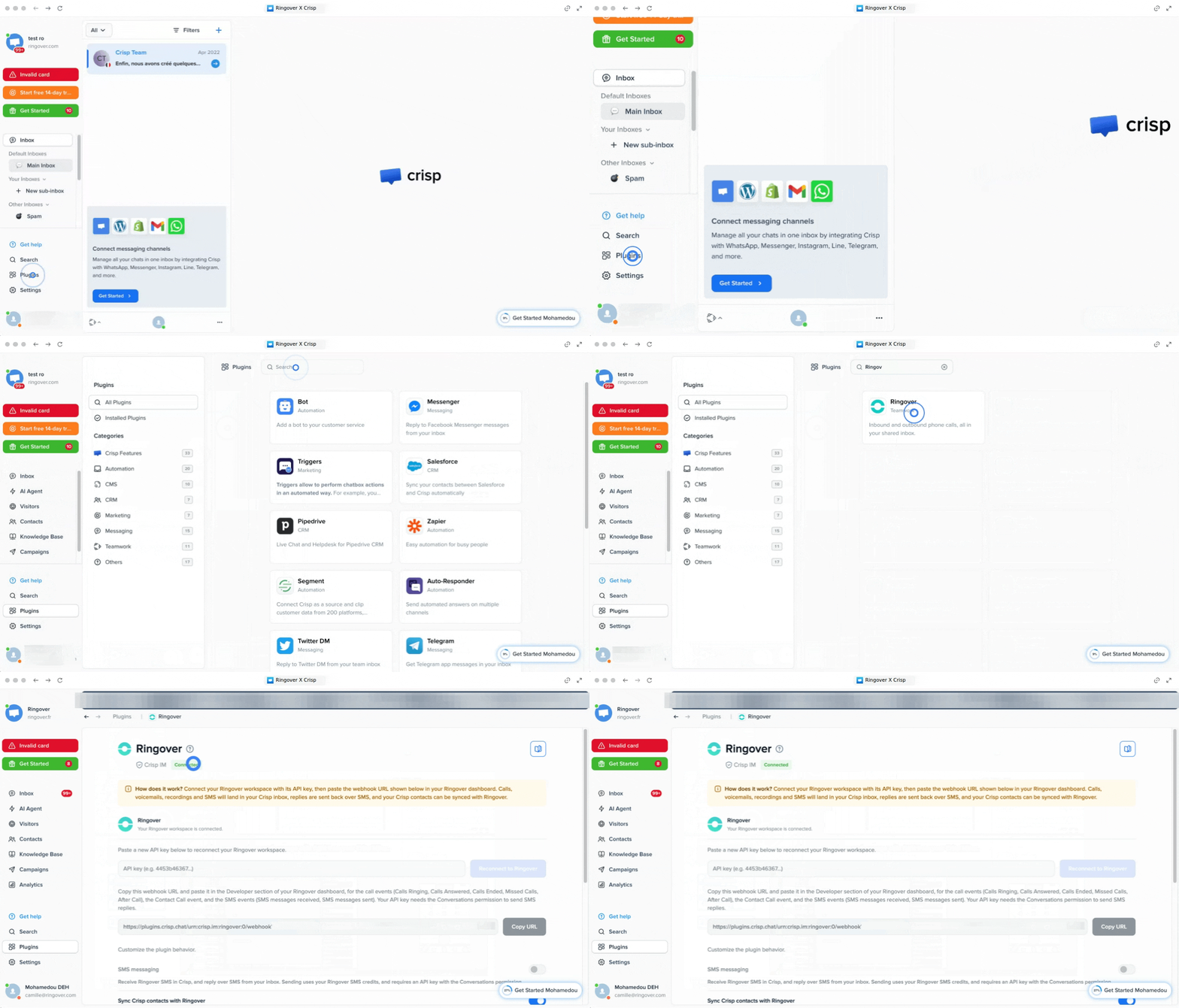
2. Generate your Ringover API key and connect accounts
Create an API key with the required permissions in Ringover to link your systems.
- Log in to your Ringover Dashboard in a separate tab.
- Go to Developer > API.
- Click Generate an API key and assign it a name (e.g.,
Crisp). - Enable all required read and write permissions (toggles set to blue).
- Copy your generated API key.
- Return to Crisp, paste the API key into the plugin field, and click Connect to Ringover.
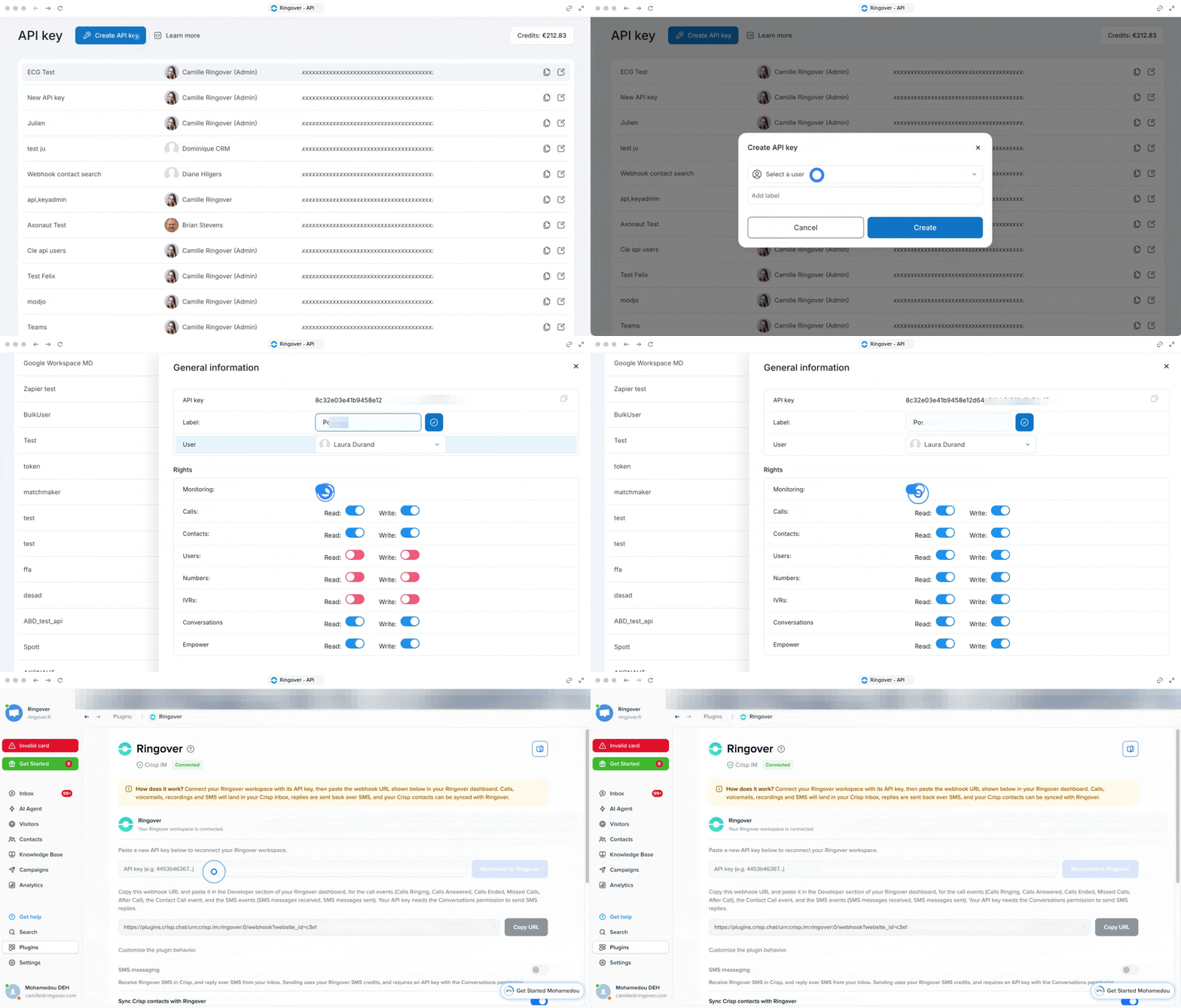
3. Set up webhooks in Ringover
Copy the Crisp webhook endpoint and add it to your Ringover webhook settings to enable live event sync.
- Copy the webhook URL displayed on your Crisp setup confirmation screen.
- Go to your Ringover Dashboard > Developer > Webhooks.
- Paste the URL into the corresponding webhook field.
- Click Save.
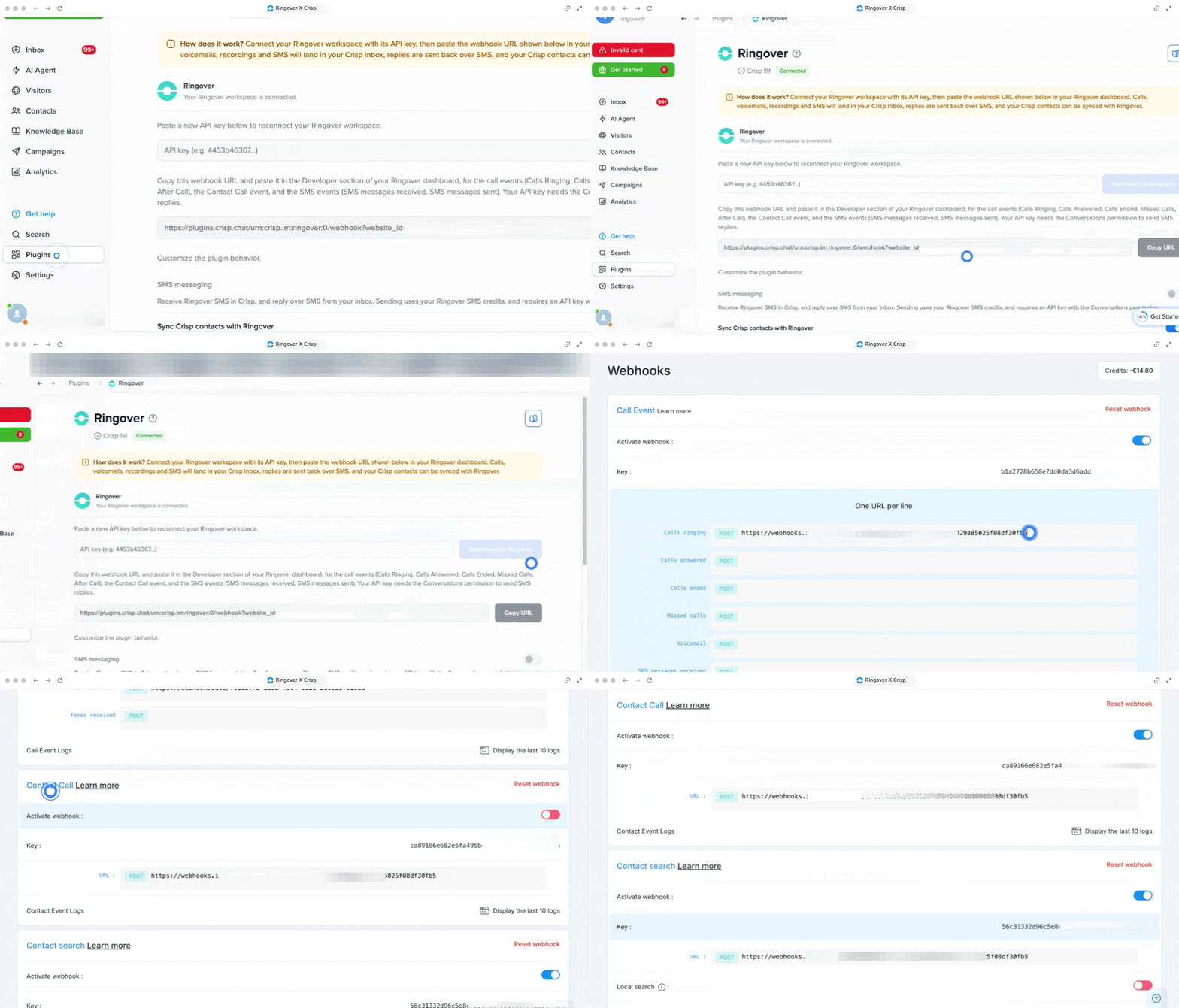
4. Place calls using the integrated Ringover dialer
Use the embedded dialer widget and Ringover Dialer to connect with customers directly inside Crisp.
- Open any conversation inbox in Crisp.
- Click on the Ringover Dialer widget located in the lower-right corner of your screen.
- Initiate your call using Ringover Dialer or by dialing directly from the keypad.
- Verify that the completed call details log automatically inside the Crisp conversation thread.
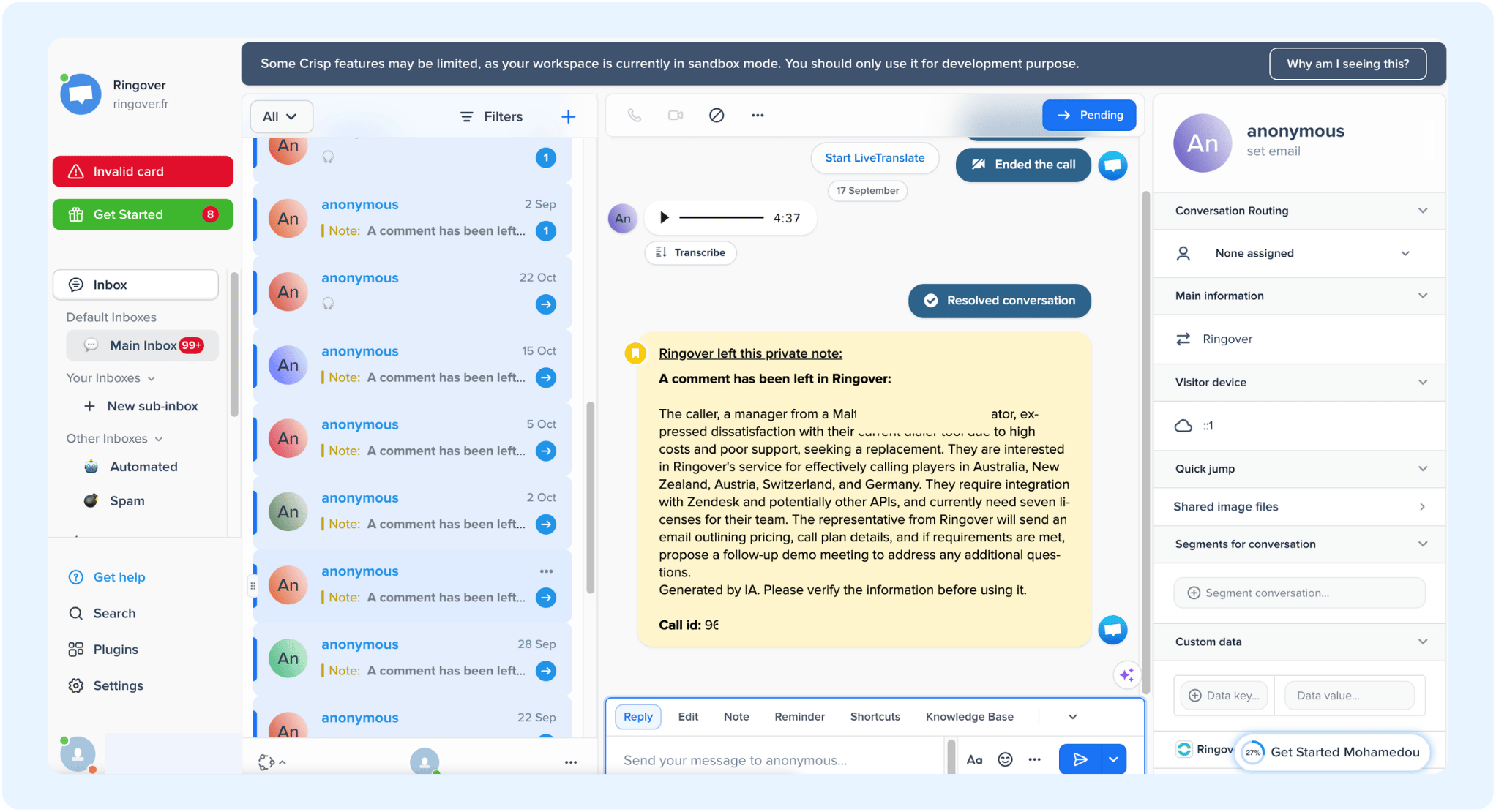
🎉 You now know how to install and configure the Crisp integration and can manage customer calls seamlessly from your unified messaging inbox!