
1. Package installation:
-
Copy the package installation URL
-
Log in to your Salesforce organization (skip if already logged in)
-
Select “Install for All Users”
-
Acknowledge the option to install the package
-
Click on Install
-
A modal will popup to approve third-party accesses
-
Grant access to the third party web site.
-
Click on “Continue” and wait for the package to successfully install.
-
The installation should be complete.
2. Setup the "Addto Cadence" buttons:
-
Go to your object manager
-
Search for Lead
-
Once you open the “Lead” object, click on “Page Layouts”
-
Open the “Lead Layout” option
-
Select the “Mobile & Lightning Actions” menu `on the top and you will see a button called “Add Lead to Cadence”
-
Drag and drop the button to the “Salesforce Mobile and Lightning Experience Actions” menu
-
Click on the Save button to save the changes
-
Once saved, click on the “List View Button Layout”
-
Open the dropdown for the “List View” and click on “Edit”
-
Select the “Add Leads To Cadence” and “Import In Cadence” buttons and “Add” them to the “Selected Buttons”
-
Click on Save
Repeat the procedure as mentioned above for Contact.
3. Sync Salesforce with Cadence
1. From the Cadence installation page, generate an API token and copy it.
Tip: this API token is also available in Settings > CRM sync & Field mapping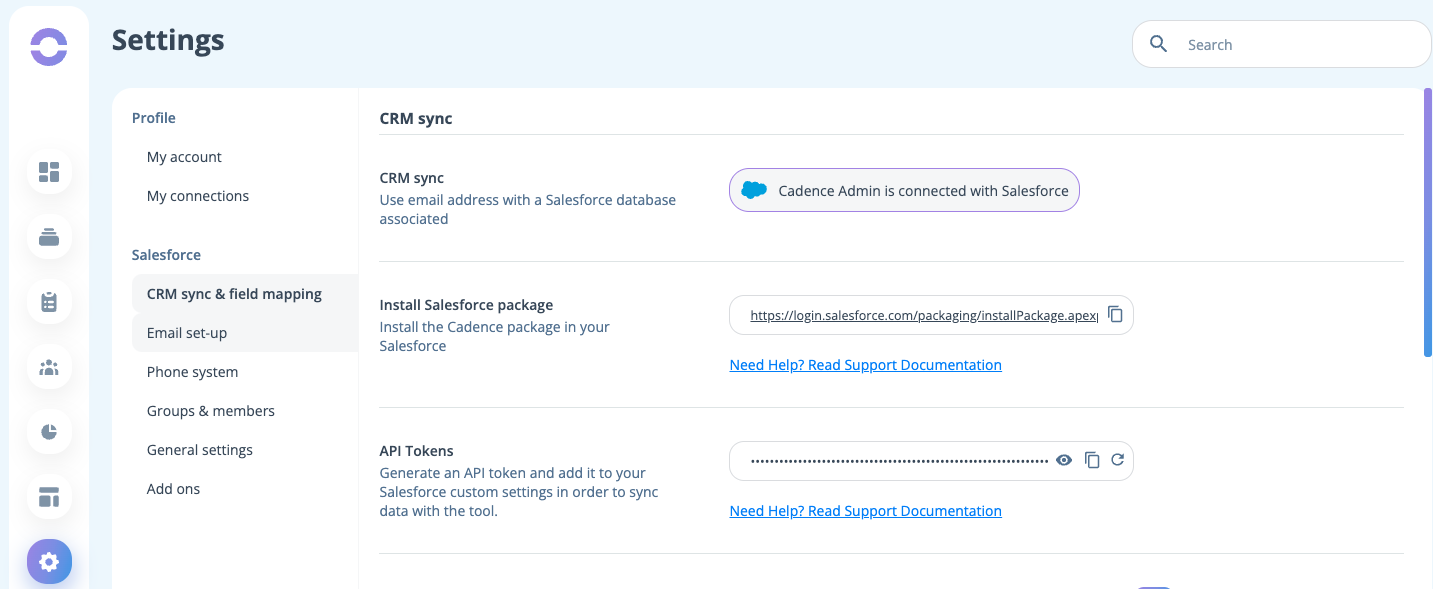
2. Go to the Cadence settings in Salesforce and paste it.
The url of the package settings page is as follows:
https://yourdomain.lightning.force.com/lightning/n/RingoverCadence__Settings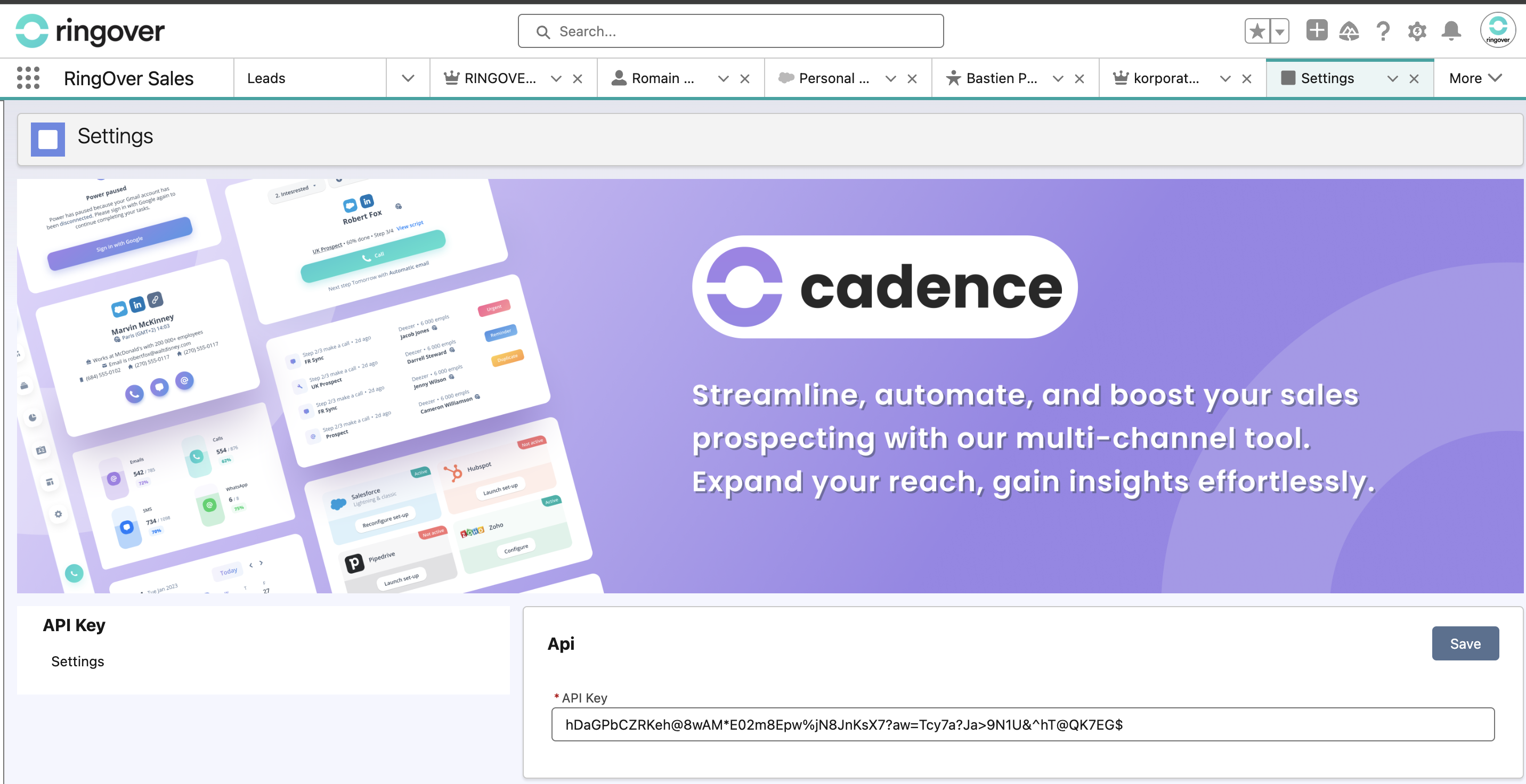
3. Click "Save"