Topics covered:
- About.
- Getting started with the onboarding process.
About:
This documentation includes the detailed onboarding process for Bullhorn.
Getting started with the onboarding process:
The onboarding process differs for manager/sales agent, and Super admin/ admins
For the manager / sales agent:
-
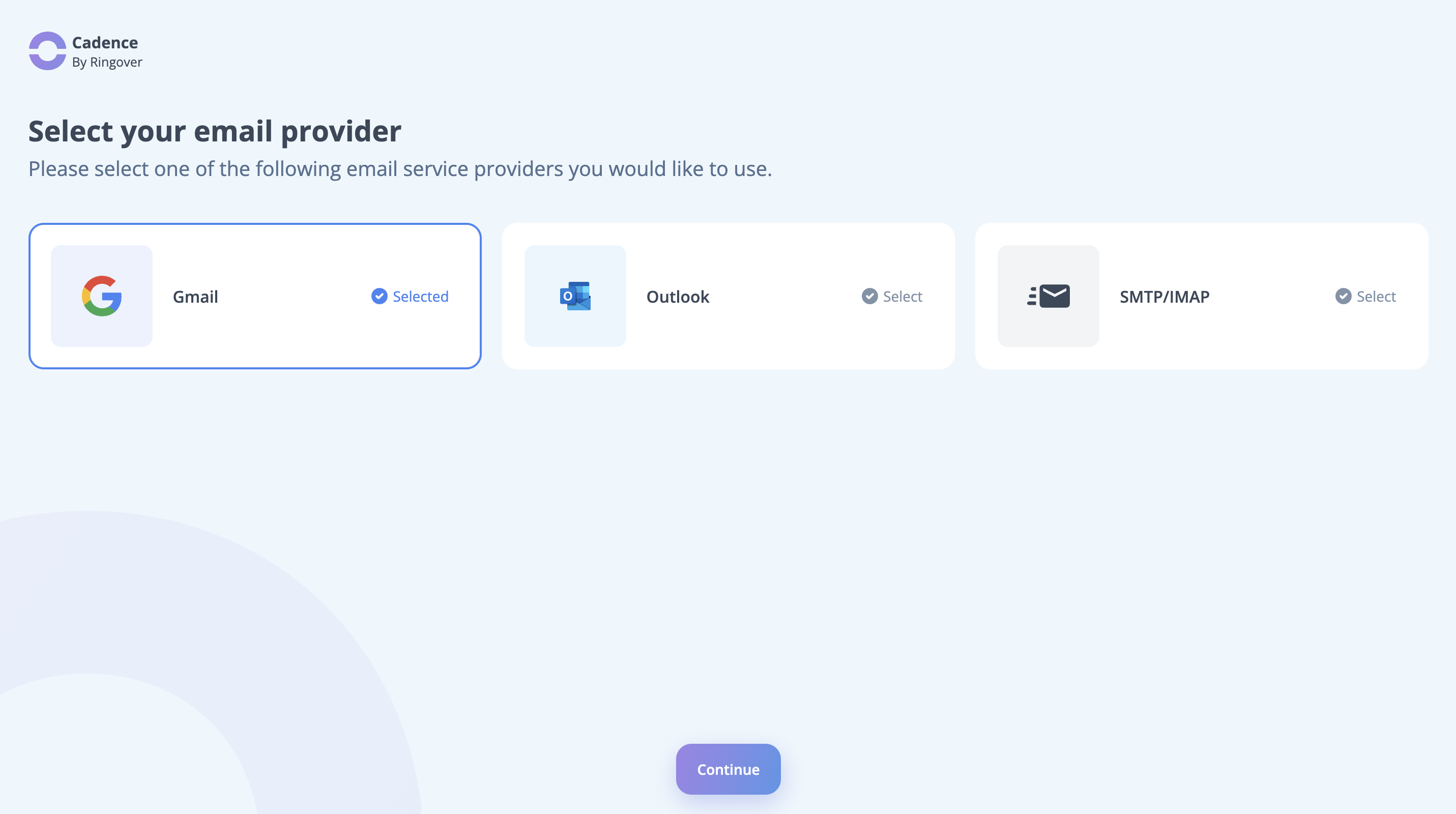
Log in to your Cadence account and select your email provider. Click Continue.
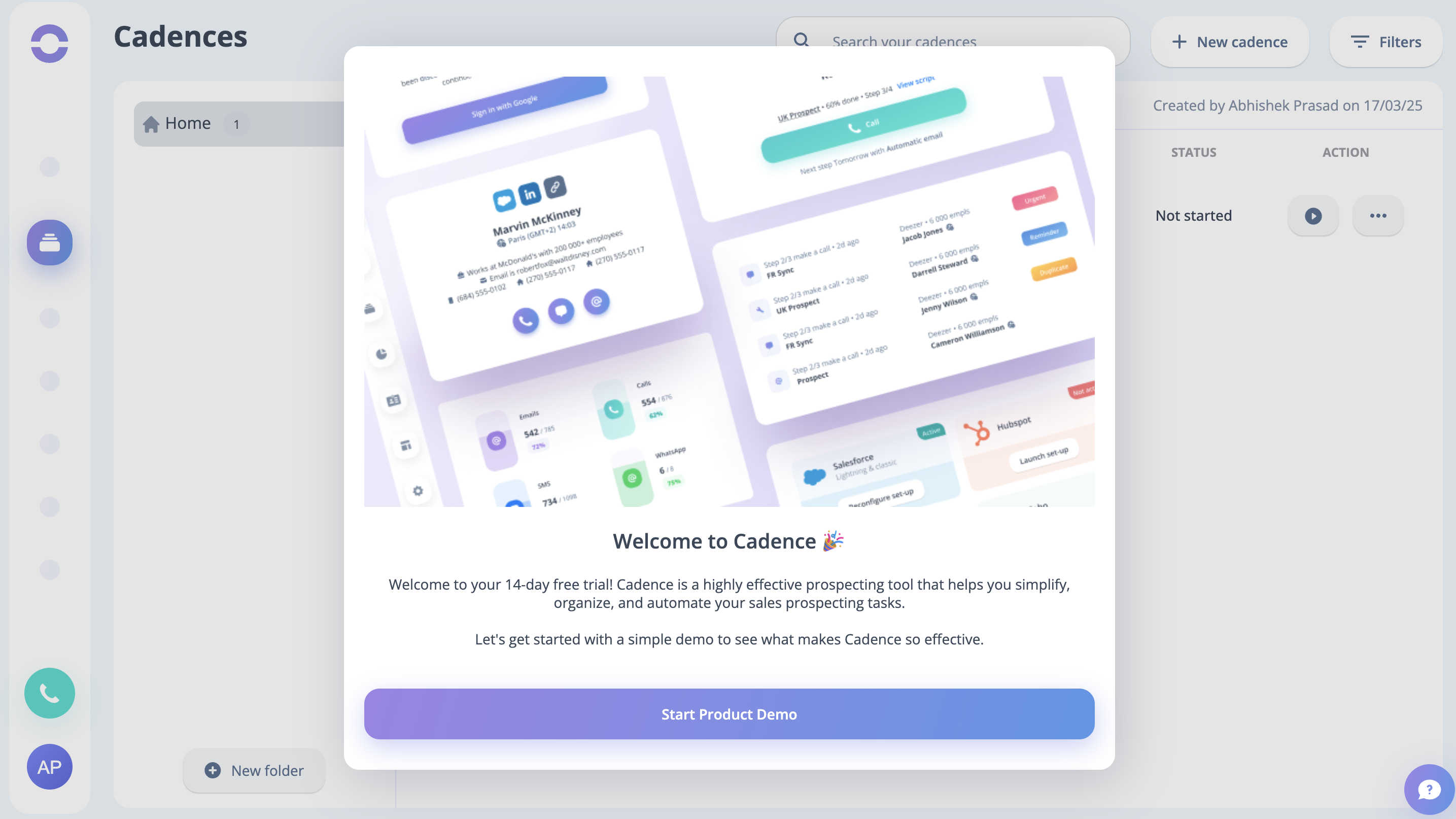
- After that, you will be directed to the product tour page. Click on Start Product Demo.
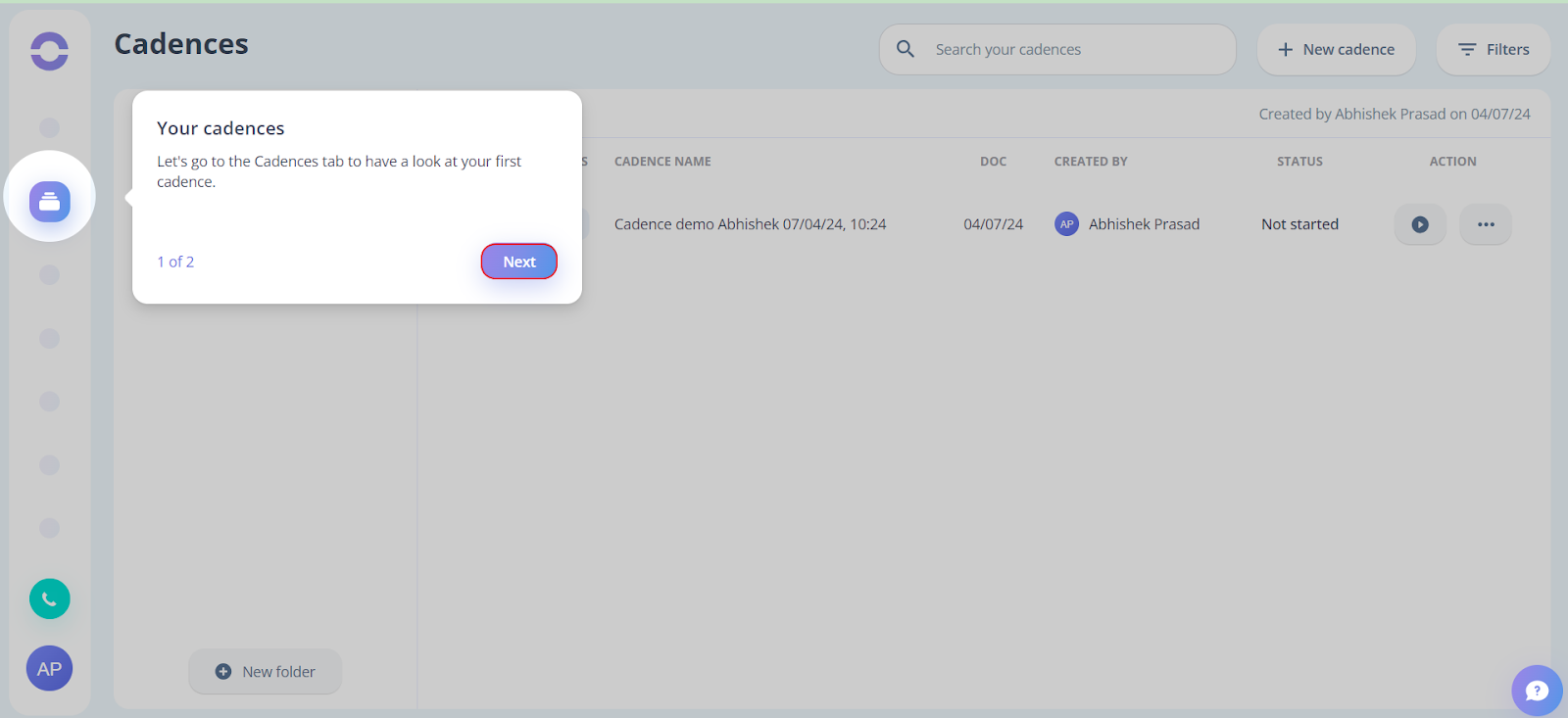
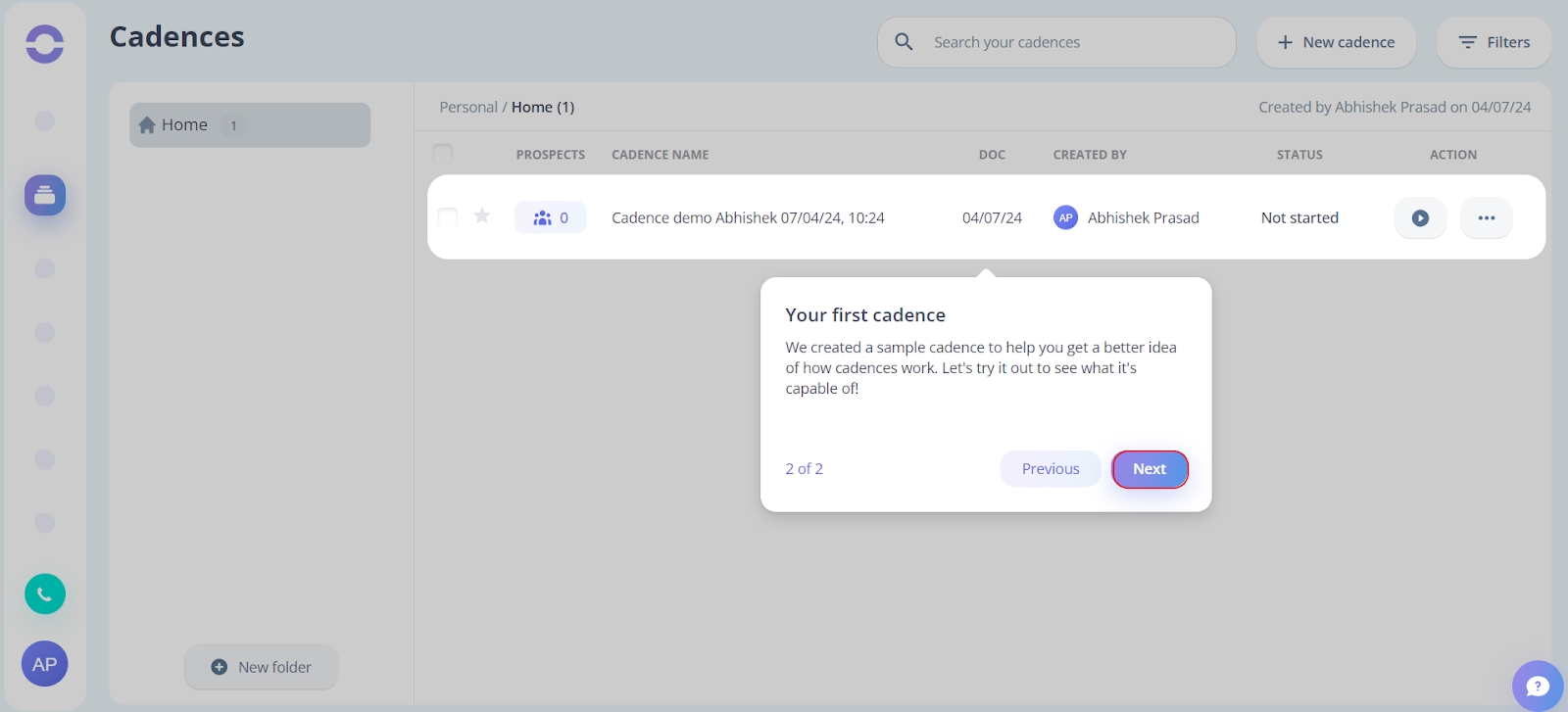
- To have a look at your first cadence, click on Next.
- Now a sample cadence will appear on your screen. To get a better idea of how cadences work, click on Next.
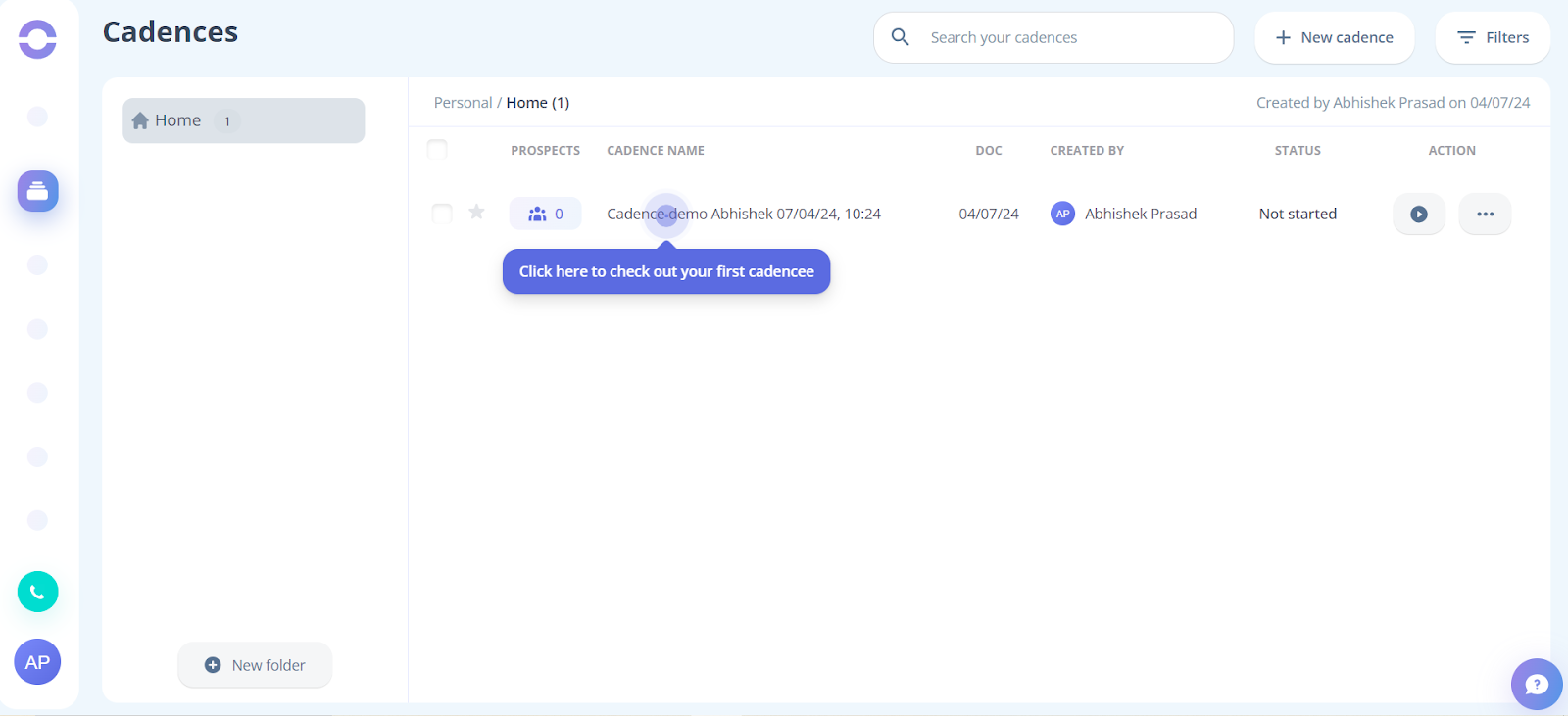
- Now click on the cadence to check out your first cadence
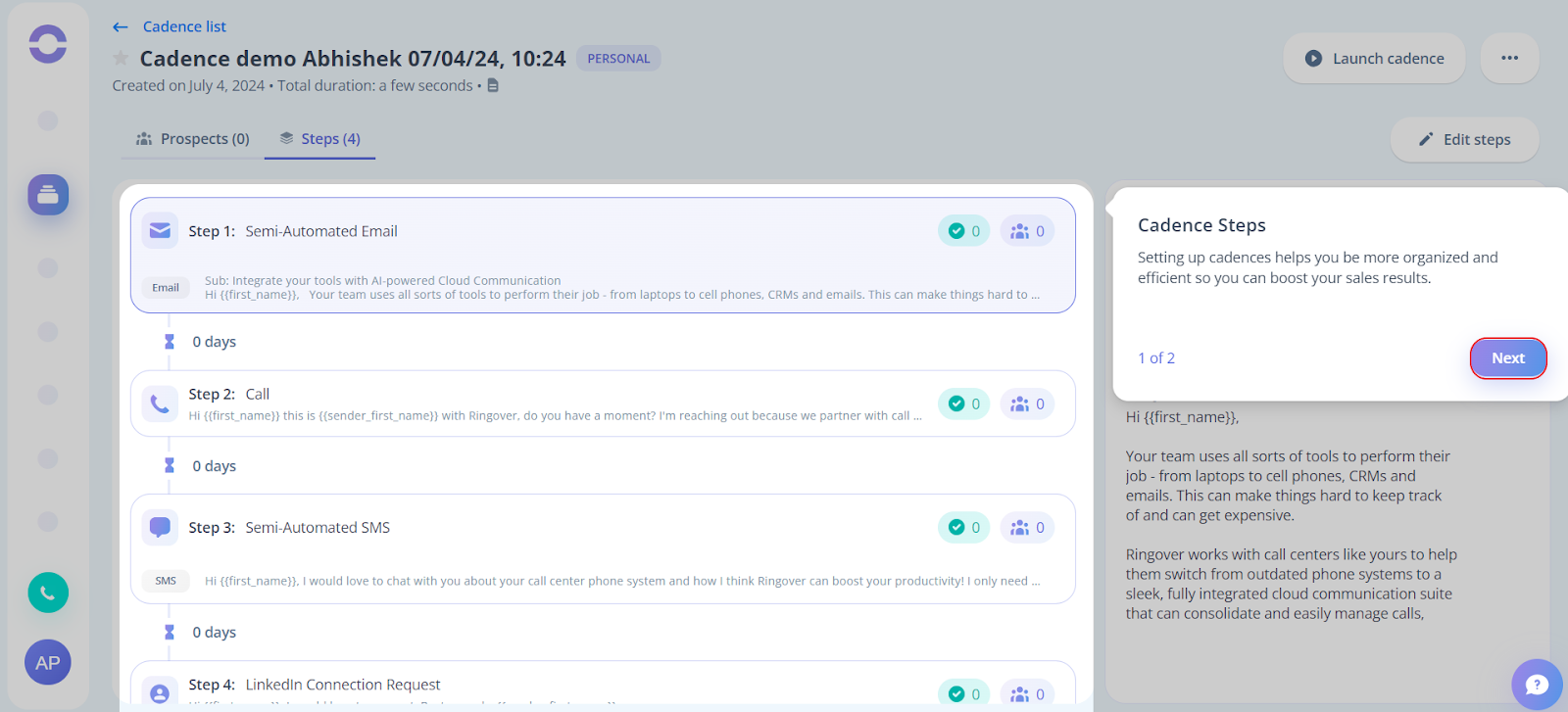
- After that to set up your cadence steps, click Next on the right-hand side of your screen.
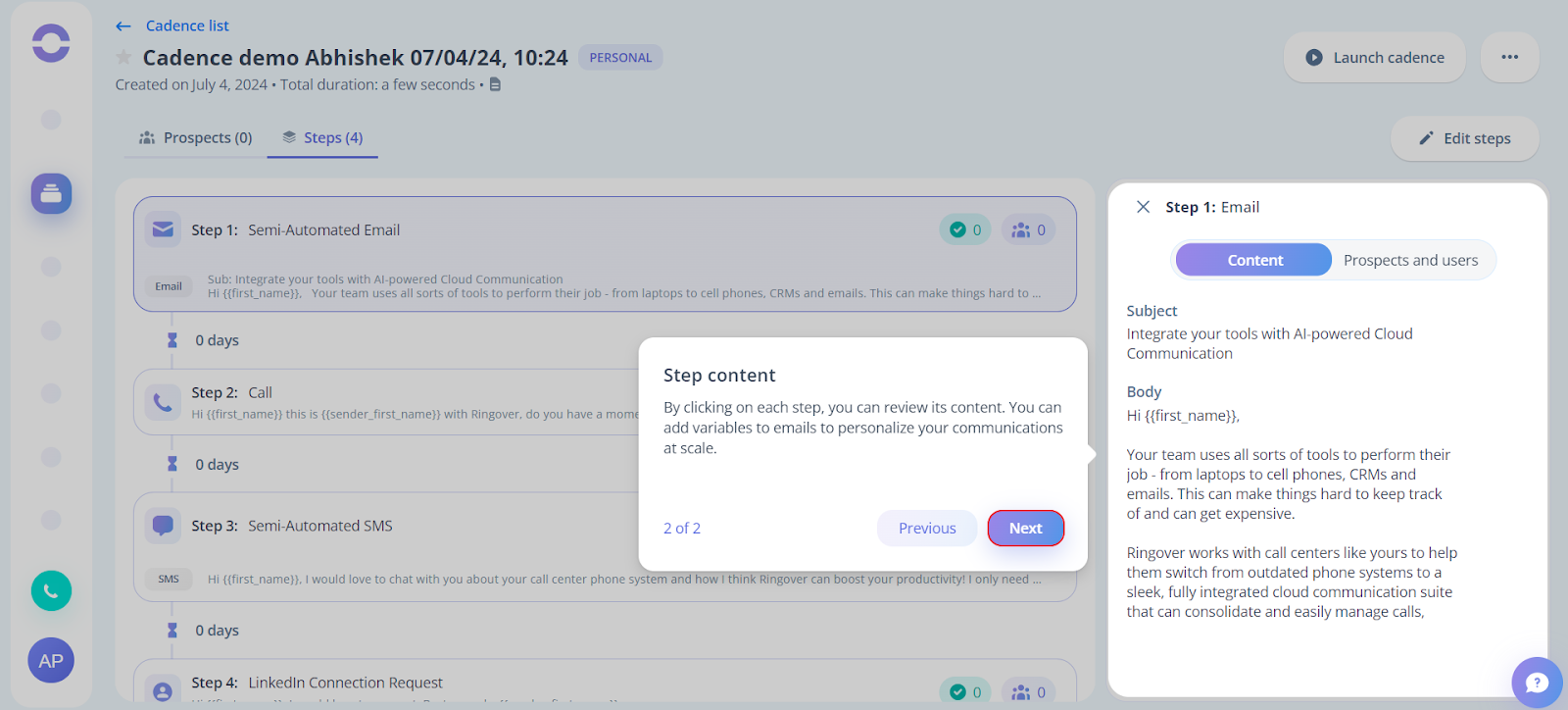
- By clicking on each step of your cadence, you can review its content. To move forward, click Next.
- To import prospects, click on the Prospect tab.
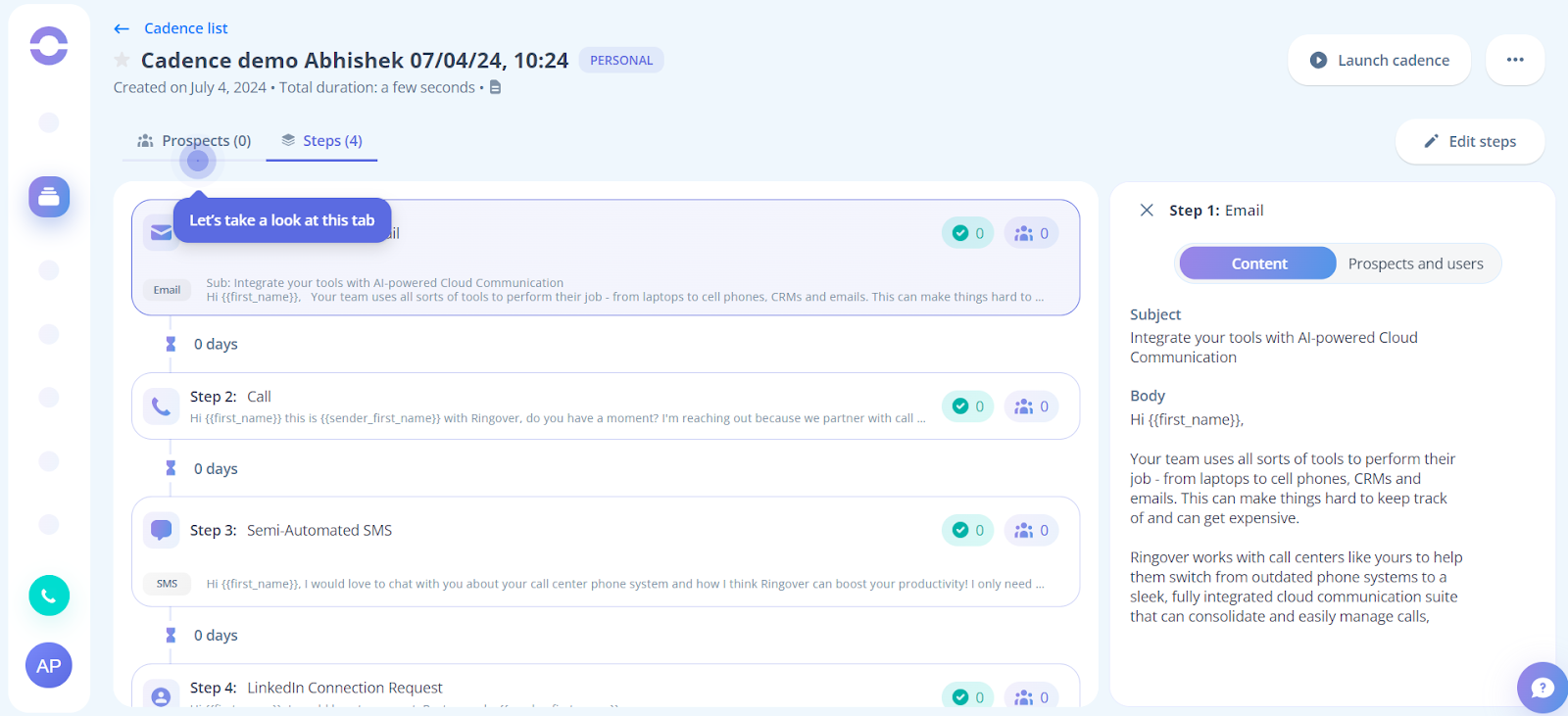
- Before launching your cadence, you must import leads into it.
Click on Show me how.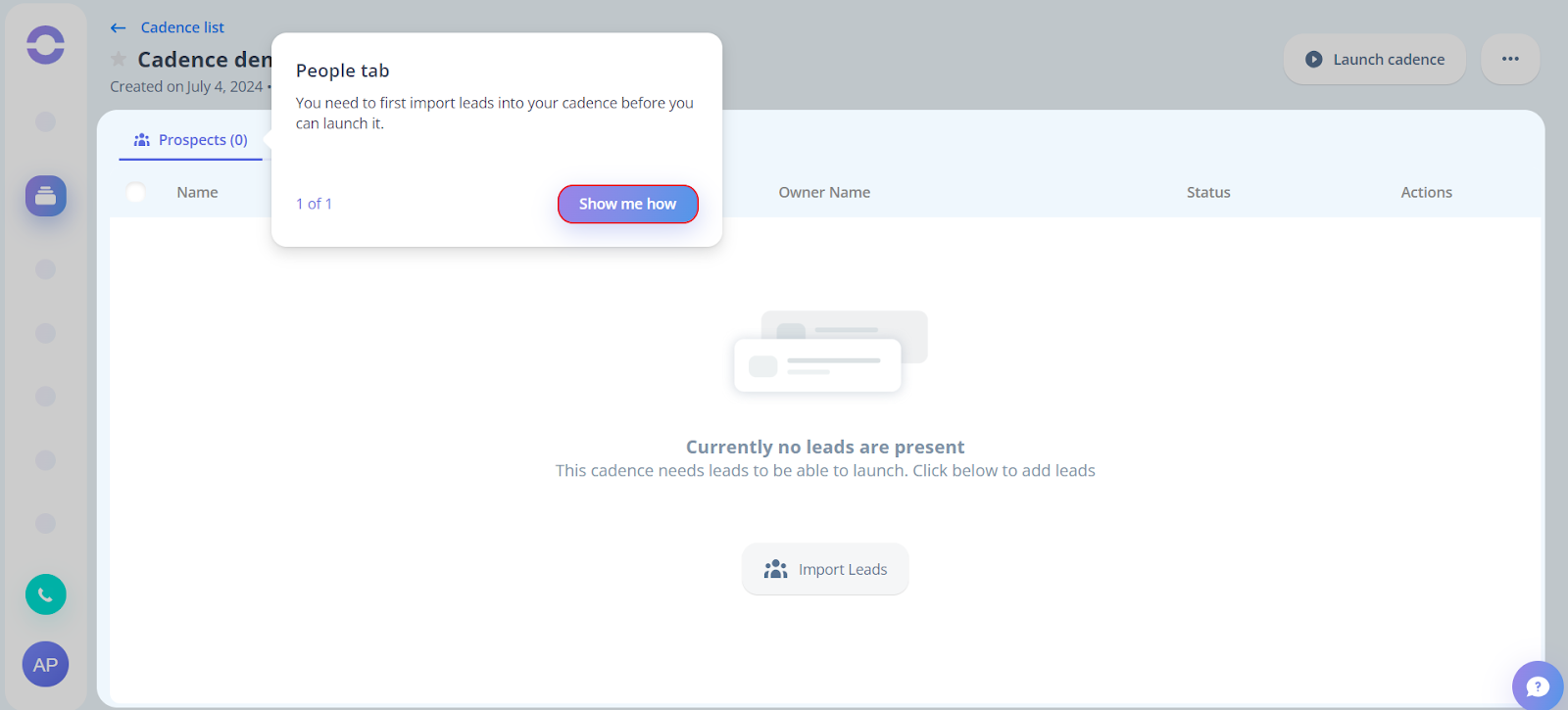
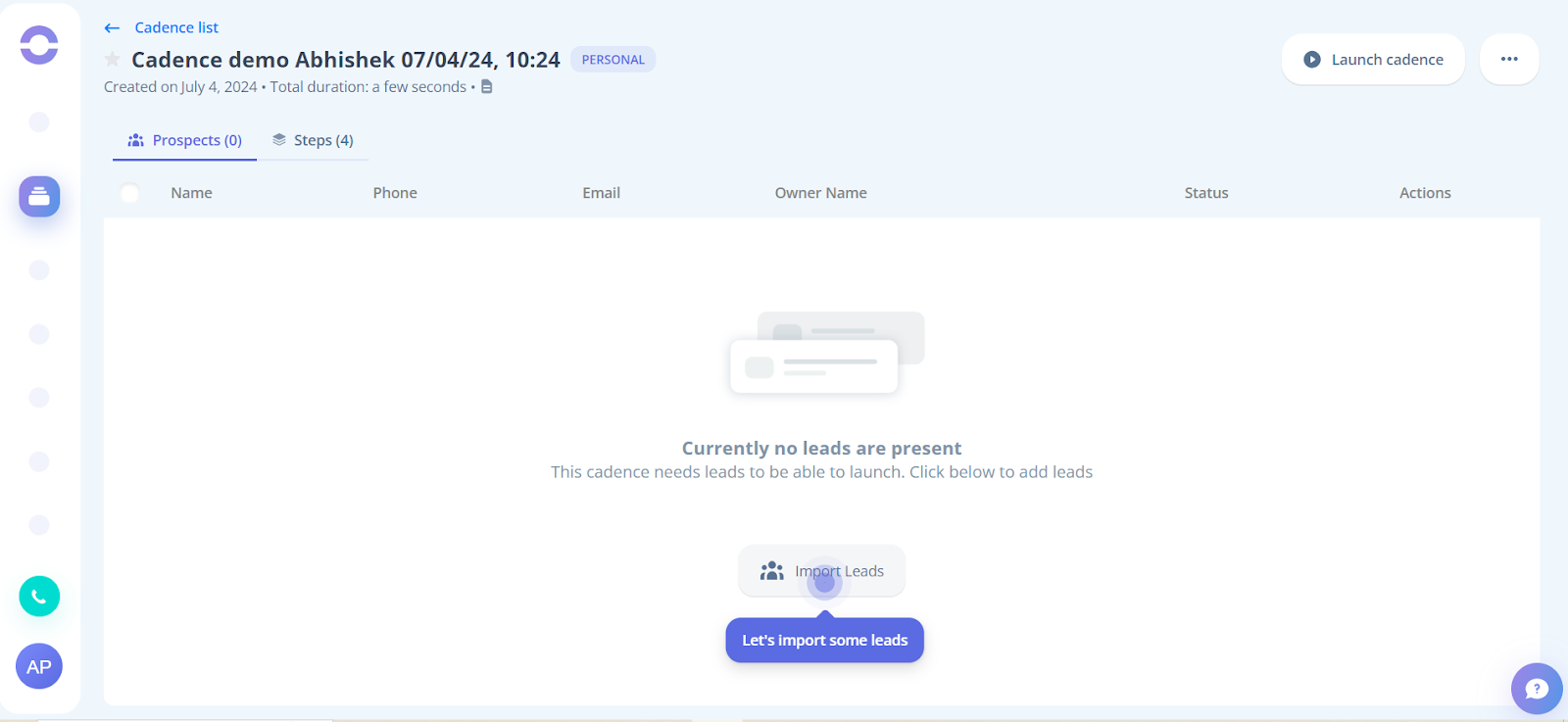
- To import leads in Cadence, click on the “Import leads” button.
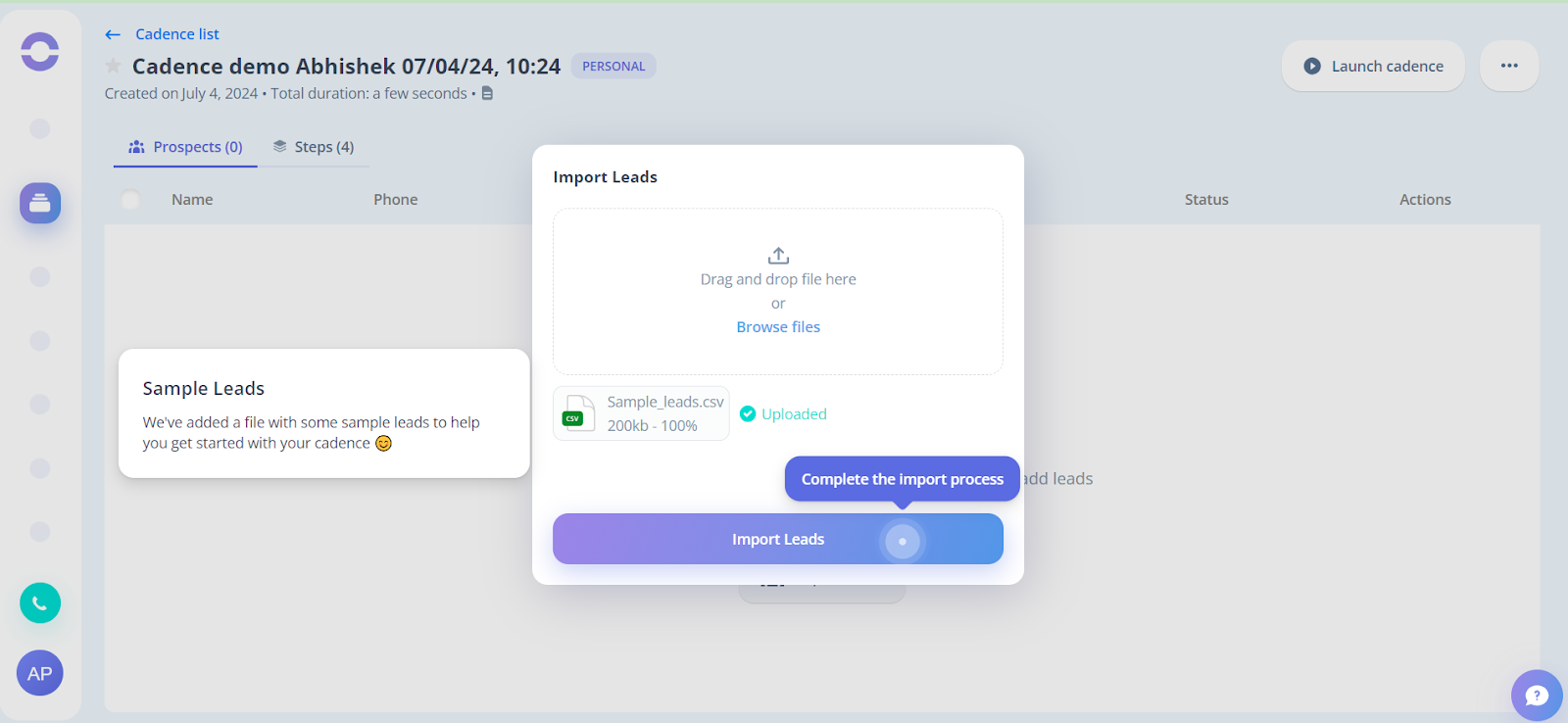
- After that, the sample file will be automatically imported. Click the Import Leads button.
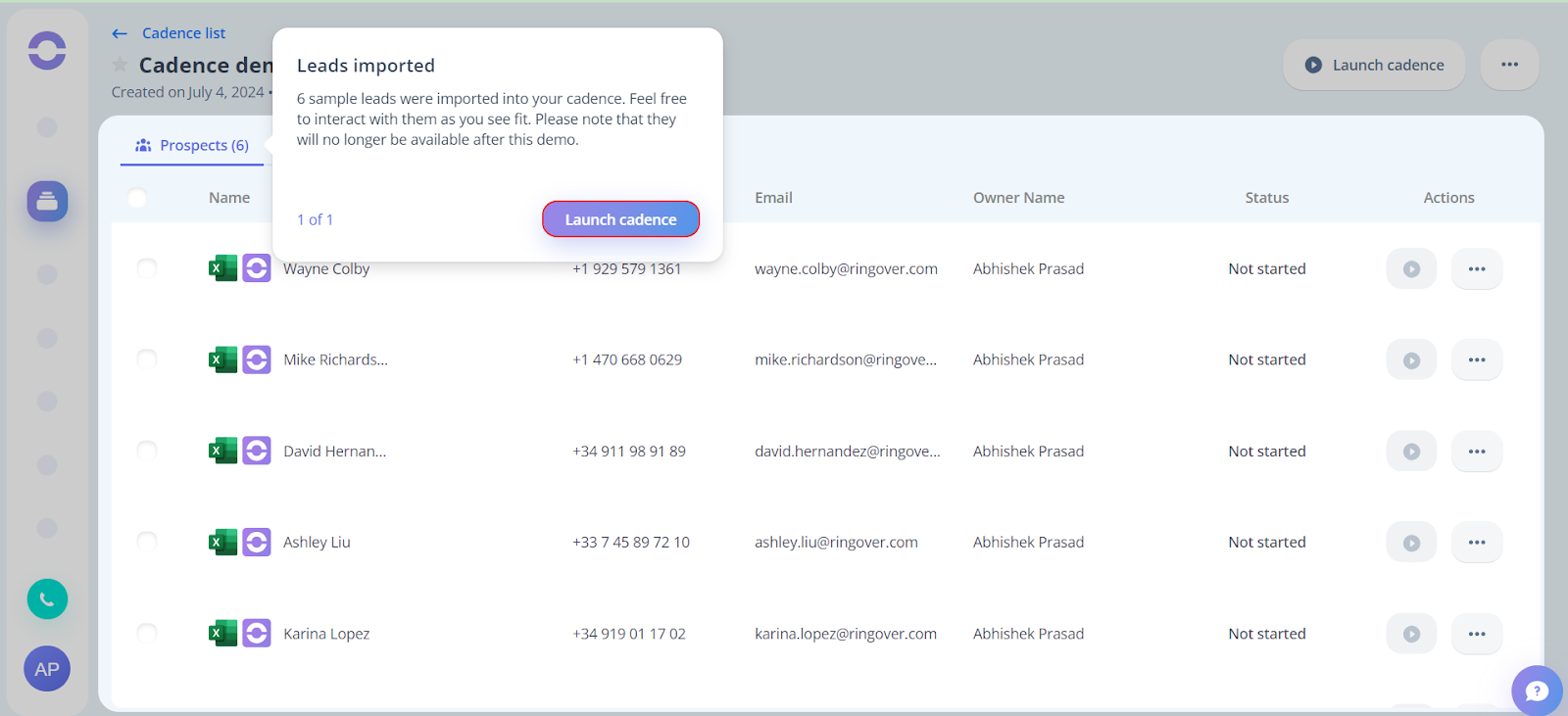
- After the leads are imported you need to click on the Launch Cadence button.
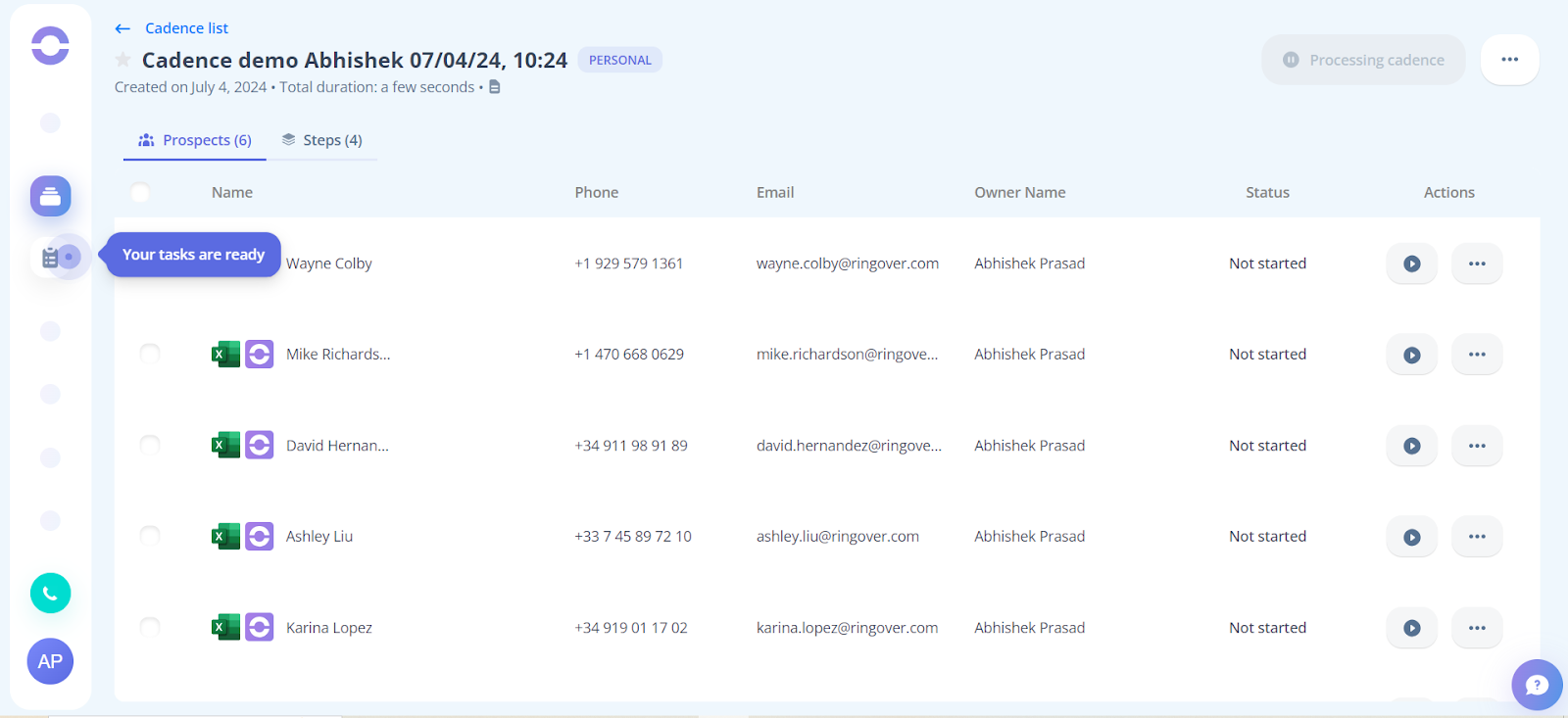
- Next, to perform the tasks, click on the task page.
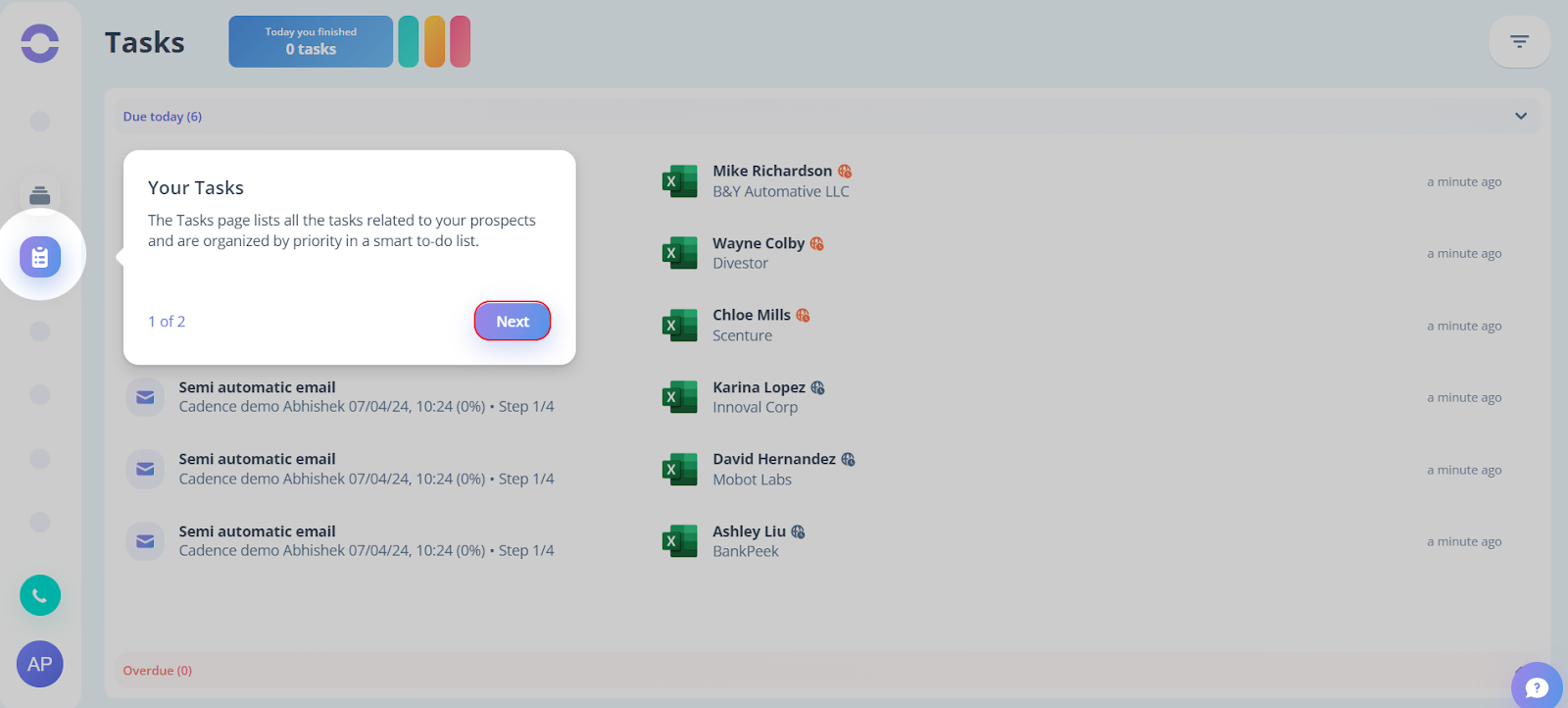
- The Tasks page lists all the tasks related to your prospects. Click Next to perform the tasks.
- Now you need to complete 4 tasks for one of the leads in the cadence.
Click Start.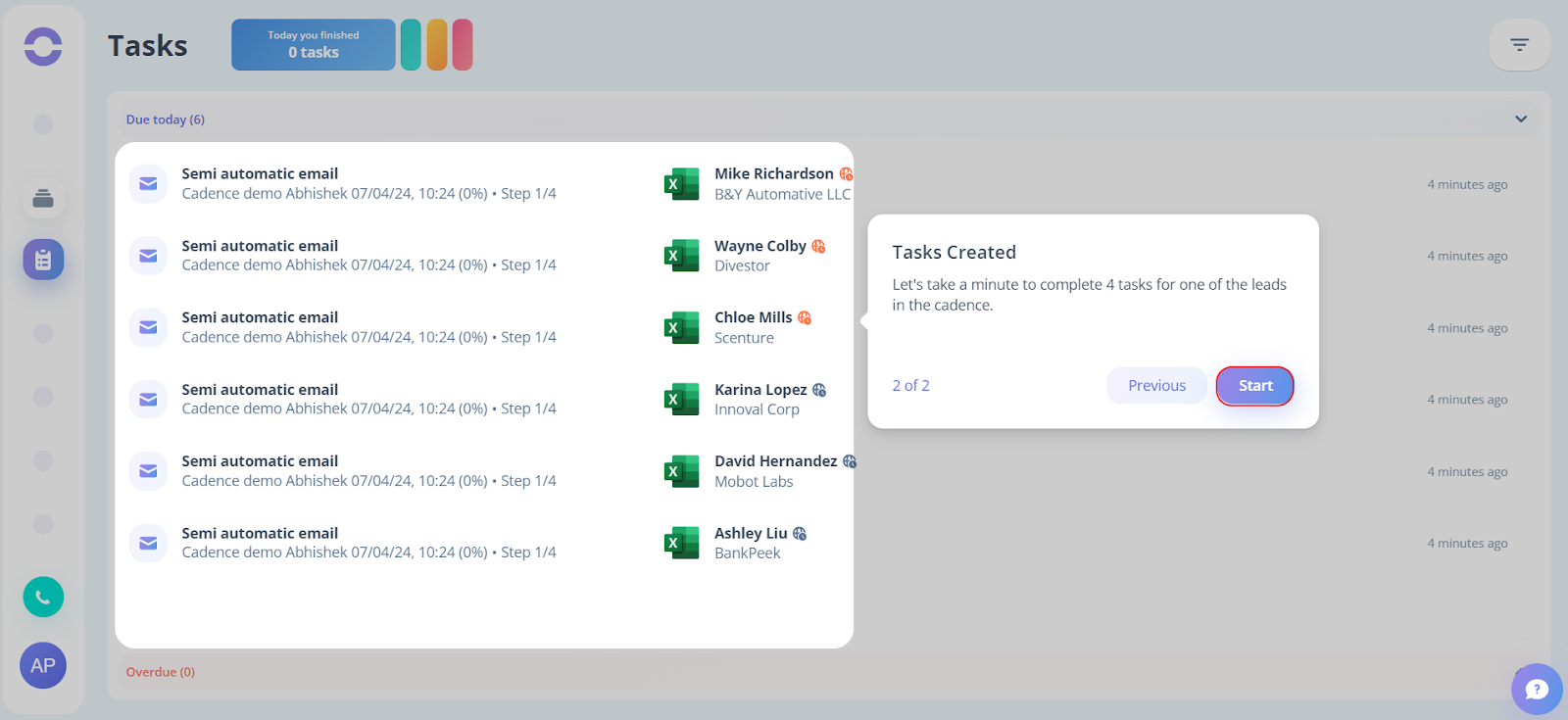
- Now let's have a look at the first task. Click on the first task prompting on your screen.
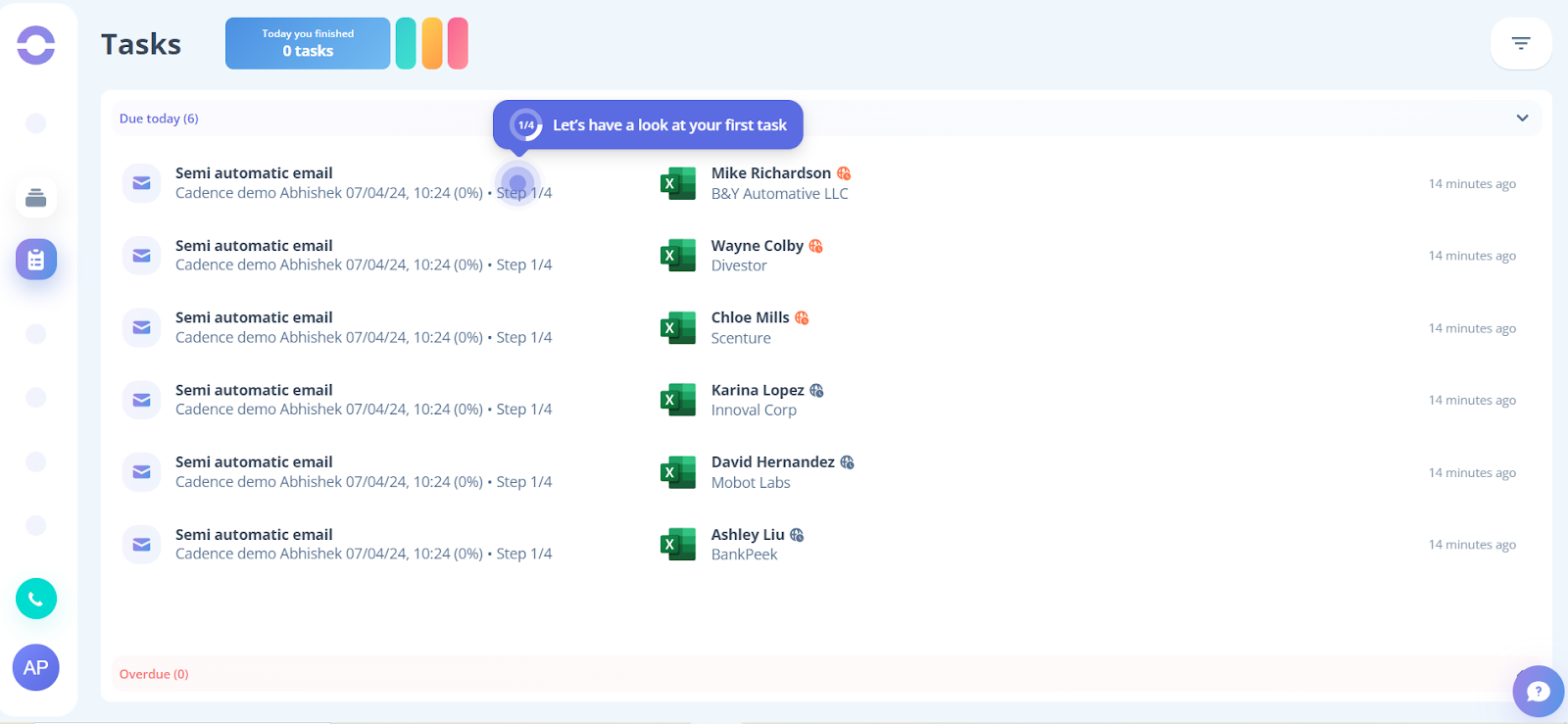
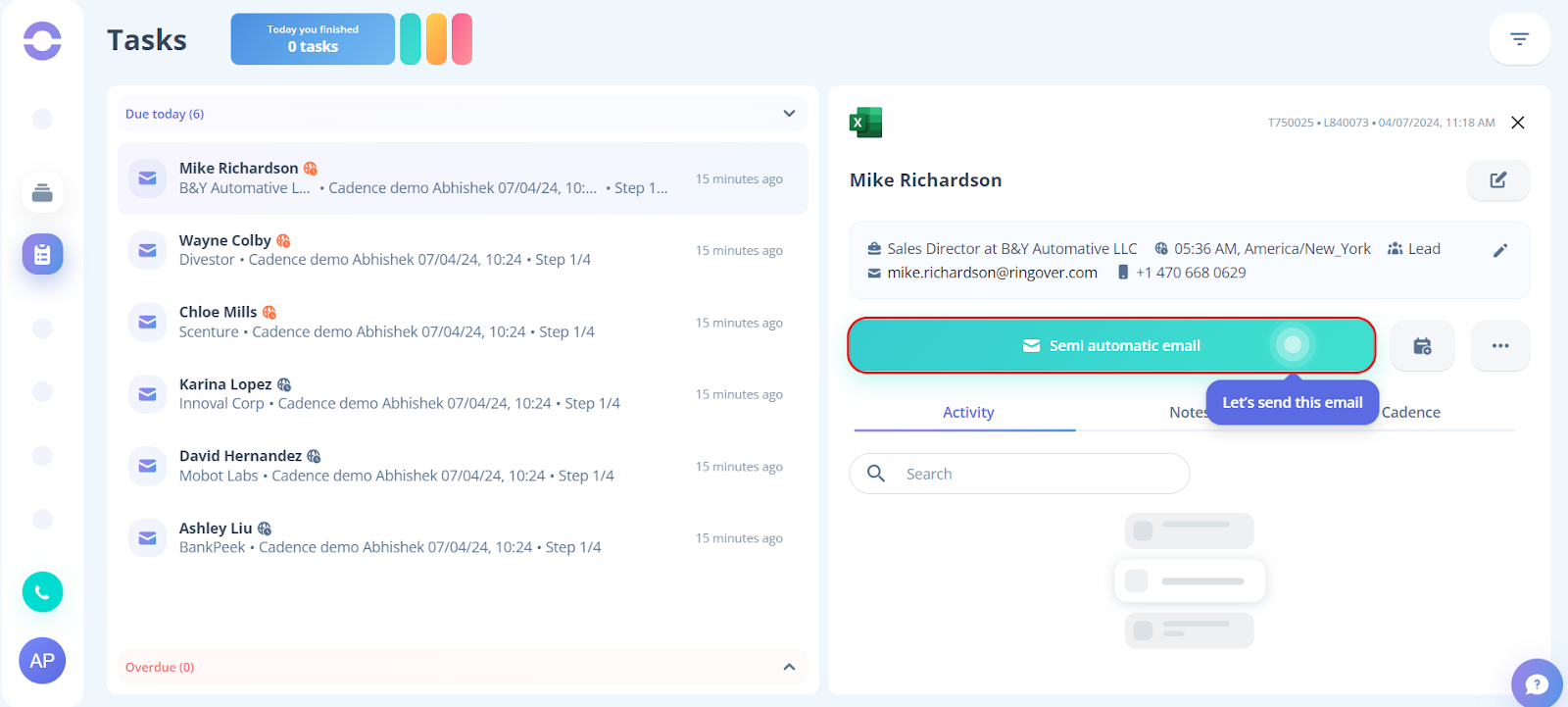
- After clicking on the task the Task page will open and click on the “Semi automatic email” button.
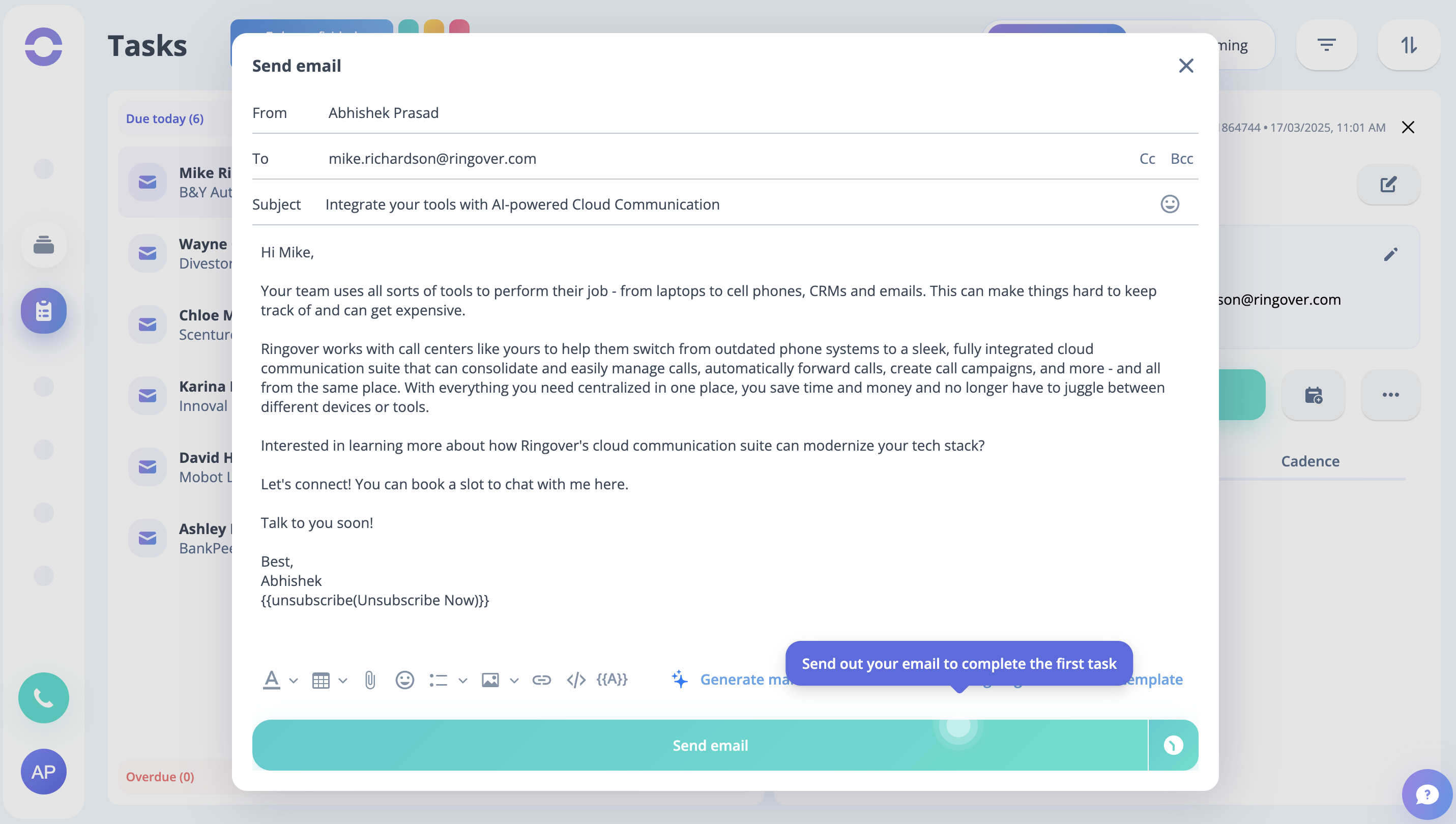
- After that, the Send mail modal will appear on your screen, Click on the Send email button.
- To perform the next task click on the task prompt on your screen.
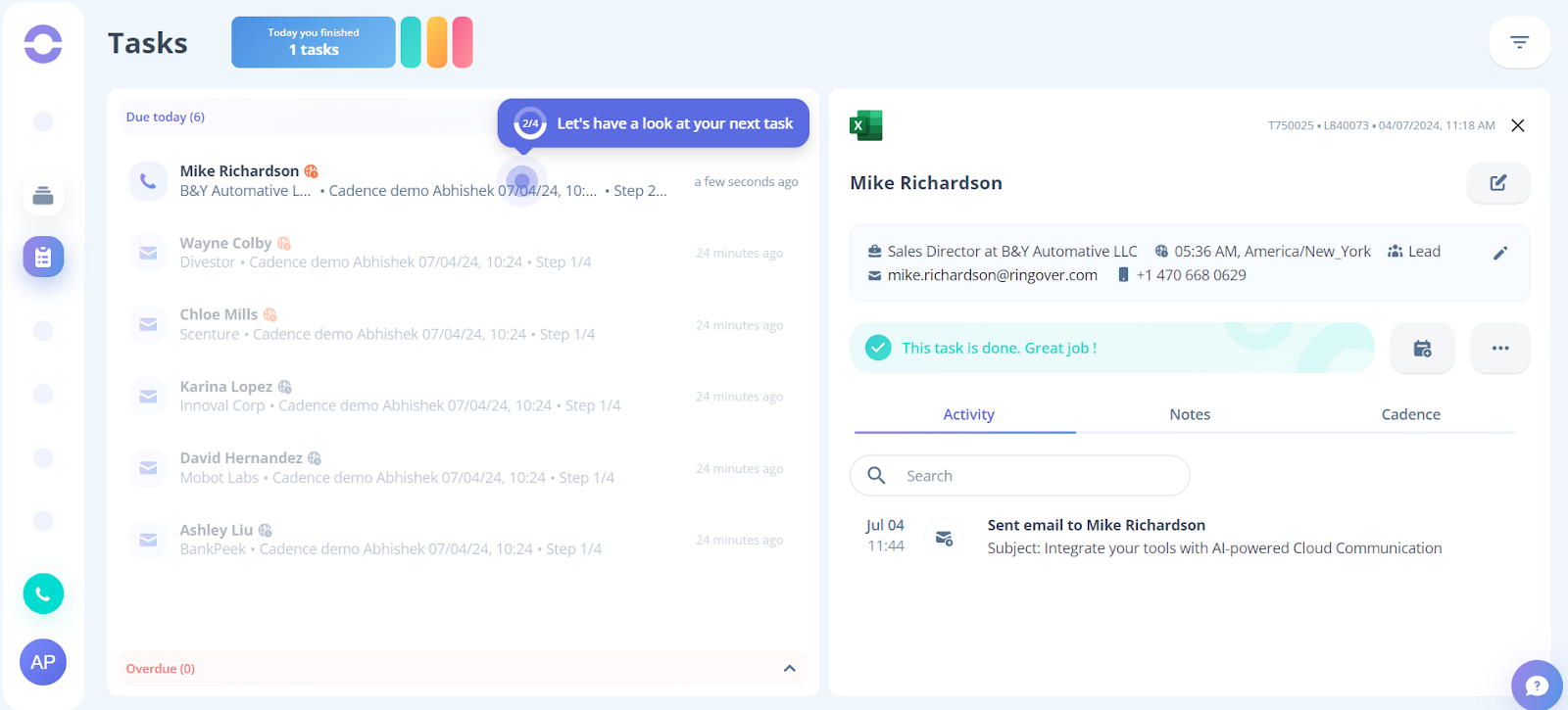
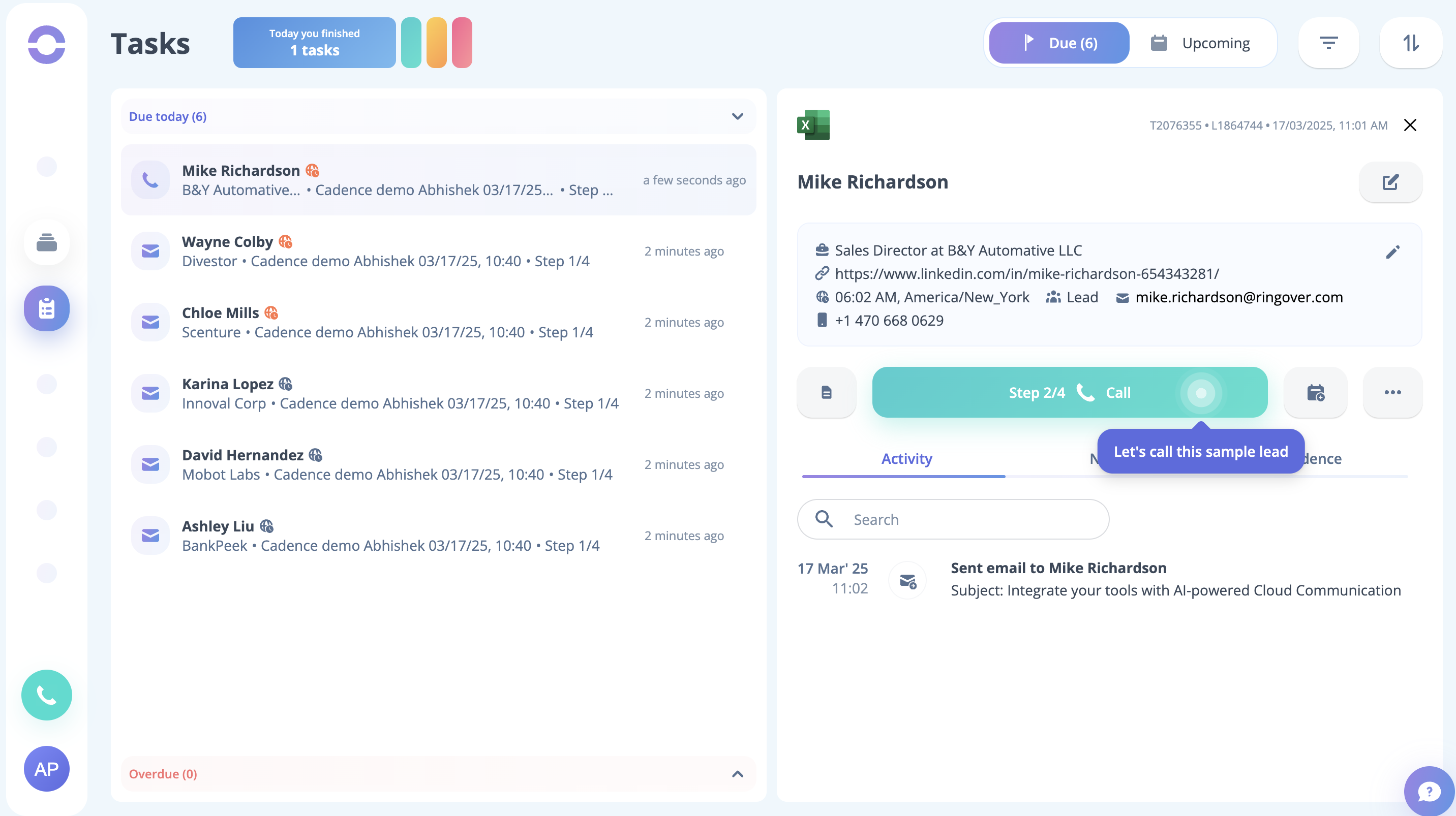
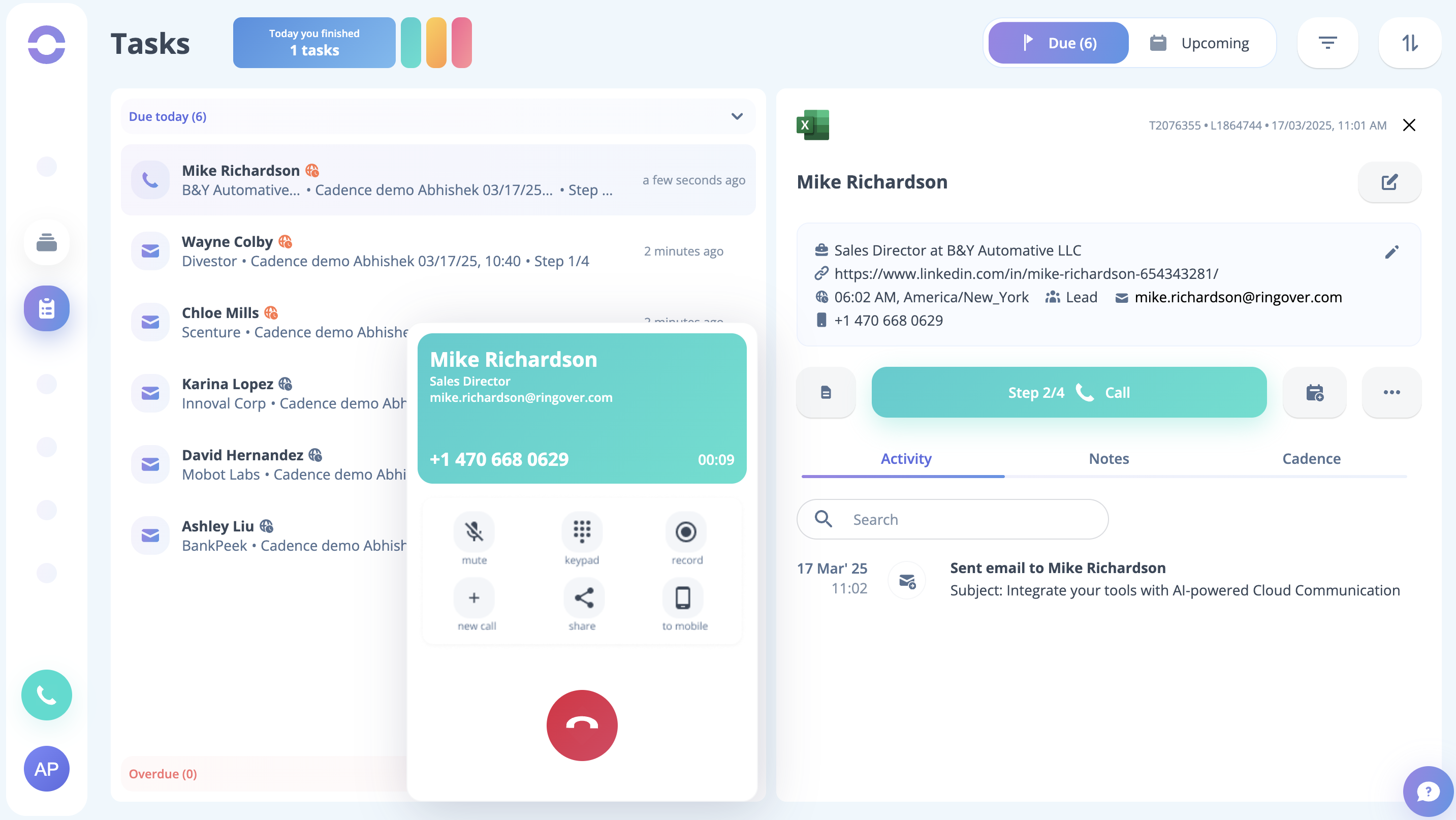
- The next task is a call task. Click the Call button to perform the task. You will be able to see the call task being performed for the sample lead on your screen.
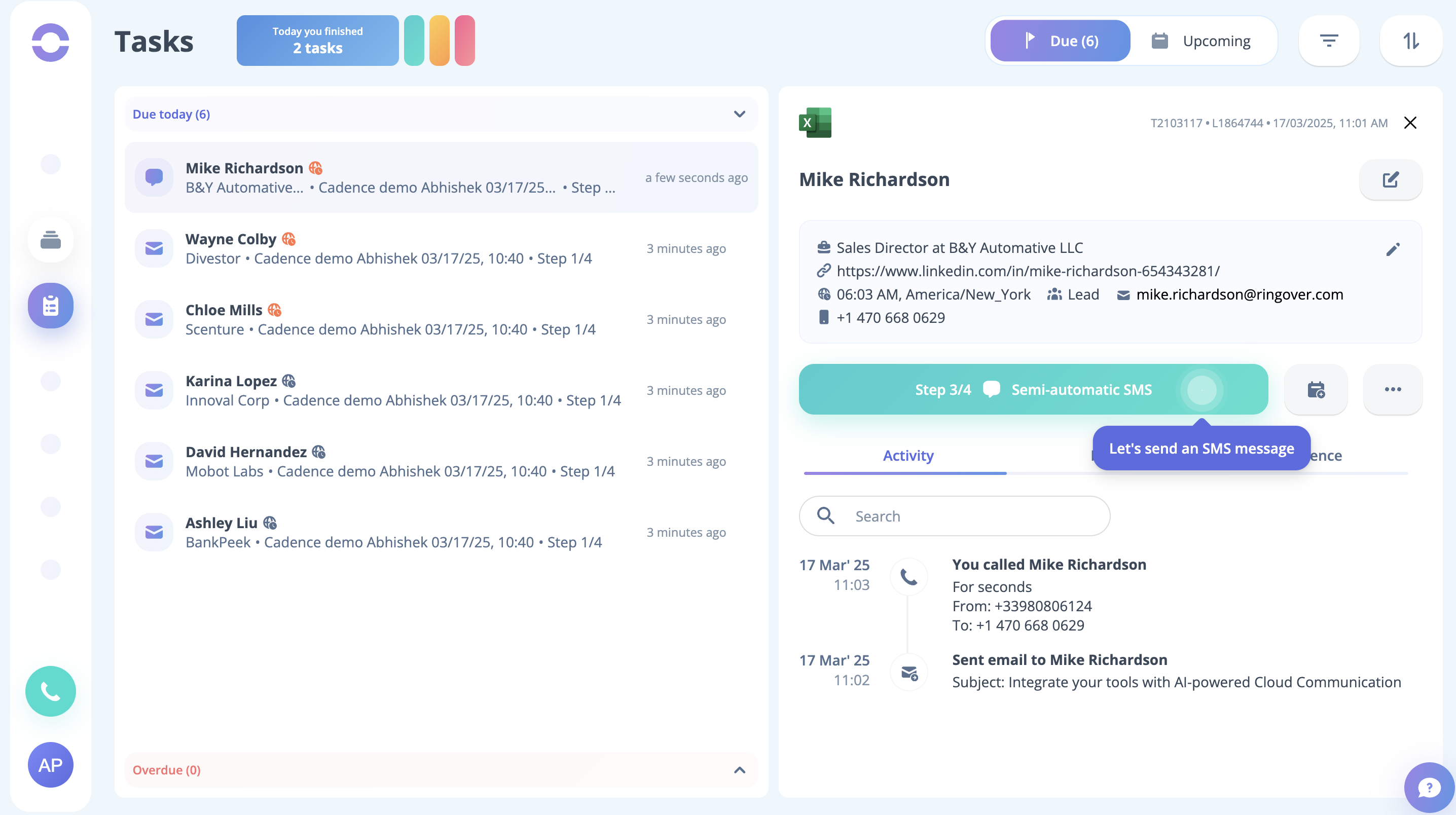
- To perform the next task, click on the Semi-Automatic SMS button.
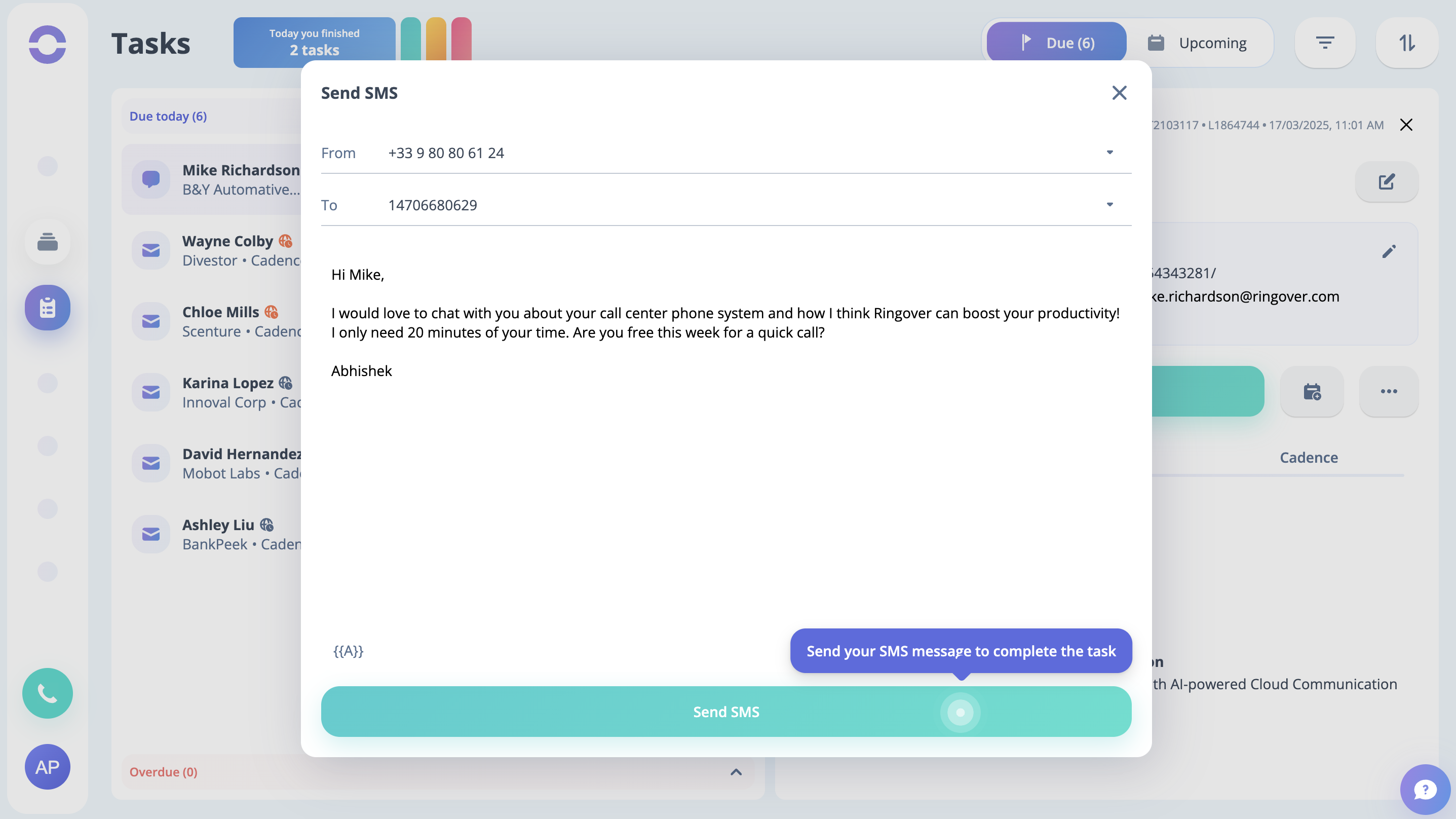
- A task modal will open. Click on the Send SMS button.
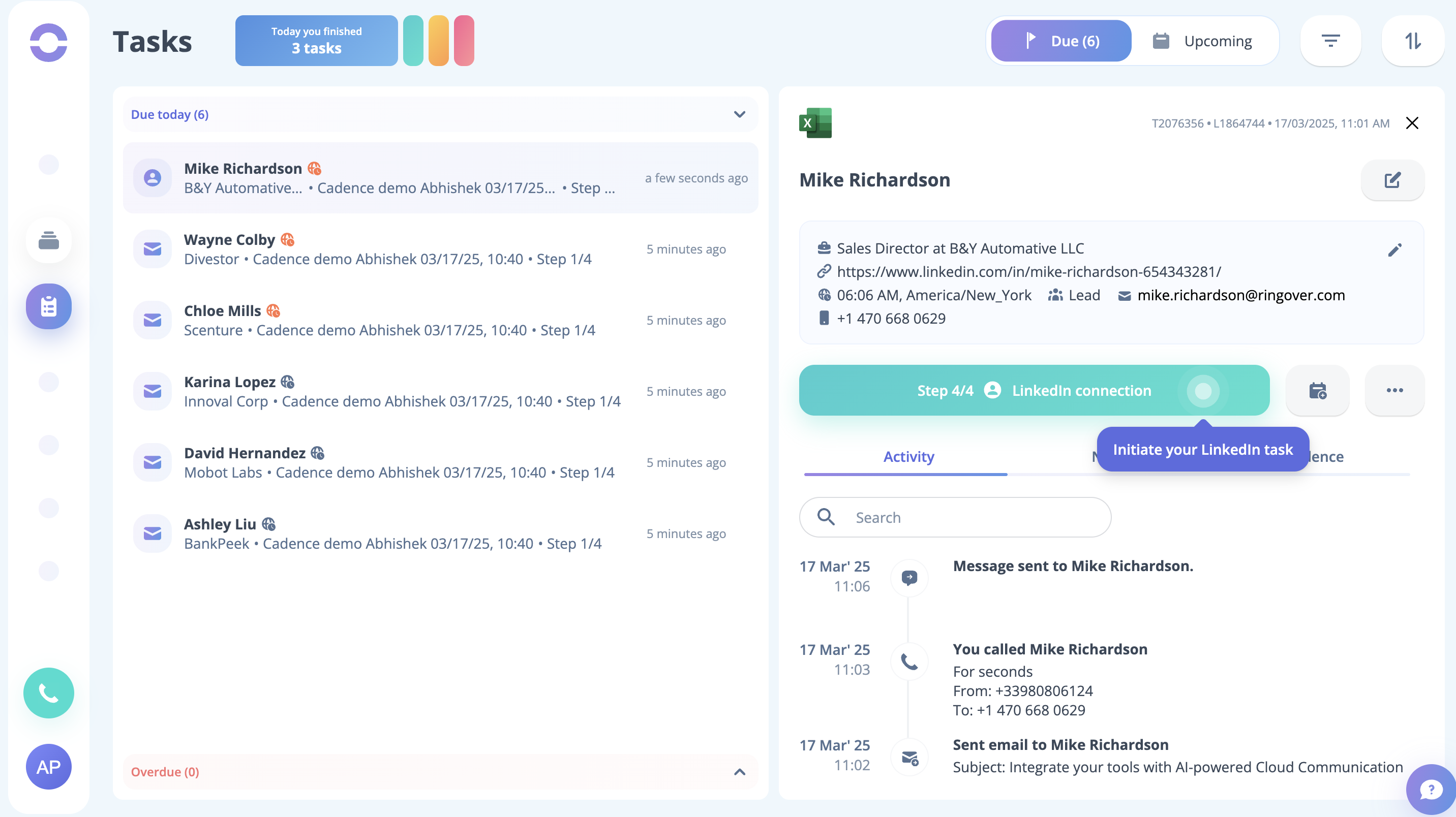
- To perform the next task, click on the LinkedIn connection button.
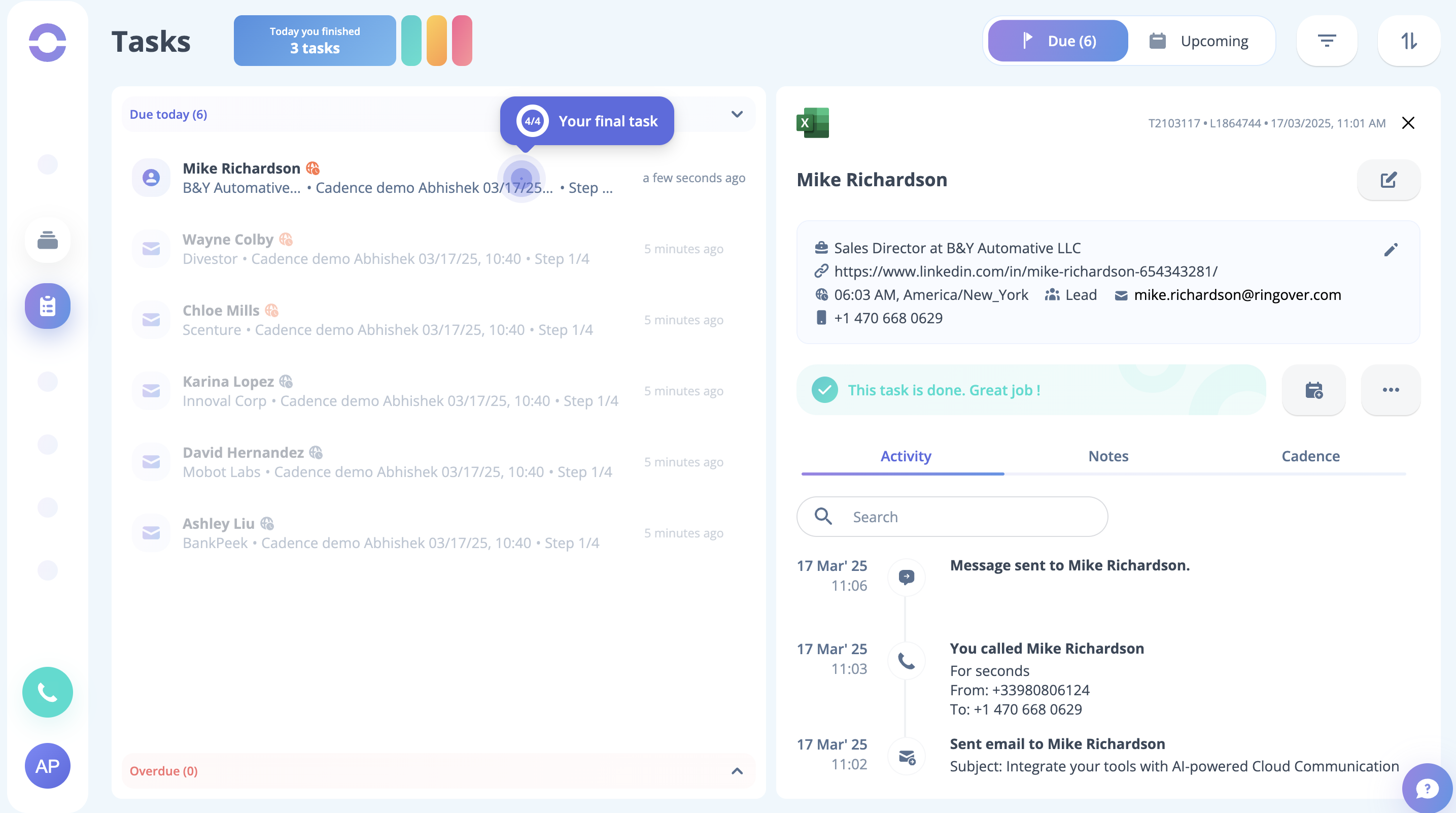
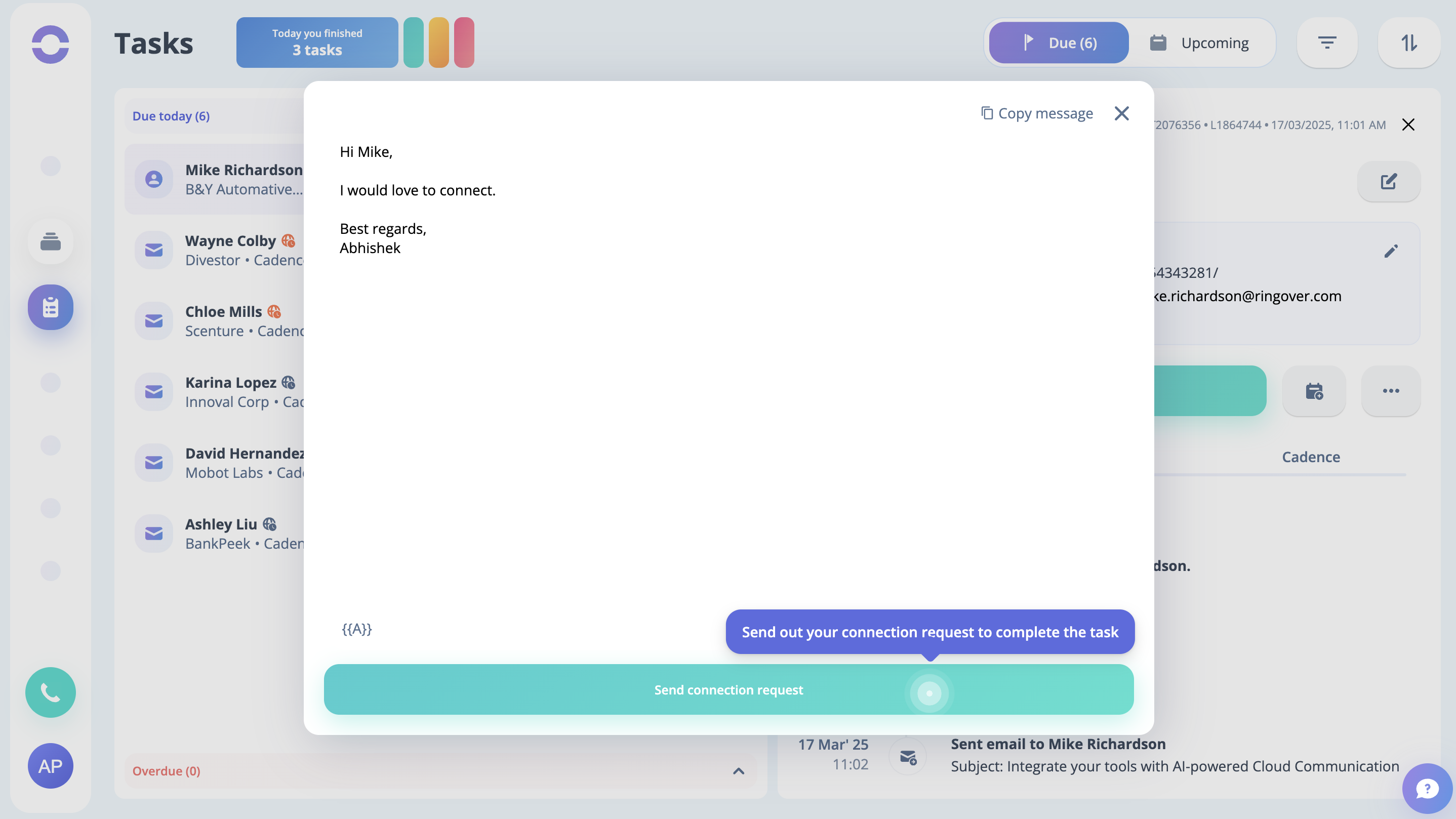
- On the task modal, click on Send connection request.
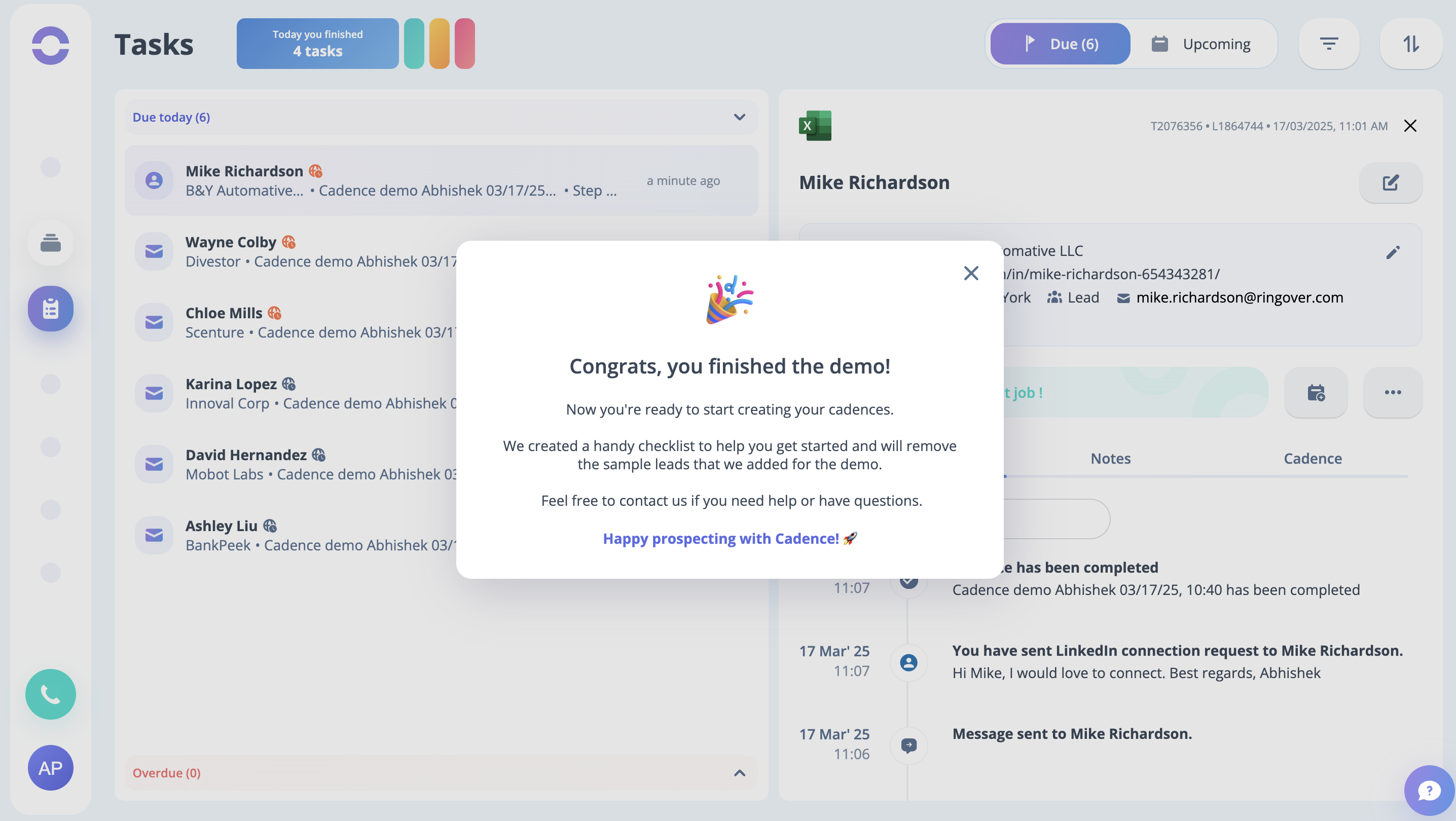
On completing all the tasks, you will get to see the success modal on your screen.