
All About Groups
Topics covered:
- Where can you find Groups?
- Things you can do Under this settings:
- Steps to create a New Group
- Steps to edit Group name or logo
- Steps to delete a Team
- Steps to add new members
- Steps to edit the details of a member
- What are the operations that you can perform for a member?
- Frequently asked questions
Where can you find Groups?
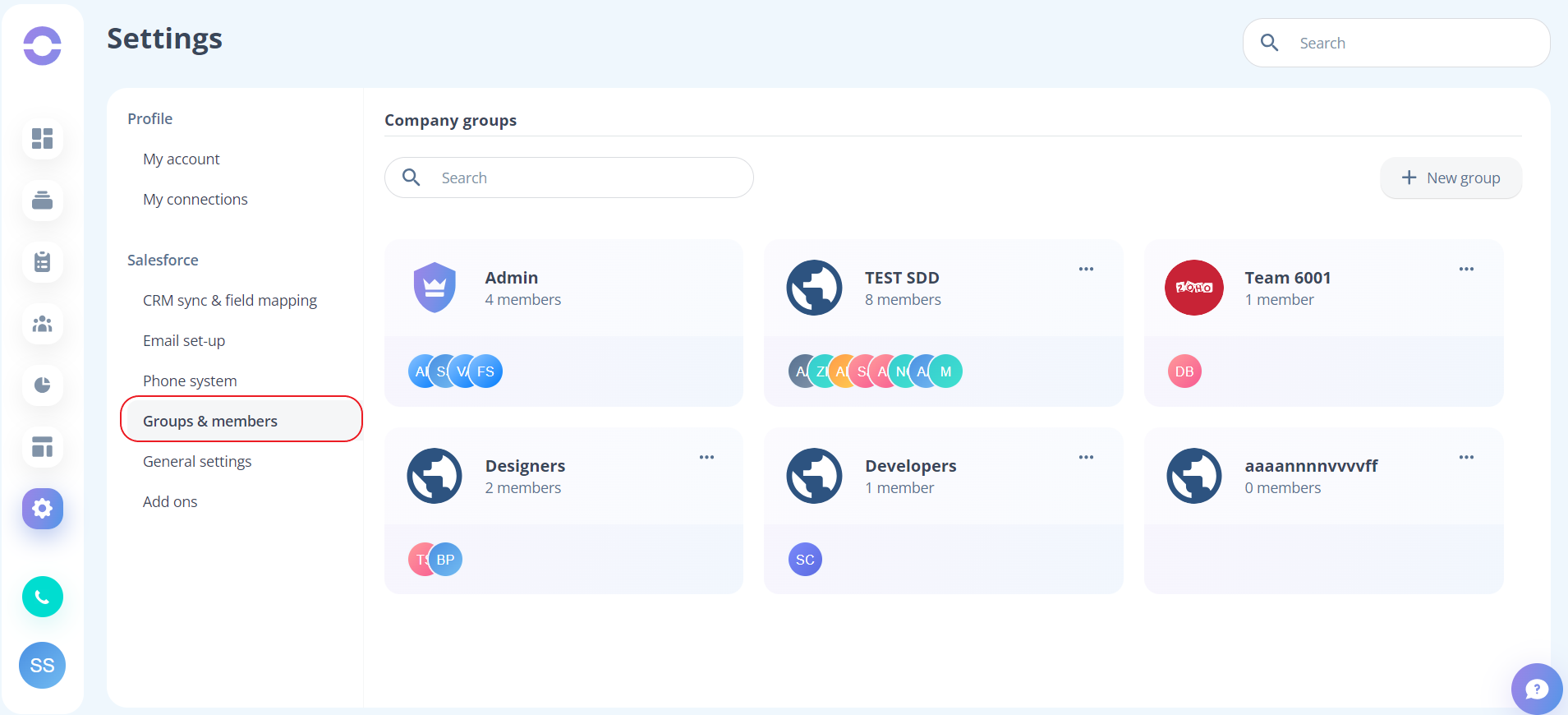
- Go to Settings page > Groups and memebers.
Things you can do under this settings
Under this setting, you can do the following things to manage your teams:
1. You can see all the teams in your company.
2. Whenever a company is created, a team is by default created for you named “Admin”.
- This team can only have Admins and Super Admins.
- You cannot create another team named “Admin” as it already exists.
- The user who does the onboarding for the first time is set as “Super Admin”. There can be only one Super admin for a company.
- Super Admin cannot be deleted from the tool.
- You can create/delete as many admins as you want.
Steps to create a New Group
These are the steps to create new group
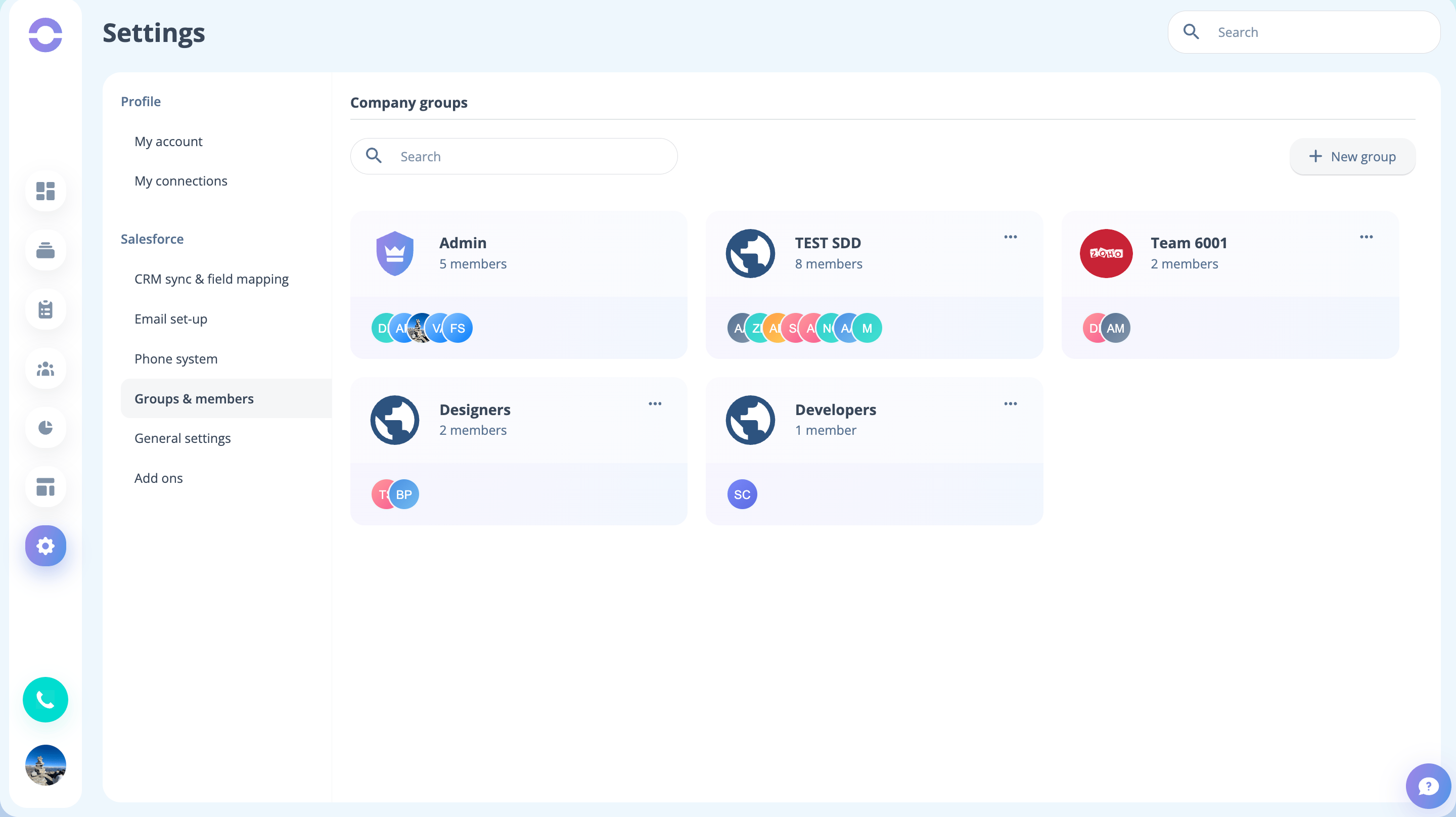
- Step 1: Click on the "+ New group" button to set up a new team.
-
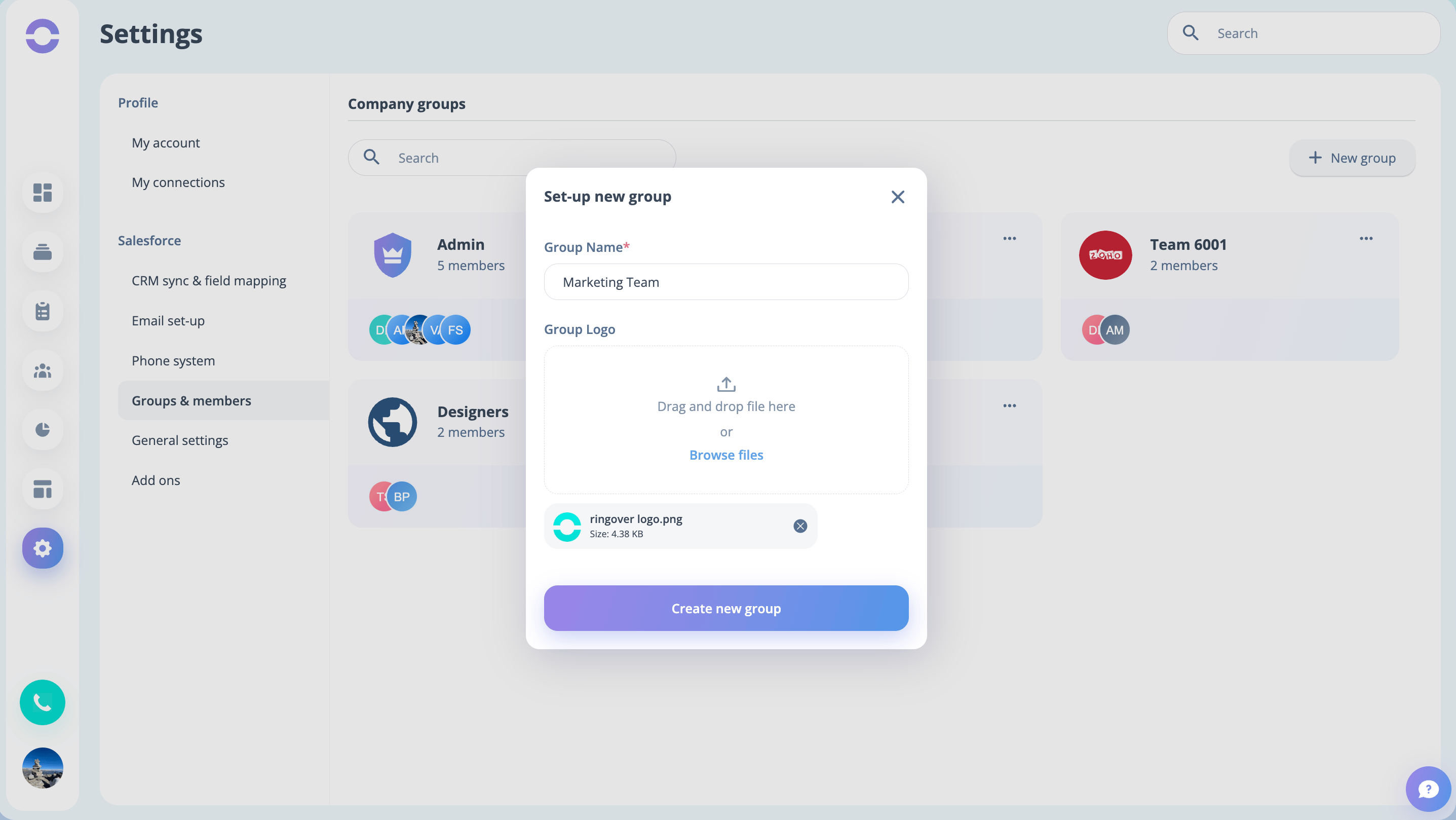
Step 2: In the form, set the Group Name (required) and upload a logo.
* Remember that you cannot have two teams with the same name.
- Step 3: Click on the "Create New Group" button to create a new team.
Steps to edit Group name or logo
These are the steps to edit Group name and logo:
- Step 1: In the "Company Groups" section, click on the three dots next to the group you want to edit.
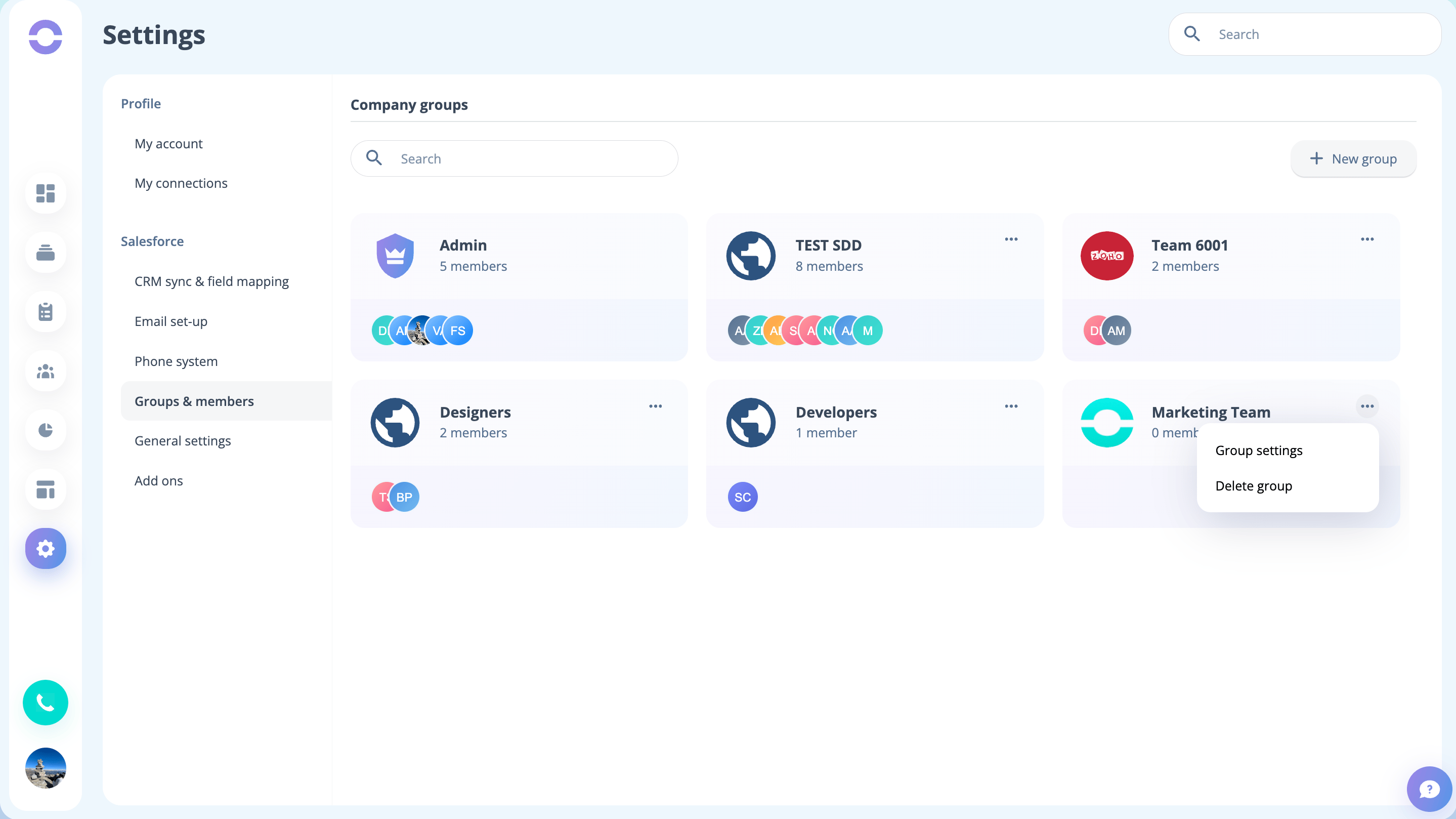
- Step 2: Click on the "Group Settings" button to edit the name or logo.
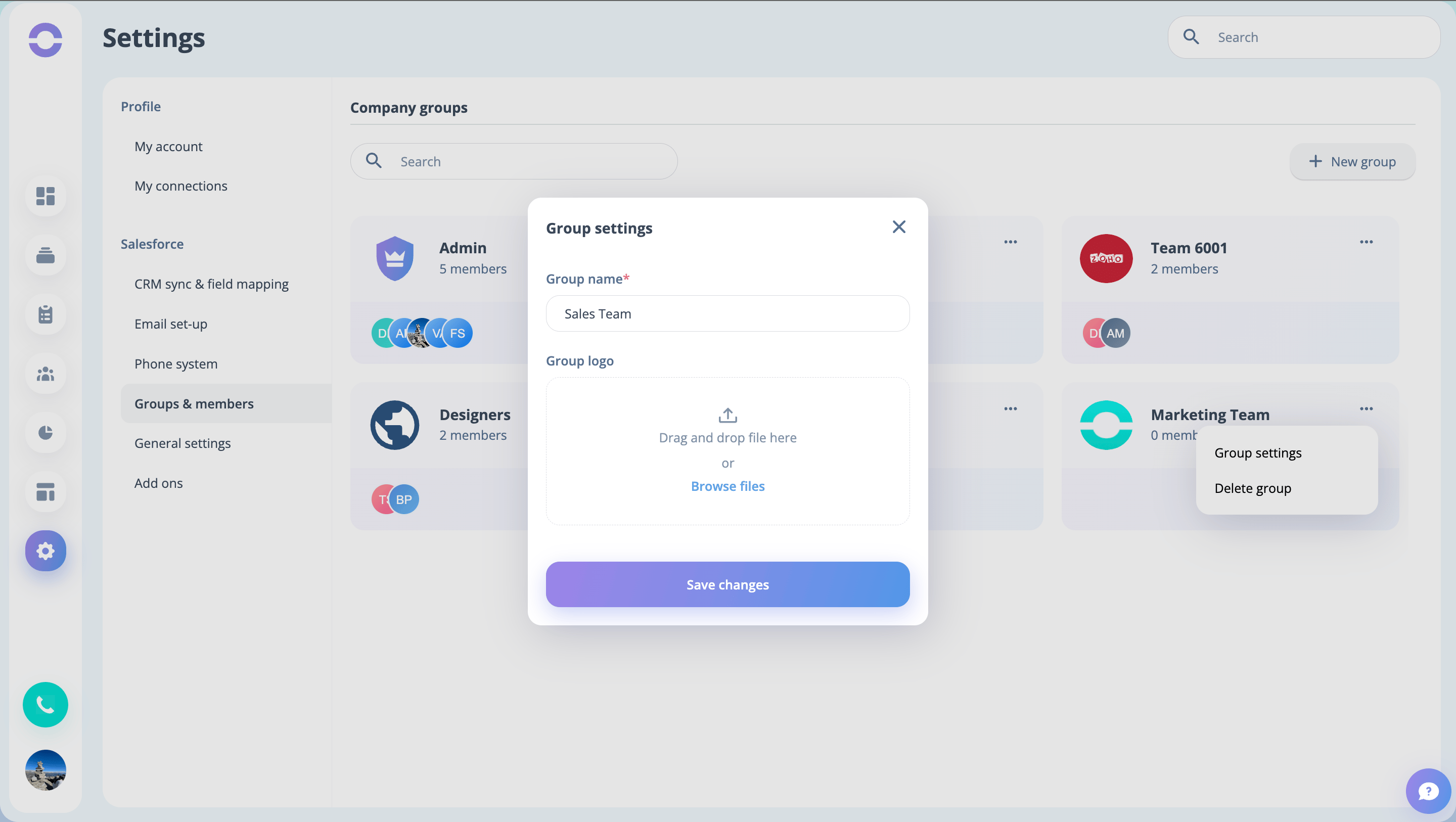
- Step 3: Make any desired changes to the fields.
- Step 4: Click "Save Changes" to save the new data.
Steps to delete a Team
Only Admin/Super can delete a team:
- Step 1: In the "Company Groups" section, click on the three dots next to the group you want to delete.
-
Step 2: Click on the "Delete Group" button to delete the group permanently.
Steps to add new members
The steps to add new members are as follows:
- Step 1: Click on the "Add Members" button to add a new group member.
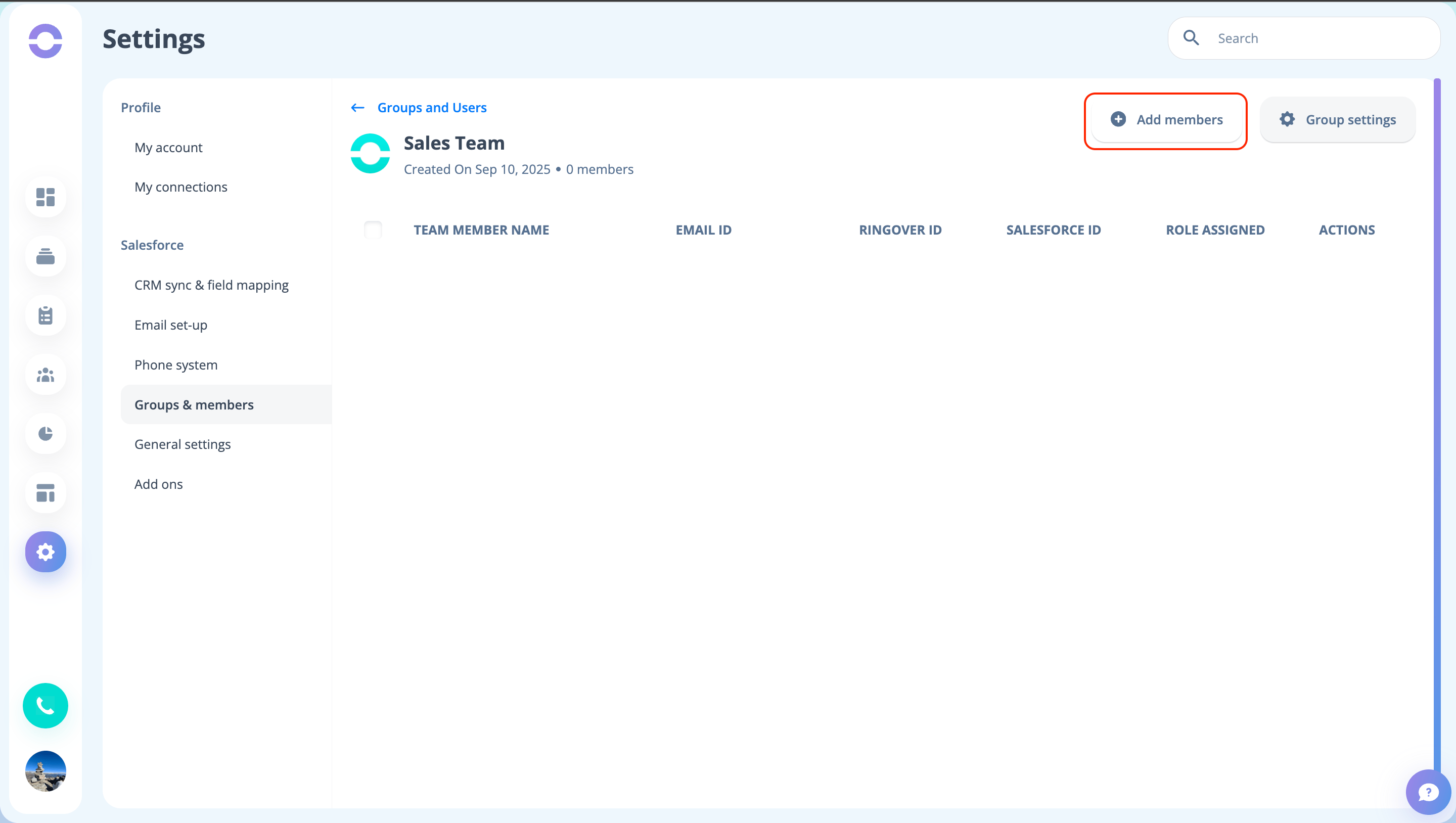
- Step 2: Fill out the form, which includes fields for First Name, Last Name, Role Assigned, Email ID, and Timezone.
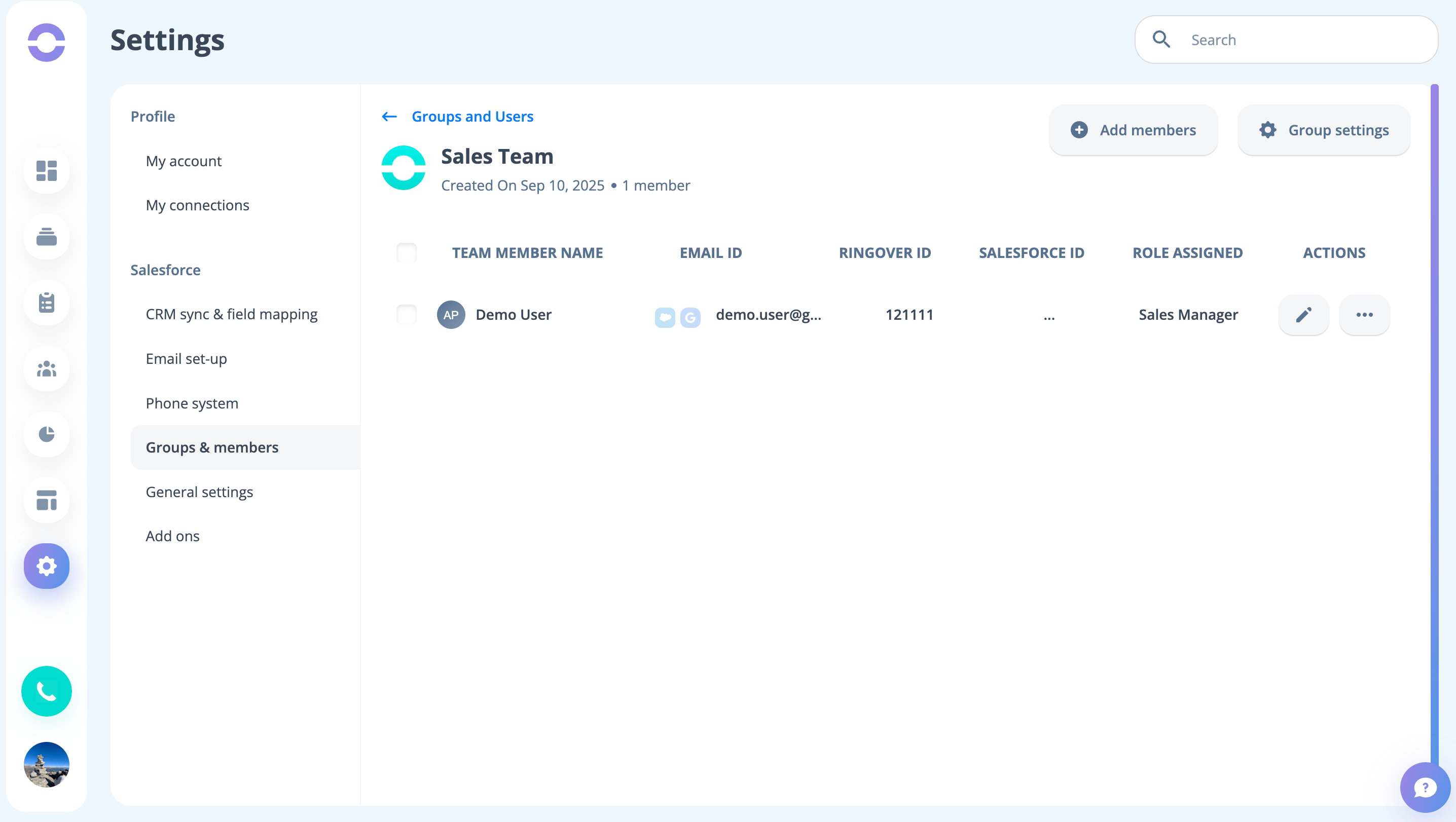
- Step 3: Click on the "Add New Member" button to create a new member.
(Note: Once a new member is created, they will receive an invitation to join the cadence tool via the provided email.)
Steps to edit the details of a member
The steps to edit the details of a member are as follows:
- Step 1: Click on the "Edit" action button.
- Step 2: You can edit the fields for Role Assigned, Email ID, Ringover ID, and Ringover API Key.
- Step 3: Click on the "Save Changes" button to save the updated information.
(Note: If a user has not accepted the invitation then you will see a grayish text and a faded background for that user. For example, here Test Account 2 has not accepted the invitation)
What are the operations that you can perform for a member?
For every member you can perform 4 operations which can be accessed by clicking on the 3 dots button
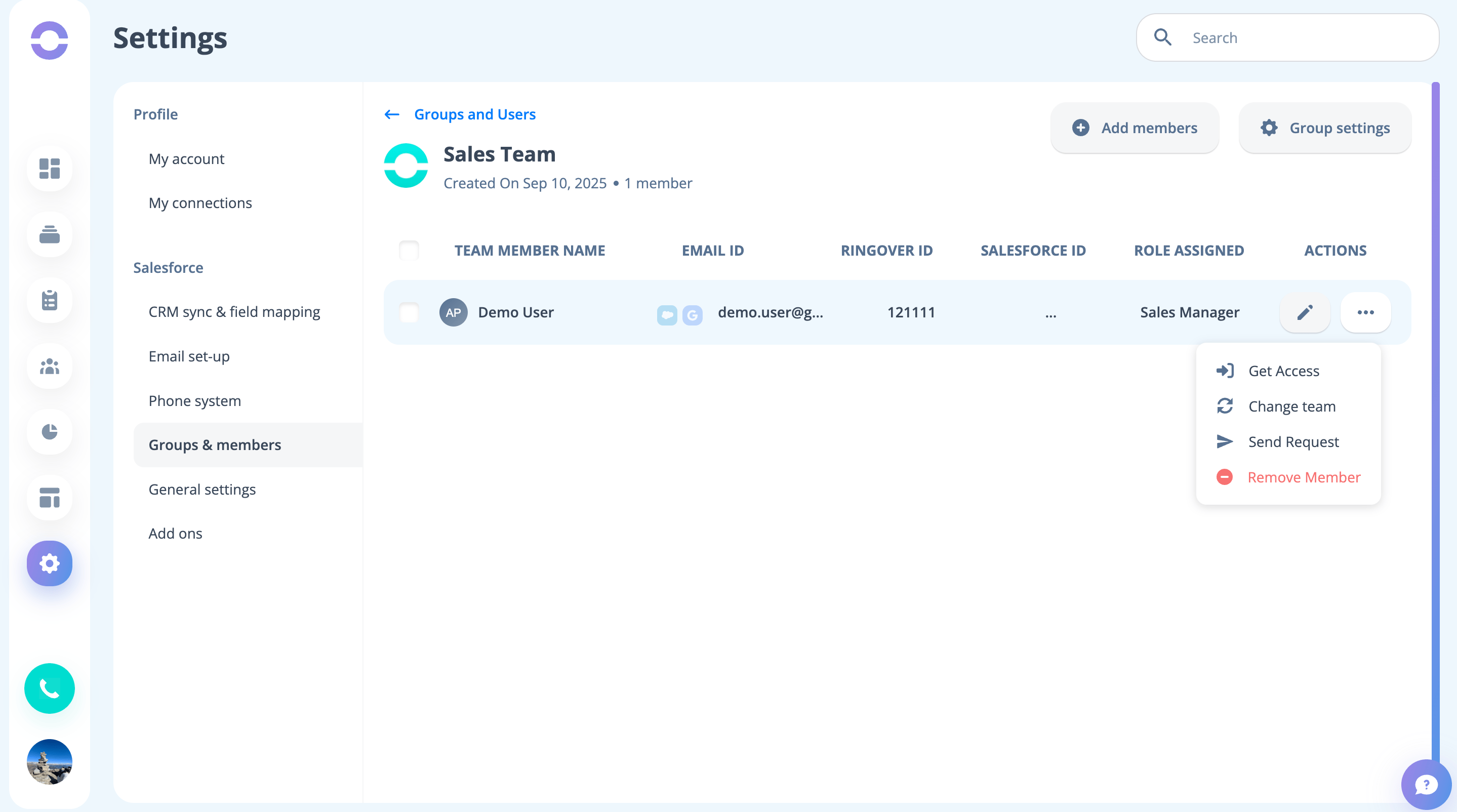
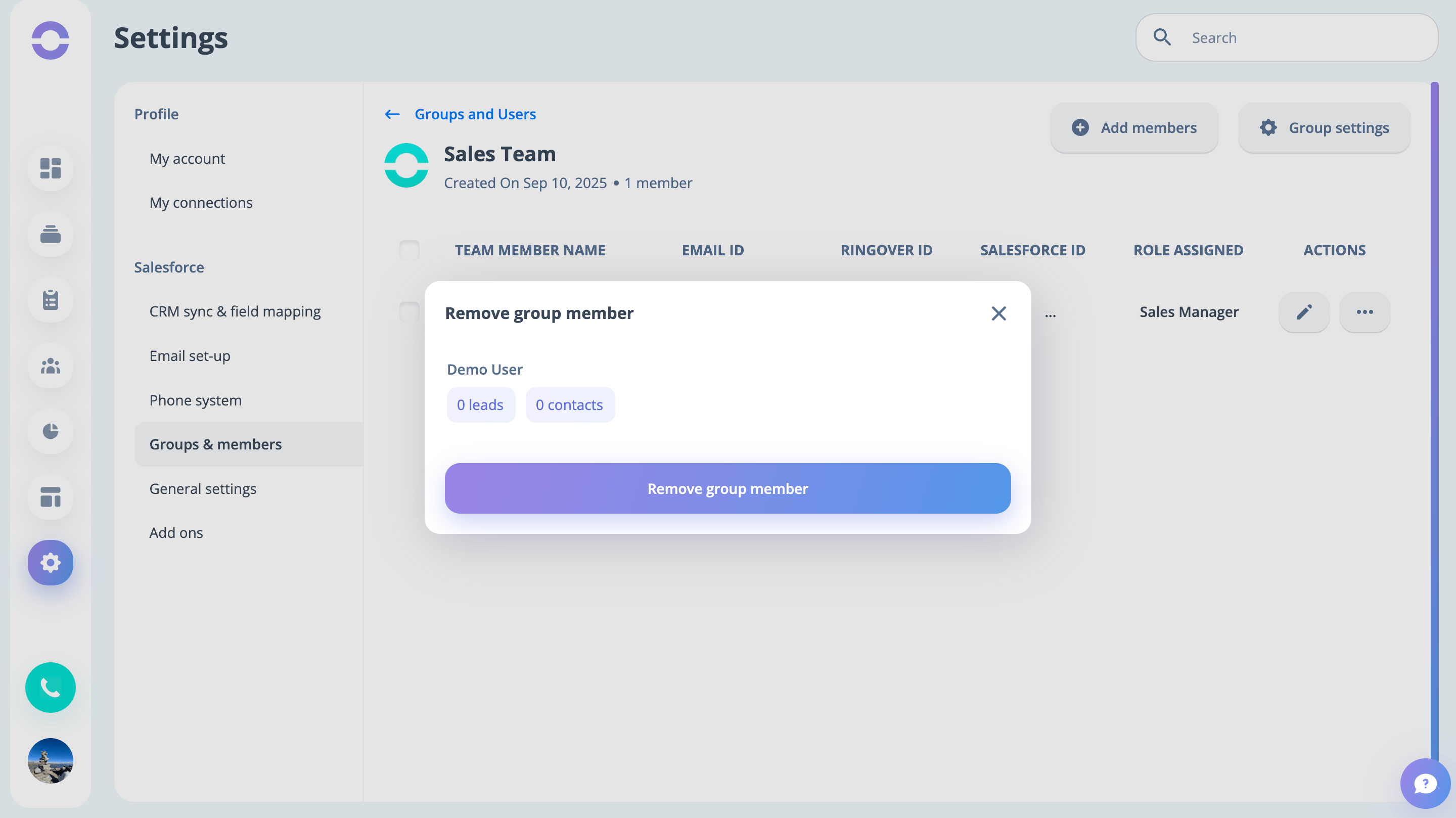
1. Remove Member: You can remove a member, but you need to choose what happens to the leads which belong to his account.
2. Send Request: This will send an invitation to join the cadence tool to the member.
3. Get Access:
A. This feature allows you to log in as the selected member.
B. Only Admin and Super admin can use this feature.
4. Send Reset Link: This sends a password reset mail.
Frequently asked question
- Q. I have a user who cannot remember his password. As an admin how can I resolve this situation?
Ans: You can find the team to which the user belongs, and inside that team, find the user. Now click o the 3 dots button for that member and click on “SAEND Reset Link”. This will send a password reset link to the user.
- Q. Can A Sales Manager get access to anyone’s account?
Ans. Only Admin and Super Admin can get access to anyone’s account.