
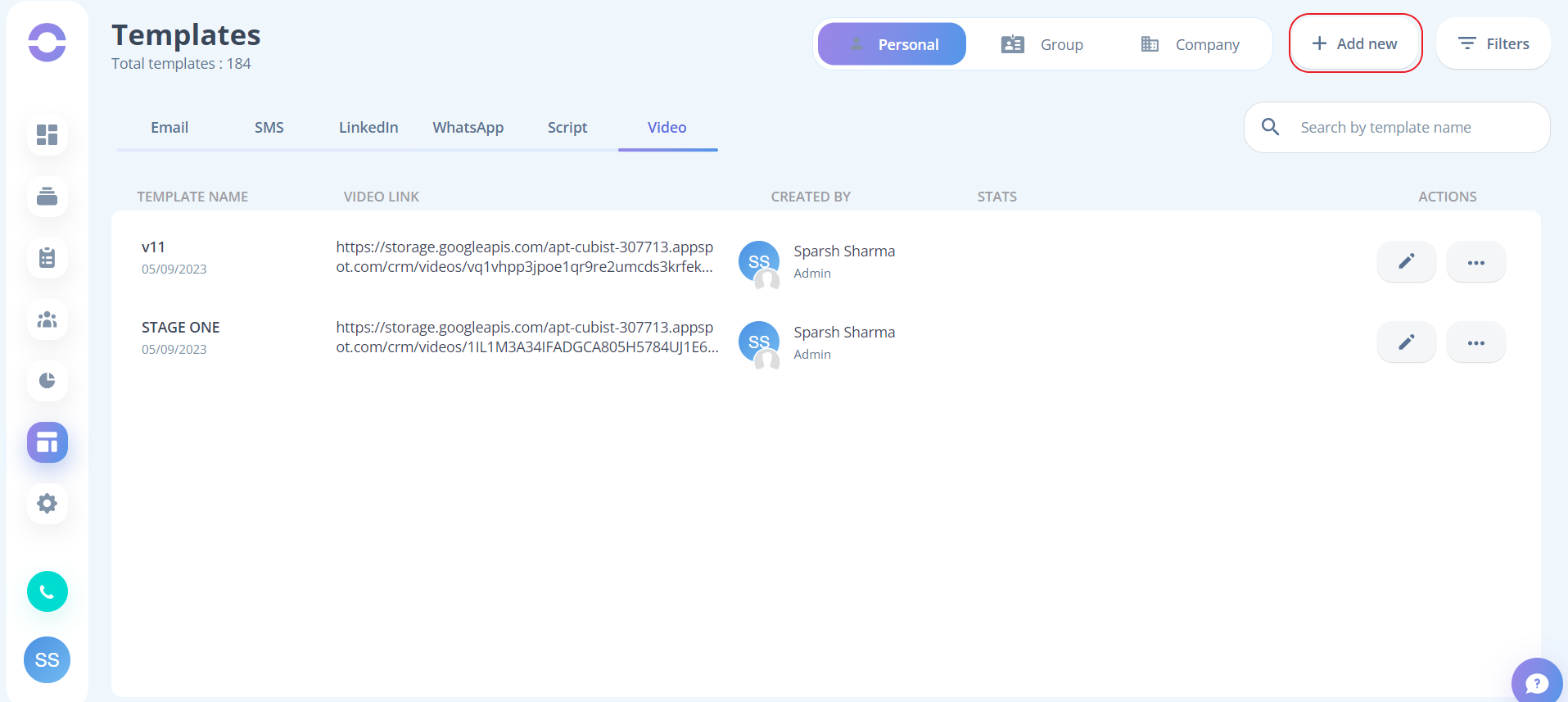
- Step 1: Inside the template click on the "add new" button to start creating a template
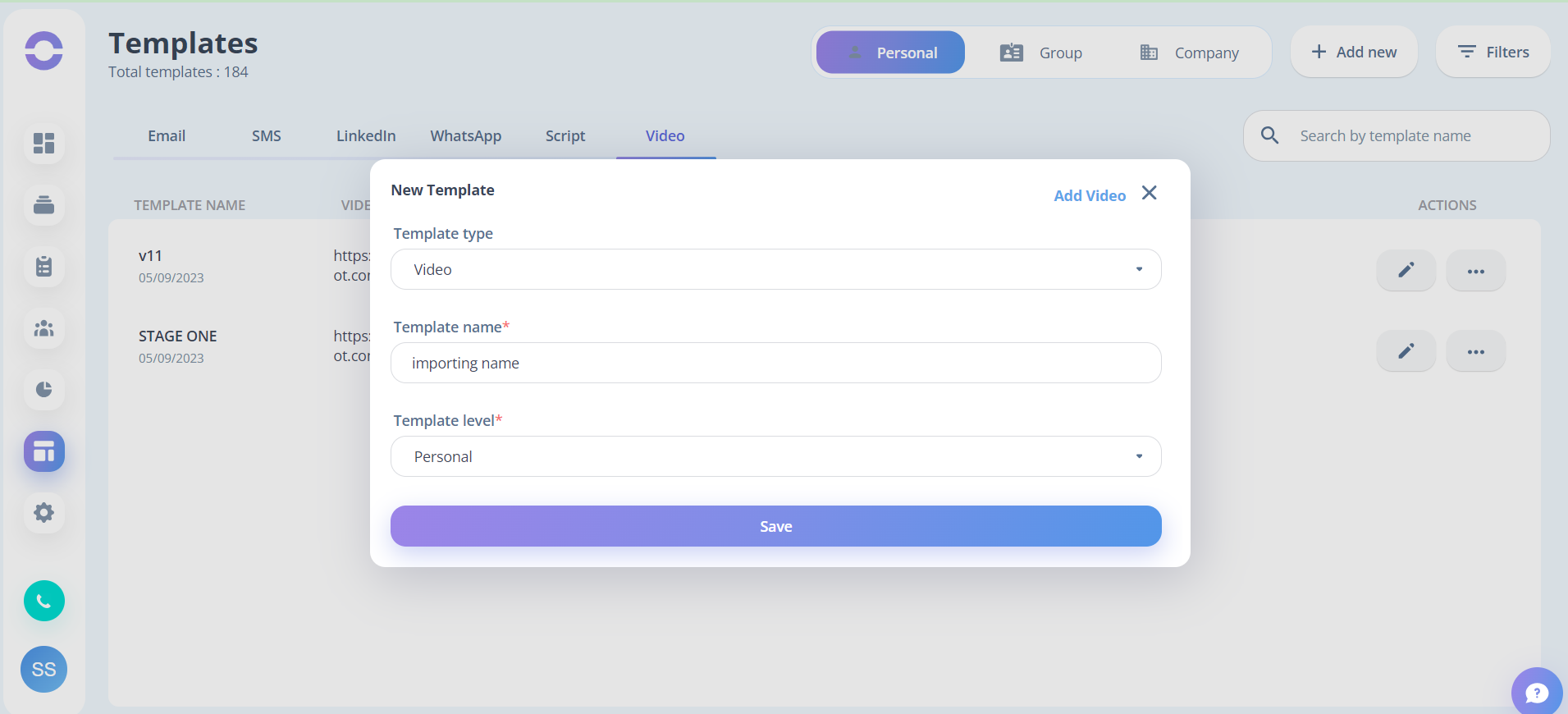
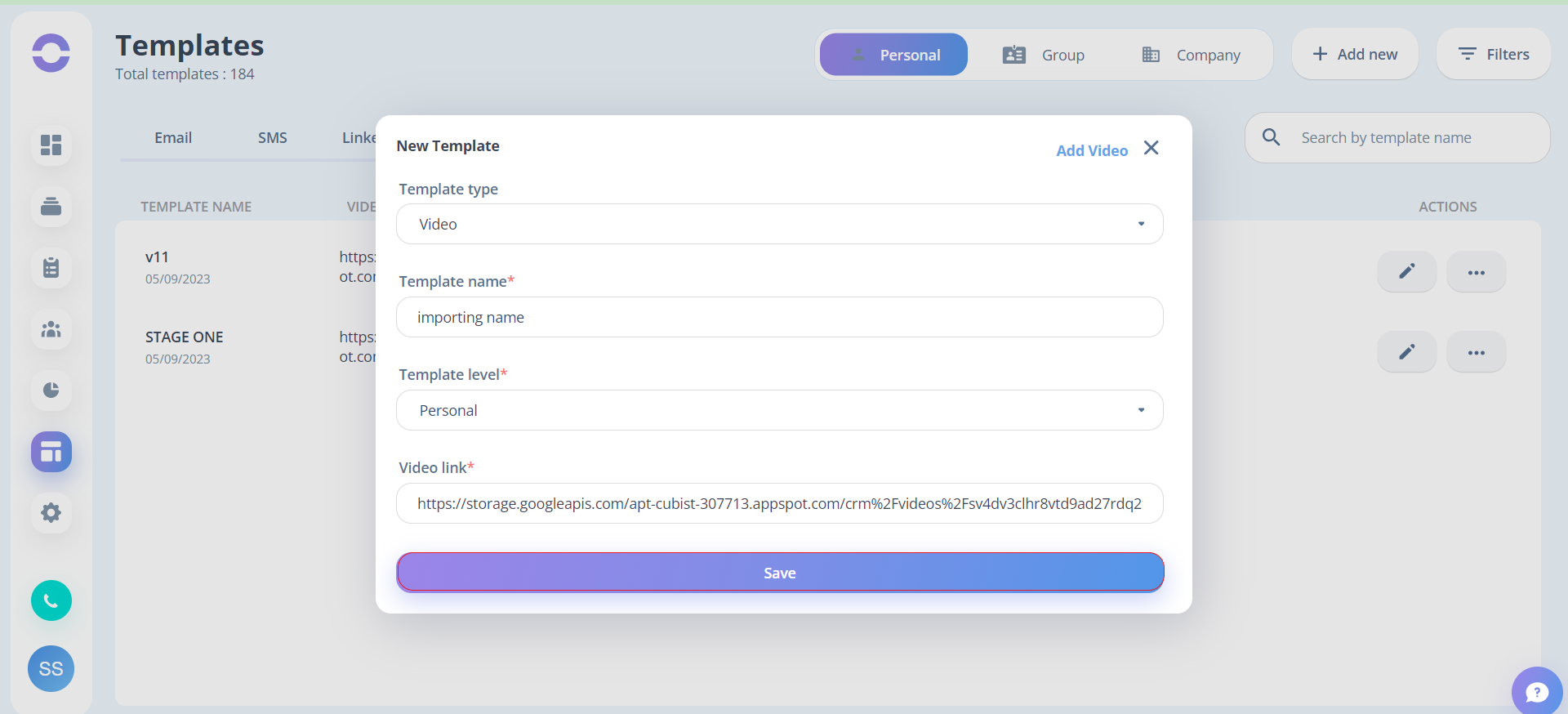
- Step 2: In “Template type” select “Video” choose the appropriate “Template Level” and fill in the “Template Name”
-
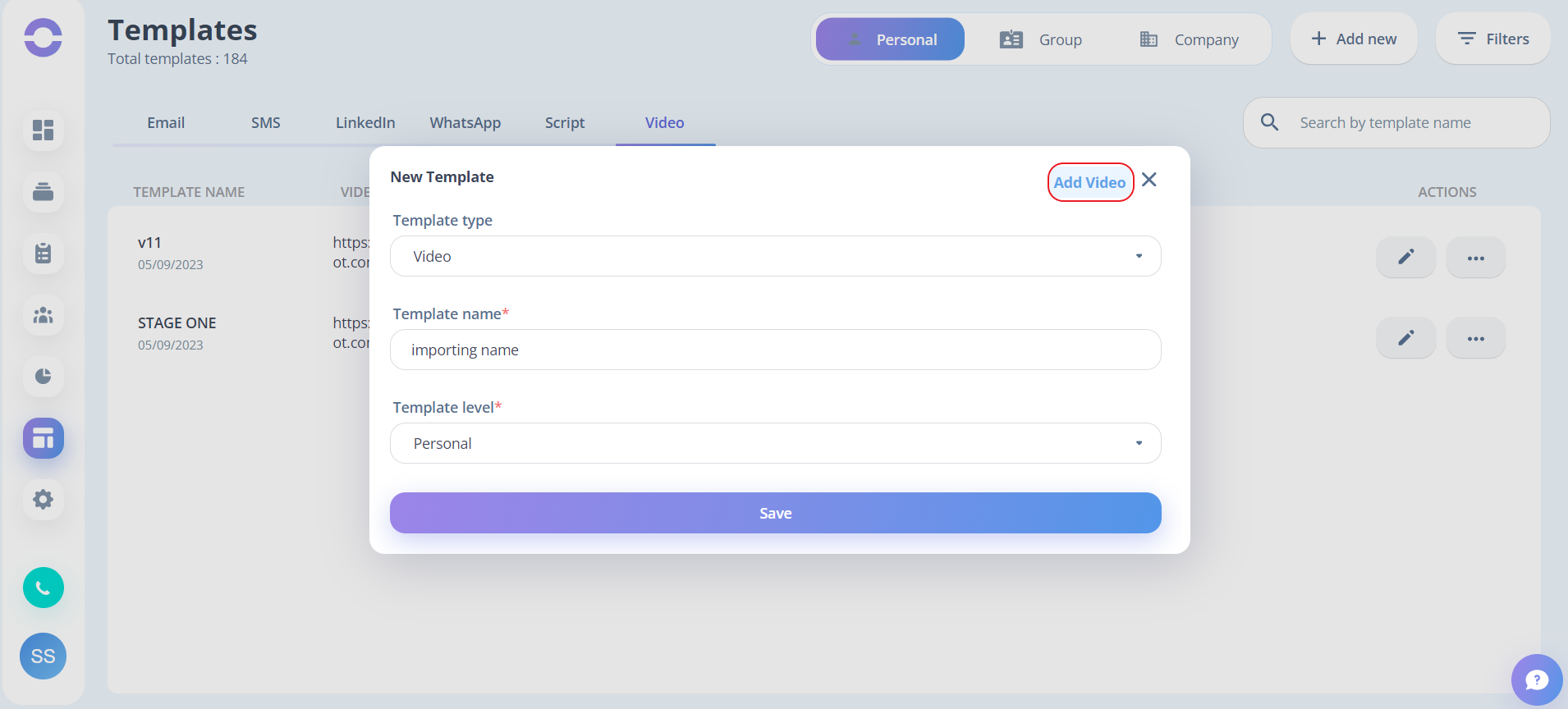
Step 3: Click on “Add Video” you will get two options
-
Record a 3 min video or
-
Import a video from your device
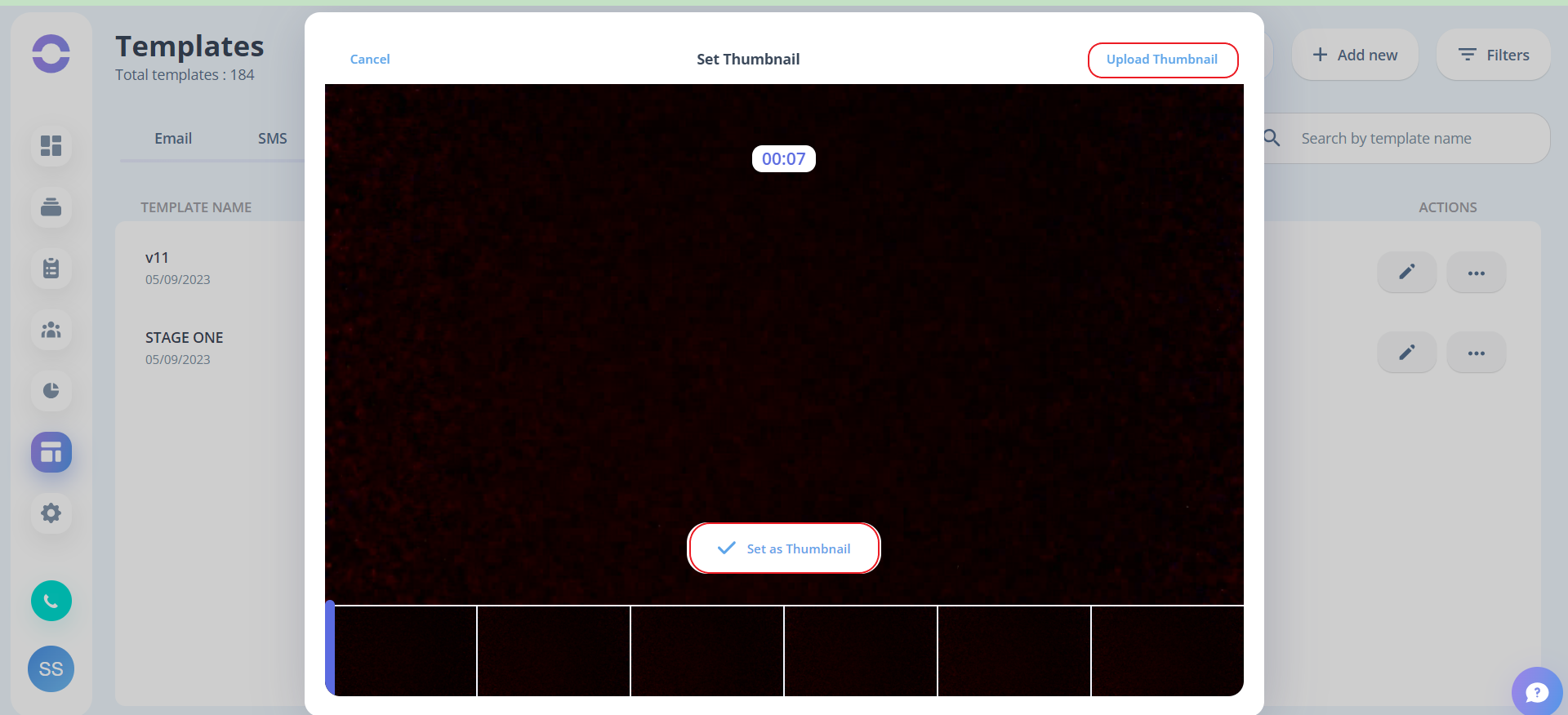
- Step 4: After the video is uploaded or recorded, then click on the “Set thumbnail”
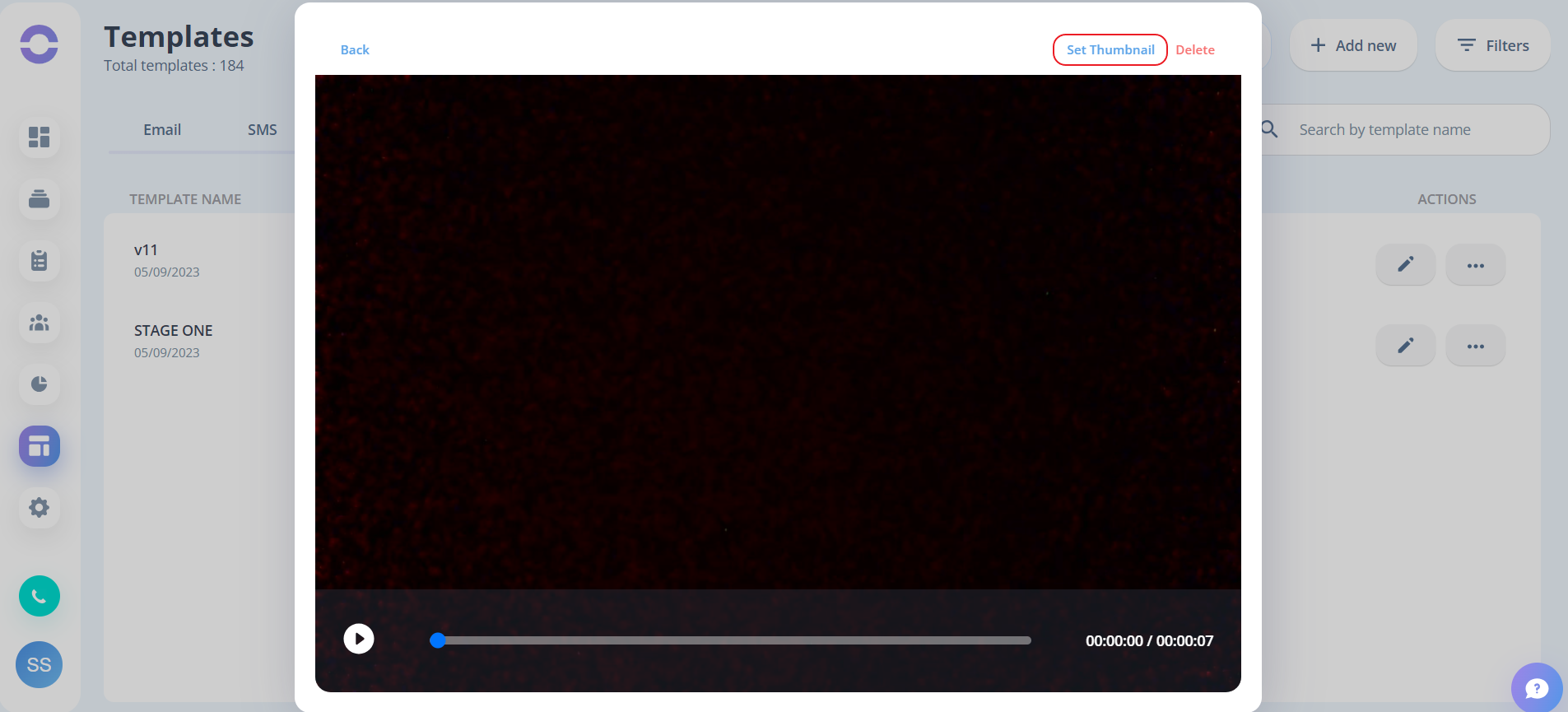
For the thumbnail, you have two options
-
Choose a frame from the video or
-
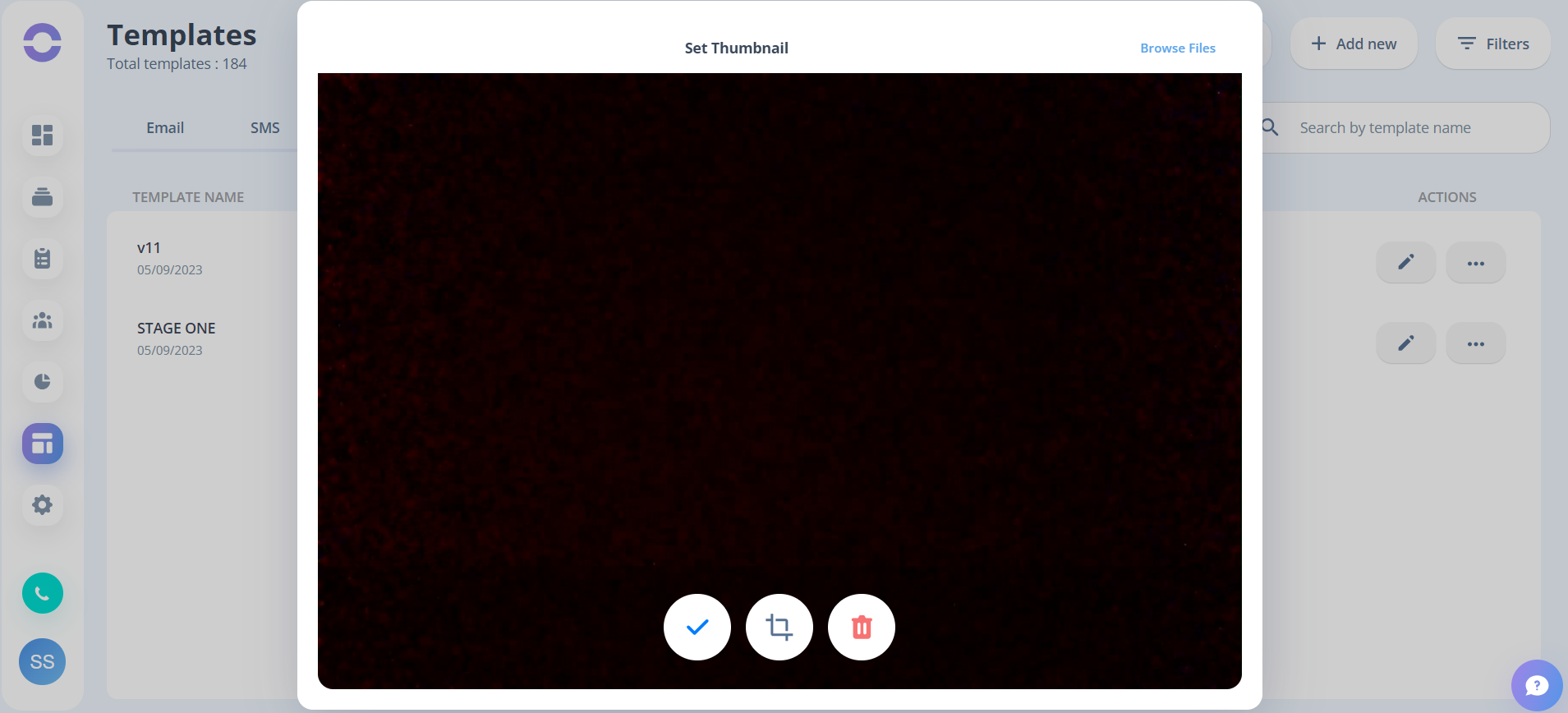
Upload the thumbnail from your device
Then you will get to see the preview of your video before saving it.
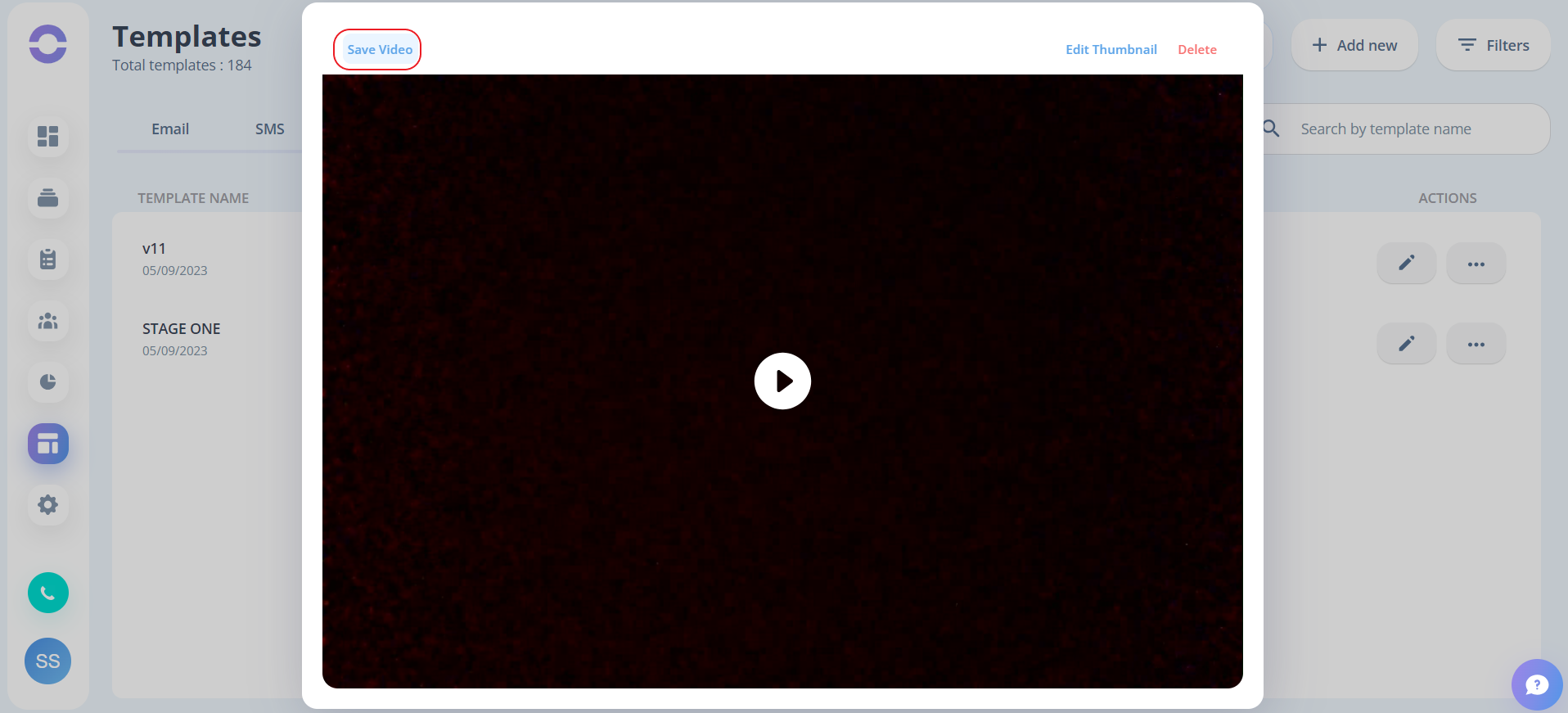
- Step 5: Click on the “Save Video” button to save the video
- Step 6: Click on the “Save" button to save your template
Once the template is saved you can view the video by clicking on the “TEMPLATE NAME”