
How to add the Add to Cadence button in Zoho:
Topics Covered:
- About
- Prerequisites
- Adding the Add to Cadence button
About:
This article provides a step-by-step guide on adding the "Add to Cadence" button in Zoho.
Prerequisites:
- Your Cadence account should be Logged in.
- Your Cadence profile should be connected to your Zoho account.
Adding the Add to Cadence button:
These are the steps to import leads using the filter view.
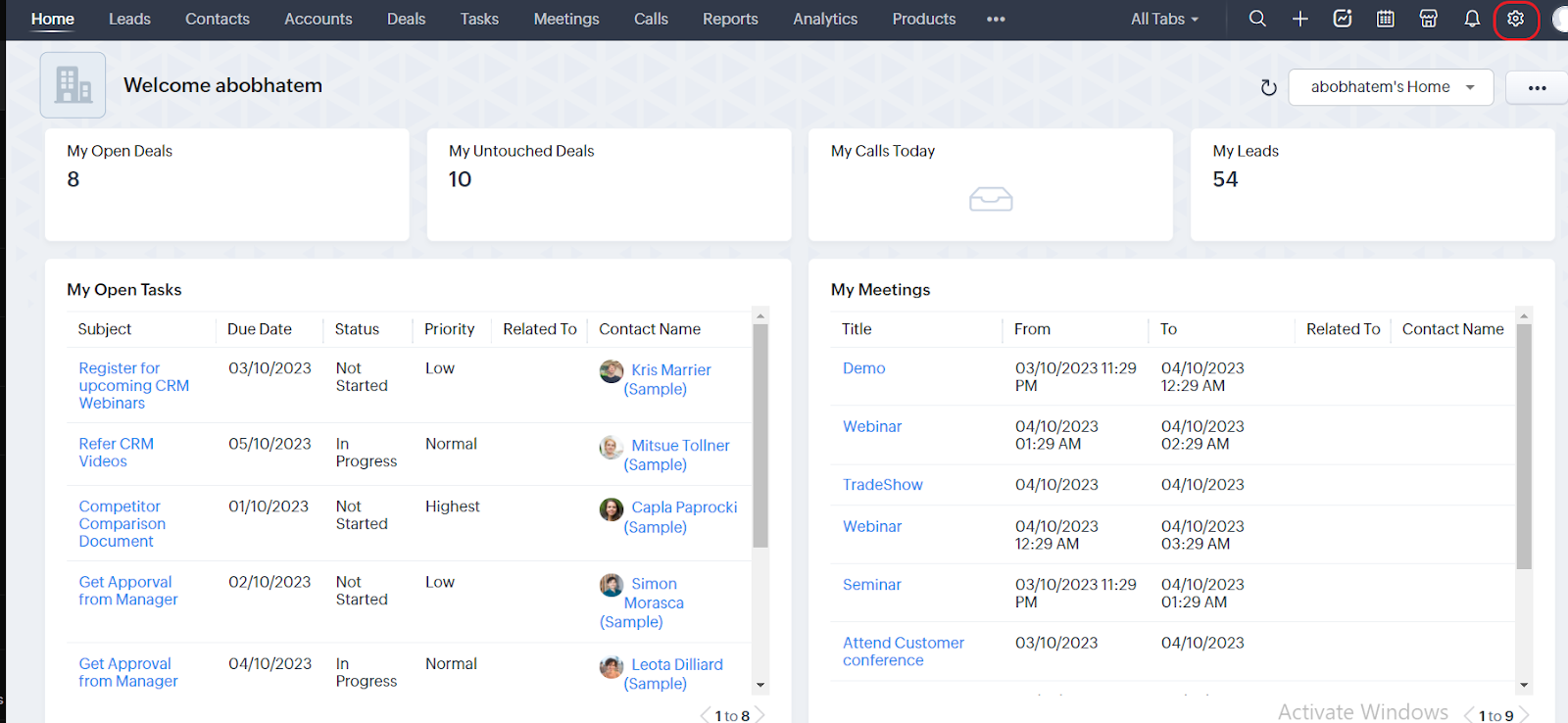
Step 1: Log in to your Zoho account > go to the homepage> Click on the Settings icon in the upper right corner of the screen.
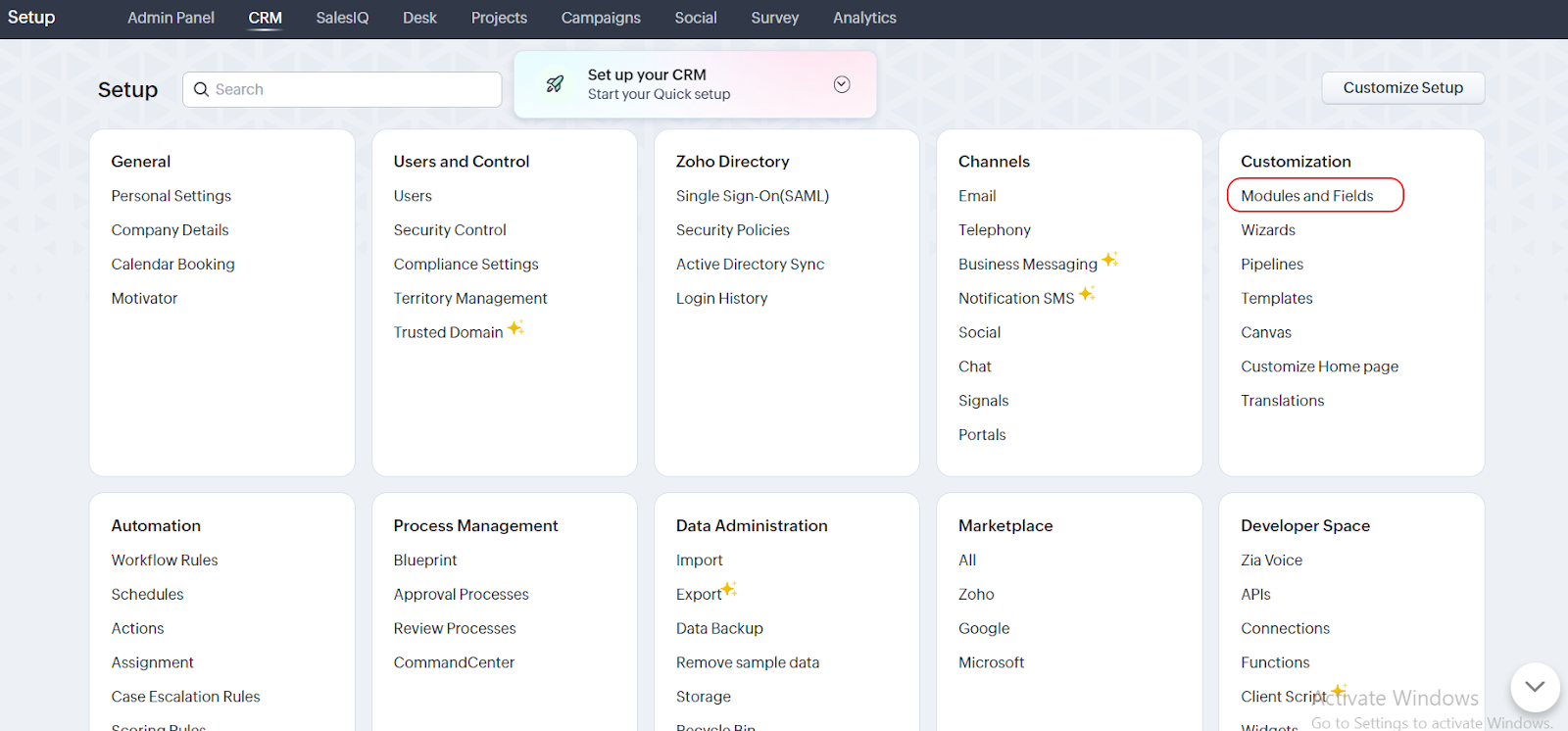
Step 2: Click on Modules and Fields in the Customization section of the settings page.
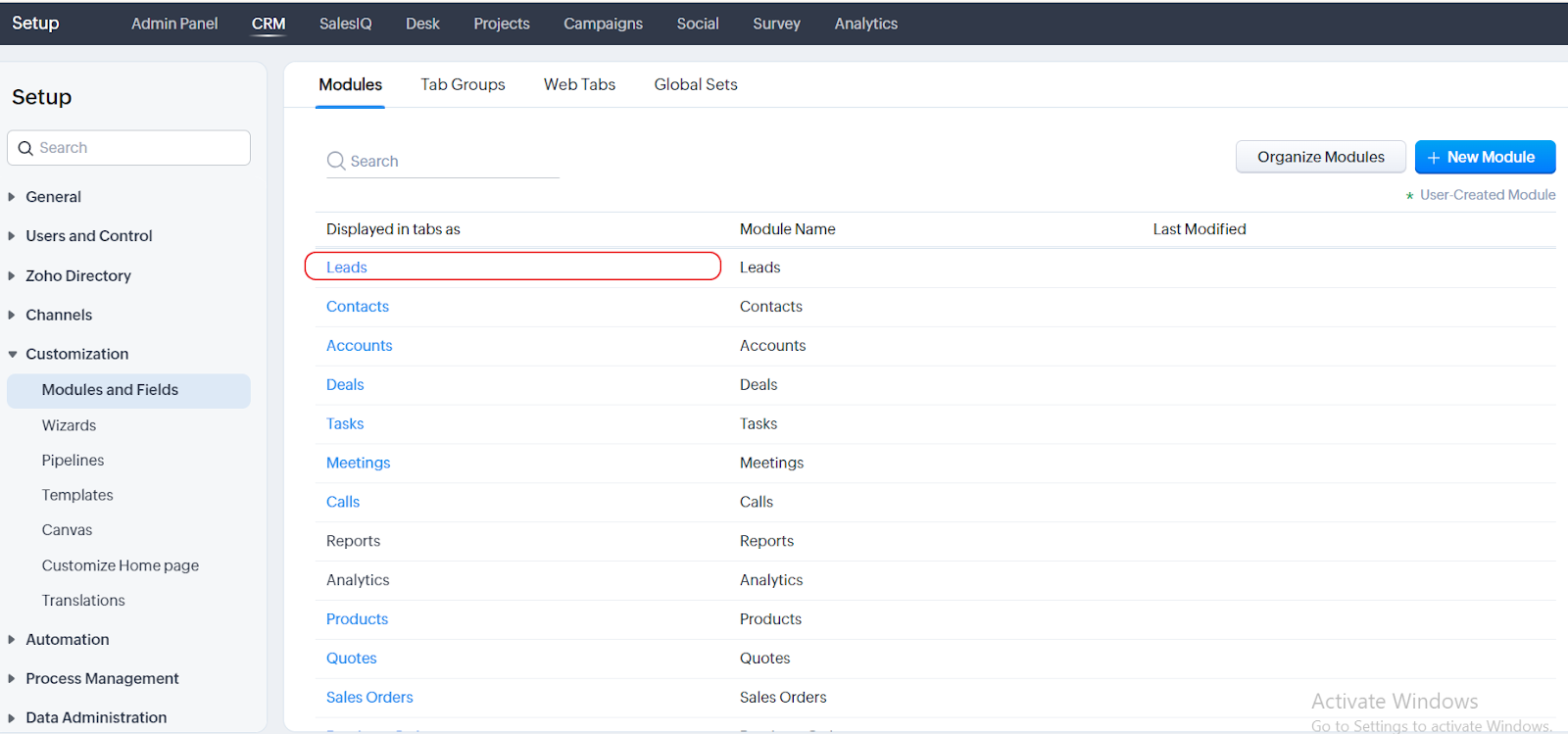
Step 3: All of the Modules will then show up on your screen. Select any one of the options of your choice. Click on Leads.
(Note: You can create an Add to Cadence button for only one module at a time. In this case, we are selecting Leads.)
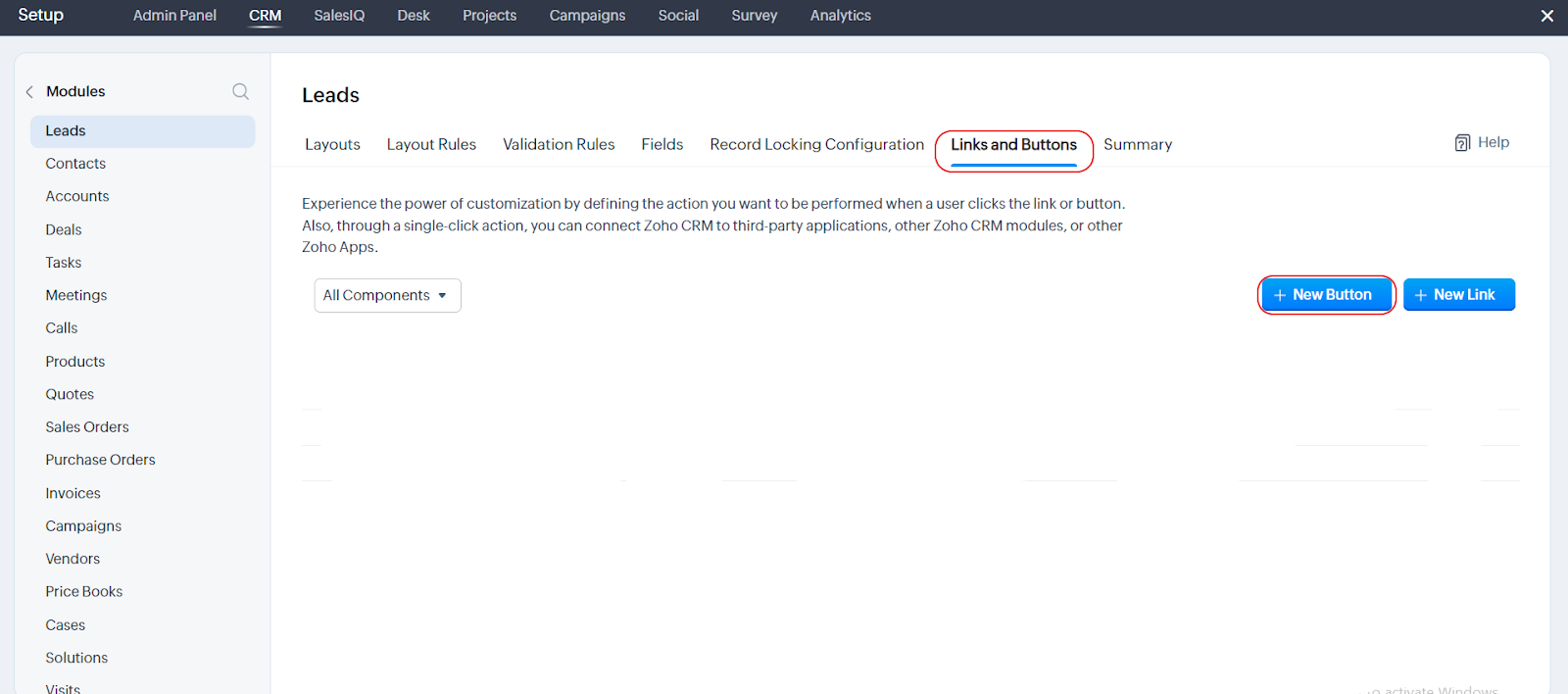
Step 4: Inside Leads go to the Links and Button section and click on New Button.
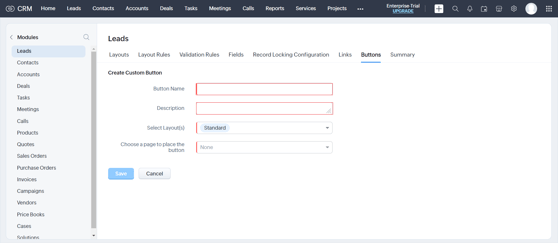
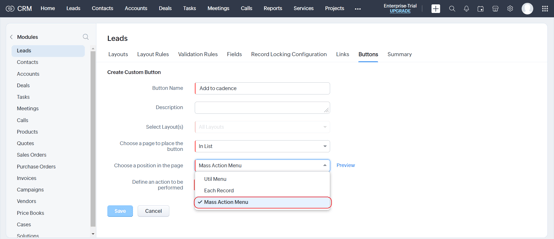
Step 5: Now under the section called Create Custom Button Give your button a name in the first field called ‘Button Name’ and then input the description of that in the field Description.
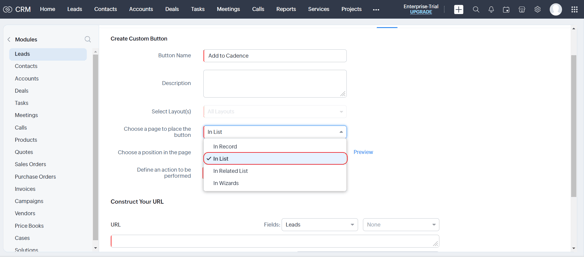
Step 6: Now select the in List from the dropdown in the field called Choose a place to place the button.
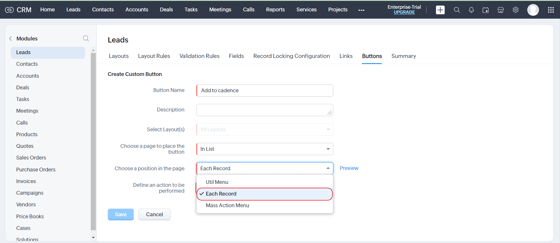
Step 7: To create the Add to Cadence button for an individual lead you need to select Each Record from the dropdown in the field called Choose a position in the page.
- If you choose to create the Add to Cadence button for an individual lead the button will be created on the right side of each specific lead.
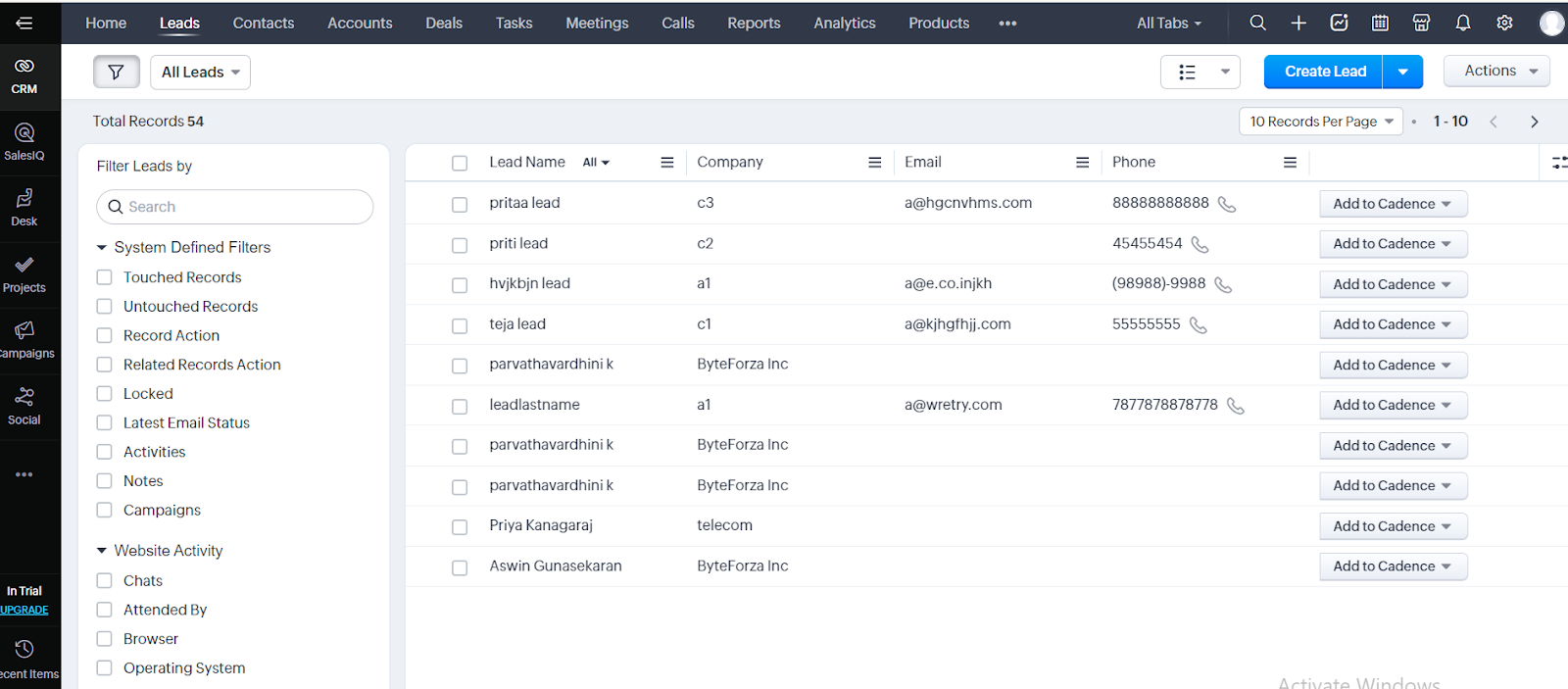
- To create the Add to Cadence button for multiple leads at a time select the option Mass action Menu.
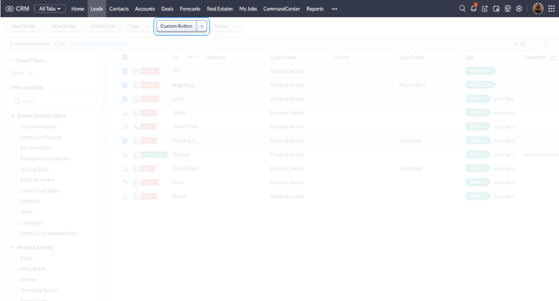
- After creating the button for multiple leads the button would appear on the upper side of the specific page.
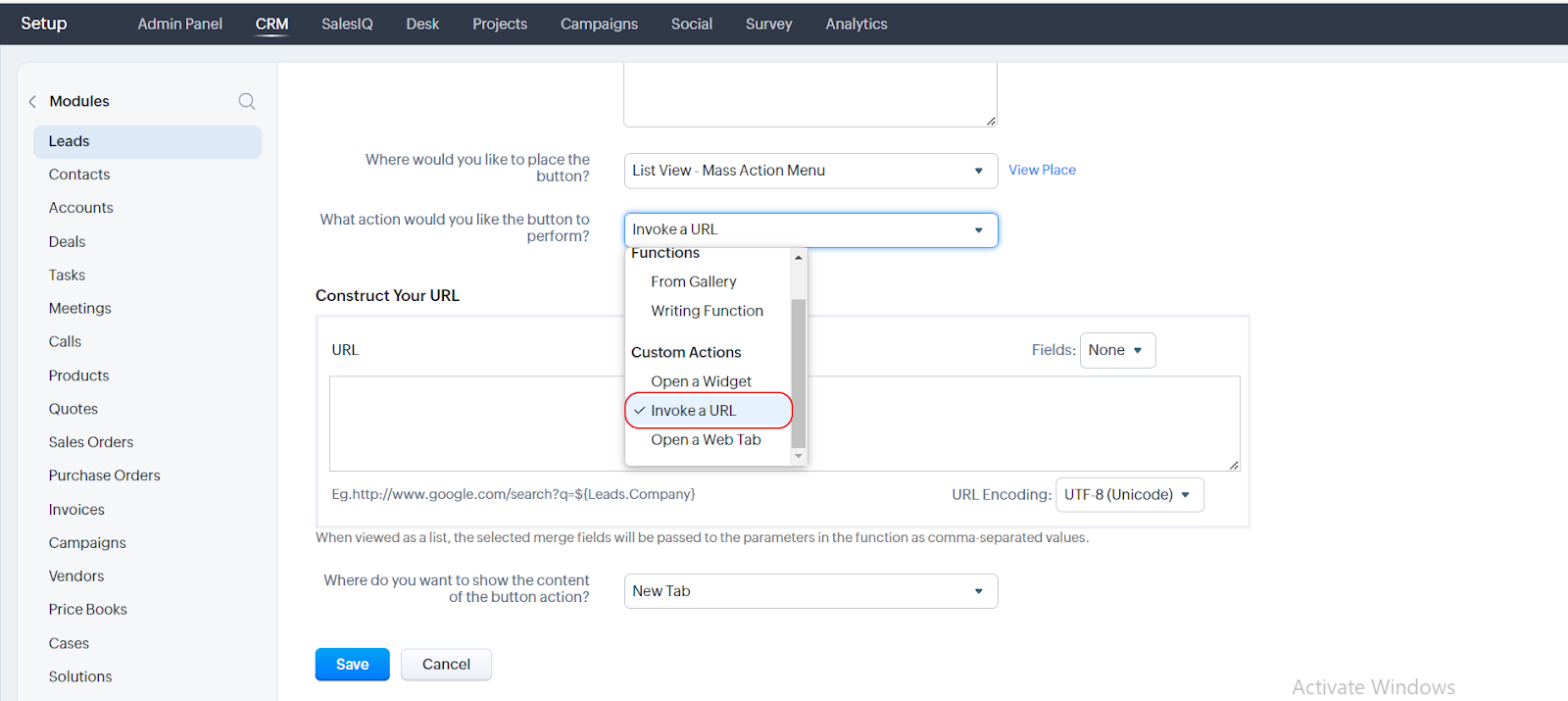
Step 6: In the next field called “What action would you like the button to perform?” choose the option Invoke a URL from the dropdown.
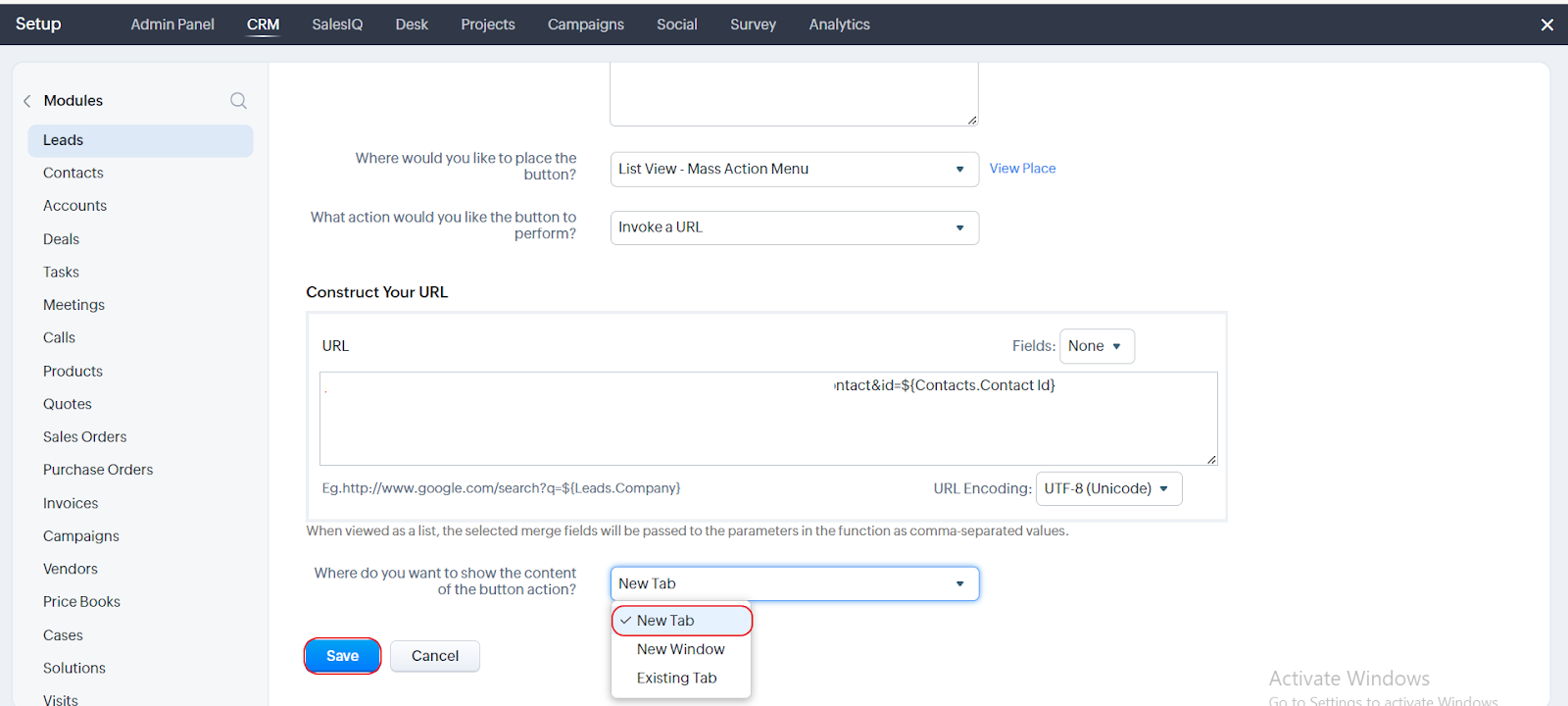
Step 7: Next up, paste the URL of the import page of Cadence in the Construct Your URL field.
Note: The Invoke URL for the leads is "https://cadence.ringover.com/crm/cadence-import?import=crm&type=lead&id=${Leads.Lead Id}''
The Invoke URL for the contacts is "https://cadence.ringover.com/crm/cadence-import?import=crm&type=contact&id=${Contacts.Contact Id}"
Step 8: Choose the option New tab in the field called ‘Where do you want to show the content of the button actions? ’ and click on Save.
After you are done with this process you will be able to see the button on the specific page.