
The Ringover integration lets you make and receive calls in Salesforce, review communication history on contact records, and analyze call statistics in dashboards. This guide shows you how to use the dialer, find call activities, and access Ringover dashboards.
How to use Ringover calls and dashboards in Salesforce
1. Make and receive calls in Salesforce
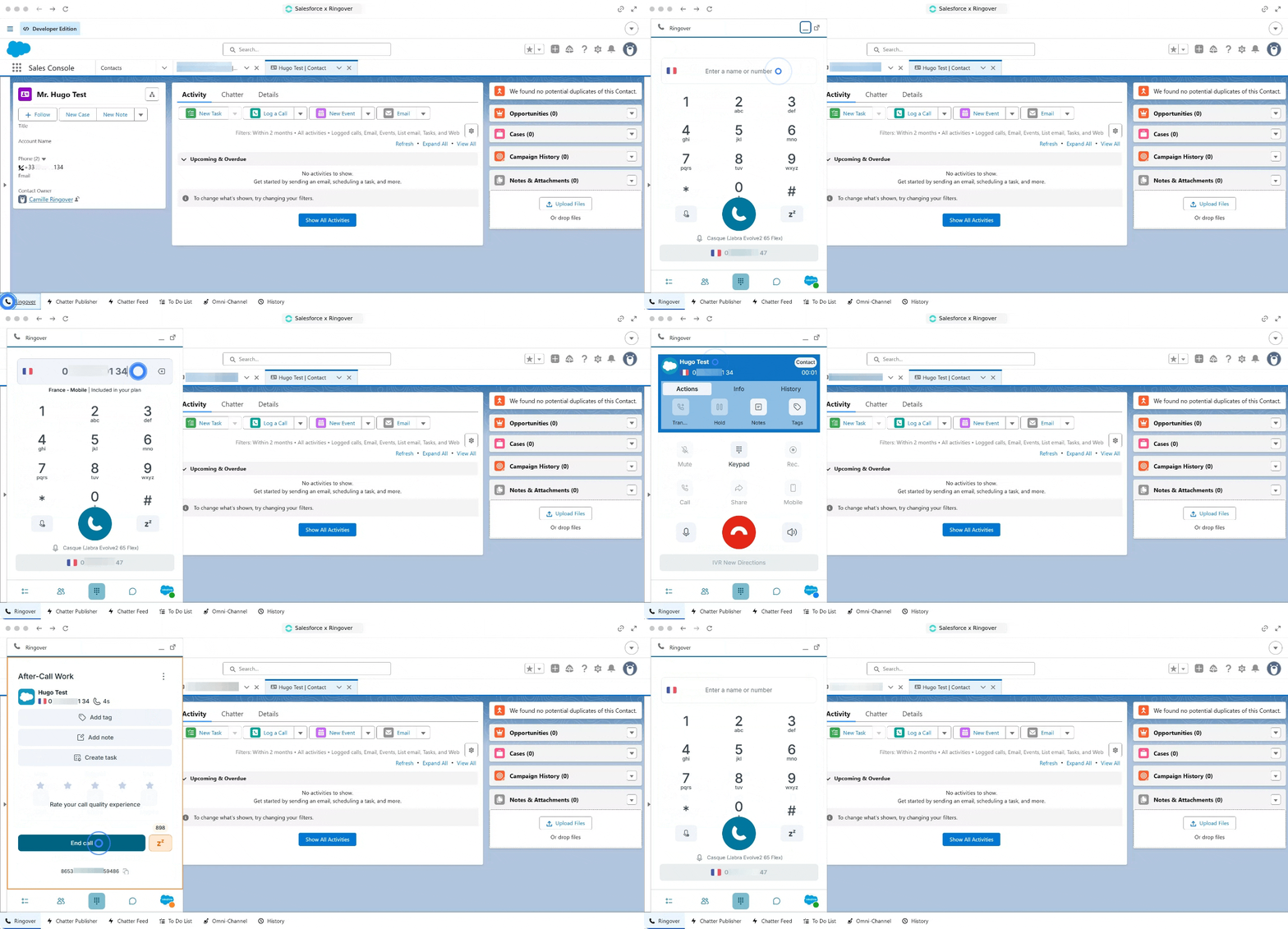
To make or receive calls from the Salesforce interface:
- Go to the bottom left of your screen.
- Open the Ringover window.
When you make a call, the contact record opens automatically in the background of the dialer, so you can consult client information during the conversation.
2. Review the call activity
After you hang up, a new activity for the call appears after a few seconds.
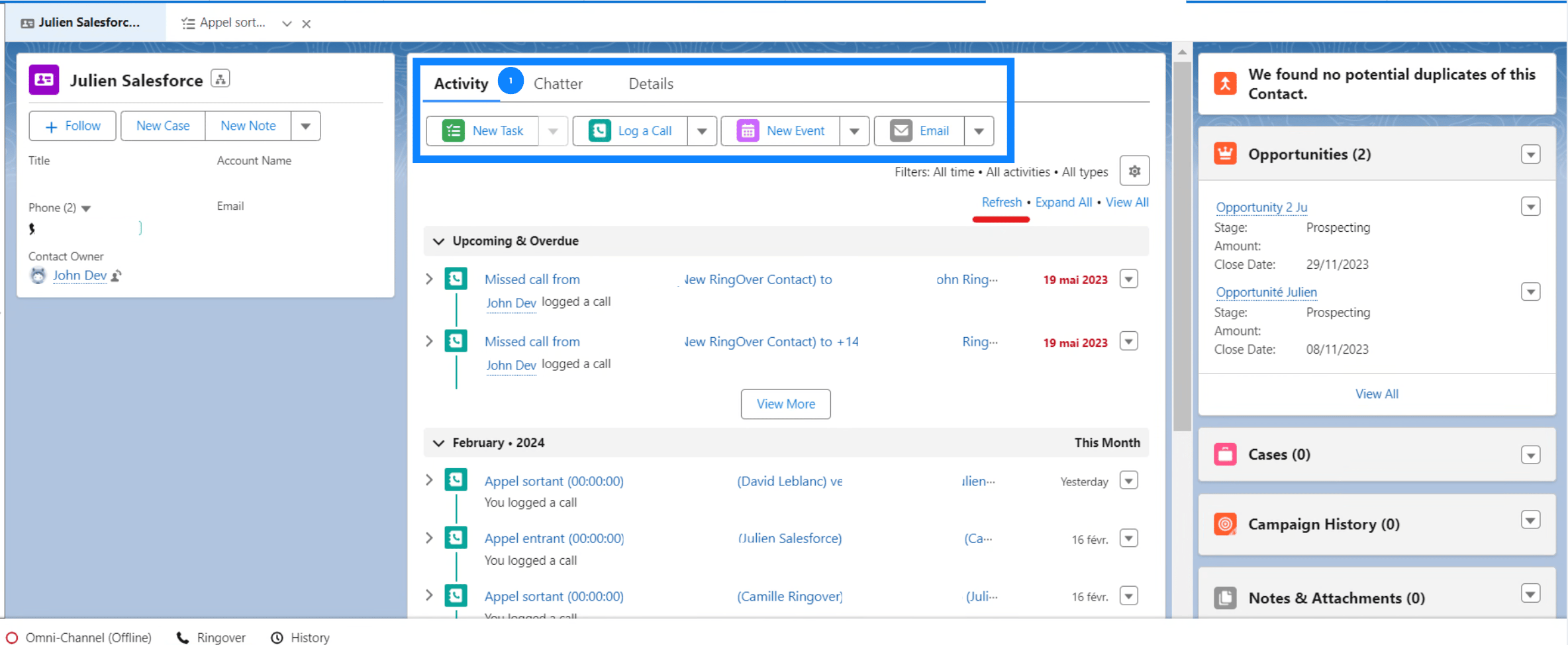
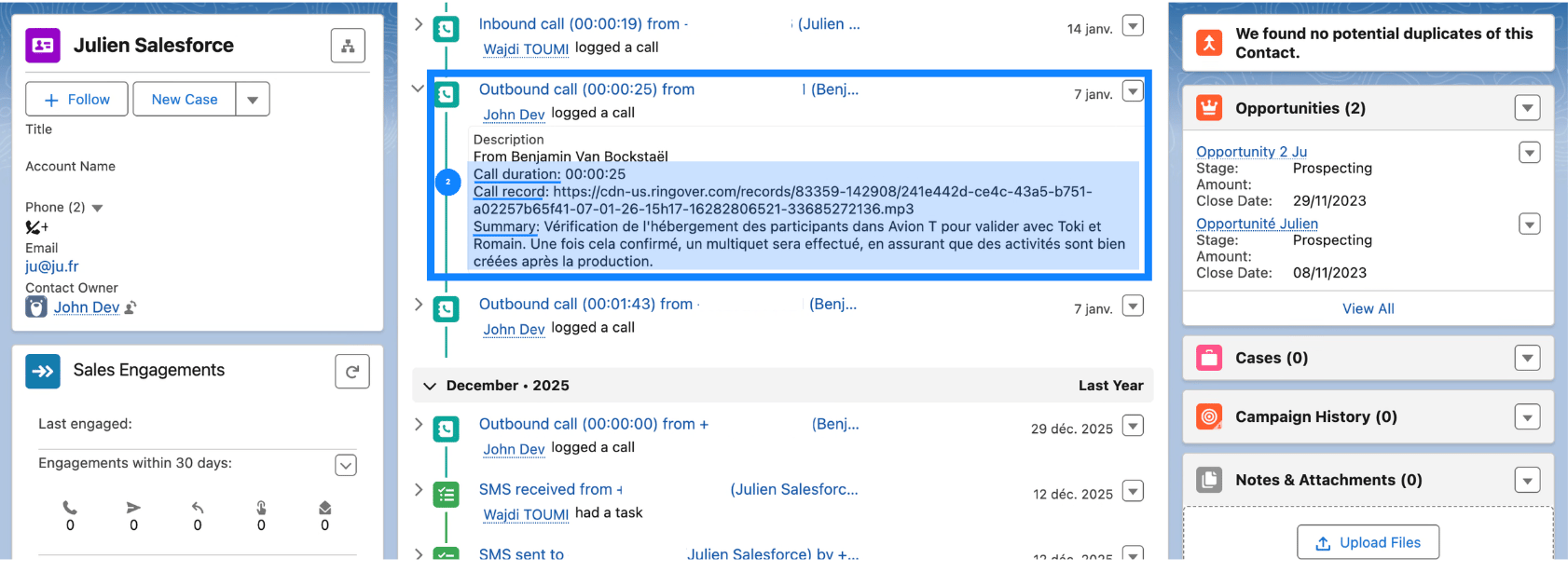
The link to the Empower recording becomes available in the task after a few minutes. From the activity, you can:
- Listen to recorded conversations.
- Check voicemails left by clients.
- Access Empower summaries and transcripts if the option is enabled in your Ringover account.
3. Find your communication history
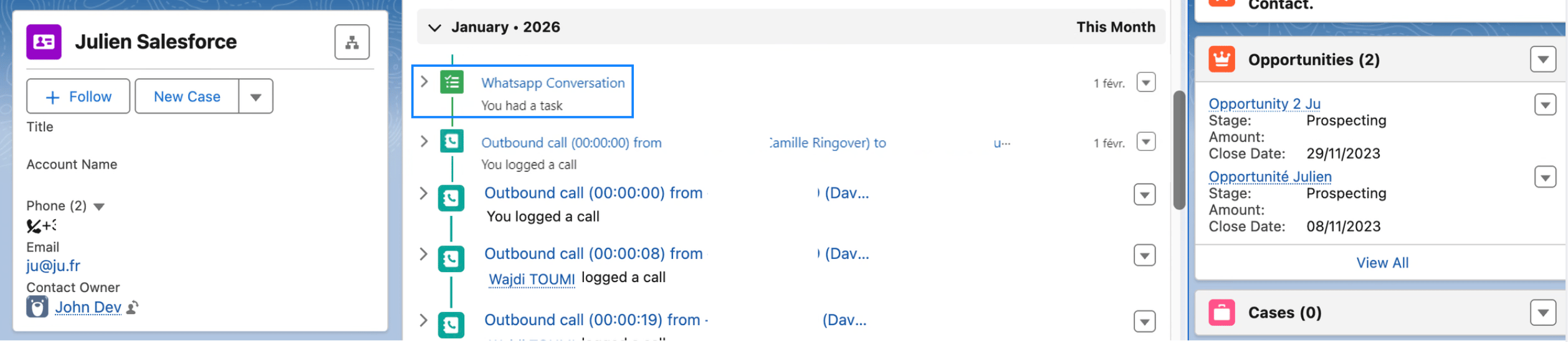
You can find a history of communications directly on contact records, including:
- Incoming and outgoing calls
- SMS and WhatsApp
WhatsApp logs are also visible in the activity feed available from the integrated dialer.
4. Access Ringover dashboards in Salesforce
Salesforce provides a dedicated Ringover dashboard for call statistics.
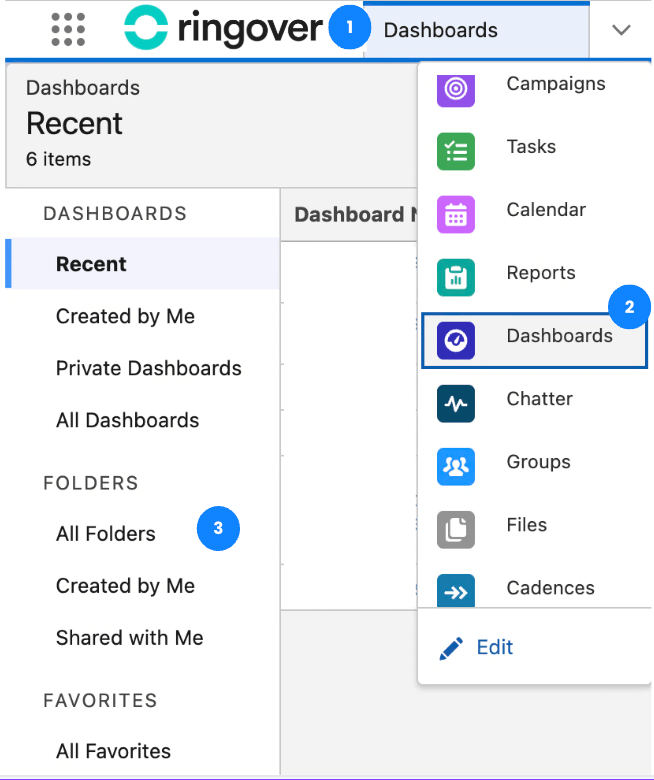
Find the Ringover dashboard
- Open the main menu.
- Click Dashboards.
- Select All Folders.
- Find the Ringover dashboard in the list.
You can also create custom reports.
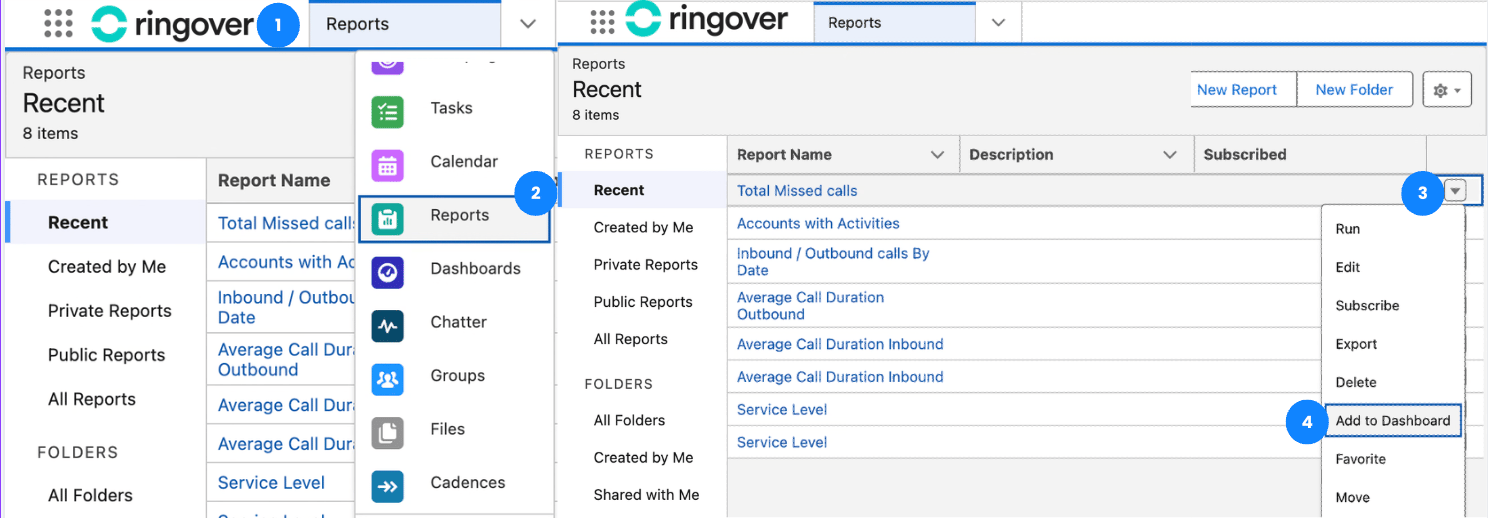
If no Ringover dashboard appears
- Open the Object Menu.
- Click Reports.
- Click the arrow next to the desired report.
- Select Add to Dashboard.
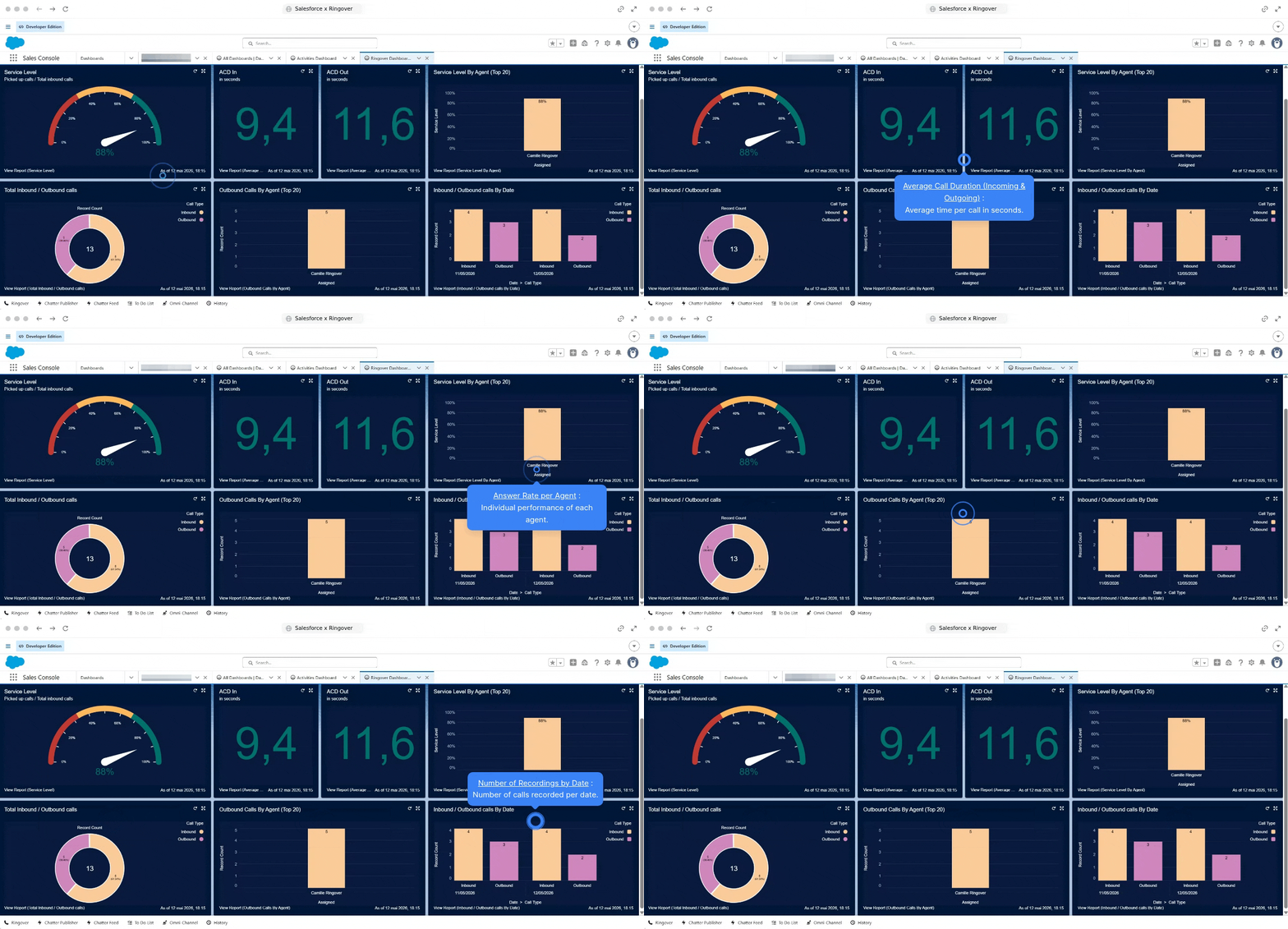
5. Analyze call data
Use the Ringover dashboards to review your call statistics.
If you experience issues with the Ringover calling interface in Salesforce, follow these steps:
1. Check and enable third-party cookies in your browser settings.
2. Clear your browser cache (Chrome, Safari, Mozilla, Opera) after changing cookie settings.
3. Close and reopen the Salesforce page.
👉 If the problem persists, contact technical support (support@ringover.com)
💡 To facilitate technical troubleshooting, you can record your screen:
On Windows: Press 'Windows+Alt+R' to start screen recording.
On Mac: Press 'Shift+Command+5' to open screen recording controls.
You can now use the Ringover dialer and review your communications and call statistics in Salesforce.