
The Ringover integration for Zoho Bigin allows you to seamlessly connect your communications with your CRM. In this guide, you’ll learn how to make calls, view your interaction history, and access contact records directly from the dialer
Ringover Integration in Zoho Bigin
1. Call a Contact
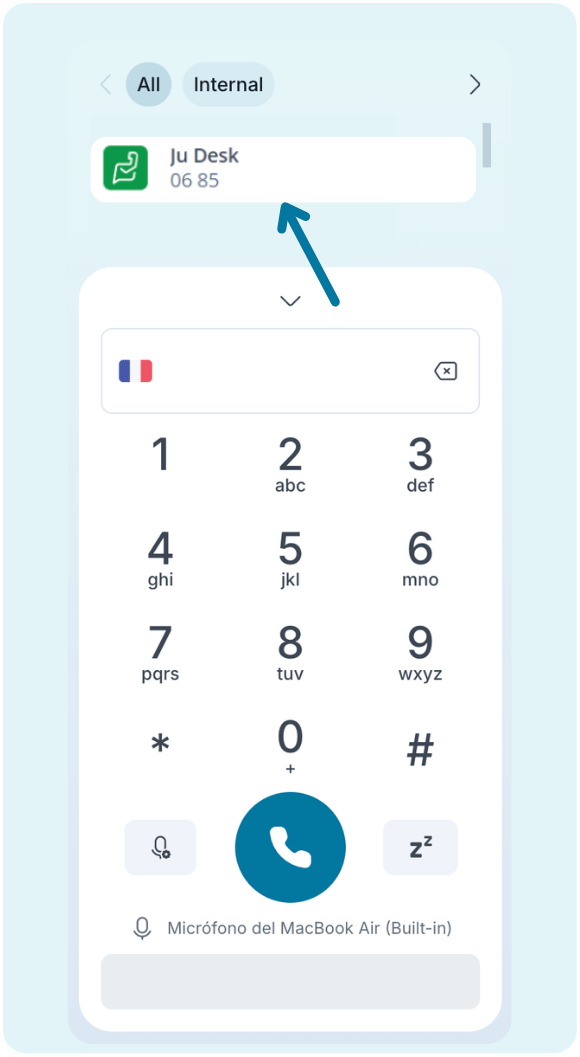
With the Ringover extension, you can easily call a contact in a single click.
 |
|
💡 You can quickly access a contact's CRM profile directly from your dialer while on a call.
2. Review your call activities
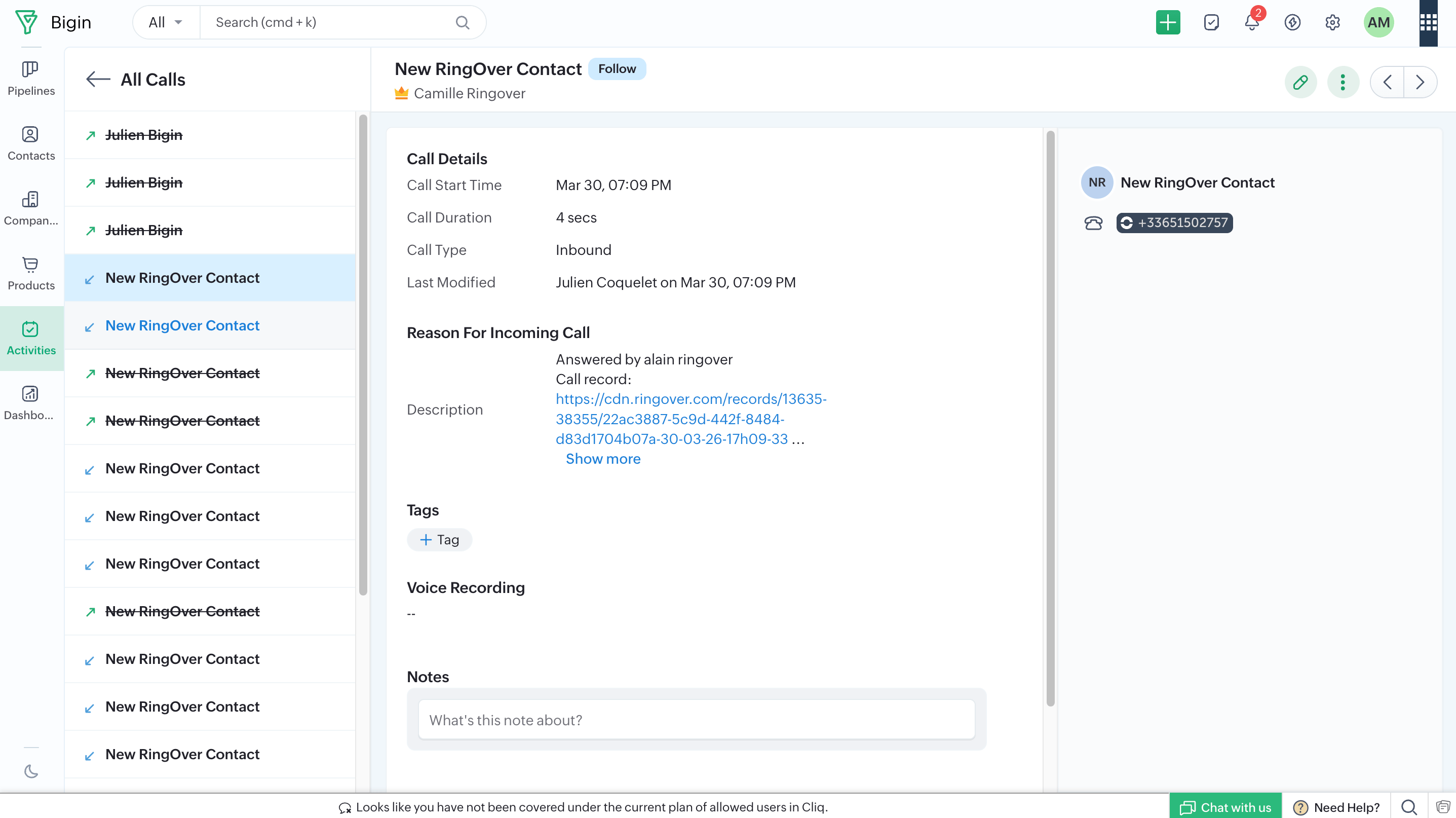
Calls are automatically logged as call activities in your CRM.
- Go to the Activities category in your Zoho Bigin account.
- Click on the Calls tab.
- Click on a specific call to view its details, including past and upcoming tasks, recordings, transcriptions, notes, and tags.
3. Find your SMS and WhatsApp Messages
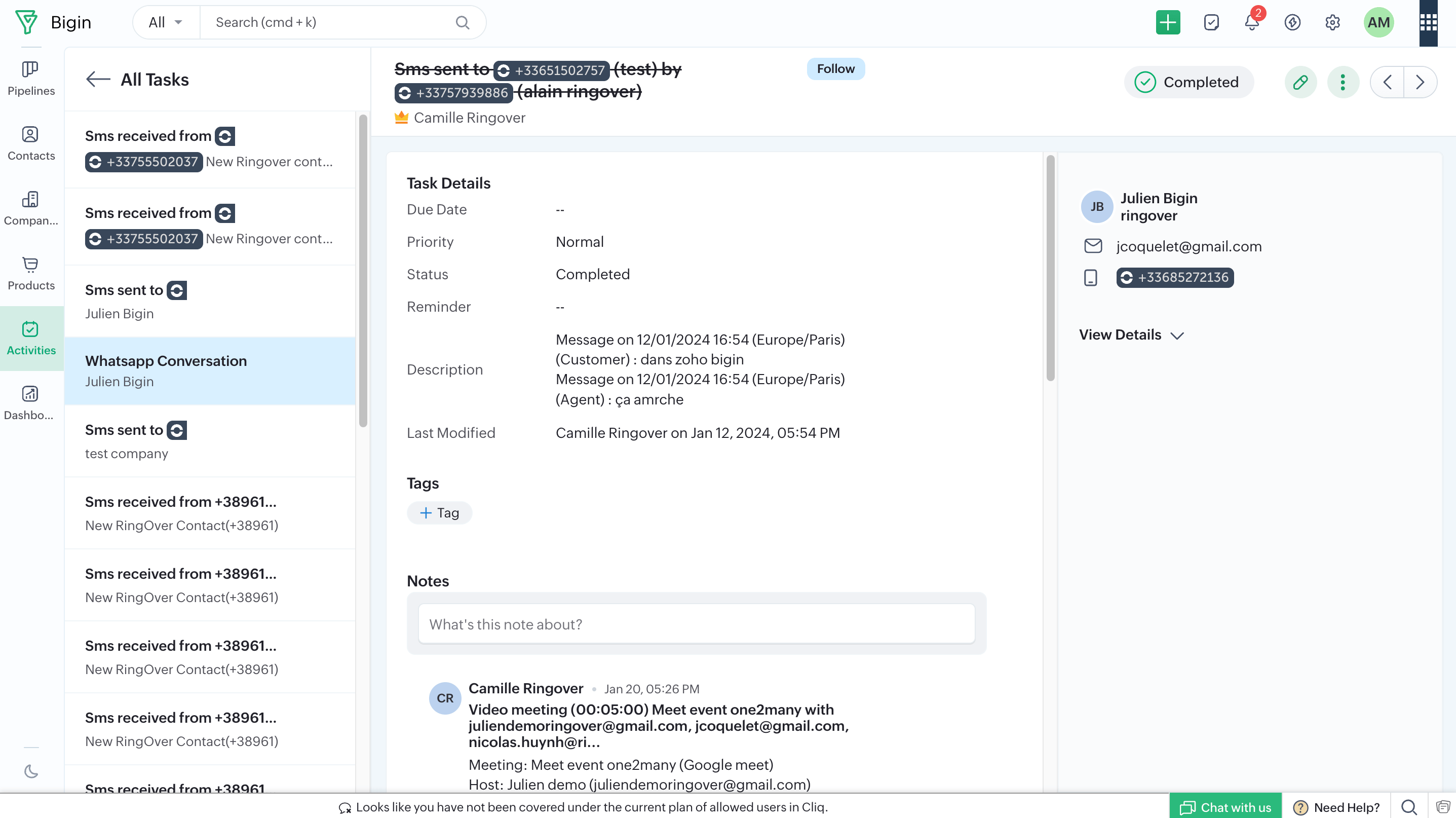
SMS and WhatsApp messages are automatically saved as tasks.
- Go to the Activities page in your Zoho Bigin account.
- Click on the Tasks tab to find your SMS and WhatsApp messages.
🎉 You now know how to navigate the Zoho Bigin integration and can effortlessly manage all your communications!