
User Permissions allow you to control access to information and maintain data privacy for different team members. In this guide, you'll learn how to configure dashboard access, customize user rights, and securely manage your call logs.
Managing user permissions
1. Accessing user permissions
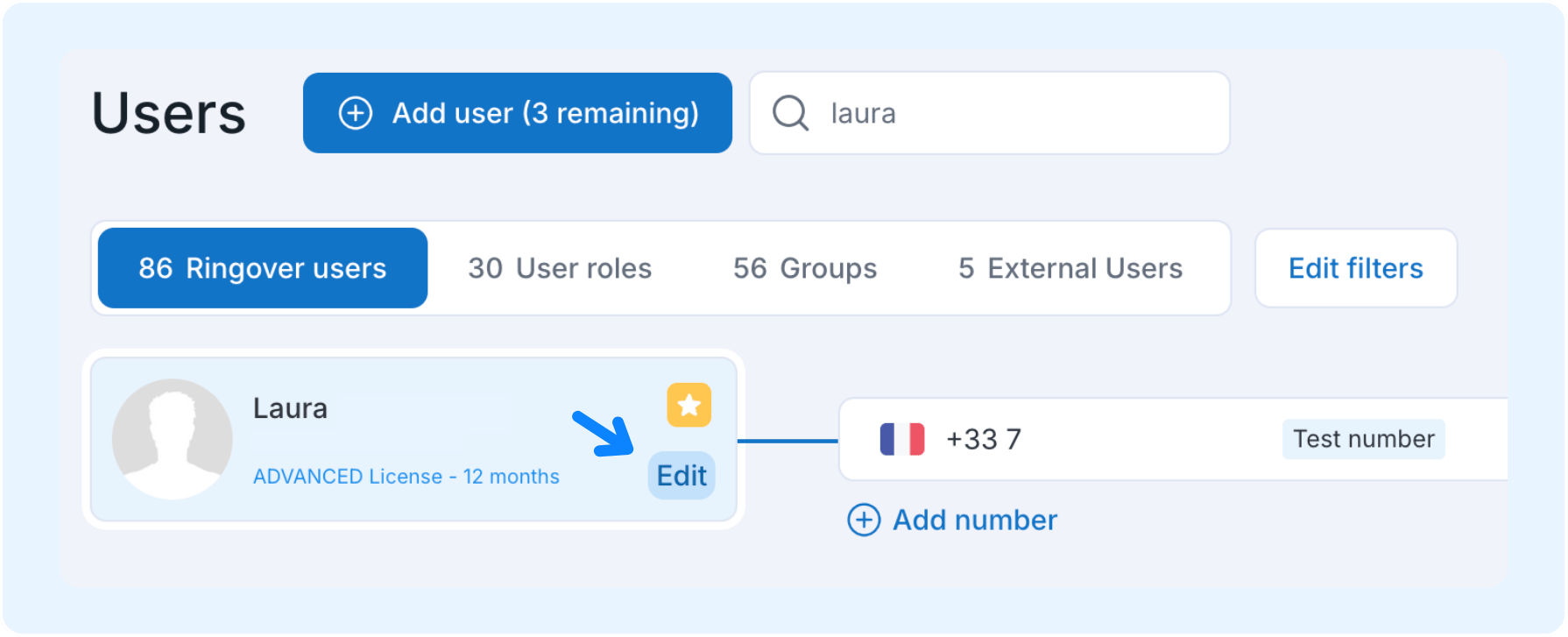
- Go to the users section
- Select your user
- Click "edit"
2. Activating or deactivating user permissions
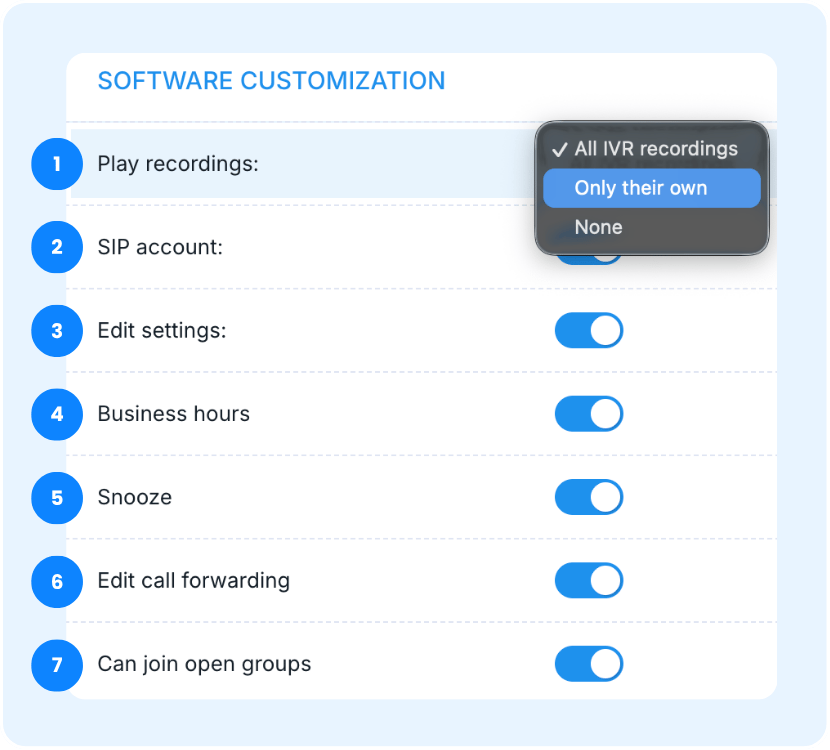
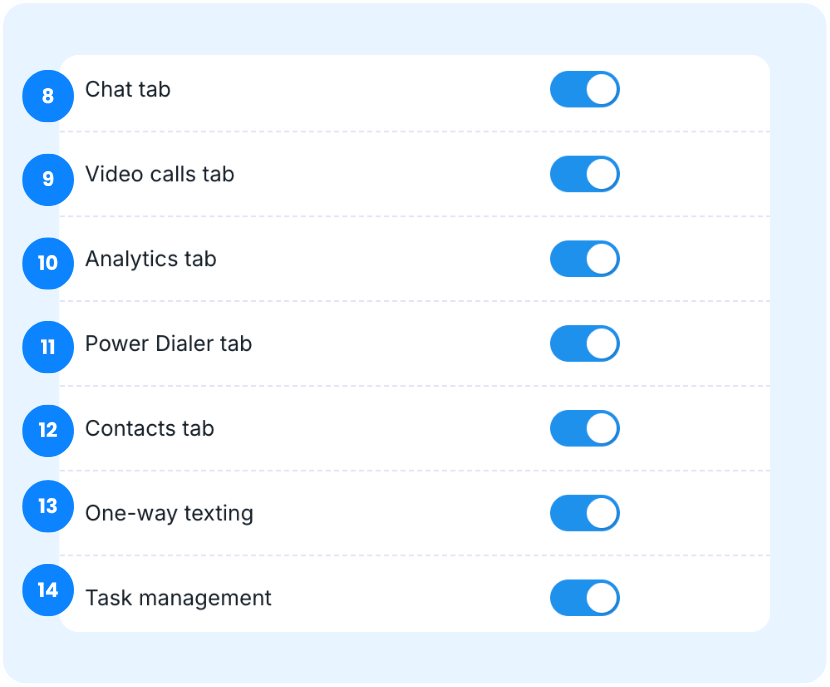
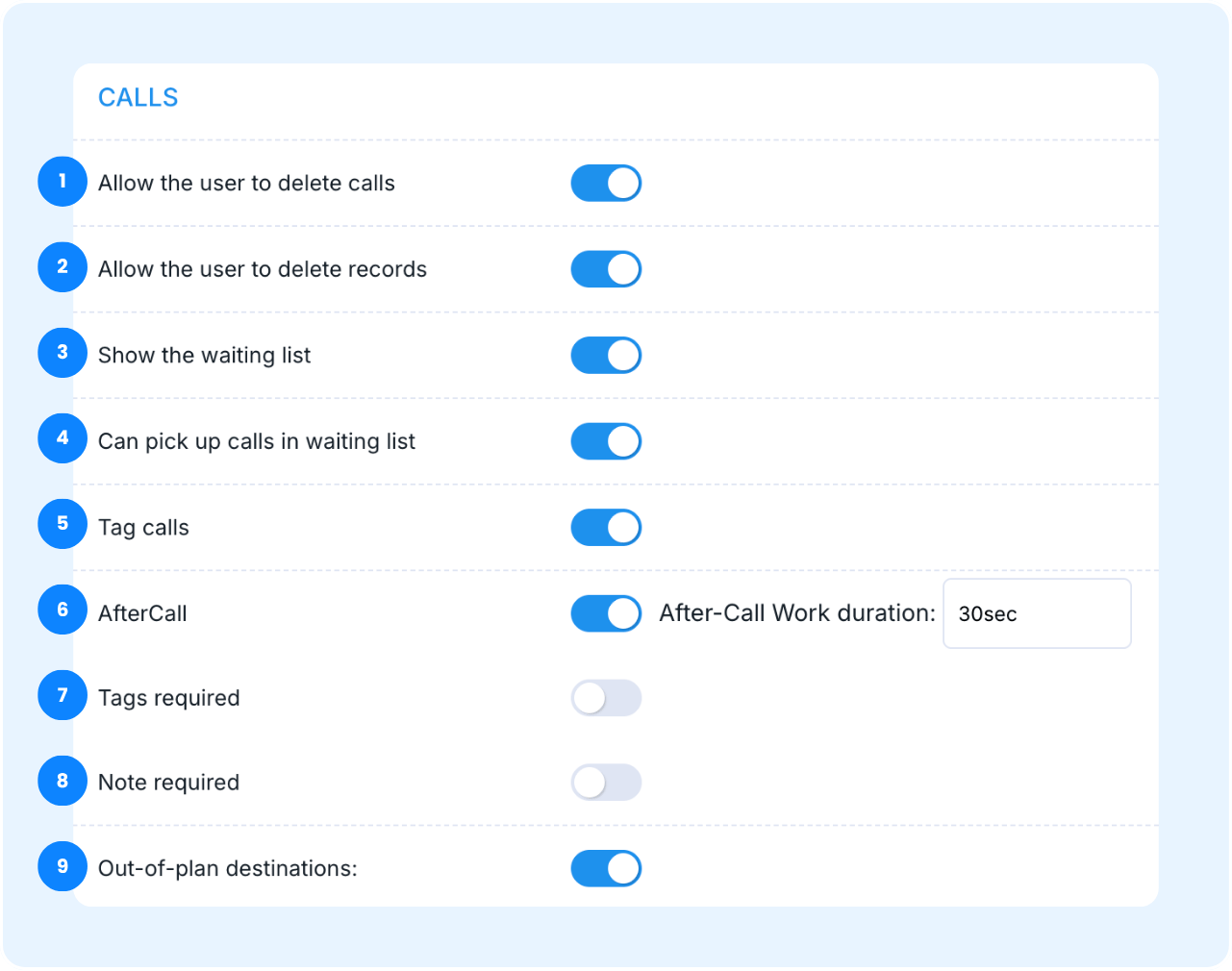
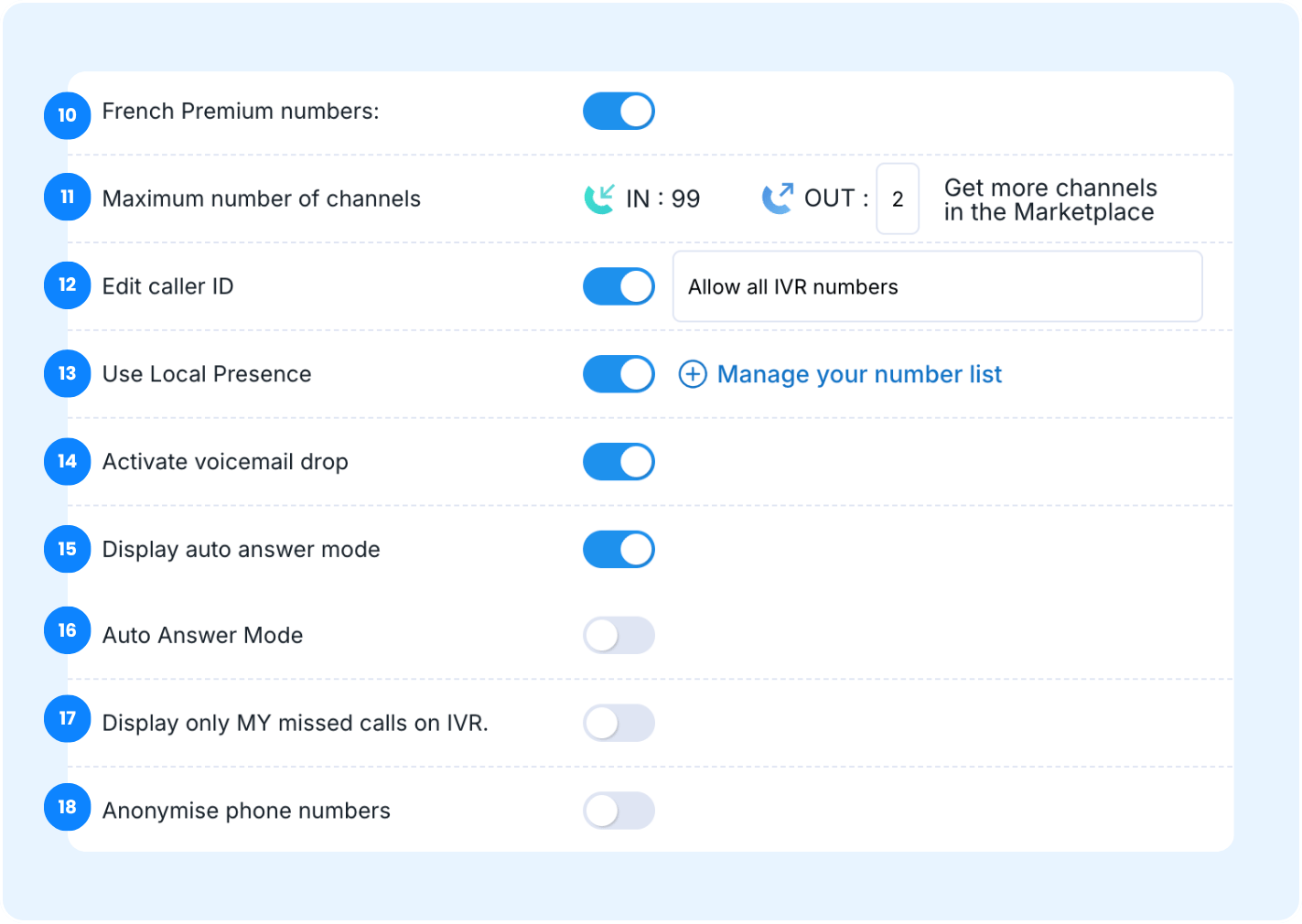
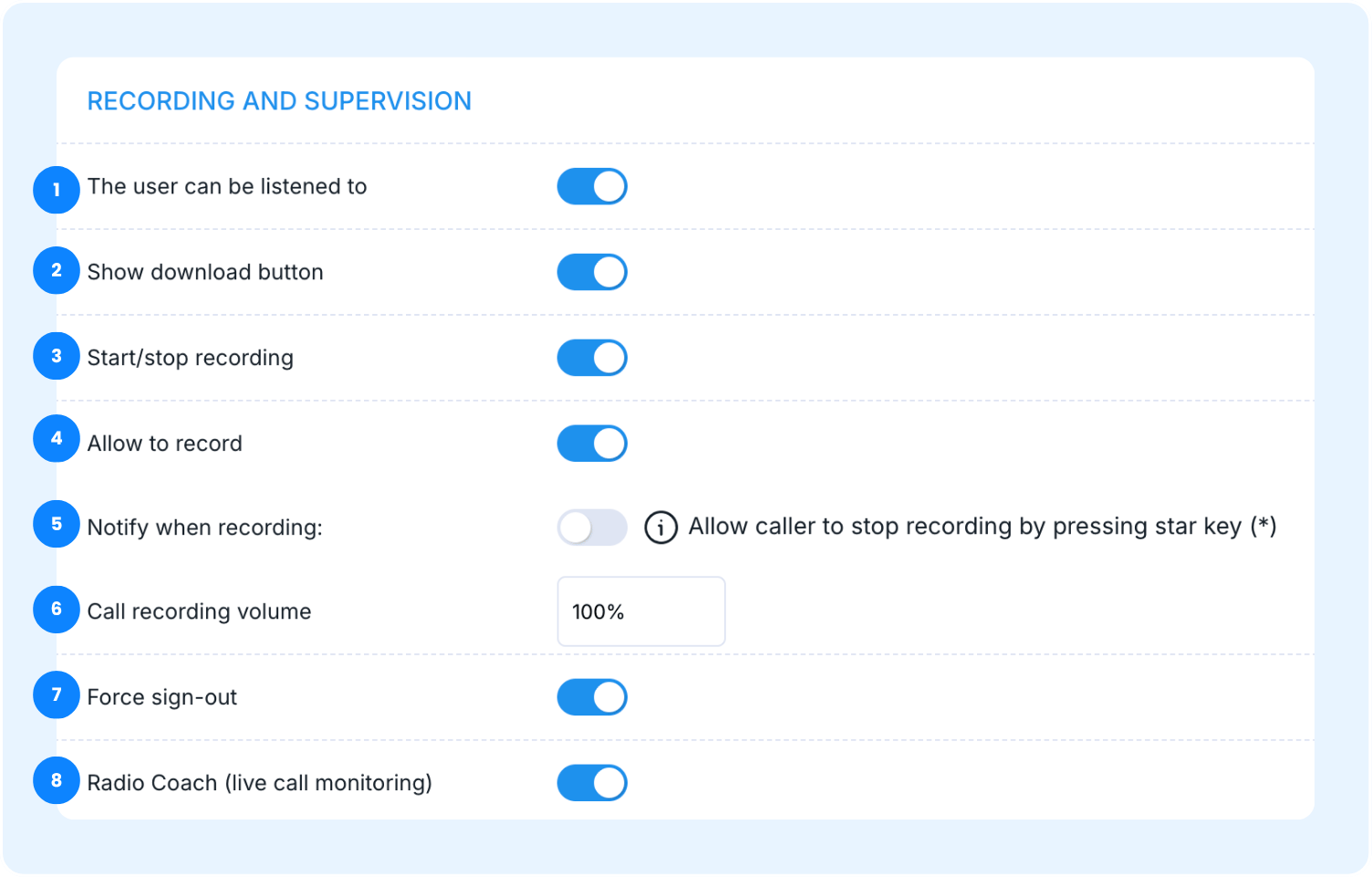
Start by navigating to the user permissions settings. You'll find the three main sections to manage: Software Customization, Calls, and Recording and Supervision.
| Software customization | |
|---|---|
 |
|
|
 |
Calls | |
|---|---|
 |
|
|
 |
Recording and Supervision | |
|---|---|
|
 |
|
Find out how to easily customize hold music or greetings for your user account 👉 Customizing hold music and announcements/greetings for a user's account
3. Configuring Dashboard access
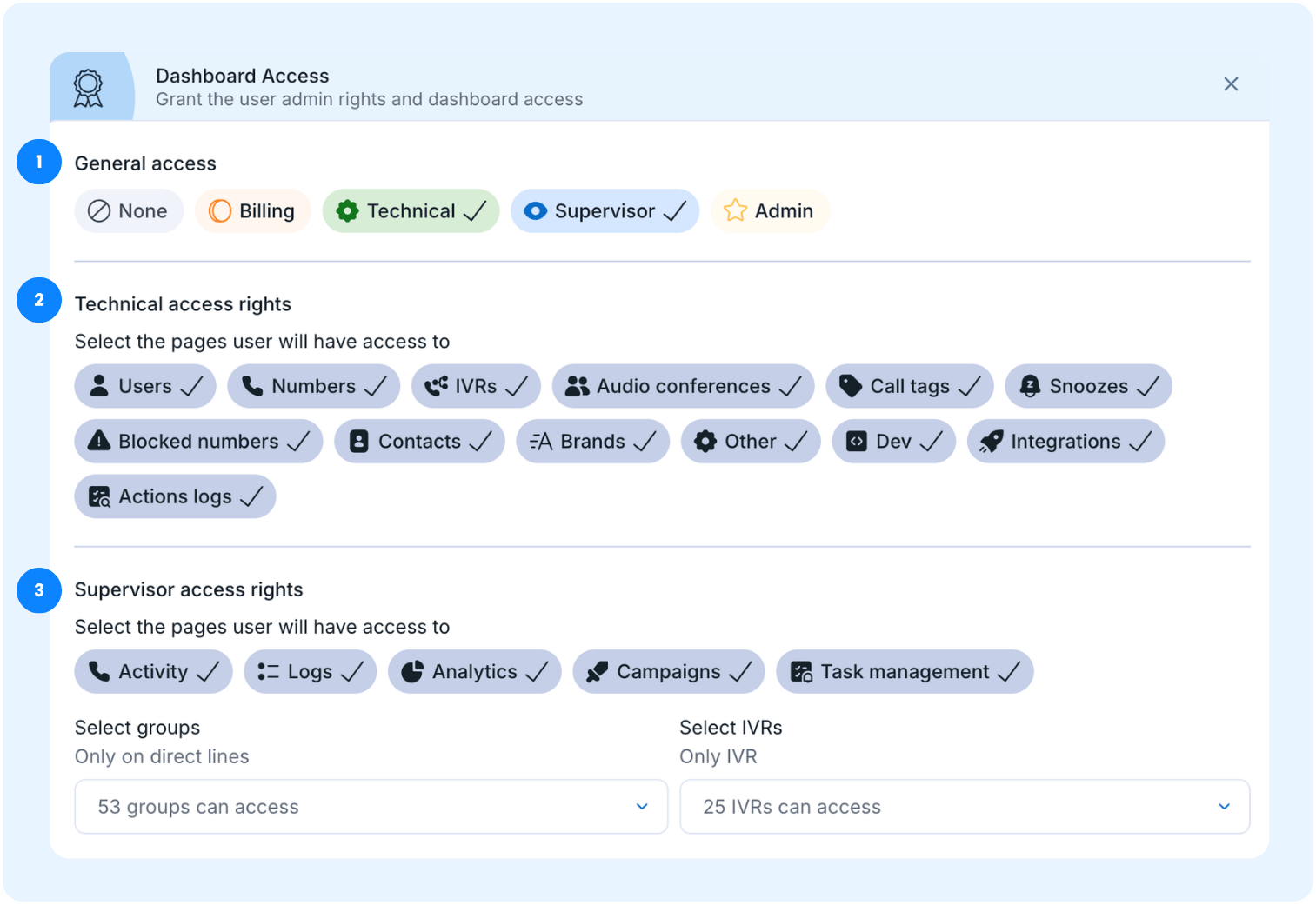
In this section, administrators can allow managers to manage users within groups without having to grant them full technical access, providing greater flexibility.
- General access
You can assign the following levels of general dashboard access:
- No dashboard access
- Billing dashboard access
- Technical dashboard access
- Supervisor dashboard access
- Administrator dashboard access
2. Technical access rights
Select the specific pages that a technical user will have access to, such as:
- Users, numbers, IVR, and audio conferences.
- Call tags, snoozes, blocked numbers, and contacts.
- Brands, other configurations, developer options, integrations, and activity logs.
3. Supervisor access rights
Select the specific pages that a supervisor will have access to, such as:
- Activity, logs, and statistics.
- Campaign and task management.
Select Groups
You can restrict a user's rights to specific groups, such as applying them only on direct lines or only on IVRs.
You can restrict user access to specific pages, such as call logs and contact pages, on an individual user basis. This helps maintain data privacy and controls access to information for different team members within your organization. When using integrations, you can further manage user visibility:
- Check your integration settings.
- Review user role permissions.
- Limit which team members can view specific leads and call logs.
🎉 All set! Now you know what user permissions are in Ringover and you can manage your team's access with total confidence!