
The Billing page allows you to manage your credits, account details, and invoices easily. In this guide, you’ll learn how to navigate your billing tabs and update your financial information.
Manage your Billing, Licenses, and Invoices
1. Manage Credits and Licenses
Use the "Credits and Licenses" tab to adjust your subscription needs and add credits.
Add Credits
- Go to your billing page.
- Click on "Buy".
- Complete the payment on the redirected page.
Add Licenses
- Click on "Add".
- Choose the number of licenses you want to add.
- Click "I confirm".
A pop-up window will appear displaying any additional charges, the number of licenses you are adding, and the total monthly cost.
Remove Licenses
- Click on the trash icon.
- Select the number of licenses you want to remove.
- Click on "Remove licenses".
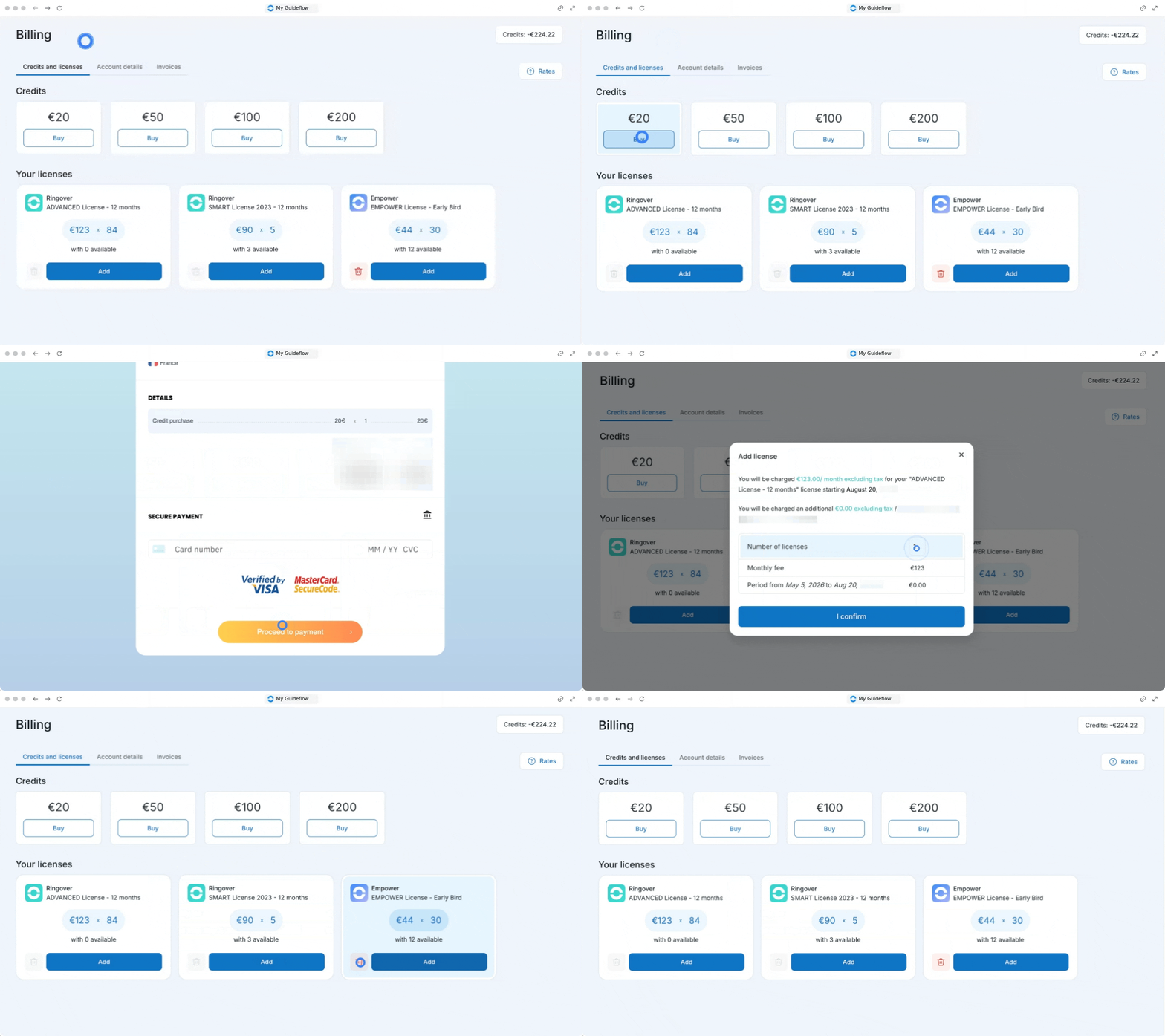
If you add additional licenses during the month, adjustments will be made proportionally on your invoice based on the prepaid period.
2. Update account details and documents
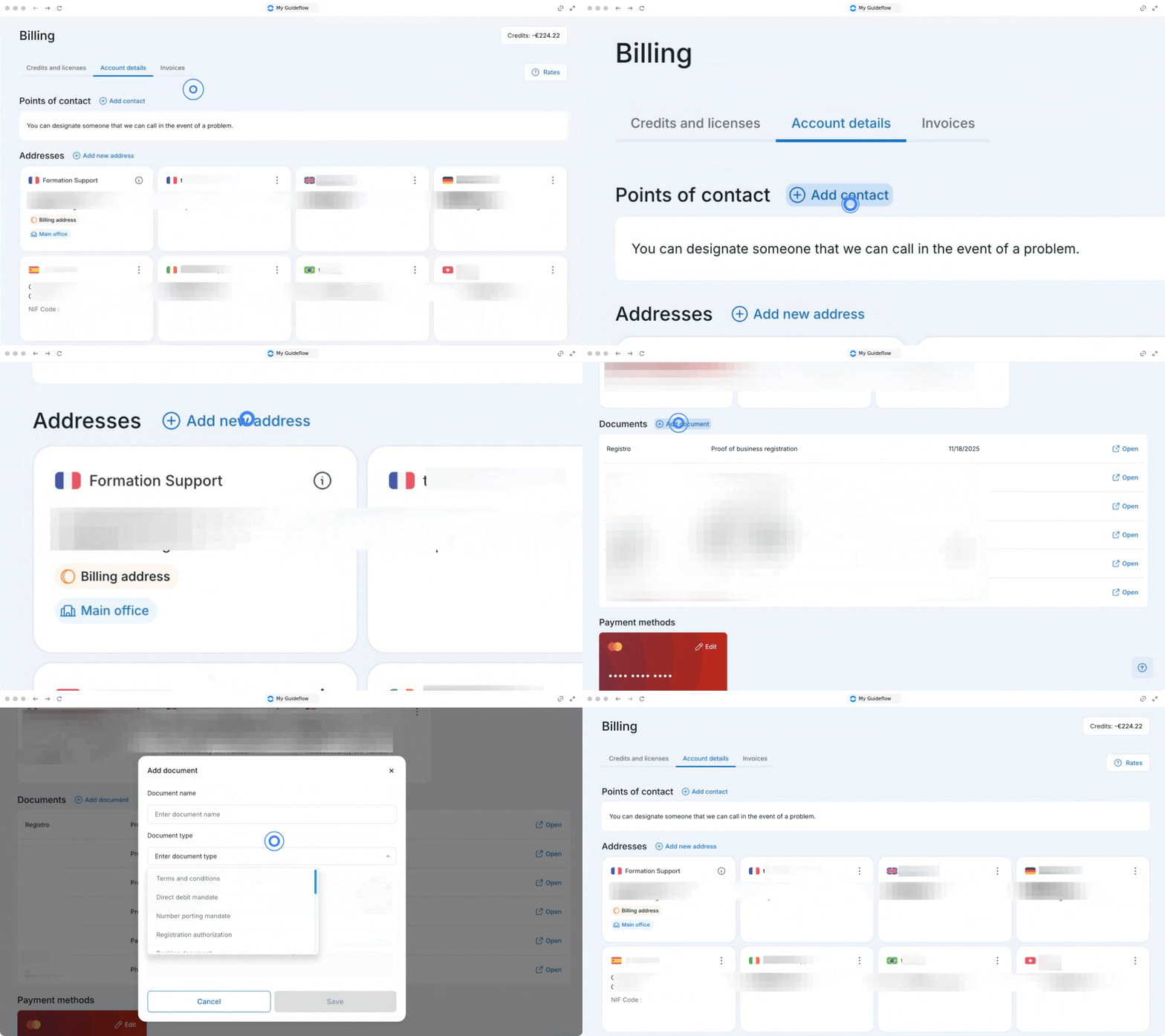
Go to the "Account details" tab to keep your company's contacts, addresses, and important paperwork up to date.
Add a Point of Contact
This option lets you include key contacts in technical, accounting, operational, or other areas to facilitate direct communication.
- Click on "Add a Contact".
- Fill in the information (name, email, phone number, and role).
- Click "Save".
Add a New Address
- Click on the "+ Add a New Address" button.
- Fill in the information.
- Click to confirm.
Upload Documents
In the documents section below addresses, you can manage your company registration certificate, contract, and IBAN/portability mandates.
- Click on "+ Add a Document".
- Add the document name and type.
- Upload your file.
- Click "Open" whenever you want to view it.
3. Update payment methods
Keep your payment details current to avoid service interruptions.
- Go to the Payment Method section.
- Click "Edit".
- Enter the new details.
- Save the changes.
Check out our article "How to modify your method of payment" for more details.
To add or modify an IBAN, contact customer support.
4. Access and export invoices
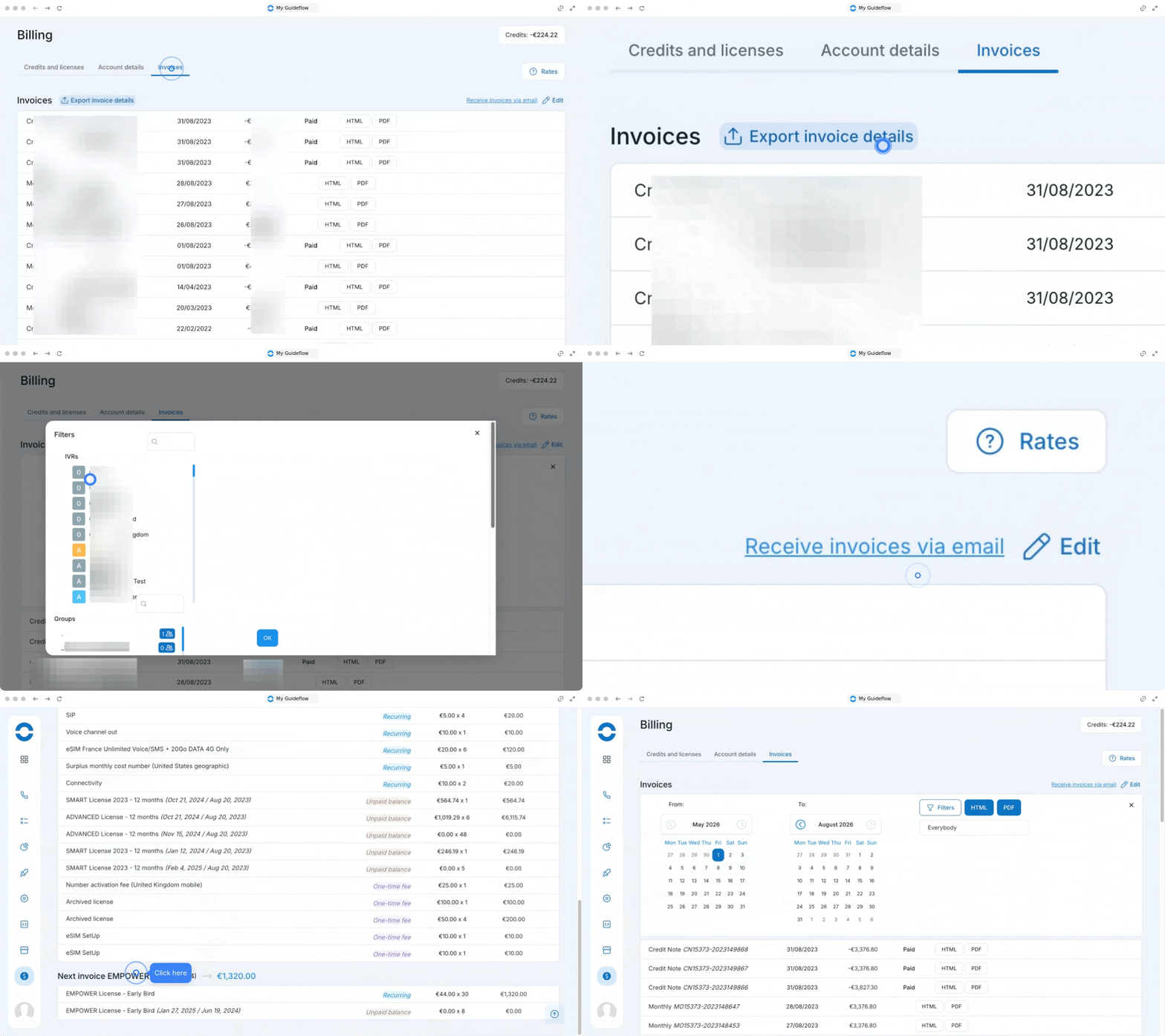
Use the "Invoices" tab to track your billing history and upcoming charges.
- Go to Billing.
- Select Invoices.
- Click "Export invoice details".
- Select the period or specific dates.
- Apply filters by teams or users.
- Export the data in HTML or PDF format.
At the bottom of the Billing page, you’ll find a breakdown of "Upcoming Ringover Invoices" outlining future charges that will be debited from your credit card or IBAN.
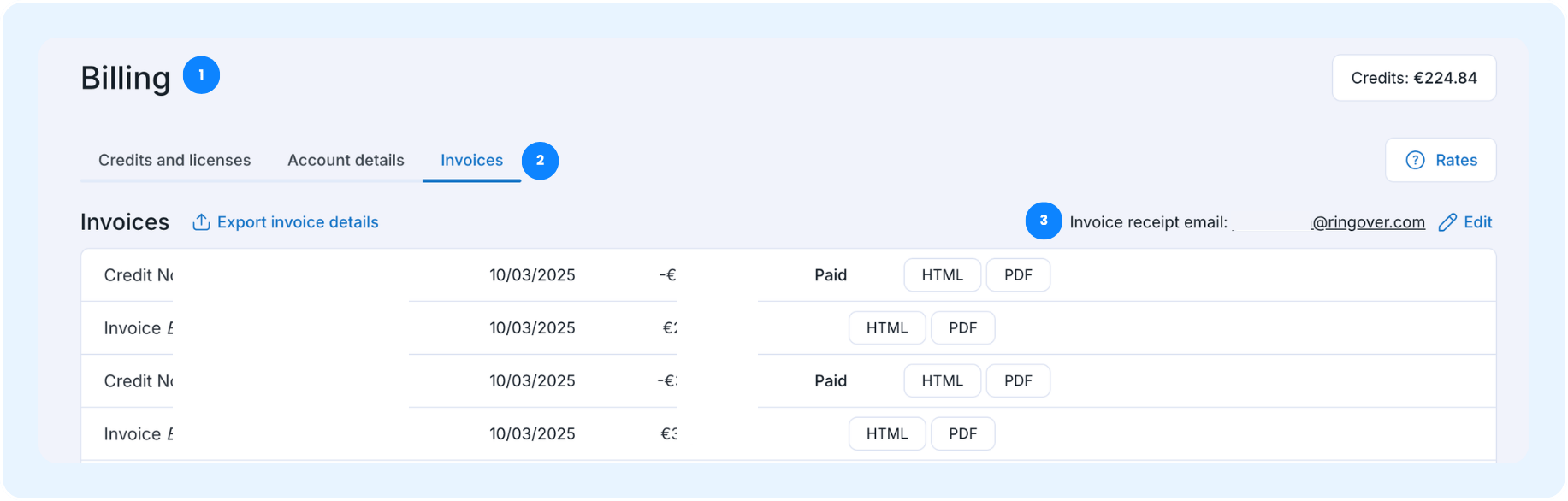
Receive invoices via email
- Go to your billing page.
- Go to invoices page.
- Click on "Receive invoices via email"
- Add your email or edit it.
If you would like to know more about your Ringover invoice, please consult the following article: Understanding Taxes, Fees, and Recovery Charges on Your Ringover Invoice (U.S.)
🎉 You now know how to navigate your billing settings and can successfully manage your licenses, account details, and invoices!