
The Ringover integration with Job Explorer allows you to streamline recruitment workflows by initiating one-click calls directly from your ATS, centralizing communication history, and leveraging AI-powered insights. In this guide, you’ll learn how to connect Job Explorer with Ringover, configure your setup, and make calls using the integrated dialer.
Prerequisites
- An active Ringover Business or higher.
- Administrative permissions on your Ringover account.
- A Job Explorer account with administrator privileges.
Connect and configure Job Explorer integration
1. Activate Job Explorer in Ringover
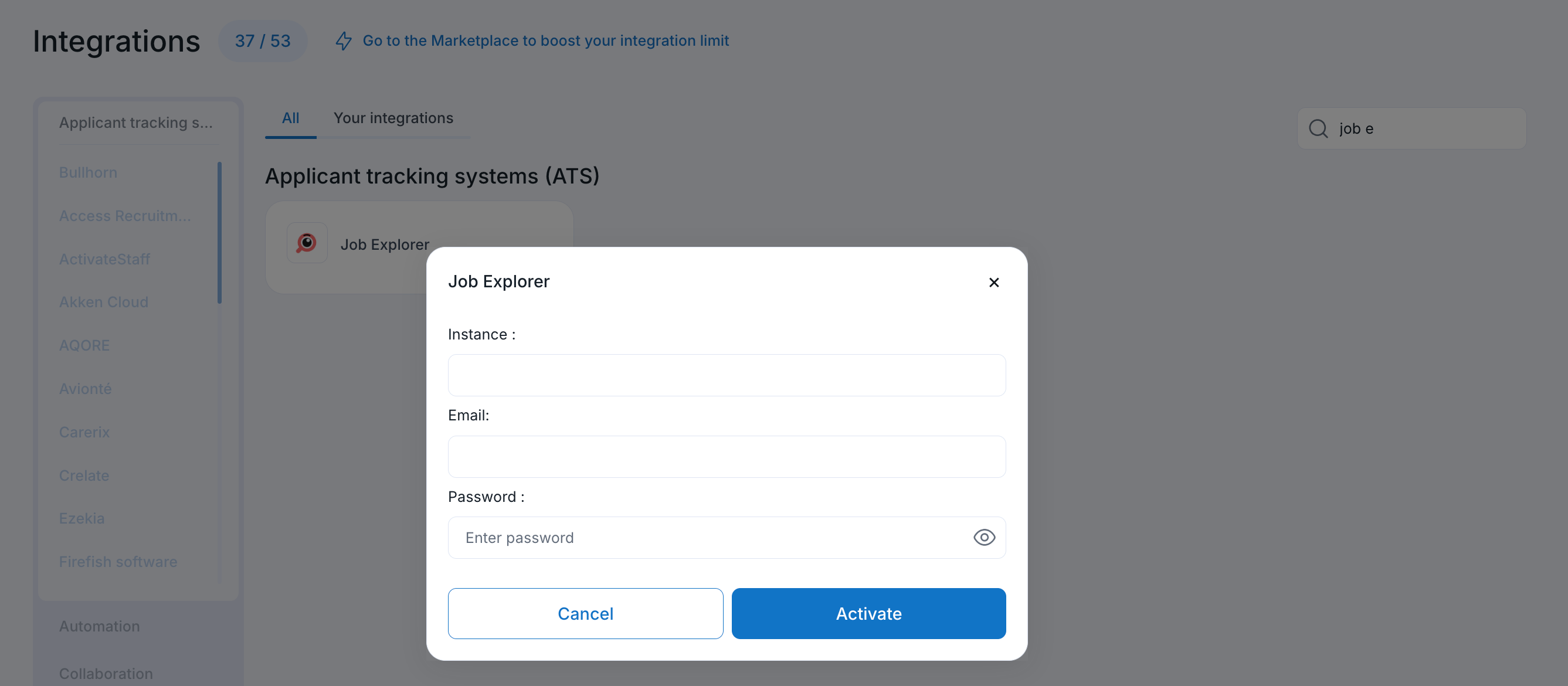
Connect your Job Explorer instance directly from your Ringover Dashboard.
- Go to your Ringover Dashboard.
- Click on Store > Integrations.
- Search for JobExplorer and click on it.
- Enter your Job Explorer instance name.
- Enter your Email and Password.
- Click Activate.
.job-explorer.fr in your Job Explorer login URL : 
2. Configure your integration settings
Customize how candidate data, call records, and messages synchronize between both systems.
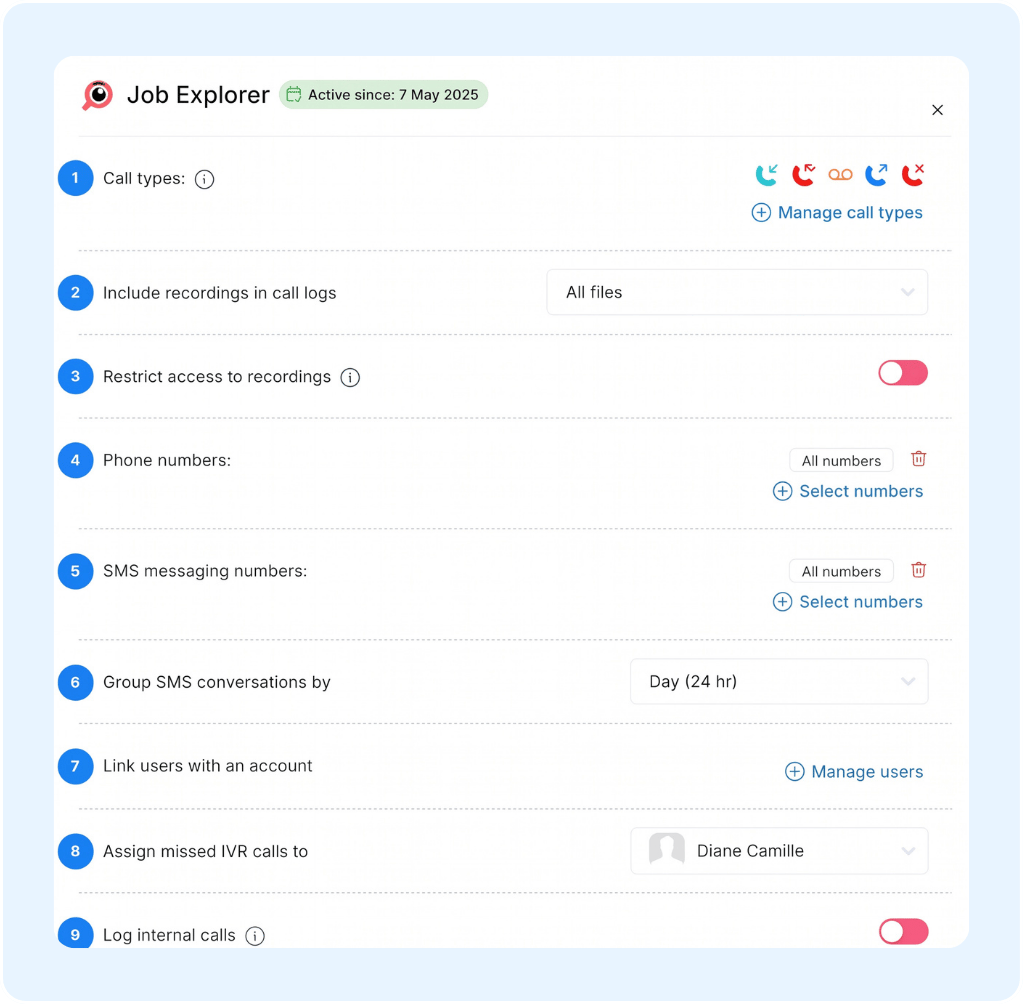
- Call types: Manage and filter categories for inbound, outbound, or missed calls.
- Include recordings in call logs: Select which audio recordings (e.g., "All files") are attached to call logs.
- Restrict access to recordings: Toggle switch to limit user access permissions for audio recordings.
- Phone numbers: View and manage connected phone lines or select specific numbers.
- SMS messaging numbers: Select and manage phone numbers designated for SMS messaging.
- Group SMS conversations by: Choose the time interval used to group SMS messages into threads (e.g., "Day (24 hr)").
- Link users with an account: Map Job Explorer users or agents to their corresponding system account via "Manage users".
- Assign missed IVR calls to: Designate a specific user or team member (e.g., "Diane Camille") to assign unhandled IVR calls.
- Log internal calls: Toggle switch to automatically log internal team calls within Job Explorer.
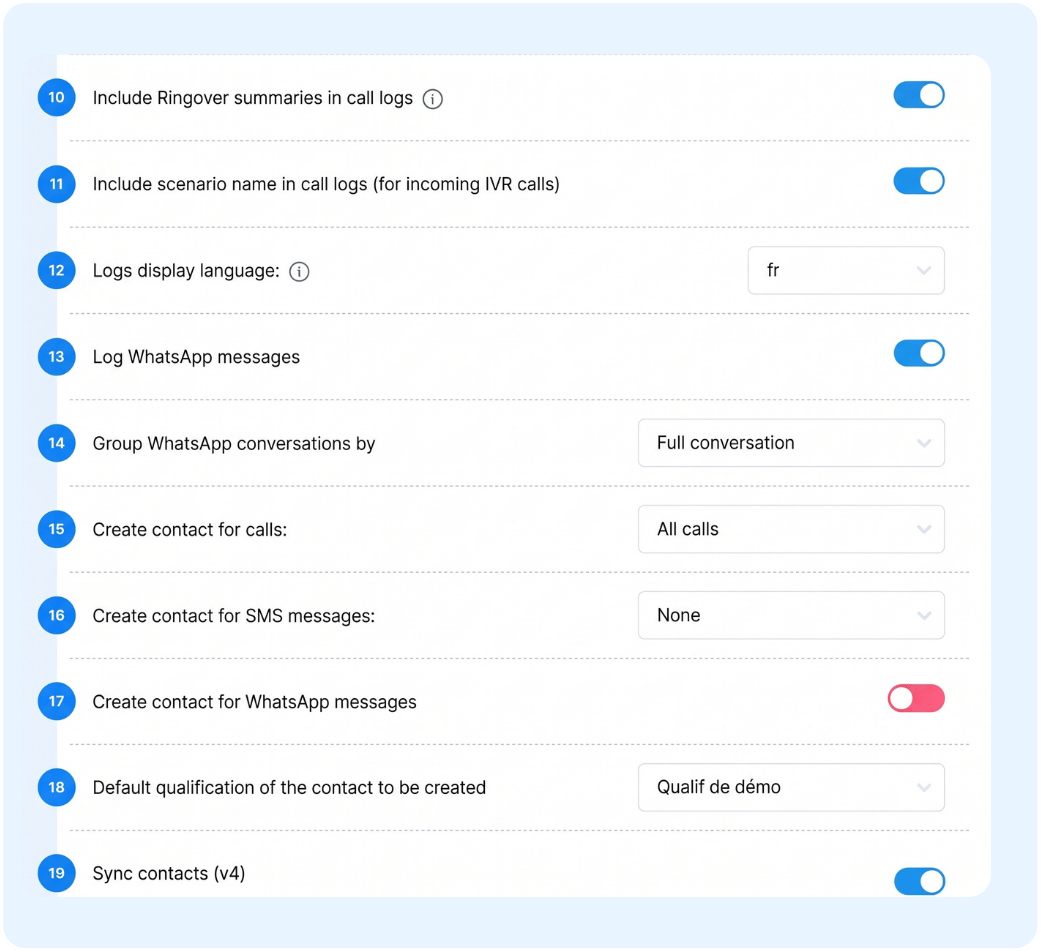
- Include Ringover summaries in call logs: Toggle switch to attach Ringover call summaries to call logs.
- Include scenario name in call logs (for incoming IVR calls): Toggle switch to append the specific IVR scenario name to incoming call logs.
- Logs display language: Select the language used to display call log details (e.g., "fr").
- Log WhatsApp messages: Toggle switch to automatically save WhatsApp chat messages to CRM logs.
- Group WhatsApp conversations by: Select how WhatsApp messages are grouped into conversation threads (e.g., "Full conversation").
- Create contact for calls: Choose when new contacts are automatically created during calls (e.g., "All calls").
- Create contact for SMS messages: Choose whether incoming/outgoing SMS messages trigger automatic contact creation (e.g., "None").
- Create contact for WhatsApp messages: Toggle switch to automatically generate new contacts from WhatsApp conversations.
- Default qualification of the contact to be created: Select the default status or qualification assigned to newly created contacts (e.g., "Qualif de démo").
- Sync contacts (v4): Toggle switch to enable general contact synchronization with Job Explorer.
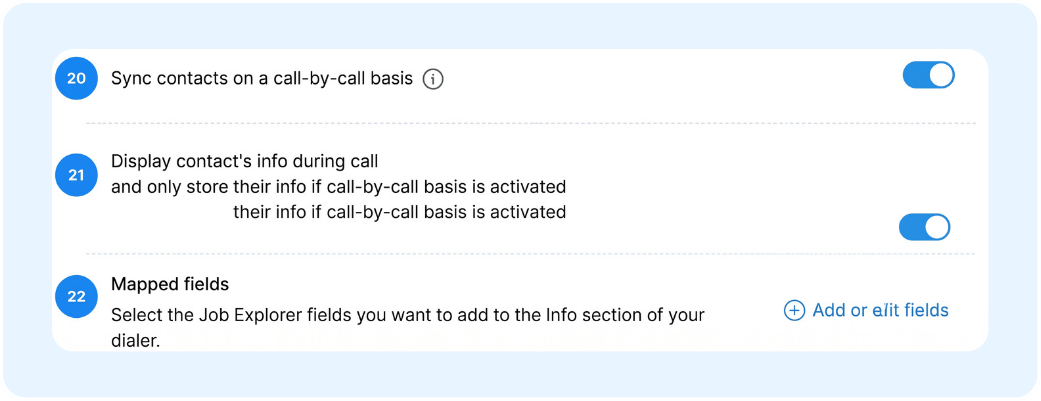
- Sync contacts on a call-by-call basis: Toggle switch to trigger contact synchronization individually as each call occurs.
- Display contact's info during call and only store their info if call-by-call basis is activated: Toggle switch to display contact information on the dialer during calls while conditionally restricting data storage unless call-by-call sync is enabled.
- Mapped fields: Select Job Explorer fields to display in the dialer's Info section via "Add or edit fields".
3. Make calls with Click-to-Call
Place outbound calls directly from candidate records using the integrated Ringover dialer.
- Install the Ringover Dialer extension in your browser (🔗 How to use Ringover Dialer extension on Google Chrome).
- Open any candidate or contact record in Job Explorer.
- Click on the call button next to the contact or click any highlighted phone number to initiate the call.
- Check the candidate record after the call to review the logged interaction, AI summary, and transcription link.
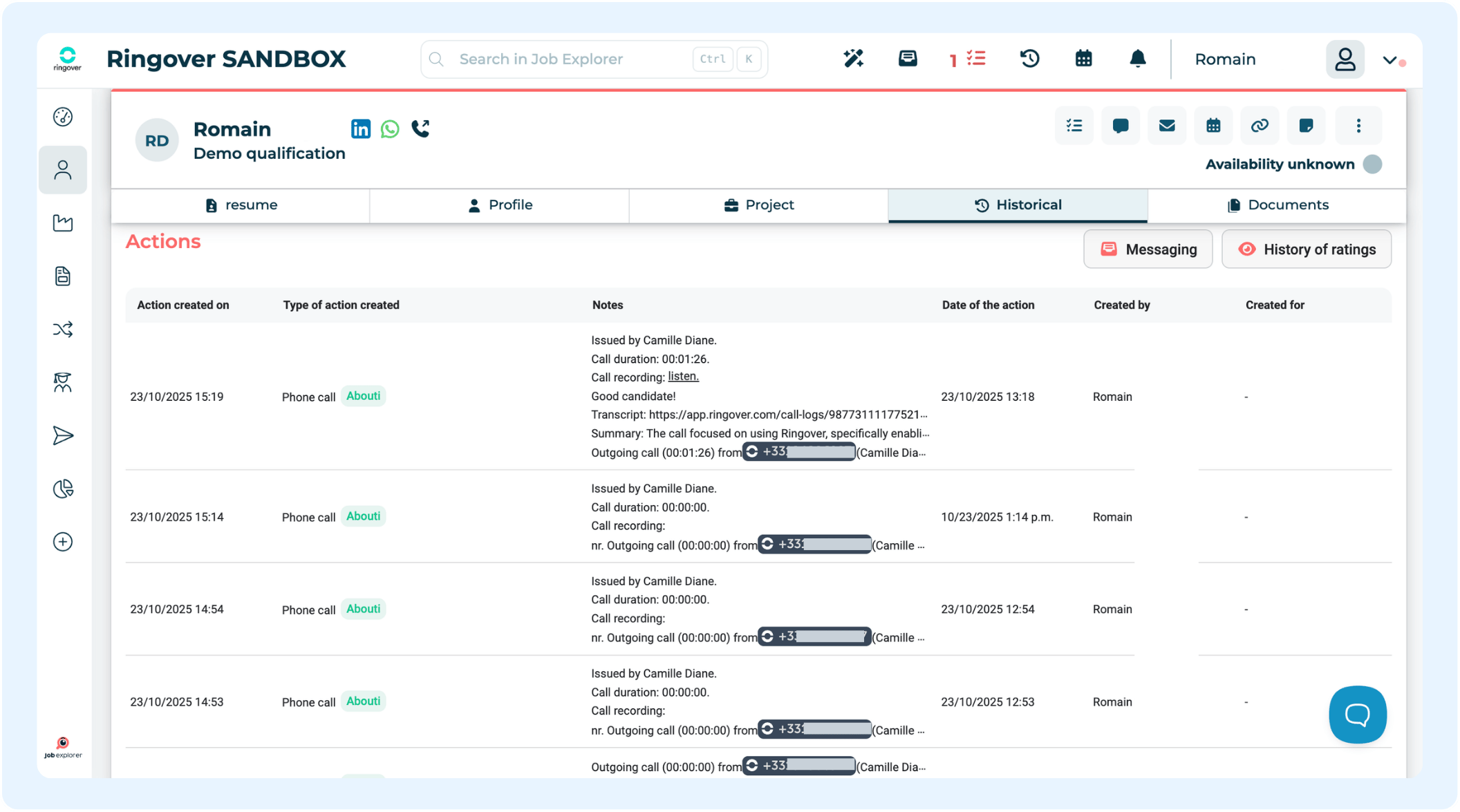
🎉 You now know how to connect and configure the Job Explorer integration and can manage all your candidate calls and messaging activities seamlessly!