
Setting up your AIRO Voice Agent allows you to automate and customize phone communications such as qualifying prospects, booking appointments, and collecting information. This feature is essential to tailor the agent's language, tone, and ideal call steps to perfectly match your business needs. In this guide, you’ll learn how to select an AIRO plan, configure your voice agent's settings, personality, knowledge base, and tools, or create an agent from a call recording or imported file.
Prerequisites
- An active AIRO plan (Starter, Business, or Max).
- Or standalone AIRO subscription
Create and configure your AIRO voice agent
1. Access AIRO and select a plan
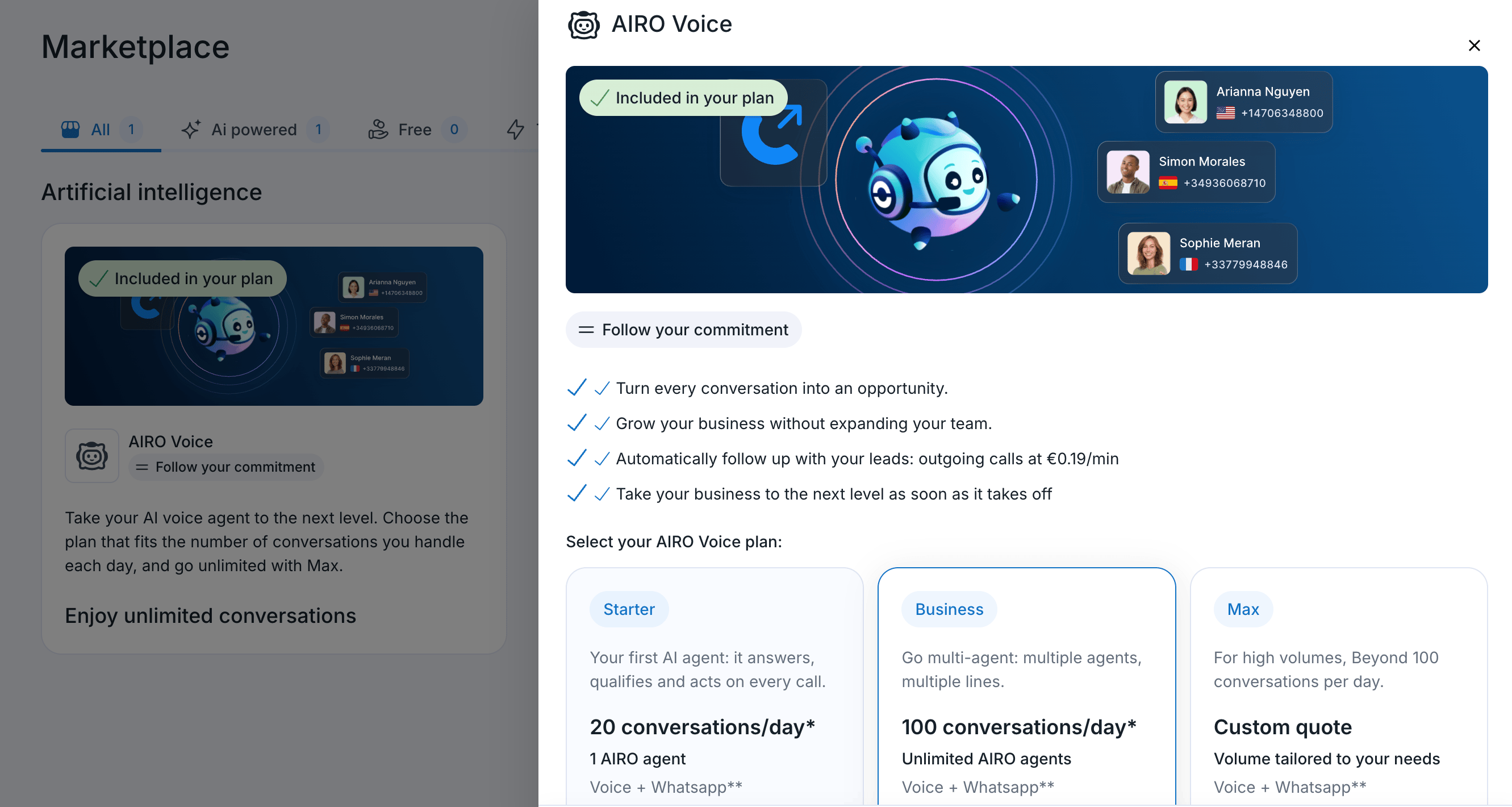
Select your subscription tier in the Ringover Marketplace before creating your voice agent.
- Go to your Marketplace in the Ringover Dashboard.
- Choose between the three available offers (Starter, Business, or Max).
- Alternatively, visit our pricing page to compare plans and shared conversation quotas.
2. Create and configure a new Voice Agent
Once you have selected your plan, navigate to your Airo page and click + New Voice Agent to select your preferred creation method and complete the six configuration steps.
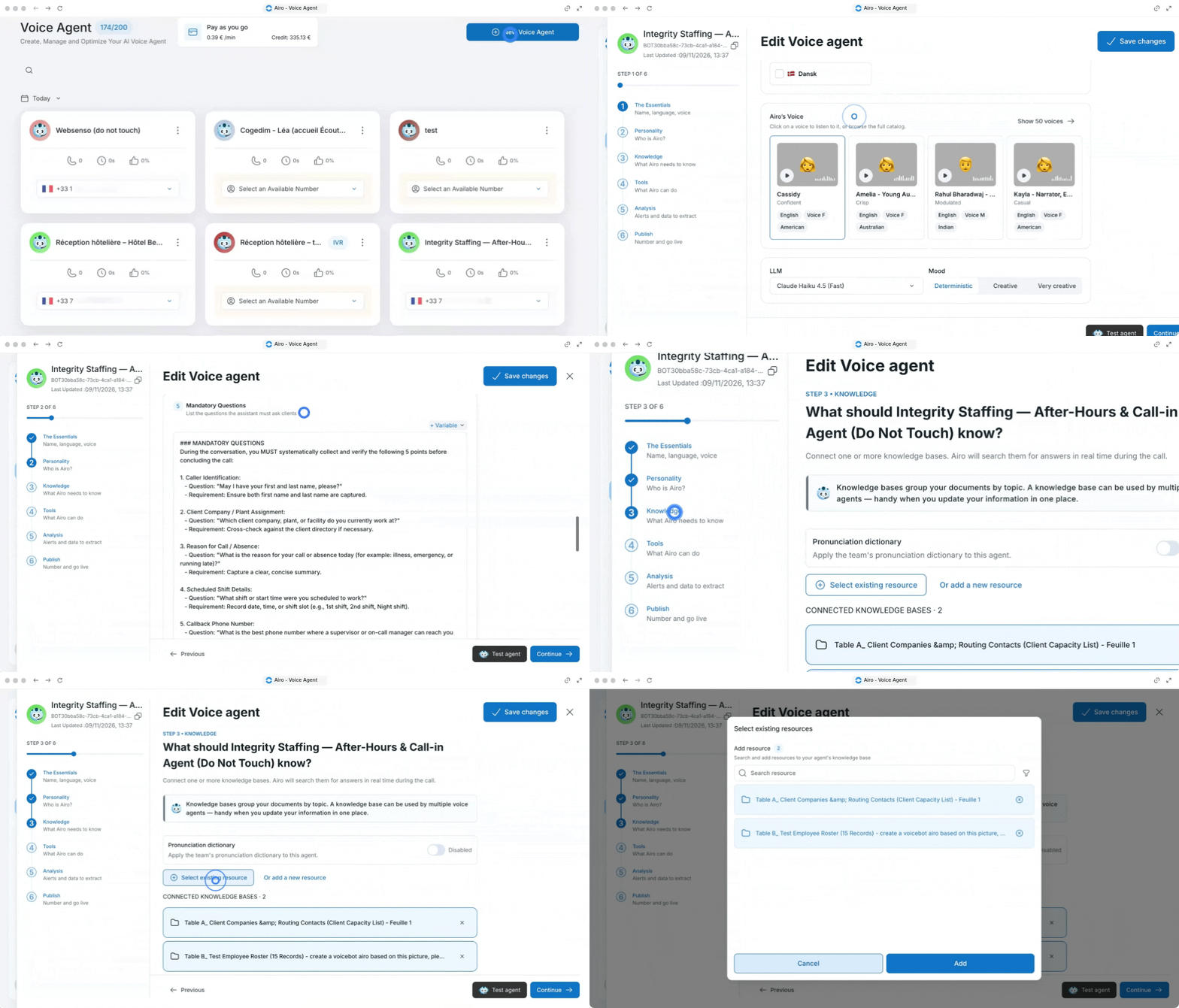
Step 1: The Essentials
Define these core settings first so your voice agent speaks the right language.
- Enter a Voice Agent name.
- Select the voice languages.
- Choose the LLM (Large Language Model).
- Select the agent's Mood.
- Set the Response length.
Step 2: Personality
Configure how your voice agent behaves, communicates, and stays protected during live phone conversations.
- Fill in the structured system prompt sections:
- Personality: Define the character and personality of your assistant.
- Environment: Describe the context and work environment.
- Objective: Specify the main objectives of the assistant.
- Tone and Communication: Define the communication style and tone to adopt.
- Mandatory Questions: List the questions the assistant must ask clients.
- Rules to Follow: List important rules and limitations.
- Guardrails: Non-negotiable restrictions the agent must follow in every situation.
- Available Tools: List the tools, APIs, or resources the agent can use.
-
Custom Section: Add additional instructions specific to your use case.
- Configure Automatic protections by choosing only the critical responses to block.
Step 3: Knowledge
Provide your voice agent with accurate company facts, FAQs, and product data during live calls.
- Connect one or more knowledge bases (Airo will search them for answers in real time during the call).
- Optionally, activate Cite sources so the agent states which knowledge base documents it used.
Step 4: Tools
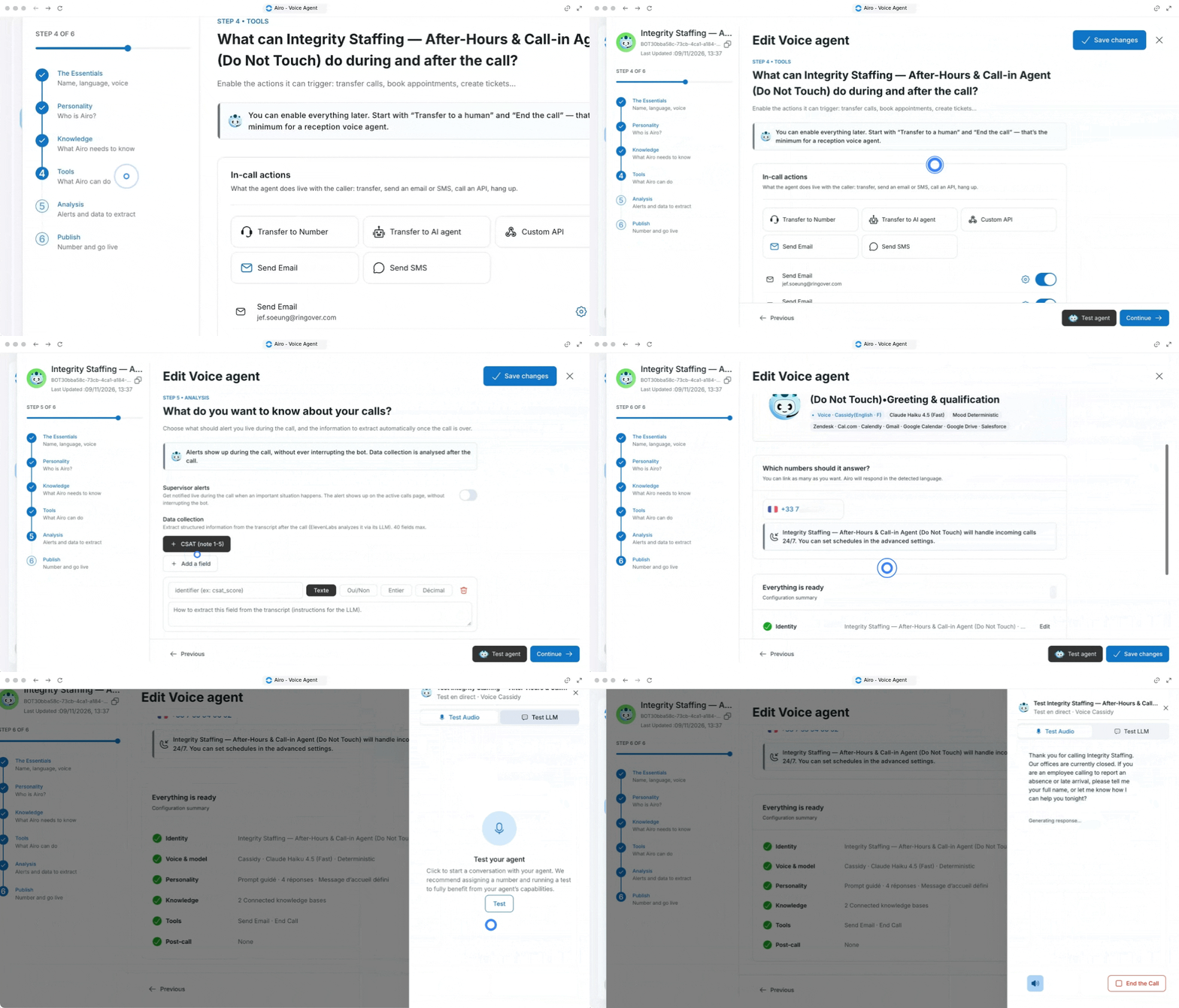
Define what your voice agent can execute live, across your external apps, and once conversations end.
- Configure In-call actions for what the agent does live with the caller:
- Transfer
- Send an email or SMS
- Call an API
- Hang up
- Connect Integrations for your external tools (CRM, ticketing, calendar, MCP, API) so the agent can read and update them before, during, and after the call.
- Set up After the call actions to be sent automatically once the call hangs up:
- Transcript by email
- SMS summary
- Webhook to your system
- Adjust conversation and call-handling parameters as needed:
- Max conversation duration
- Turn timeout
- Silence end call timeout
- Turn eagerness
- Keywords
Step 5: Analysis
Determine live alerts and automated post-call data extraction for your CRM or reporting pipelines.
- Choose what should alert you live during the call and what information to extract automatically once the call is over.
- Configure Data collection to extract structured information from the transcript after the call.
Step 6: Publish
Verify your setup and deploy your voice agent to handle live calls.
- Review the essentials in the Everything is ready: Configuration summary view.
- Choose which numbers the voice agent answers.
- Click to test and/or go live.
3. Alternative creation methods: Templates, Call Recording or Import
Build a voice agent faster by generating prompts from an existing call audio file or duplicating a previously exported agent configuration.
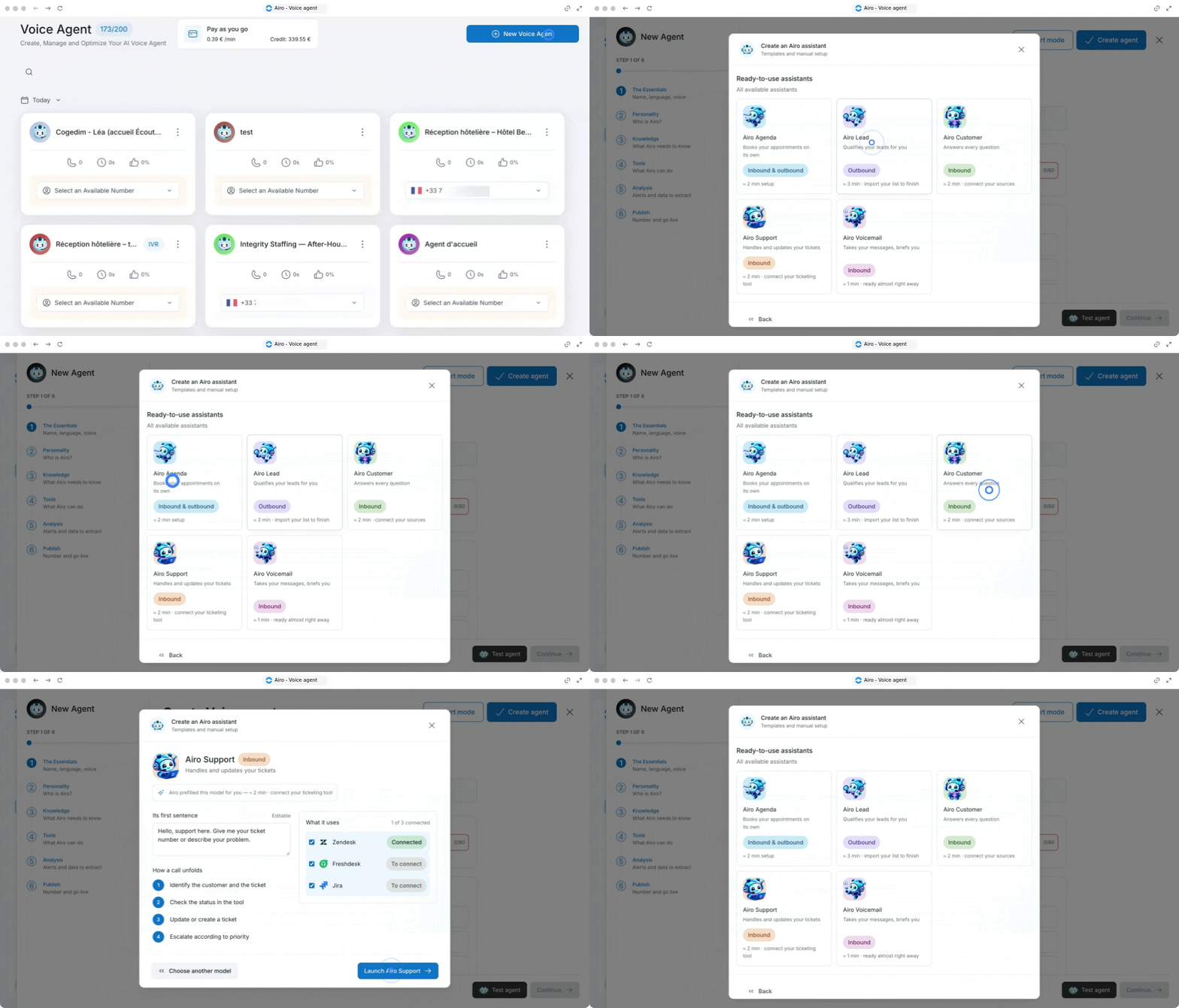
Create from a Template
Pre-configured AI workflows tailored to specific business goals. Select a template for fast deployment, customize its conversations ;
- Airo Agenda: Books your appointments automatically (Cal, Calendly, Google Calendar).
- Airo Lead: Qualifies your leads automatically (Hubspot, Salesforce, Pipedrive).
- Airo Customer: Answers every customer question (Google Drive, SharePoint, One Drive).
- Airo Support: Handles and updates support tickets (Zendesk, Freshdesk, Jira).
- Airo Voicemail: Takes incoming messages and sends you a structured brief (Gmail, slack, Google Calendar).
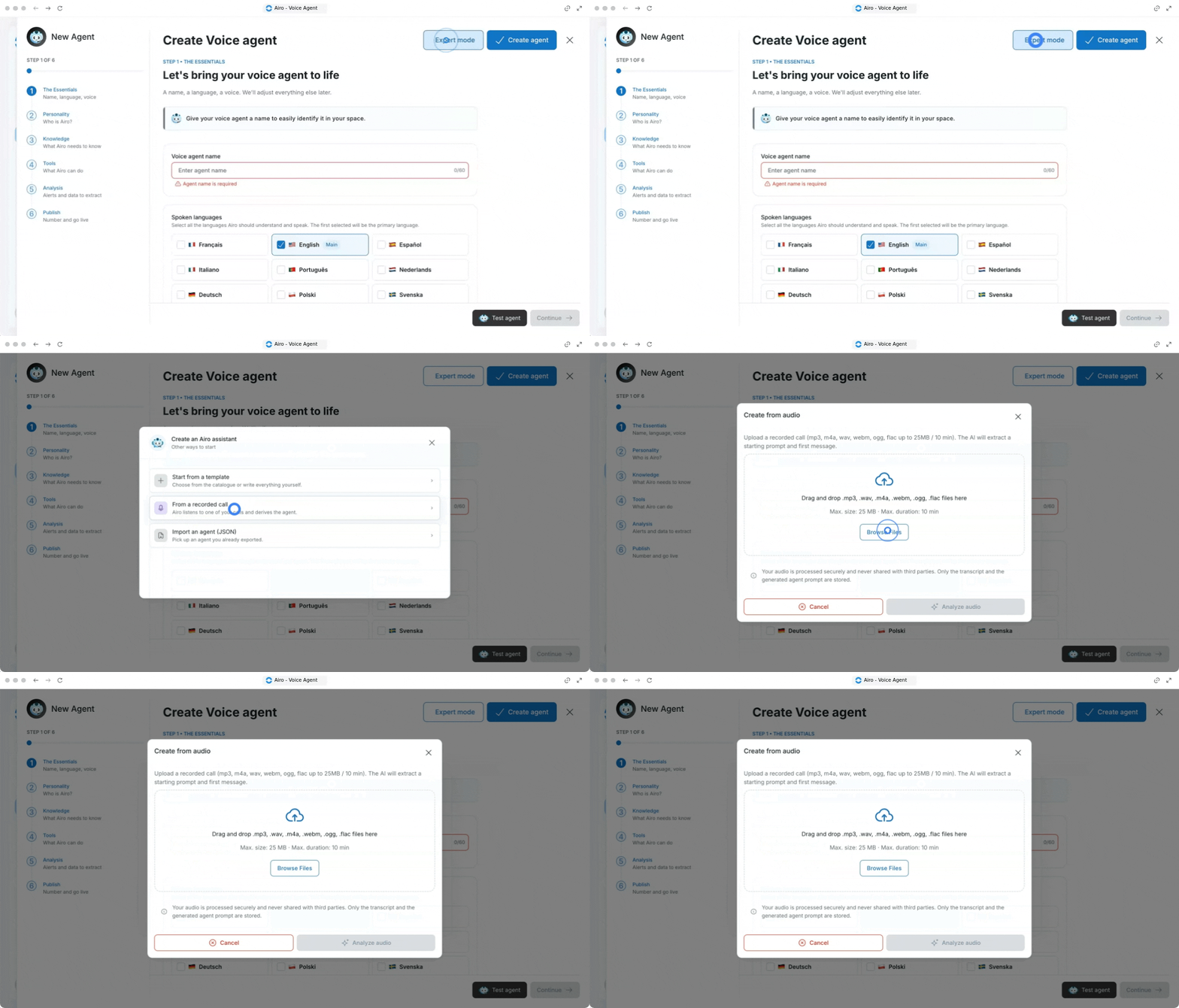
Create from a Call Recording
Use this option when you want your voice agent to replicate the structure and flow of an existing successful phone call.
- Click + New Voice Agent and select Create from a Call Recording.
- Drag and drop an audio recording (
.mp3,.wav,.m4a,.webm,.ogg, or.flac). - Review and refine the generated transcript and system prompt.
- Audio files are processed securely and are never shared with third parties. Only the transcript and generated prompt are retained.
Create from an Import
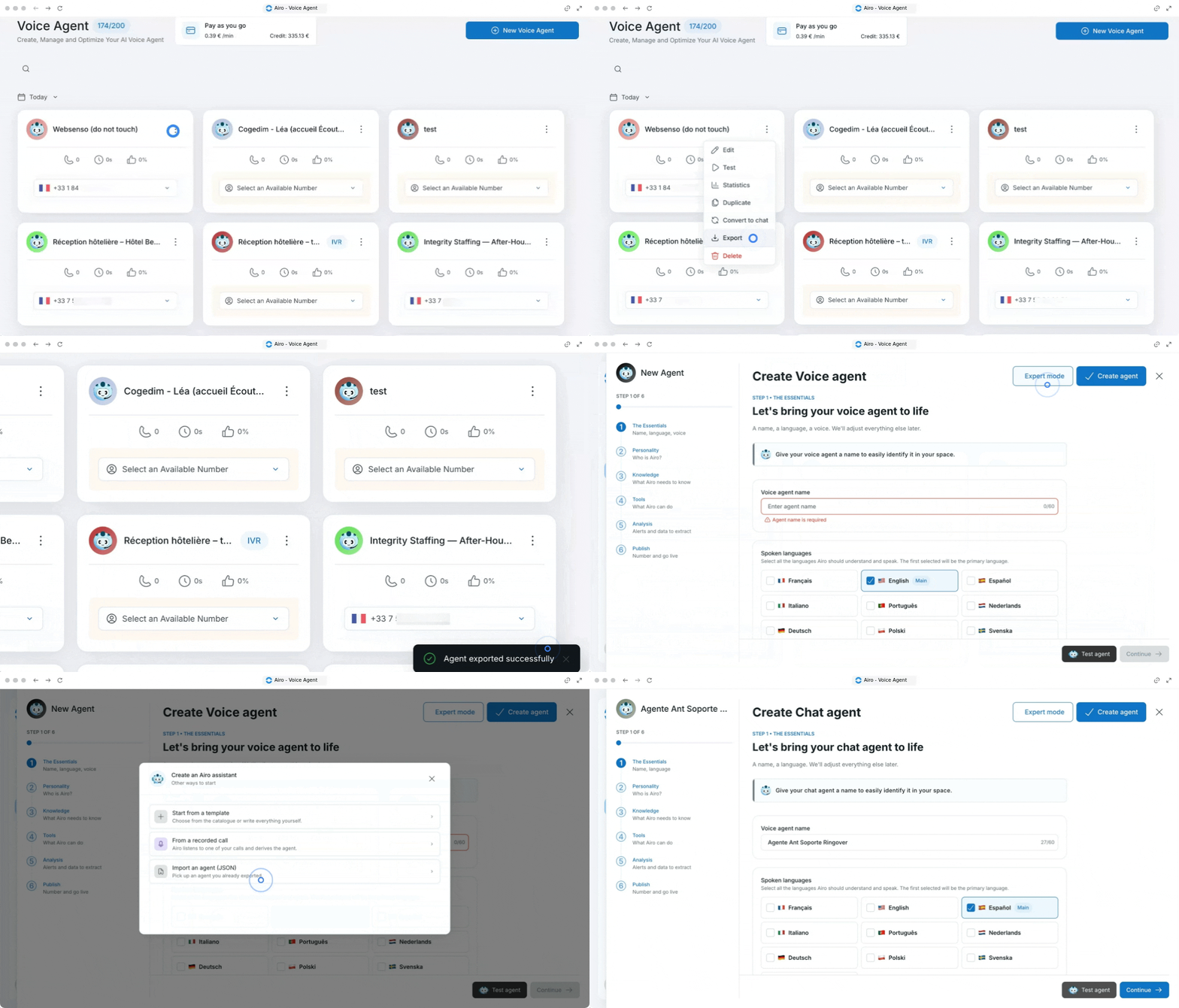
Use this method to duplicate a configured voice agent across accounts or environments without rebuilding prompts and tools from scratch.
- Go to an existing voice agent in your account, click the three dots icon (...) on the right, and select Export.
- Click + New Voice Agent and choose the Import agent option.
- Upload the exported
.jsonfile to instantly duplicate the configuration.
4. Understand AIRO billing, conversations and quotas
AIRO uses a predictable per-conversation pricing model rather than unpredictable per-minute billing, giving you clear cost control regardless of call length.
Inbound voice and WhatsApp conversations
A single completed interaction handled by your AIRO agent. Applies to every incoming call answered by AIRO or every 24-hour WhatsApp chat thread (00:00 to 23:59 in your team's time zone). All inbound interactions share the same plan quota.
Outbound AIRO calls
Automated outbound calls placed through AIRO campaigns or workflows. Outbound calls are billed on a pay-as-you-go basis from your Ringover prepaid credit balance as soon as your campaign dials out.
Compare AIRO plans and conversation quotas
Select the AIRO tier that matches your expected daily or annual incoming interaction volume.
| AIRO Plan | Included Inbound Quota | Quota Reset Cadence | Best Suited For |
|---|---|---|---|
| AIRO Starter | Up to 20 conversations / day | Daily | Small teams, after-hours coverage, and initial AI deployment. |
| AIRO Business | Up to 100 conversations / day | Daily | Growing sales and support teams handling steady daily inbound traffic. |
| AIRO Max | High-volume annual conversation pool | Annual | Enterprise organizations with seasonal spikes or high daily call volumes. |
- How a conversation counts: an inbound call of 10 seconds to 5 minutes is 1 conversation, and under 10 seconds is free. The whole call counts, in 5-minute blocks.
- WhatsApp: inbound WhatsApp messages use the same quota as calls (this needs a Ringover Unified license).
- Over the quota: each extra conversation costs 0,39 $, taken from the customer's Ringover credit, and AIRO keeps answering. When the credit runs out, calls are cut. An email alert goes out at 100%, and the customer either adds credit or moves up a plan.
- Outbound calls: 0,19$ per minute from the first ring, outside the quota. Each agent also needs a landline number at $5.
- Standalone or with Ringover: same prices and quotas either way, and the daily quotas are the same on monthly and annual billing.
Manage quota limits and overage billing
Ensure uninterrupted AI call and message handling when your traffic exceeds your included daily or annual plan allowance.
- Go to your Ringover Dashboard > Billing.
- Check your current prepaid credit balance.
- Click on Add credits so your balance remains positive.
- Open your AIRO dashboard to monitor daily conversation consumption and overage usage in real time.

FAQ
Are out-of-quota conversations measured daily or monthly?
For AIRO Starter and AIRO Business, quotas are measured daily (resetting every 24 hours). Any conversation exceeding your daily limit within that 24-hour period counts as an overage and is deducted from your prepaid credit balance. For AIRO Max, quotas are pooled and measured annually.
Is AIRO Max's inbound conversation volume completely unlimited?
AIRO Max provides a high-volume annual conversation allocation designed to absorb seasonal peaks without daily caps, subject to fair-use terms defined in your subscription agreement.
🎉 You now know how to create and configure your AIRO voice agent and can automate your phone calls, appointment bookings, and lead qualification effortlessly!