
Empower CRM Autofill allows you to automatically sync call details directly into your CRM platform. In this guide, you’ll learn how to open the CRM integrations menu, review AI-generated suggestions, and seamlessly update notes in your CRM.
Automatically sync notes with Empower
1. Create your notes and/or review autofill suggestions
Access the Empower Studio
- Select a call Empower.
- Locate the top navigation bar where your integrated CRMs are displayed at the top right.
- Click on the logo of your CRM (such as Salesforce, HubSpot, or Bullhorn) to open the review data panel.
- Make sure you are in the "Account" tab.
- Click on the pencil icon to edit or apply the note's title and content made by AI, then click on "Save".
- Don't forget to click on "Apply" or "Discard".
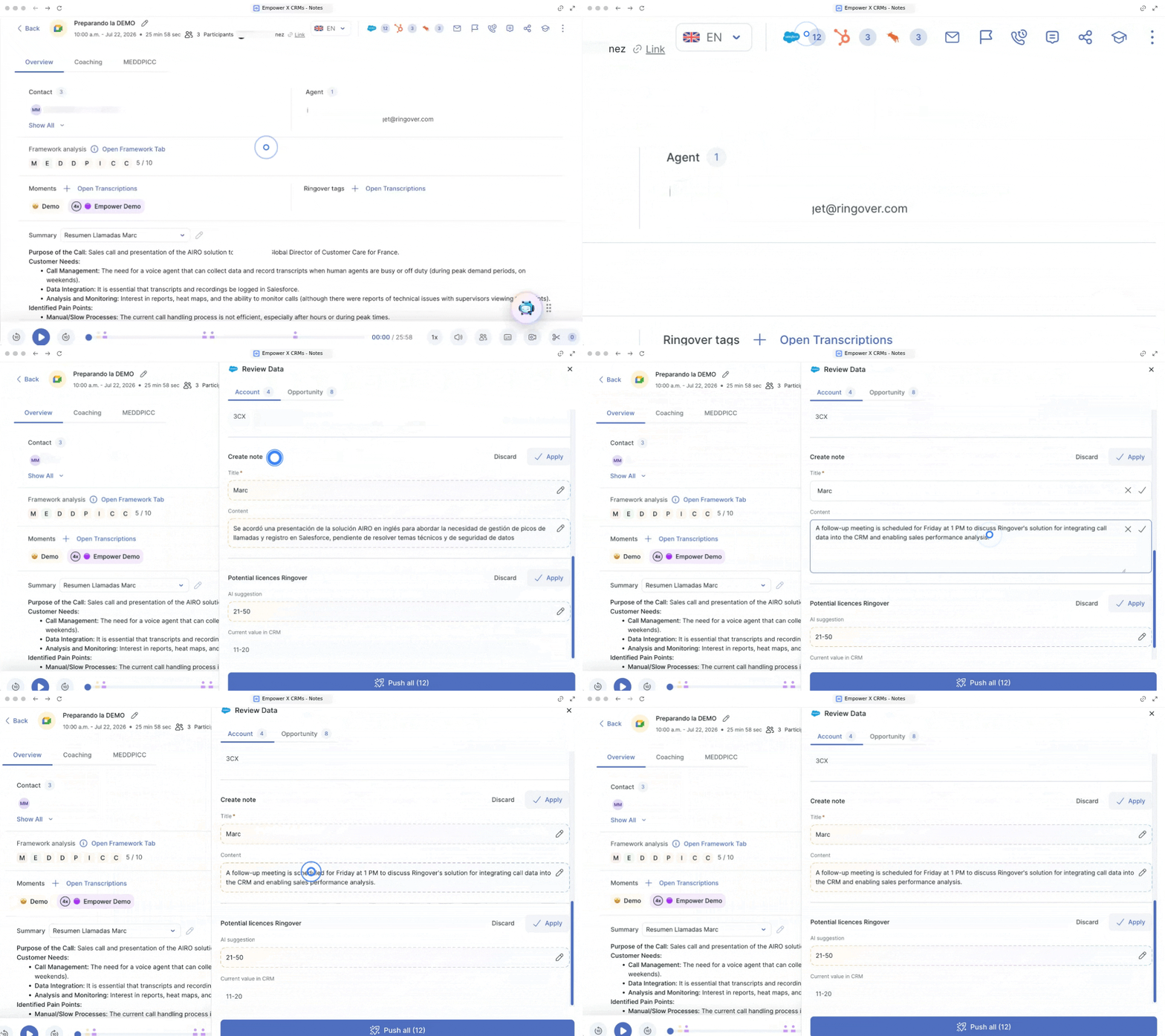
💡 The numbers displayed in blue circles next to each CRM logo indicate the volume of AI-driven suggestions currently available for review and synchronization.
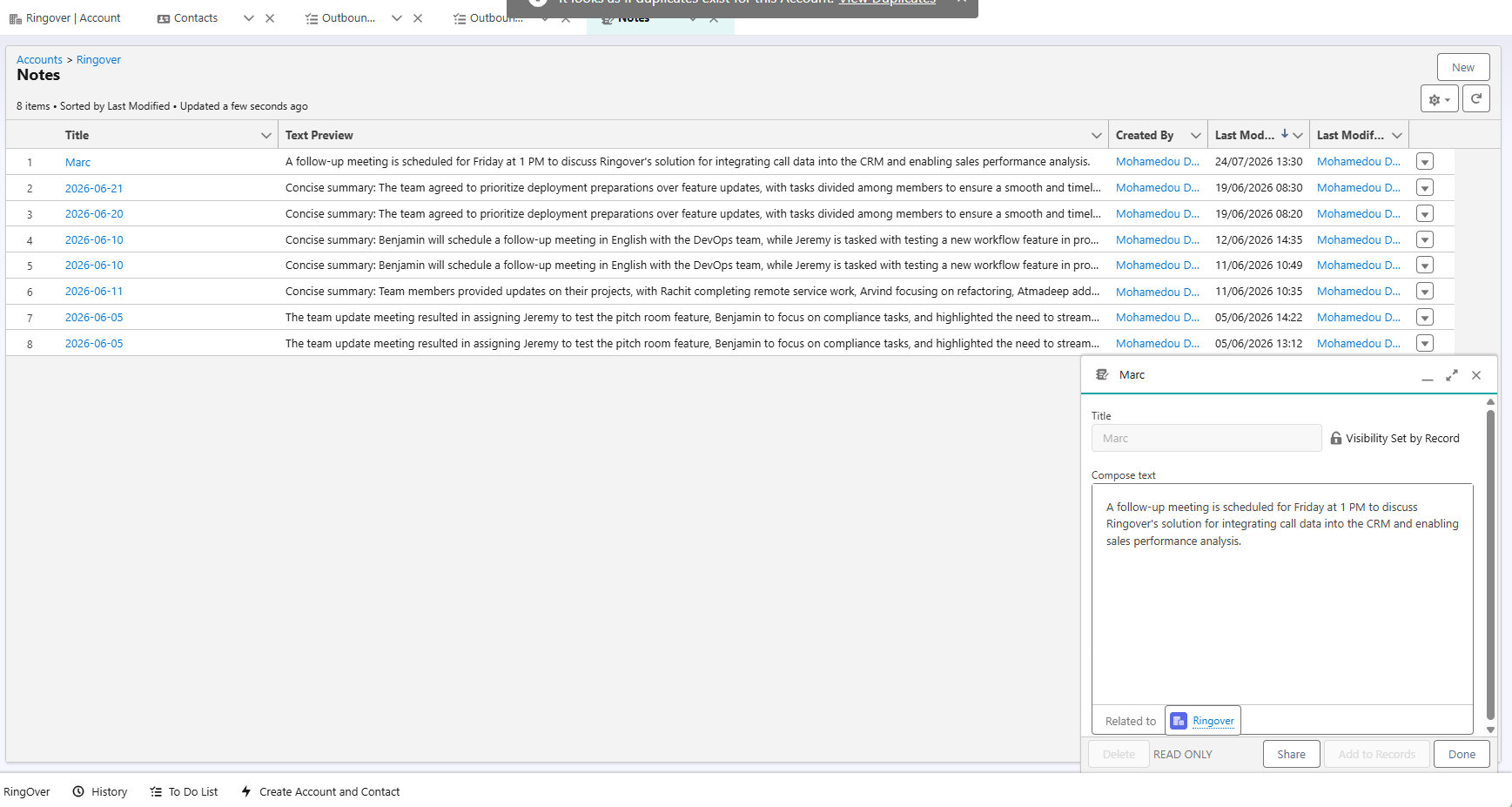
2. CRM's notes view
Once applied, the data syncs in real-time with your CRM and updates your records automatically.
🎉 You now know how to use Empower's CRM autofill feature and can keep your customer database completely updated with zero manual data entry!