
WhatsApp AI Agent creation and configuration in Ringover allows you to automate messaging workflows and engage customers instantly on WhatsApp, 24/7. In this guide, you’ll learn how to set up prerequisites, build your chatbot using templates, connect your WhatsApp Business number, manage conversations alongside human agents, and convert agent types.
Prerequisites
- An active Ringover Unified license paired with an AIRO license (Starter, Business, or Max).
- Contact Ringover Support to enable AIRO WhatsApp permissions on your account.
- A linked WhatsApp Business account integrated into Ringover with an active WABI number.
Create and configure your WhatsApp AI agent
1. Create your chatbot
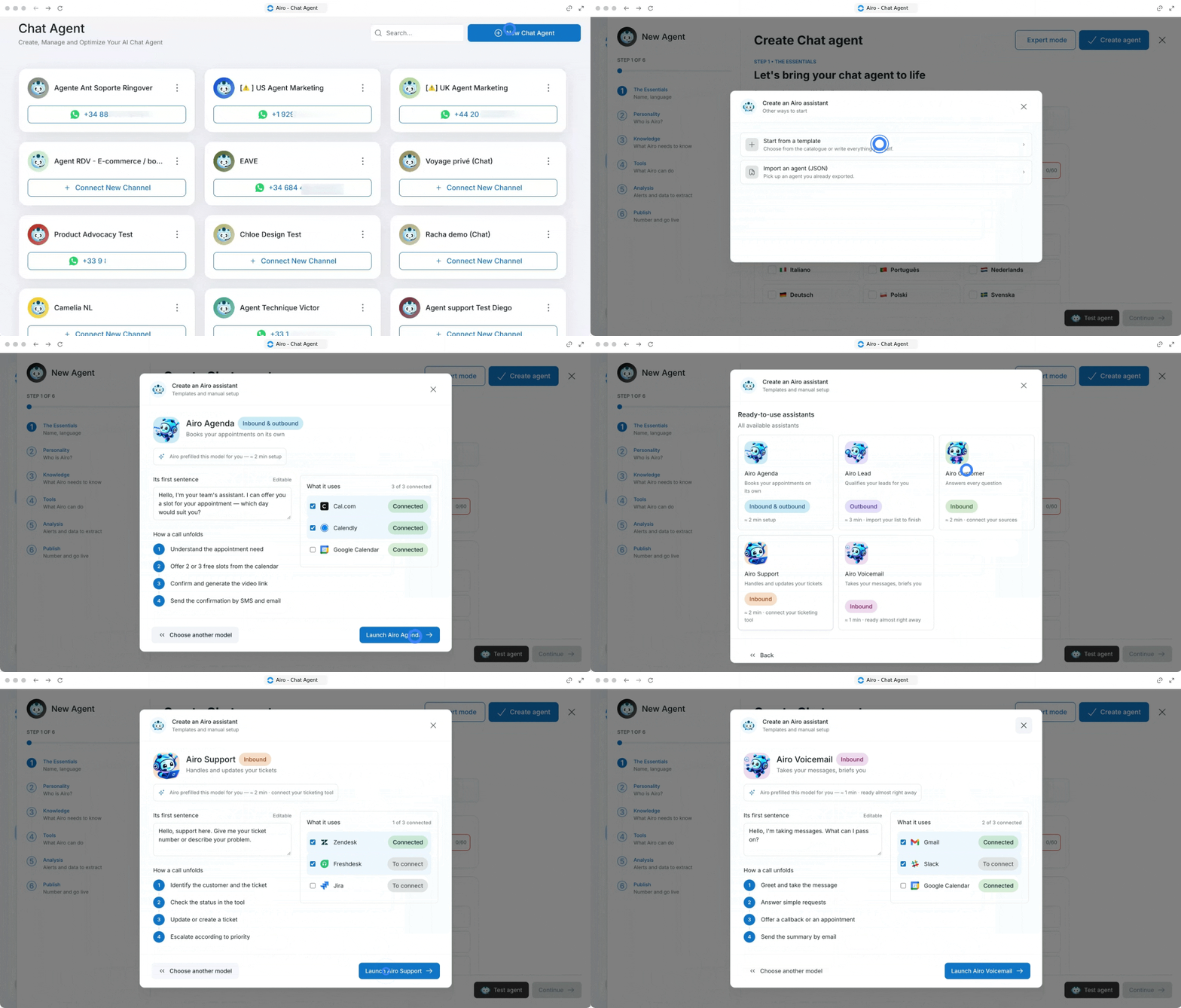
Choose a setup method to start building your chatbot logic, welcome message, and integrated tools.
Expert Mode (Ready-to-use templates)
Pre-configured AI workflows tailored to specific business goals. Select a template for fast deployment, customize its opening message and connected tools, and test how a conversation unfolds in the preview panel:
- Airo Agenda: Books your appointments automatically (Cal, Calendly, Google Calendar).
- Airo Lead: Qualifies your leads automatically (Hubspot, Salesforce, Pipedrive).
- Airo Customer: Answers every customer question (Google Drive, SharePoint, One Drive).
- Airo Support: Handles and updates support tickets (Zendesk, Freshdesk, Jira).
- Airo Voicemail: Takes incoming messages and sends you a structured brief (Gmail, slack, Google Calendar).
Import or export an agent
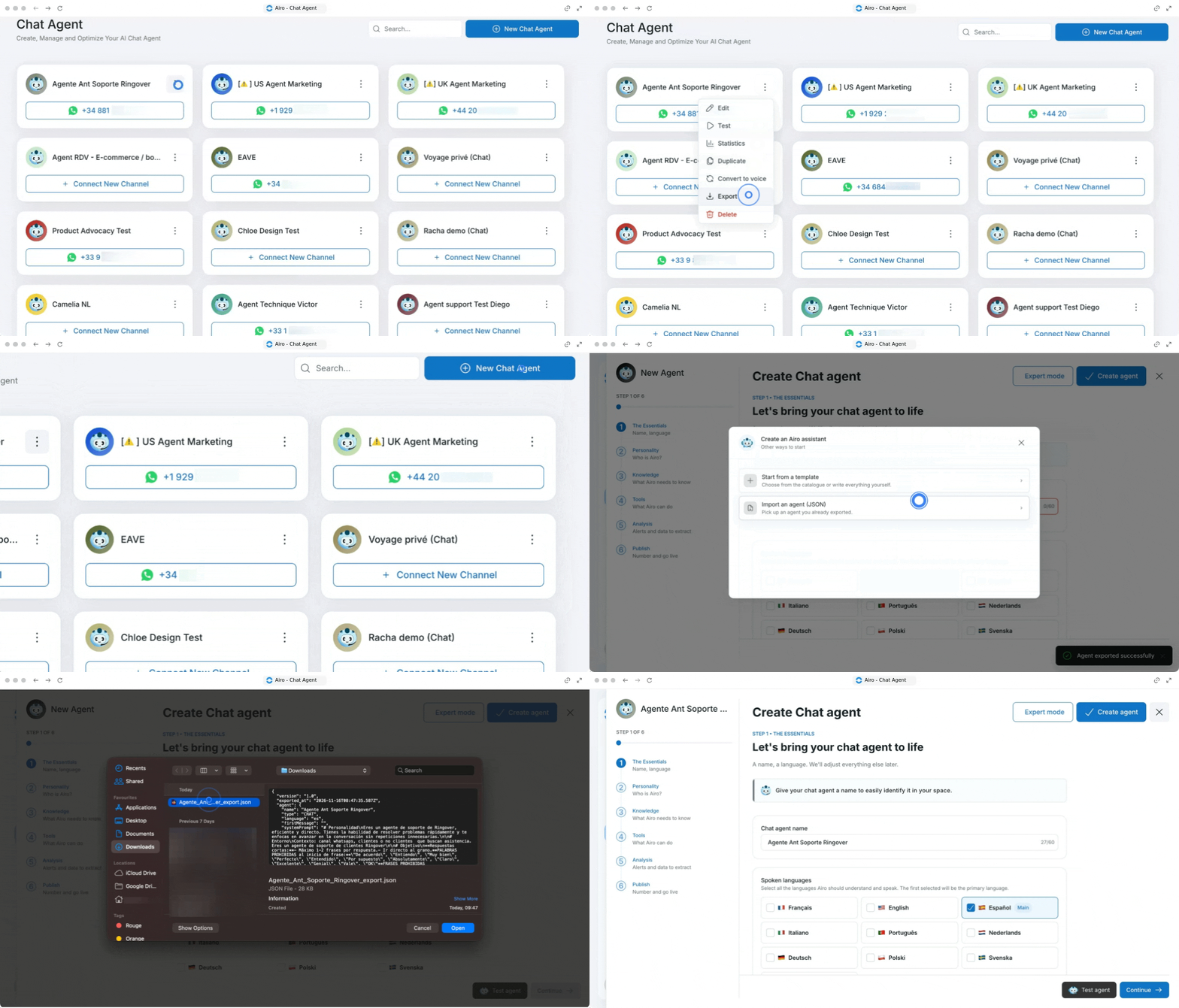
Portable JSON configuration files for your AI agents. Transfer or duplicate chatbot setups across different environments in just a few clicks:
- Go to your Chatbots list.
- Click on the three dots next to the target chatbot.
- Select Export to download the configuration file.
- Click on Create a new agent and select Import.
- Upload your exported agent file.
Create a chat agent manually
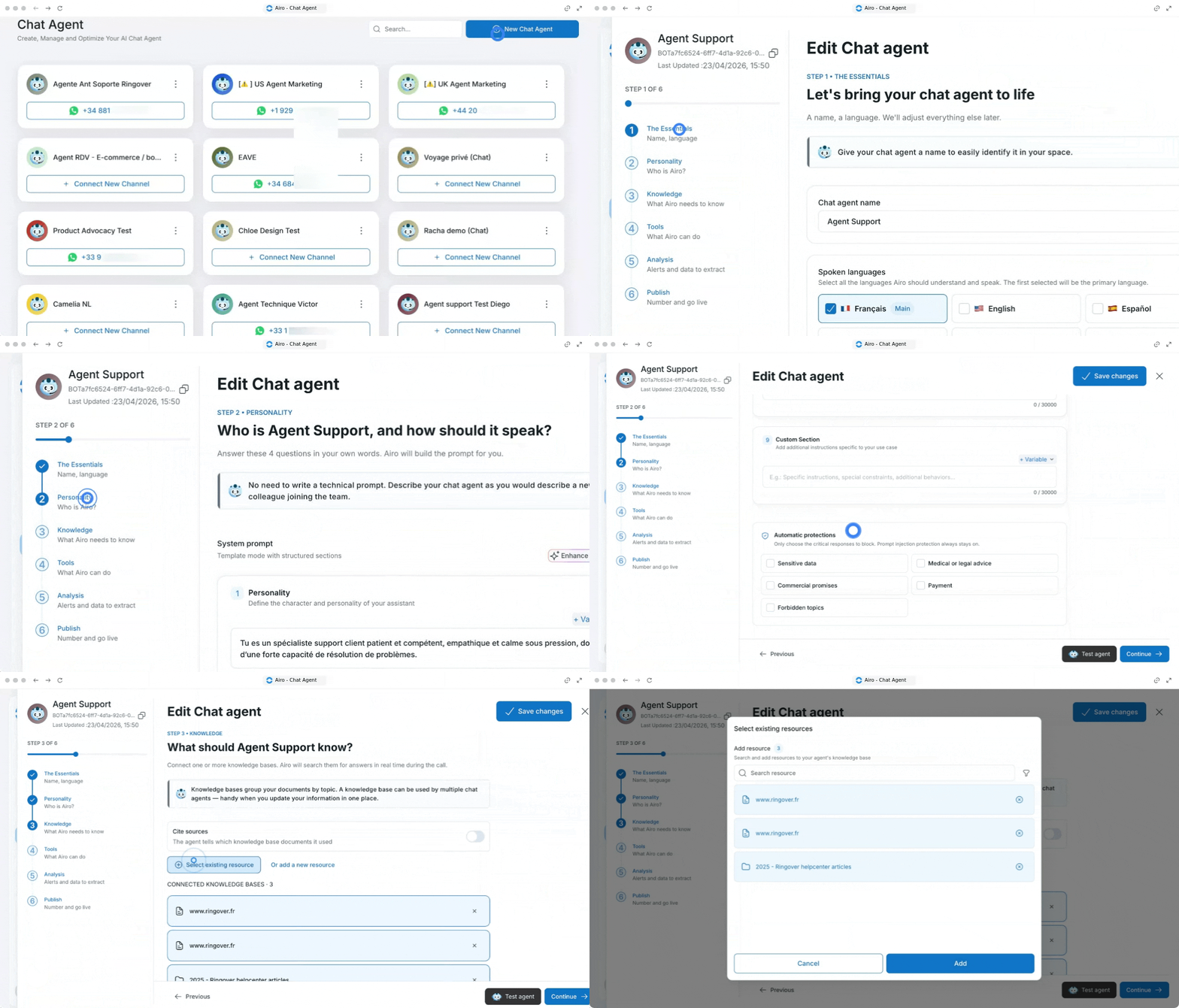
Set up and customize every aspect of your chat agent step by step, from core settings and system prompts to knowledge bases, tools, analysis, and publishing.
Step 1: The Essentials
Define the foundational settings for your chat agent.
- Enter a Chat name
- Select the Spoken languages
- Choose the LLM
- Select the agent's Mood
- Set the Response length
Step 2: Personality
Configure how your agent behaves, communicates, and stays protected using System prompt (Template mode with structured sections).
- Fill in the structured system prompt sections:
- Personality: Define the character and personality of your assistant
- Environment: Describe the context and work environment
- Objective: Specify the main objectives of the assistant
- Tone and Communication: Define the communication style and tone to adopt
- Mandatory Questions: List the questions the assistant must ask clients
- Rules to Follow: List important rules and limitations
- Guardrails: Non-negotiable restrictions the agent must follow in every situation
- Available Tools: List the tools, APIs, or resources the agent can use
-
Custom Section: Add additional instructions specific to your use case
- Configure Automatic protections by choosing only the critical responses to block.
Step 3: Knowledge
Provide your agent with real-time access to your business documentation.
- Connect one or more knowledge bases (Airo will search them for answers in real time during the call).
- Optionally, activate Cite sources so the agent states which knowledge base documents it used.
Step 4: Tools
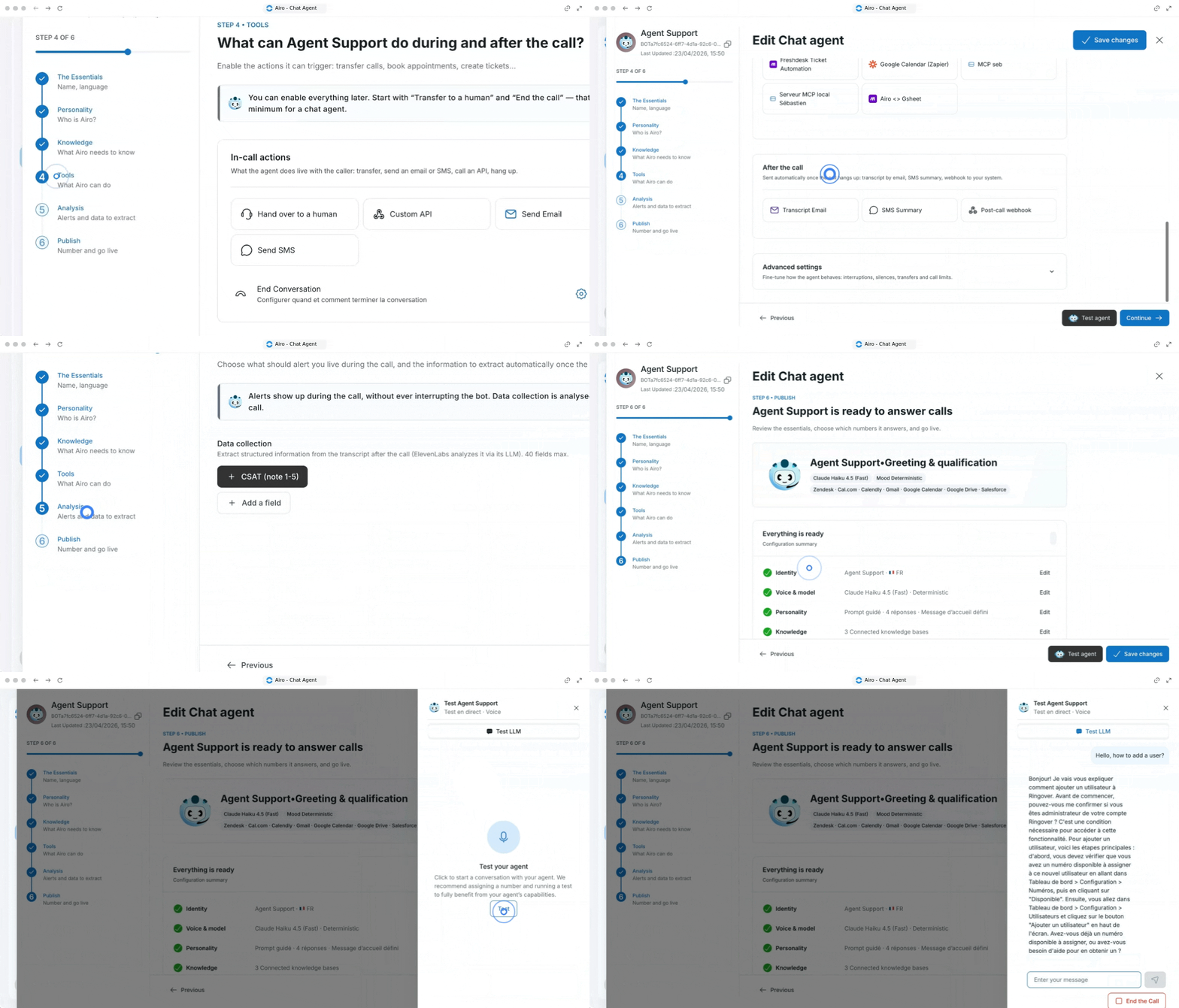
Define what your agent can execute live, across your external apps, and once conversations end.
- Configure In-call actions for what the agent does live with the caller:
- Transfer
- Send an email or SMS
- Call an API
- Hang up
- Connect Integrations for your external tools (CRM, ticketing, calendar, MCP, API) so the agent can read and update them before, during, and after the call.
- Set up After the call actions to be sent automatically once the call hangs up:
- Transcript by email
- SMS summary
- Webhook to your system
- Adjust conversation and call-handling parameters as needed:
- Max conversation duration
- Turn timeout
- Silence end call timeout
- Turn eagerness
- Keywords
Step 5: Analysis
Determine live alerts and automated post-call data extraction.
- Choose what should alert you live during the call and what information to extract automatically once the call is over
- Configure Data collection to extract structured information from the transcript after the call (ElevenLabs analyzes it via its LLM — 40 fields max)
Step 6: Publish
Verify your setup and deploy your chat agent.
- Review the essentials in the Everything is ready: Configuration summary view.
- Choose which numbers the agent answers.
- Click to go live.
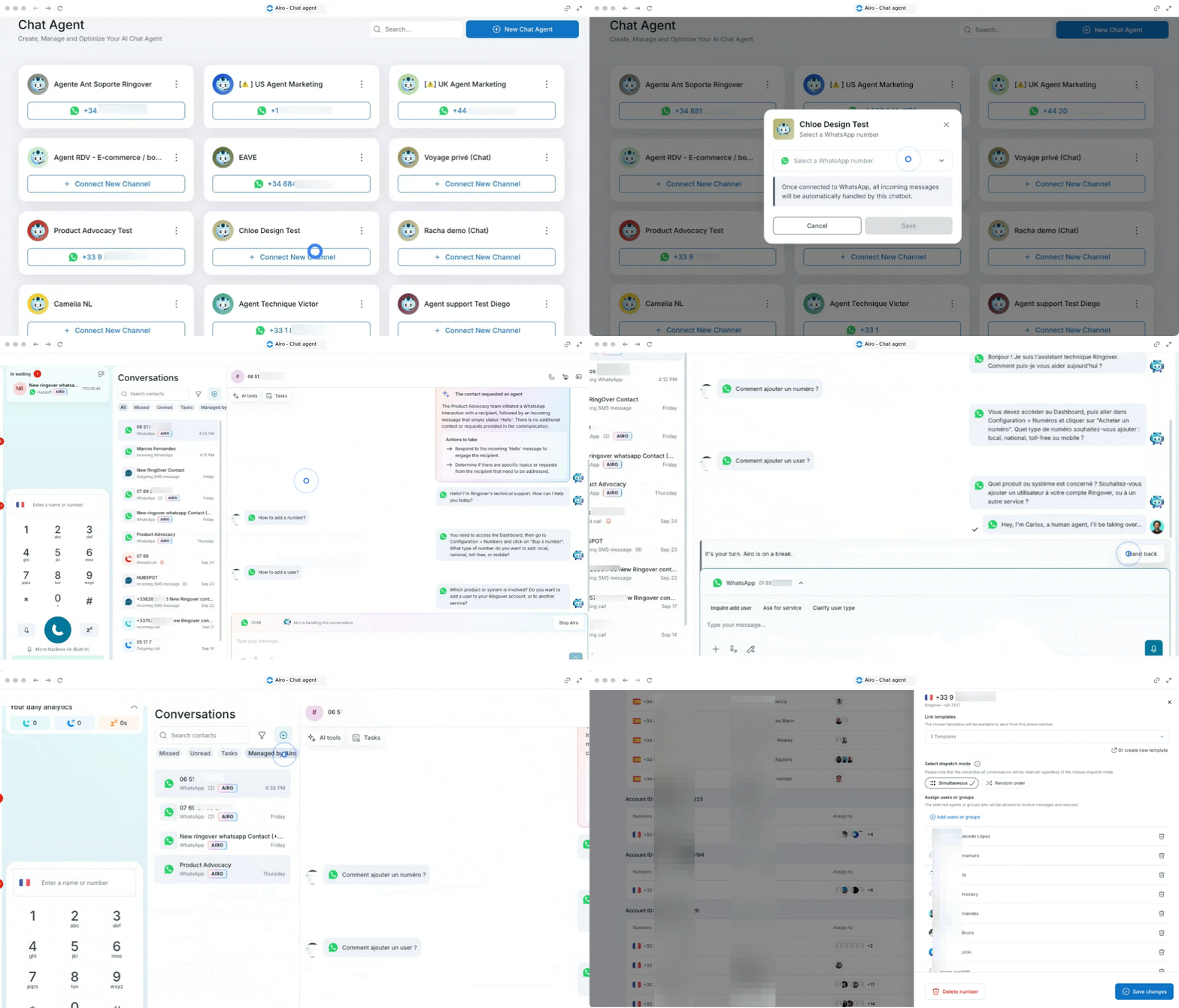
2. Connect your WhatsApp channel
Assign your configured chatbot to handle incoming customer messages on your WhatsApp Business number.
- Go to Channel Settings.
- Select your WhatsApp Business Number.
- Click on Save.
Monitor conversations and manage human handovers
Supervise live AI exchanges from your Conversations tab and seamlessly take over or hand back chats at any time.
- Open the Conversations tab in your Ringover WebApp to view real-time exchanges handled by Airo.
- Use the conversation filter to isolate chats currently managed by Airo (all agents assigned to the WhatsApp number can monitor these threads).
- Click Stop Airo at any moment to take over the conversation manually as a human agent, or reactivate Airo to hand the conversation back.
- Configure user permissions and choose between simultaneous or random message dispatching in your WhatsApp integration settings for human escalations.
Understand AIRO WhatsApp pricing, plans, and quotas
AIRO WhatsApp uses conversation-based billing with a quota shared directly with AIRO Voice across three plans: Starter, Business, and Max.
How conversation-based billing works
- 1 conversation = a 24-hour fixed calendar window: All incoming messages from the same customer between 00:00 and 23:59 (in your team's time zone) count as 1 conversation.
- Unlimited messages per window: A customer can send unlimited messages within that midnight-to-midnight window and it still counts as a single conversation (for example, messages at 15:00 and 22:00 count as 1 conversation, while a message at 00:10 starts a second conversation).
- Shared quota with AIRO Voice: Your WhatsApp conversation quota is shared with your AIRO voice calls.
🔗 Plans and pricing overview
Quota overages and Ringover credit
- Starter and Business: Once you exceed your daily quota (20 or 100 conversations/day, on either monthly or annual plans), AIRO continues responding as long as you have Ringover credit, deducting €0.39 per additional conversation.
- Max: Because there is no daily cap, the €0.39 per conversation overage rate only applies once you exceed your annual committed volume (deducted from Ringover credit).
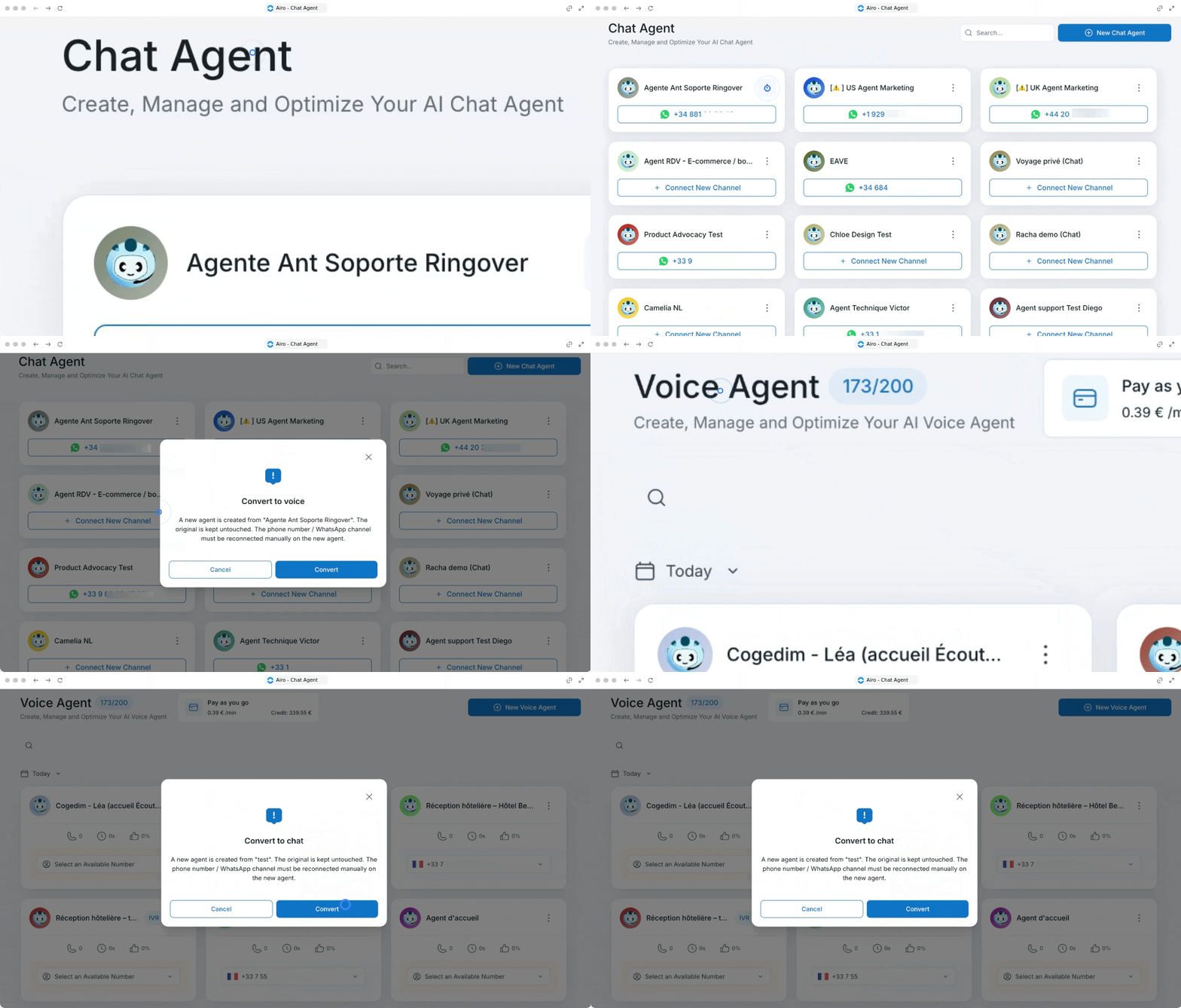
3. Convert agent types (Chat to Voice or Voice to Chat)
Switch your existing agent between text messaging and voice calls without rebuilding its underlying logic or knowledge base.
- Go to your Agents list (chat or voice).
- Click on the three dots next to your target agent.
- Select Convert to.
FAQ
How are WhatsApp AI conversations counted toward my AIRO quota?
All messages exchanged with a single customer between 00:00 and 23:59 (in your team's time zone) count as 1 conversation, regardless of how many messages are sent within that 24-hour window. Your WhatsApp conversation quota is shared with your AIRO Voice quota (20 conversations/day on Starter, 100 conversations/day on Business, or annual volume on Max).
What happens if we exceed our daily or annual AIRO conversation quota?
As long as your account has available Ringover credit, AIRO continues answering incoming WhatsApp messages automatically. Each conversation beyond your included plan quota is billed at €0.39 per conversation. Note that standard Meta/WhatsApp messaging fees also apply to outbound messages sent via AIRO WhatsApp.
🎉 You now know how to create and configure your WhatsApp AI agent and can seamlessly automate customer interactions around the clock!