
Ringover webhooks allow you to receive real-time automated notifications whenever an event occurs in your Ringover account. In this guide, you’ll learn how webhooks work, how to configure them in your dashboard, and how to adjust browser settings for CTI integration.
1. Configure webhooks in Ringover
Understand webhook events
Webhooks automatically send event notifications to your server or external tools like CRMs (Salesforce, HubSpot, Zoho), Zendesk, or Zapier.
Available events
Real-time triggers sent from your phone system. Enable these events to automate post-call actions, analytics, or instant alerts.
- Incoming calls: Receive notifications when a call arrives.
- Missed calls: Trigger automated workflows for immediate follow-up with potential clients.
- Voicemail messages: Send voicemail alerts or transcriptions to your CRM or email.
- Answered calls & Call duration: Log completed calls and sync duration data with analytics or BI tools.
2. Set up your webhook URL in Ringover
Connect your destination server to start receiving automated HTTP POST notifications.
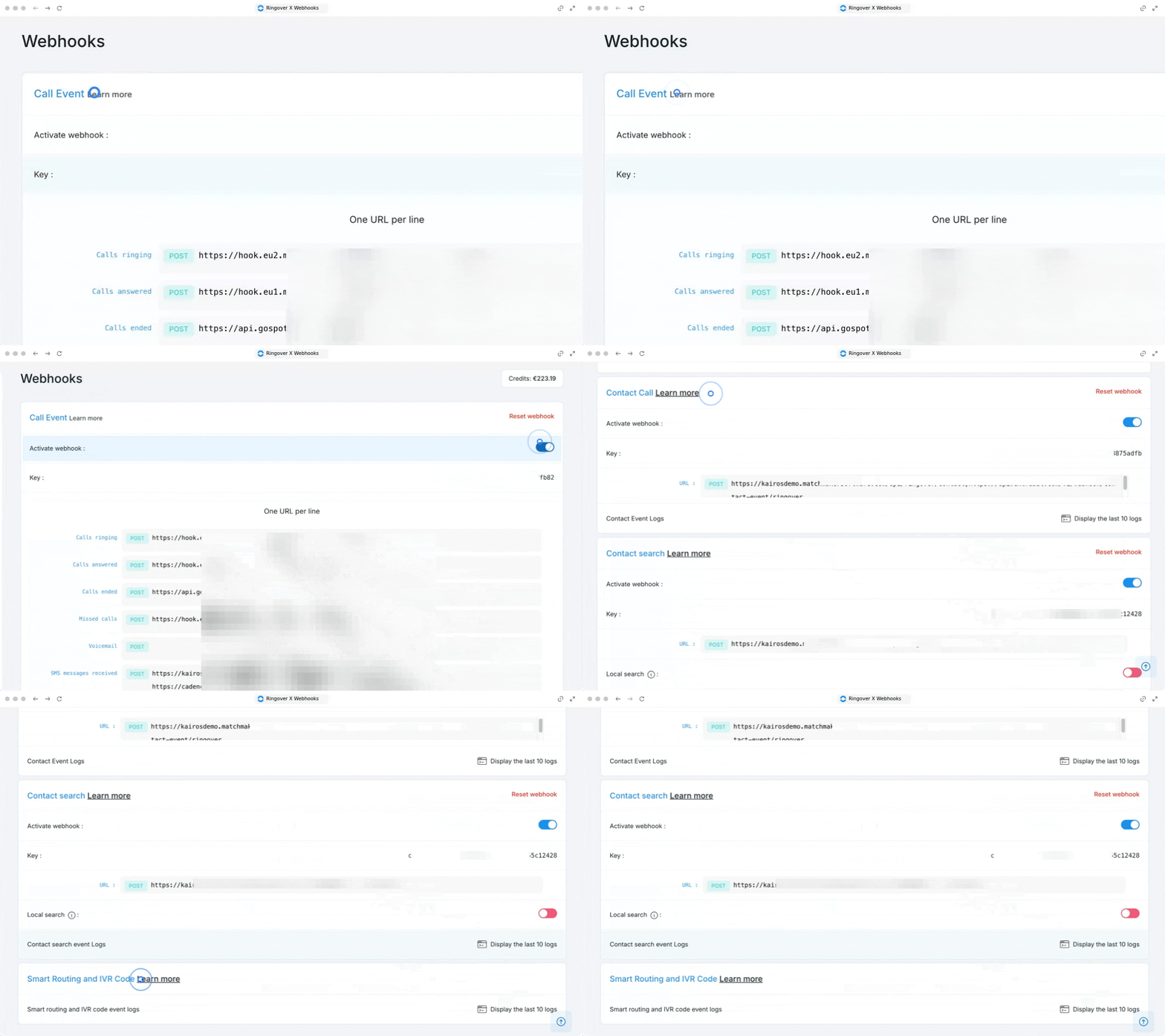
- Go to your Webhooks' page.
- Select and enable the events you want to monitor (e.g., Incoming calls, Missed calls, Voicemail messages).
- Enter your server or application Webhook URL.
- Click Save to activate the webhook.
Webhook payload structure
When an event is triggered, Ringover transmits a JSON payload structured like this:
 {
  "event": "incoming_call",
  "call_id": "12345abcde",
  "caller_number": "+34123456789",
  "receiver_number": "+34987654321",
  "timestamp": "2024-06-17T15:30:00Z"
}
3. Configure Safari privacy settings for CTI
If you use a CTI dialer or SDK in the Safari browser, adjust your privacy settings to ensure uninterrupted tracking.
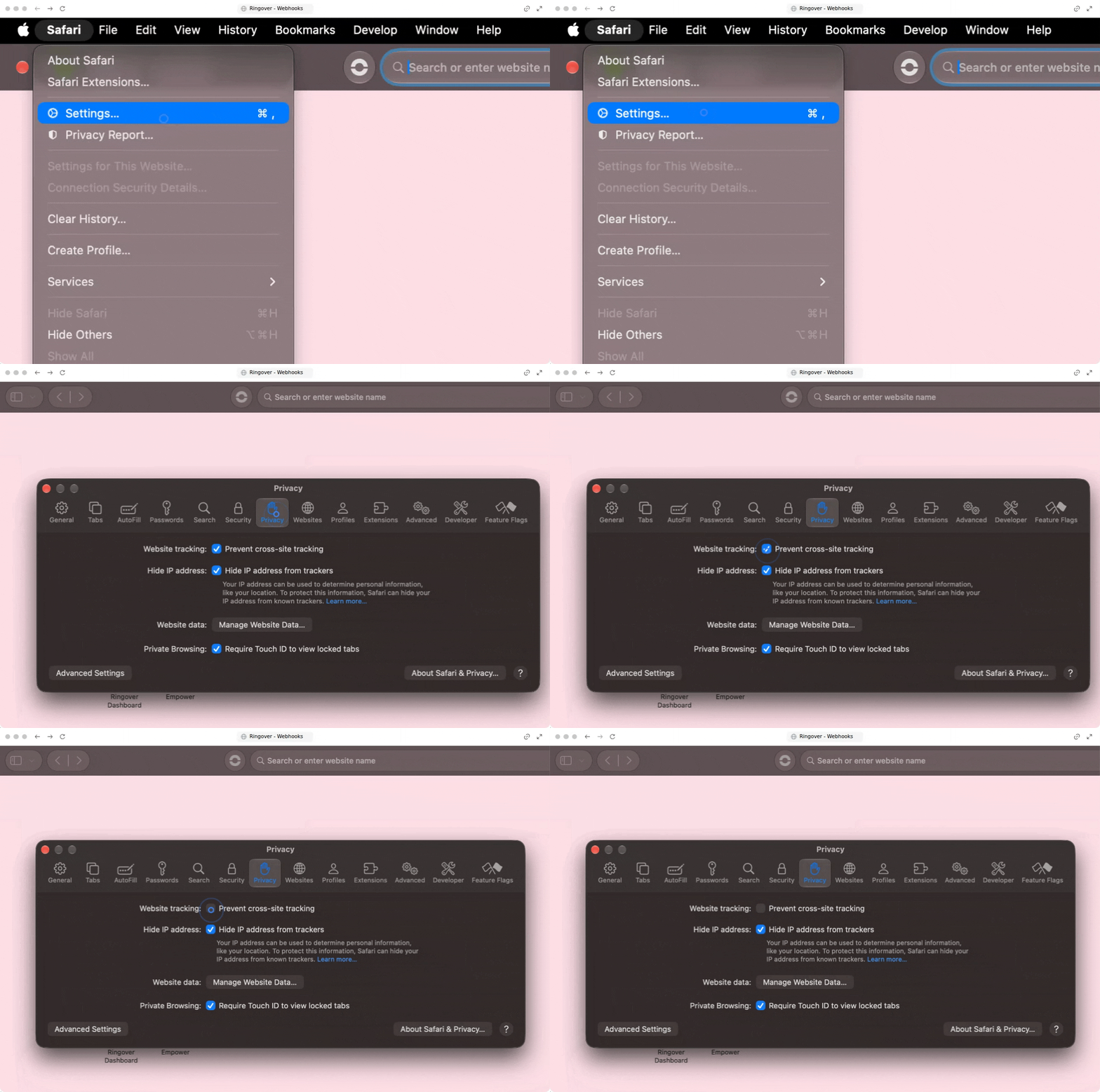
- Open Safari and click on Settings in the top-left corner of the screen.
- Select the Privacy tab.
- Uncheck the option Prevent cross-site tracking.
Troubleshoot webhook delivery, retries, and security
If your server stops receiving real-time events or logs duplicate records, follow these steps to validate your endpoint and security setup.
1. Verify active events and HTTPS endpoint requirements
- Go to your Ringover Dashboard > Developer > Webhooks (see 🔗 Ringover Webhooks).
- Confirm that the specific events your workflow needs (such as Call ringing, Call answered, Call hung up, Missed call, Voicemail, SMS received, or After-call work) are toggled ON.
- Verify that your destination URL uses valid HTTPS with a trusted SSL/TLS certificate (plain HTTP and self-signed certificates are rejected).
2. Prevent timeouts and duplicate events during retries
- Configure your endpoint to return an HTTP
200 OKstatus immediately upon receiving a webhook payload. - Offload heavy tasks (such as CRM database writes or secondary API calls) to an asynchronous background queue so your endpoint never exceeds Ringover's response timeout.
- Deduplicate incoming payloads using the unique
call_idorevent_idfield so automatic delivery retries never create duplicate records in your database.
3. Secure your listener with signature verification
- Copy your webhook Signing Secret from Dashboard > Developer > Webhooks.
- Verify the cryptographic signature header against the raw JSON request body before processing any event (refer to the 🔗 Ringover Developer Portal for payload schemas and header details).
- Reject any request with a missing or invalid signature with HTTP
401 Unauthorized.
call_id of failed events so you can cross-reference them directly in Dashboard > Logs.🎉 You now know how to configure webhooks in Ringover and can seamlessly automate your call workflows!