
Sending and receiving SMS messages in Ringover allows you to communicate quickly with customers and prospects directly from your WebApp. In this guide, you’ll learn how to assign an SMS-capable mobile number, send, translate, and schedule two-way or one-way text messages, share supported media attachments, and organise your incoming SMS inbox.
Prerequisites
Before sending text messages, ensure your account and number settings are correctly configured:
- An active Ringover Business plan (SMS functionality is not available for temporary test accounts).
- An active mobile number assigned to your user profile (see 🔗 How to add a number and 🔗 How to assign numbers to a team member).
Send, schedule, and receive SMS messages in Ringover
1. Send and schedule an SMS message
Compose two-way text messages from your assigned mobile number, translate content, or schedule delivery for a future time.
Operators generally reject SMS messages that exceed approximately 1,500–1,600 characters, which means the message may not be delivered. If your message is longer than this, we recommend using another communication channel.
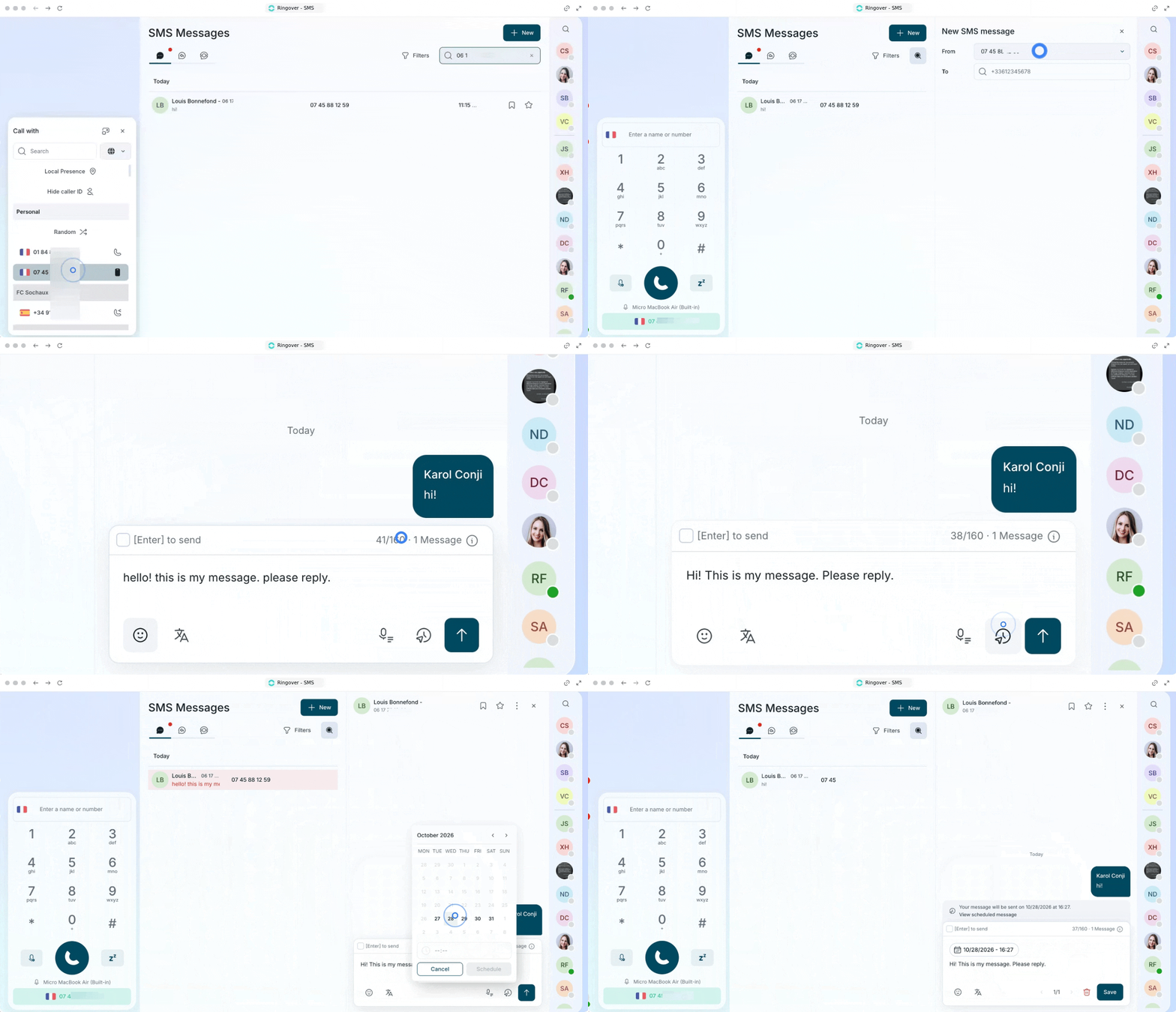
- Open your Ringover WebApp and go to the SMS section in the left menu.
- Select your sender mobile number and enter the recipient's phone number.
- Type your message in the text box and monitor the character counter (counting down from 160 characters per SMS fragment).
- Click the Translate button if you want to translate your message before sending.
- Click Send immediately, or click Send later to schedule your message for a future date and time.
- Click View scheduled message at any time to review, edit the text, or cancel pending scheduled messages.
Supported file specifications (3.5 MB max per file)
- Supported Images: JPEG, JPG, PNG, GIF, WEBP, SVG, HEIC.
- Supported Audio: MP3, MPEG, WAV.
- Supported Video: MP4, MPEG, OGG, MOV, WEBM, WMV, AVI, FLV.
-
Unsupported Types: Documents (Excel
.xls/.xlsx, Word.doc/.docx, PowerPoint, PDF, CSV, TXT), Archives (ZIP, RAR, 7z), Audio (AAC, M4A, FLAC, audio OGG), and Images (BMP, TIFF).
2. Receive and manage incoming SMS messages
Track incoming customer responses and organise your SMS threads to stay productive.
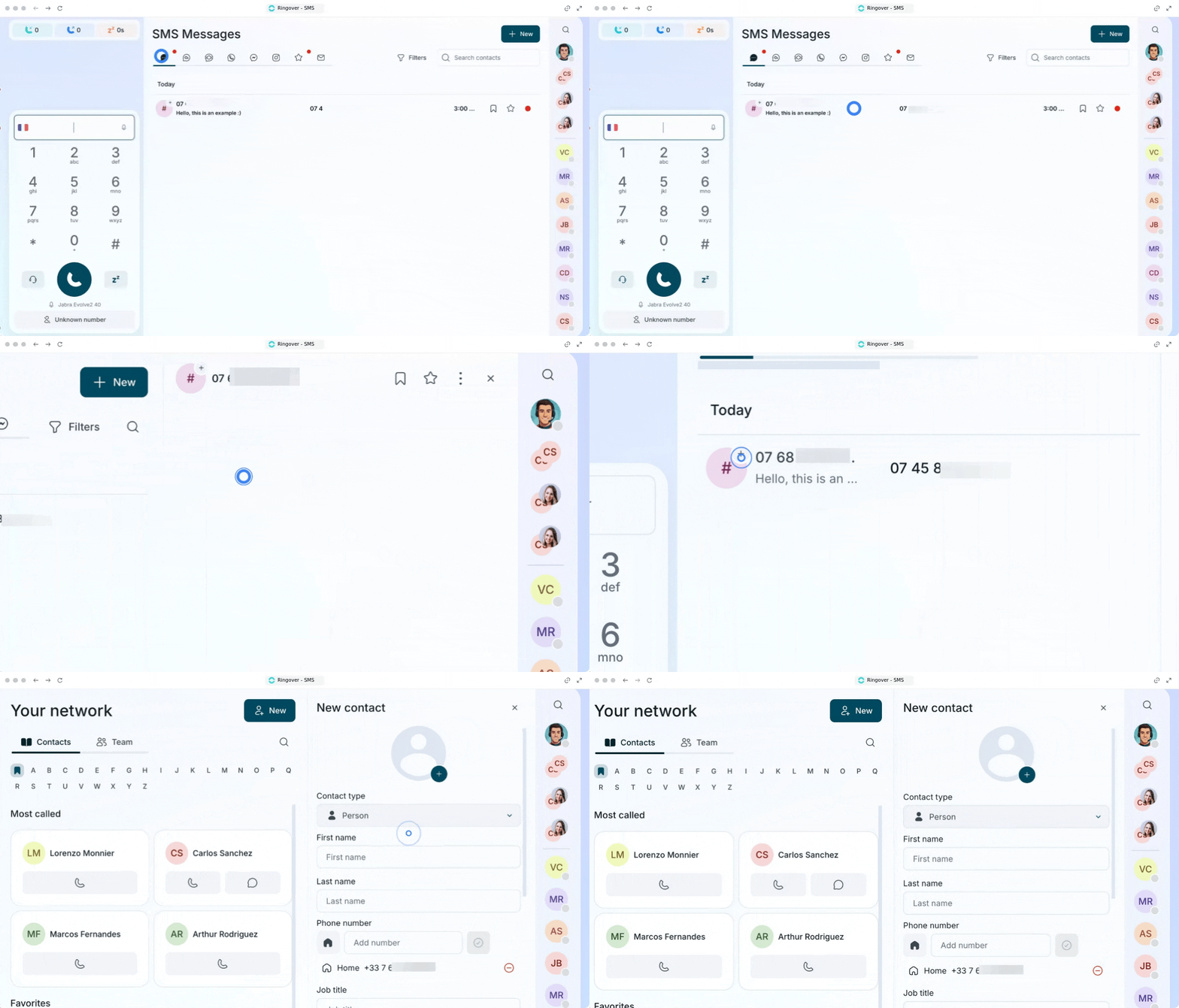
- Watch for a small red badge appearing on the SMS icon in the left menu, displaying your unread count.
- Click on the SMS icon to view your message threads.
- Click on a specific thread to read the full message and type your reply.
- Click the + icon next to an unknown sender's profile image to create a new contact in your address book or attach the number to an existing contact.
3. Send one-way branded SMS
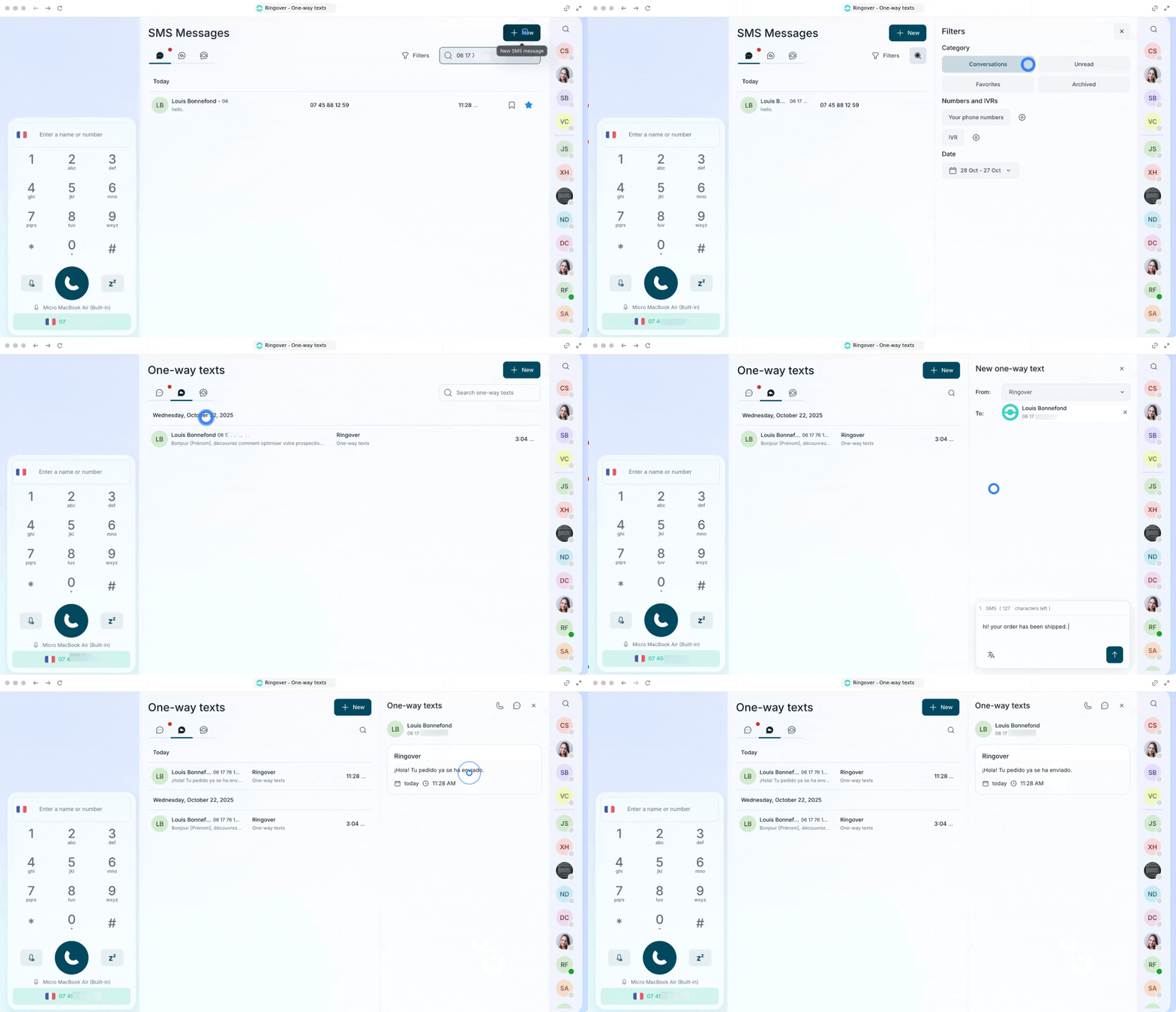
Broadcast informational notifications under your company's brand name or share supported media files inside your messages.
One-way branded SMS
Outbound text notifications sent using your company’s registered brand name instead of a phone number.
Use this mode when sending important service or product announcements where recipients do not need to reply (one-way informational alert rather than a two-way chat).
Ask your Ringover administrator to request the creation of your brand name first.
4. Send internal chats
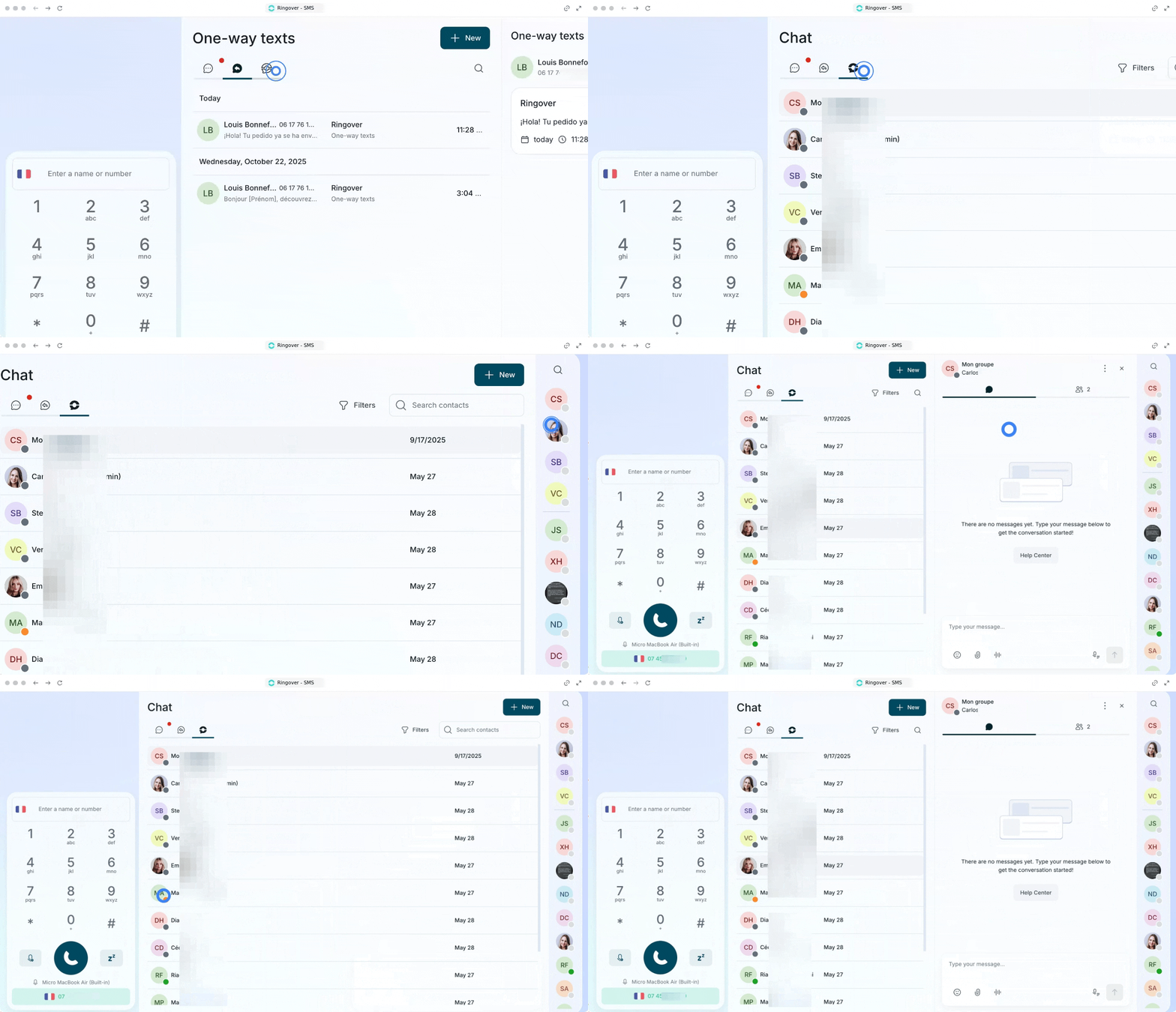
Ringover also includes an internal messaging system that you can use to communicate with your teammates.
Use the vertical bar on the left to start a new conversation.
Select a user from the chat list to view the chat history.
FAQ
Can recipients reply to a one-way branded SMS?
No. One-way SMS messages are sent from an alphanumeric company brand name rather than a reply-capable mobile phone number, so recipients cannot reply directly to the message.
Why am I unable to send SMS messages from my Ringover account?
Verify that your company has an active Business or Advanced plan (SMS is disabled on trial accounts) and that your administrator has assigned an active, SMS-enabled mobile number to your user profile.
🎉 You now know how to send, schedule, and receive SMS messages in Ringover and can keep your customer communication active, timely, and organised!