
The Ringover Application Channel lets you send and receive SMS messages directly in Front using a personal or shared Ringover mobile number. This guide explains how to configure both types of channel and use them in Front.
- Send SMS messages directly via Front
- Use a personal SMS channel
- Use a shared SMS channel with your team
- Have a log of all SMS conversations in your client files
Prerequisites
Before configuring your SMS channels, make sure that:
- You have a Ringover Business account.
- A Ringover administrator has activated your Front integration. If needed, follow the initial connection steps.
- You have a Ringover mobile phone number. Go to Dashboard > Numbers to manage your numbers.
How to configure and use Ringover SMS channels in Front
Part 1. Configure the team SMS channel
A team SMS channel lets your users send and receive SMS messages through a shared Ringover mobile number. Create an IVR and assign the number to it before connecting the channel in Front.
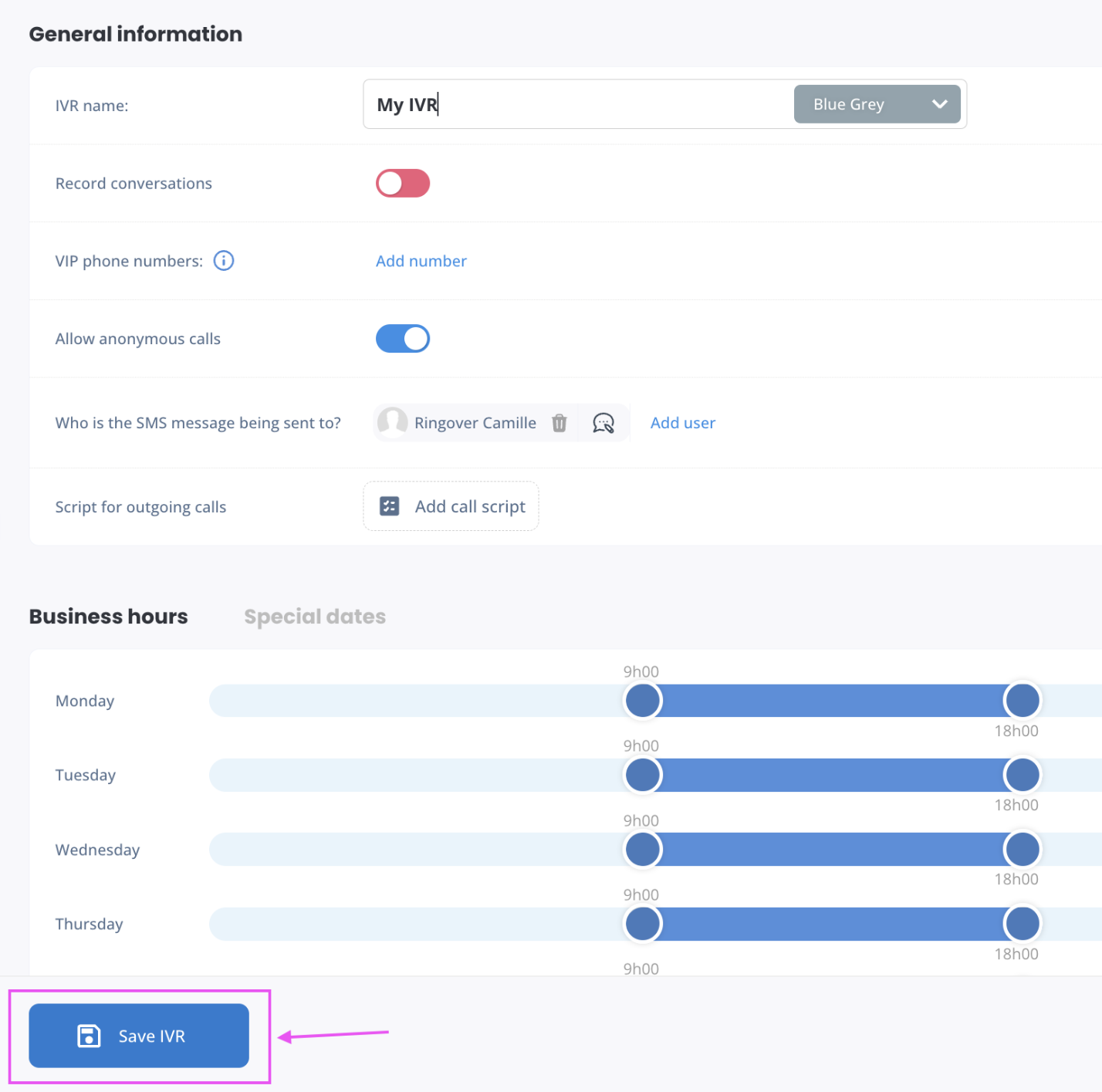
1. Create an IVR in Ringover
- Go to Dashboard > IVR.
- Click Create IVR.

- Enter a name for your IVR.
- Click Save.
2. Assign your mobile number to the IVR
- Go to the Numbers page.
- Open the menu for your mobile number.
- Click Assign to IVR.

Important: The mobile number must be available: it cannot already be allocated to a user.
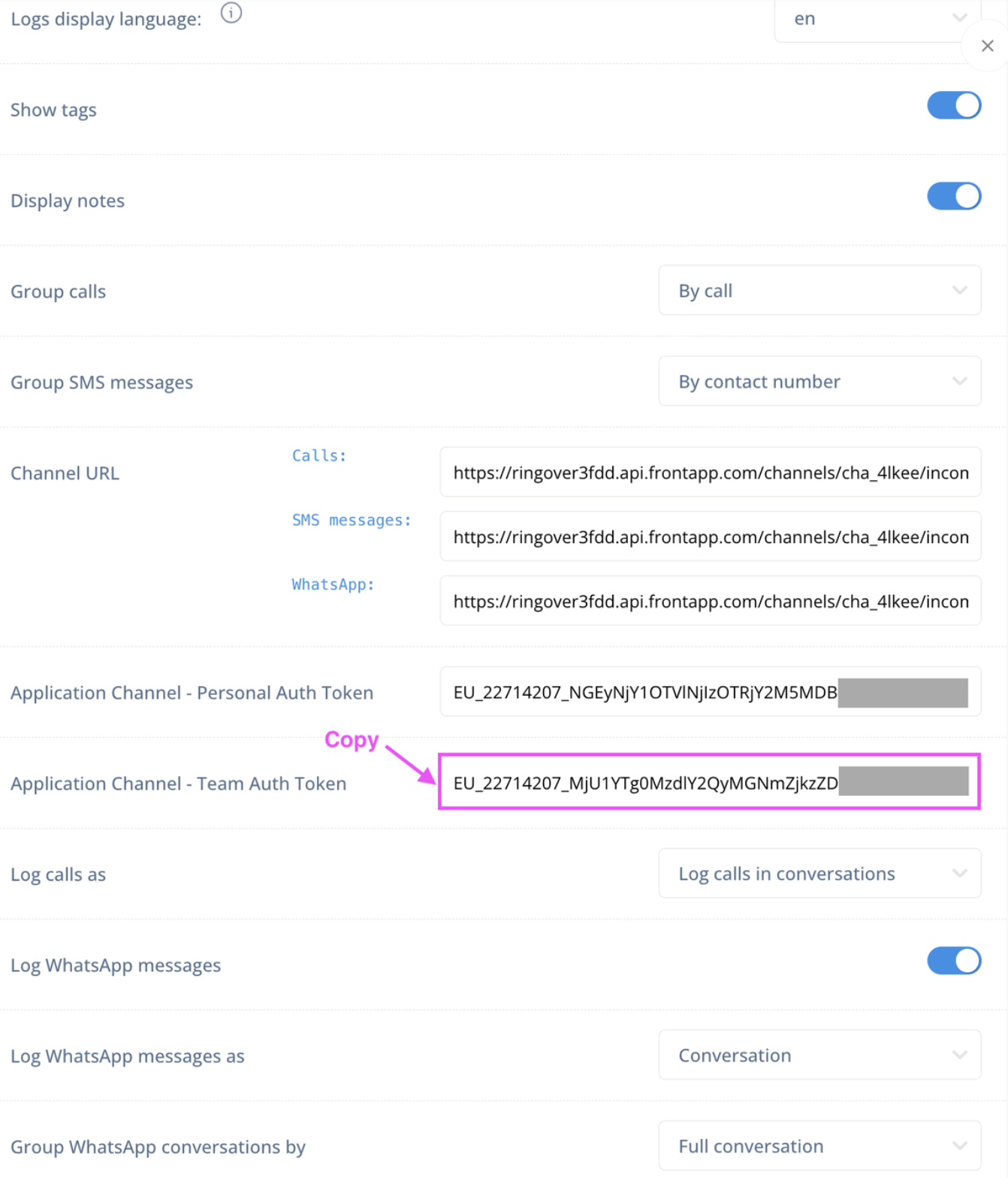
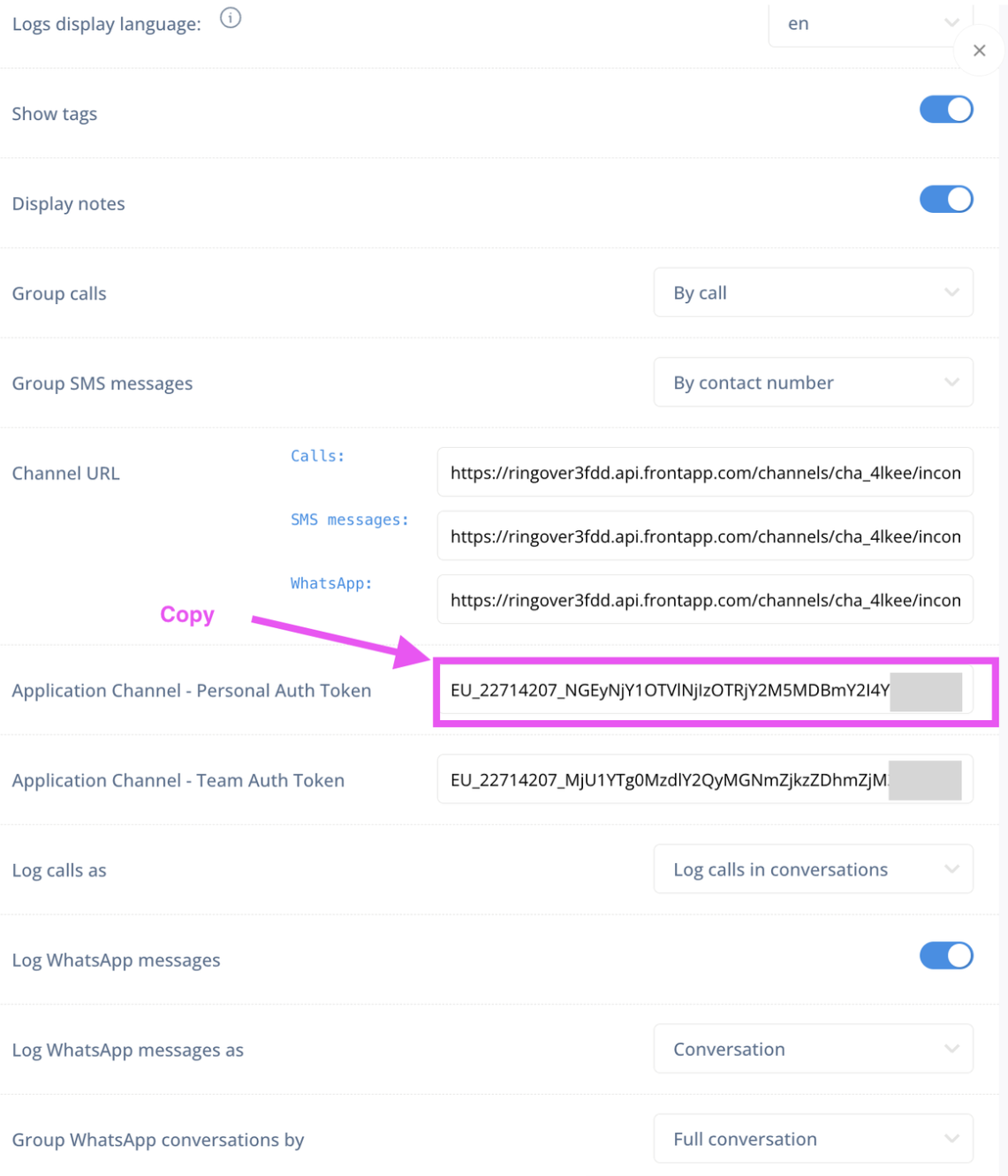
3. Copy your team authentication token
- Go to Dashboard > Integrations.
- Find Front.

- Click Configure.
- Scroll down to Application channel auth token.
- Copy the token.
4. Connect your team SMS channel in Front
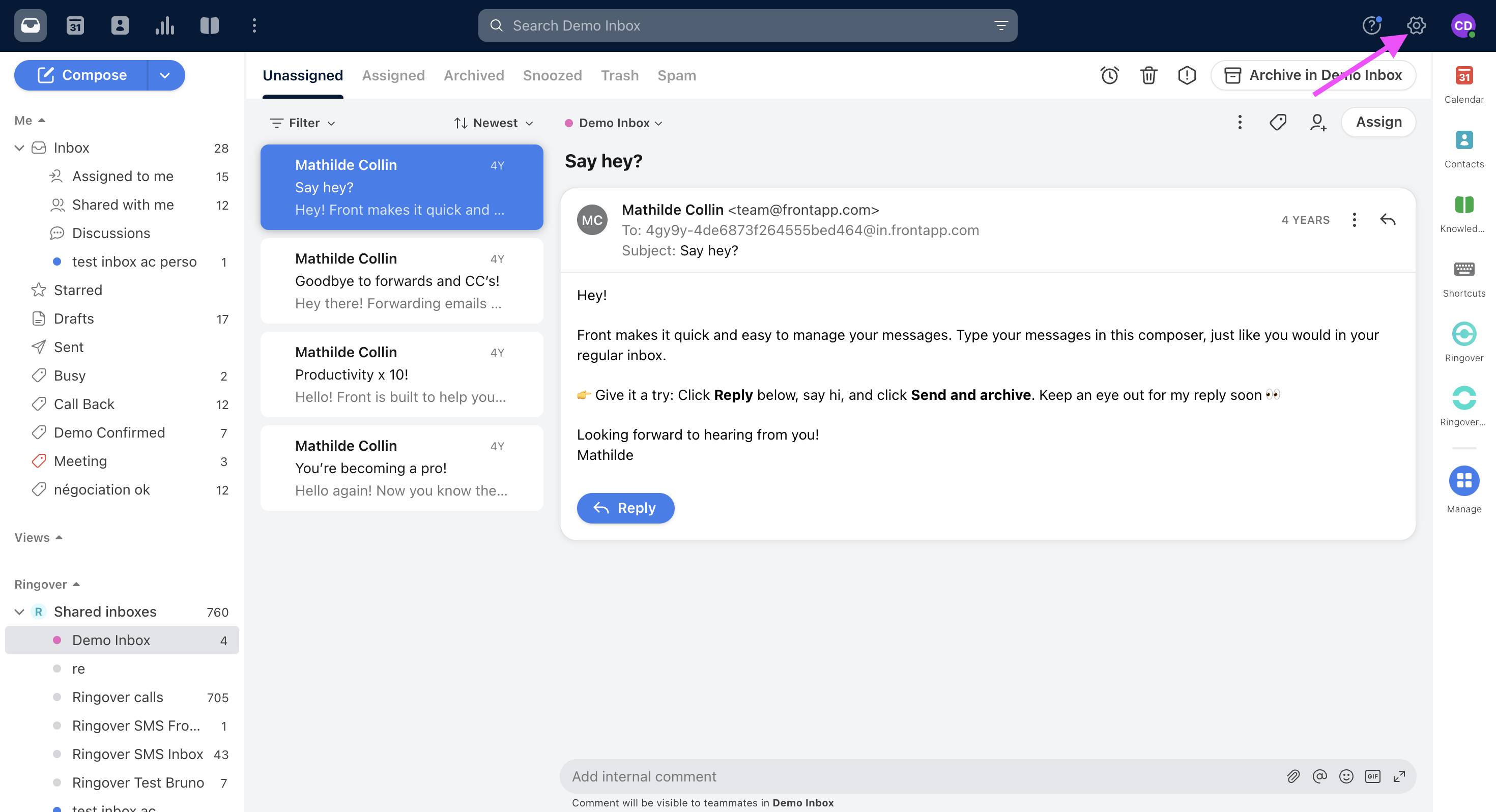
- Open Settings in Front using the gear icon.
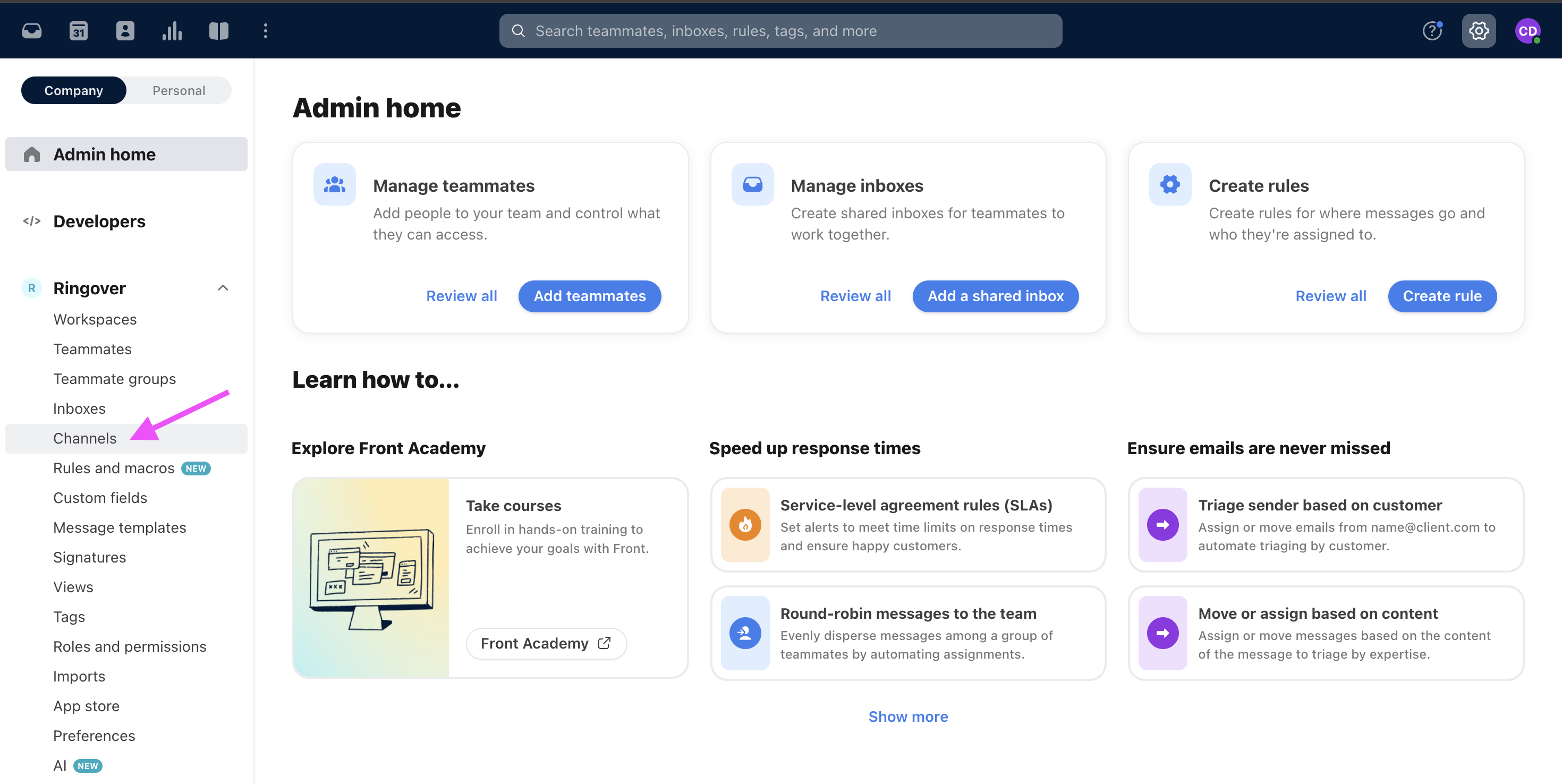
- Go to Channels.
- Click Connect a Channel.
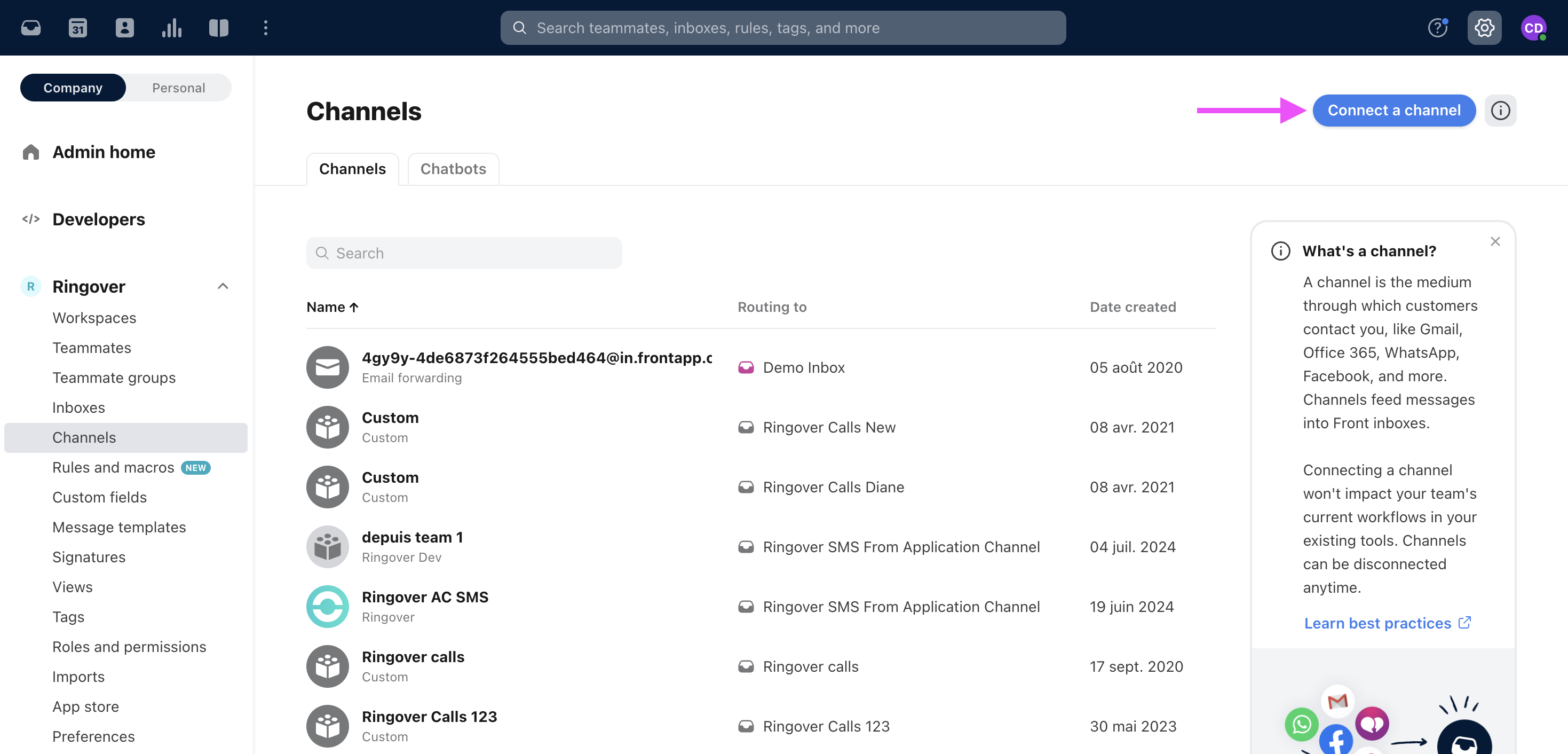
- Select Ringover in the SMS and Telephony section.
- Click Connect.
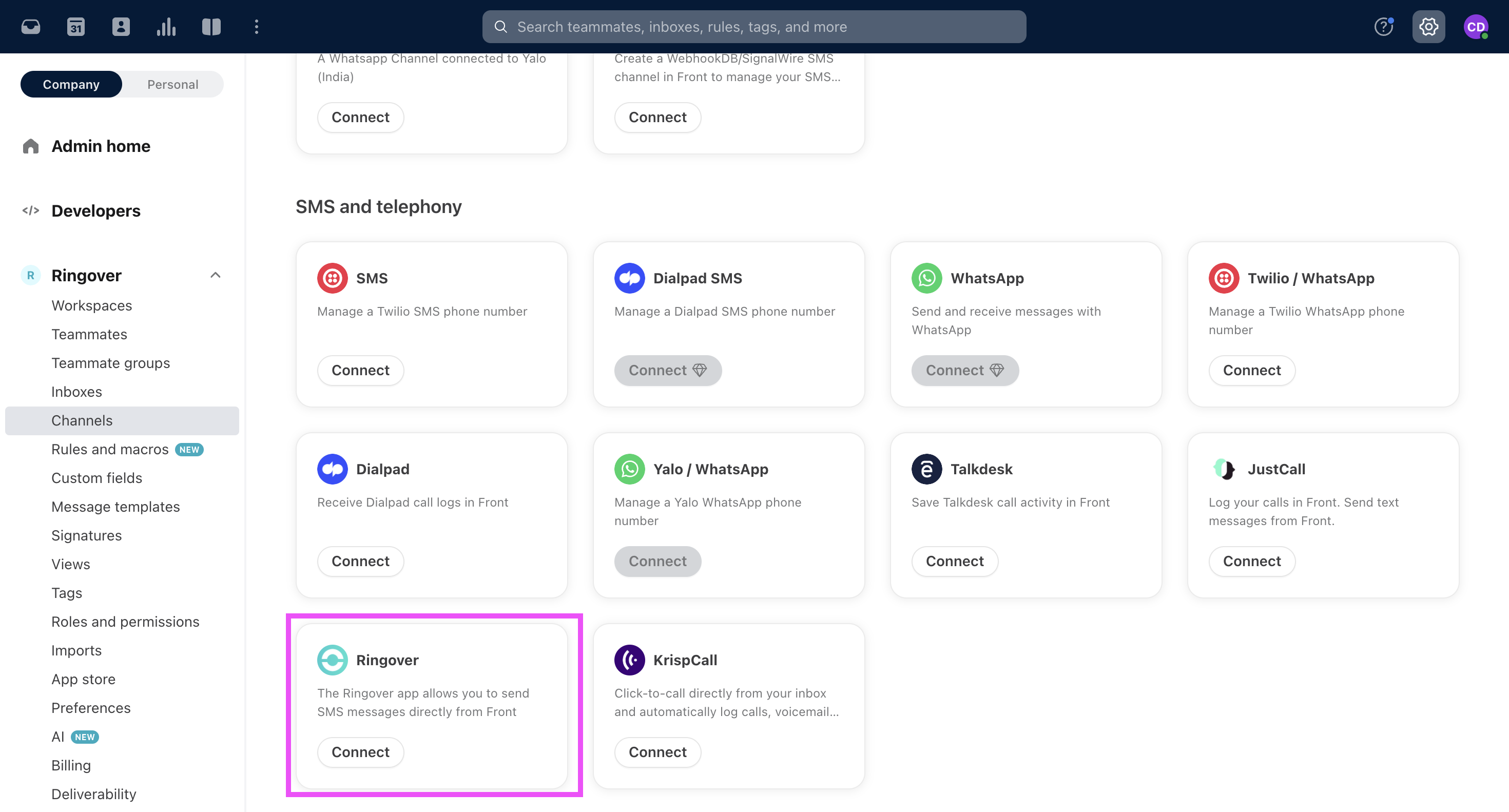
- Enter a name for your channel, such as Ringover Team SMS.
- Paste the team authentication token you copied from Ringover.
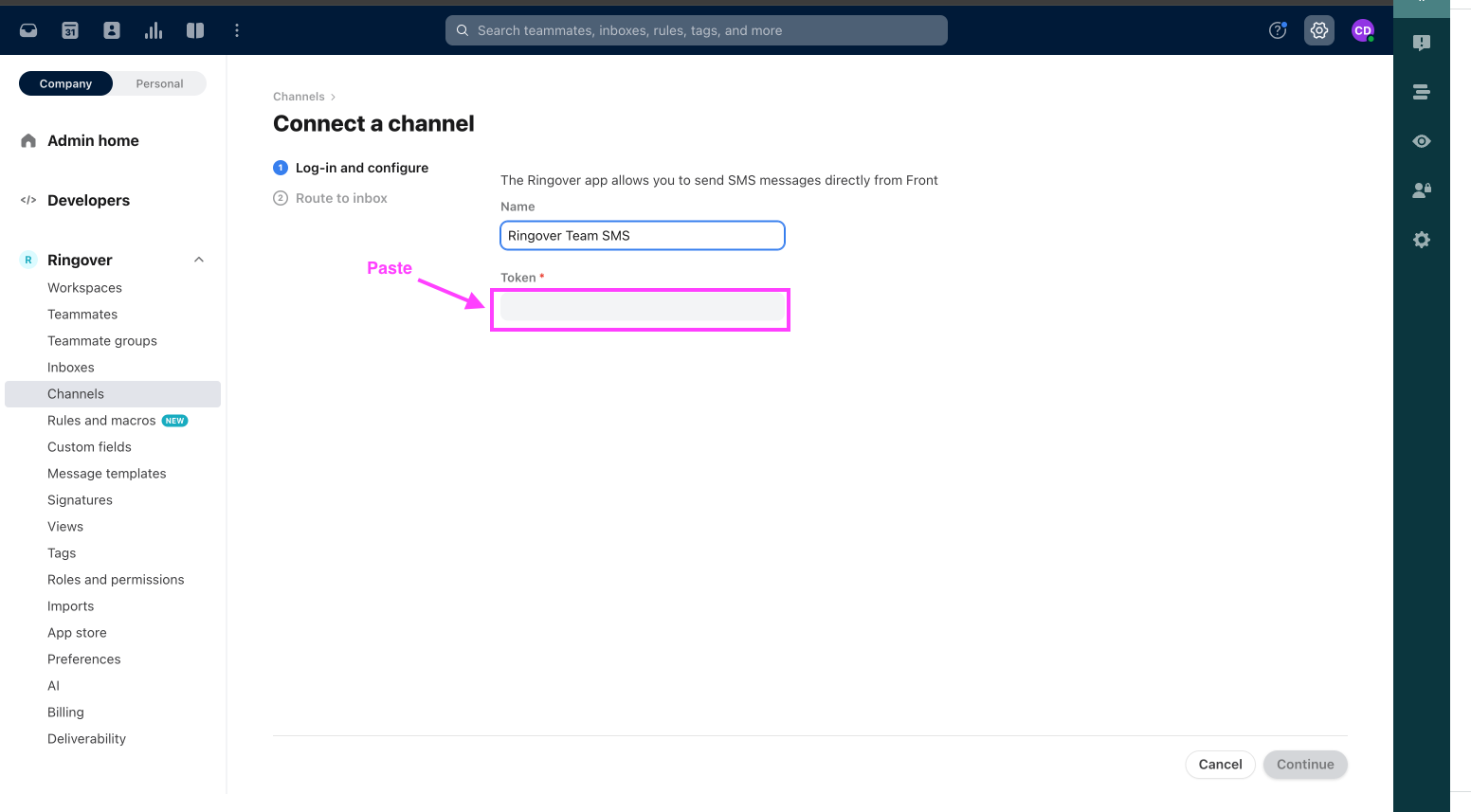
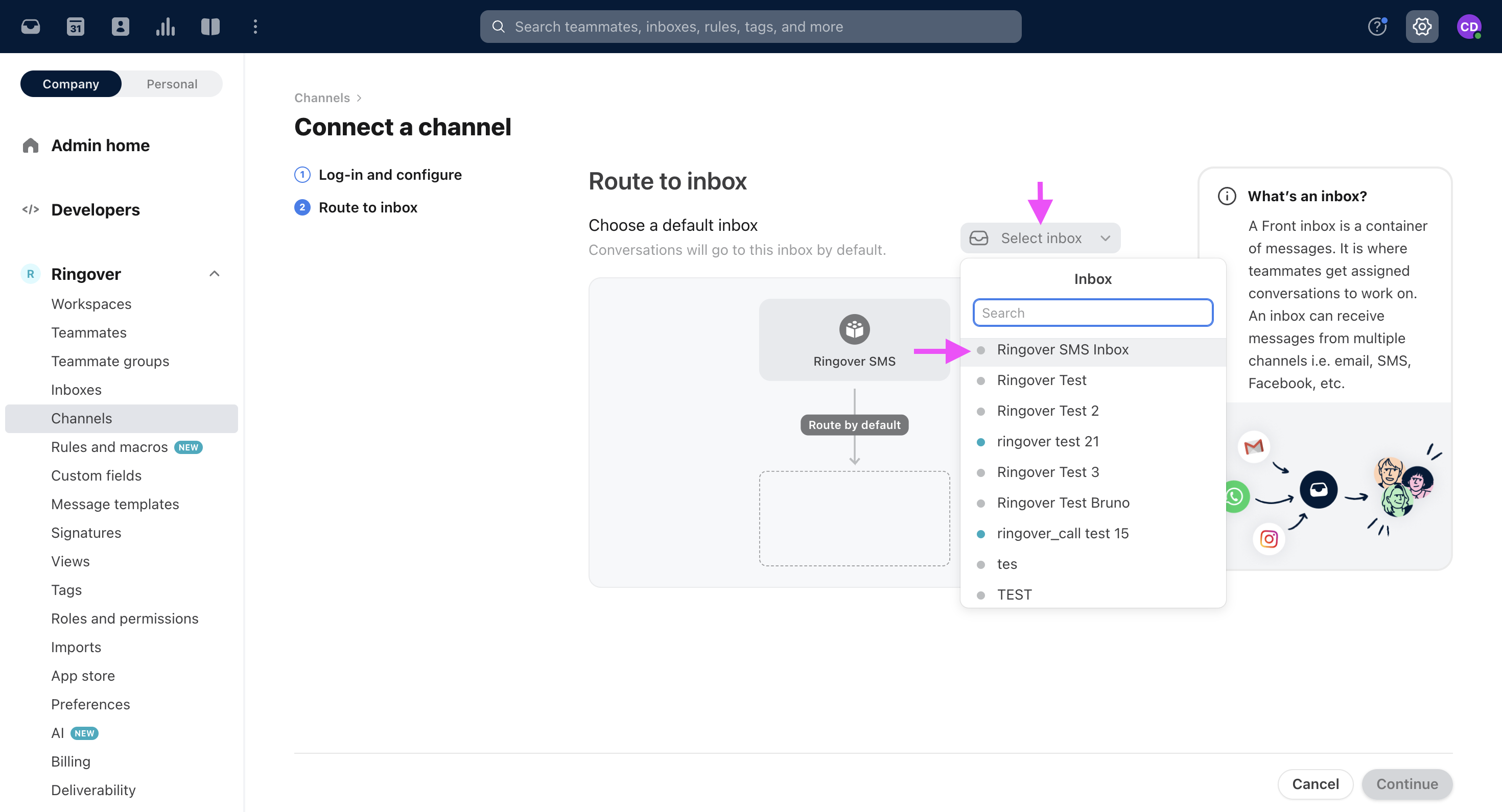
- Click Continue.
- Select the inbox where you want to receive SMS messages, such as Ringover SMS Inbox.
- Click Continue.
Part 2. Configure the personal SMS channel
A personal SMS channel lets you send and receive SMS messages through your personal Ringover mobile number.
Repeat the Front channel connection steps in Part 1, step 4, using Application Channel : Personal Auth Token instead of the team authentication token.
Part 3. Compose SMS Messages and reply
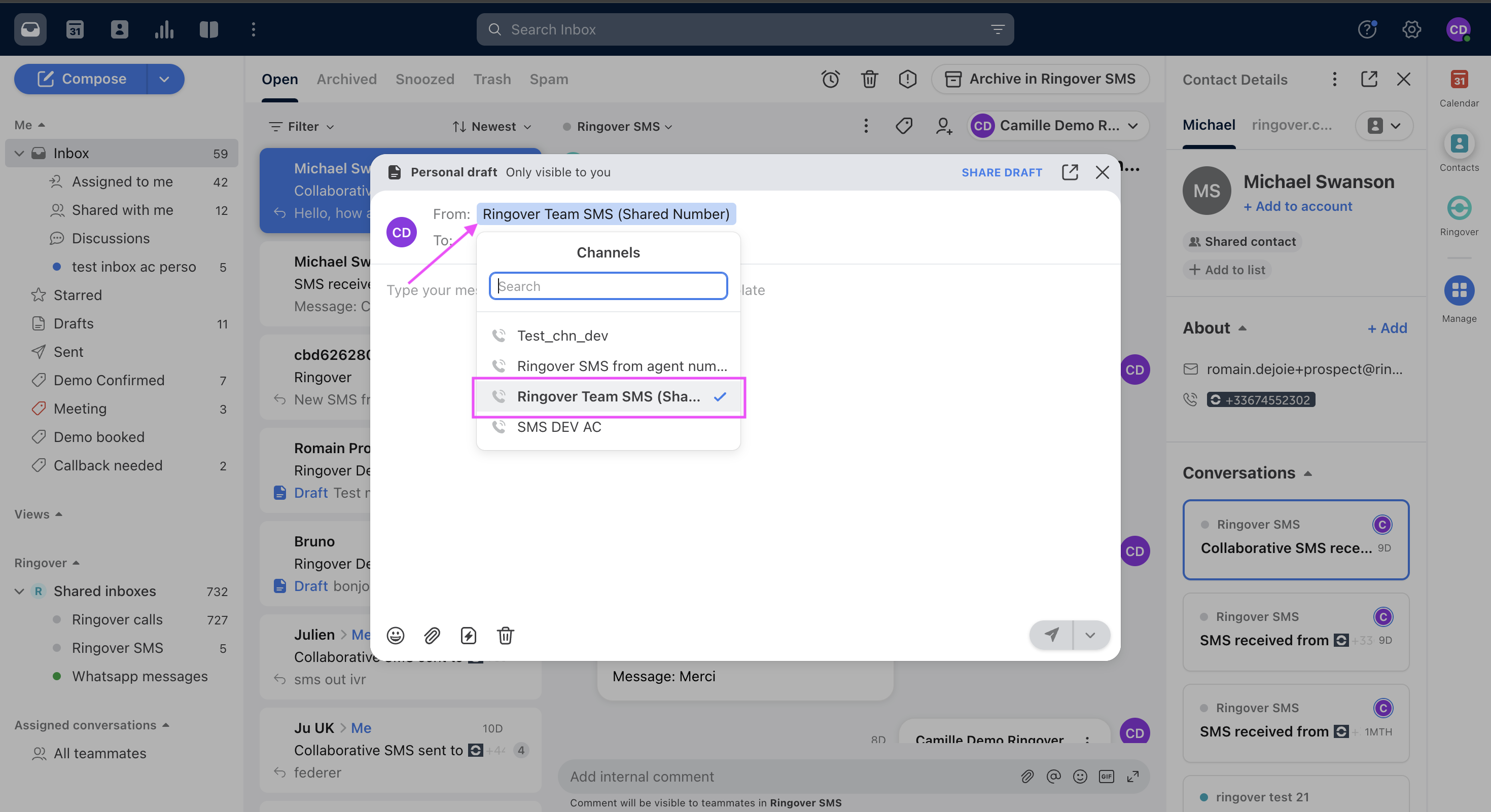
Compose a message
- Click Compose in Front.
- Click From.
- Select your personal or team Ringover SMS channel.
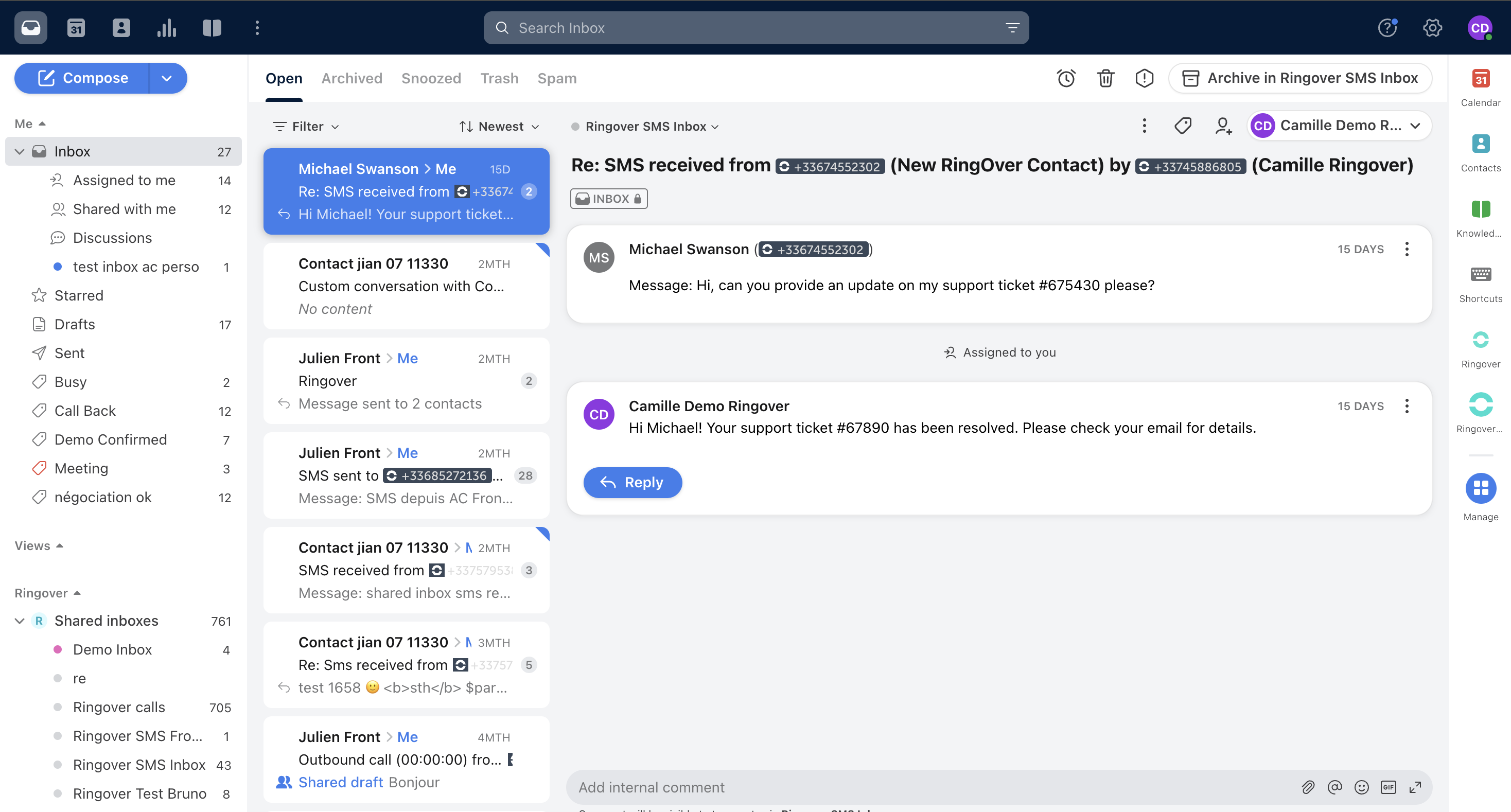
Reply to a message
- Reply within the Ringover SMS Inbox.
Team SMS messages appear as collaborative SMS in Ringover.
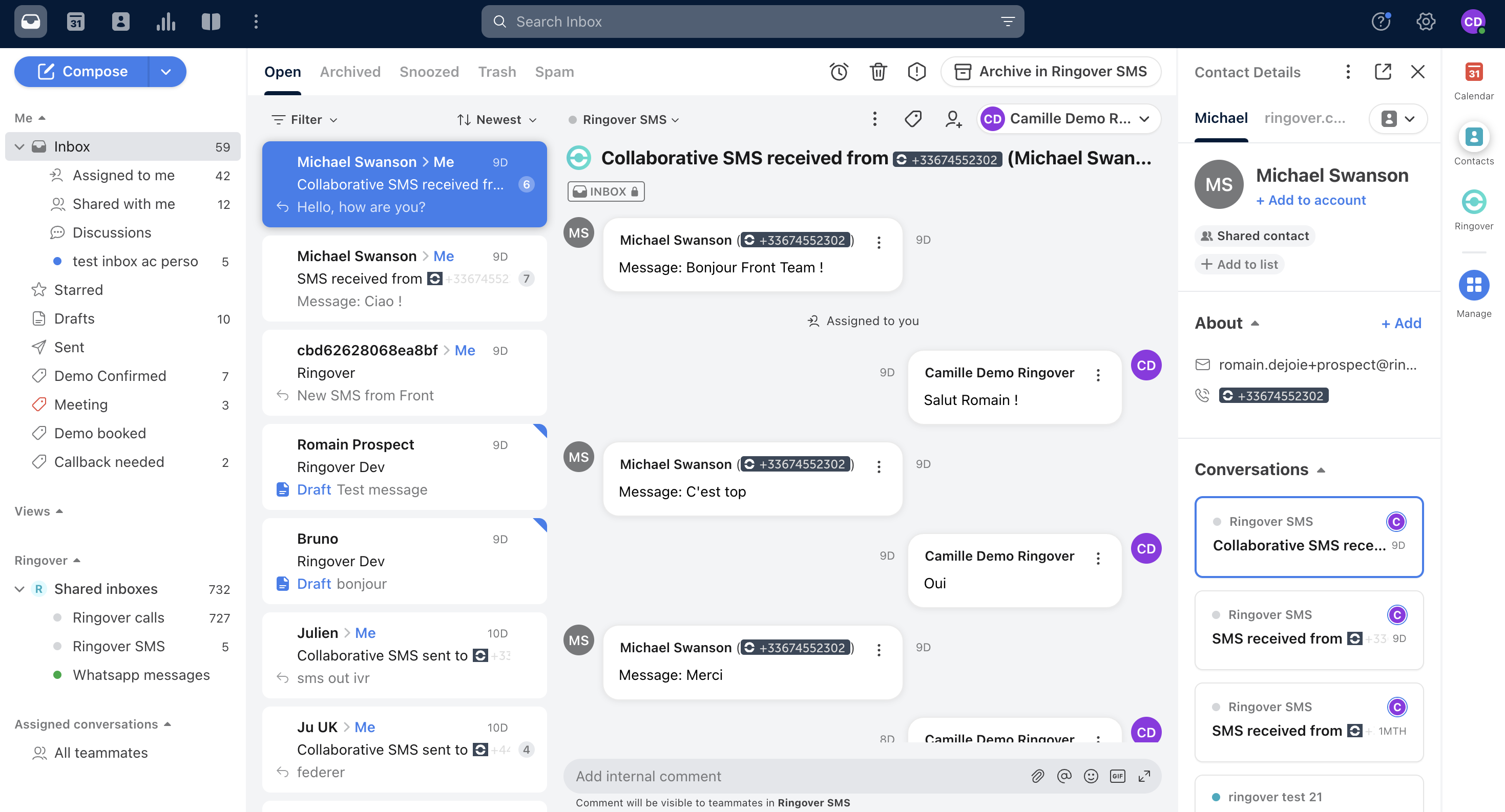
You can now use your connected Ringover SMS channels to manage personal and team SMS conversations directly in Front.