
Microsoft Multimedia Redirection (MMR) lets WebRTC calls and video playback in Azure Virtual Desktop (AVD) and Windows 365 be processed on your local device instead of inside your virtual desktop, reducing VDI load and optimizing infrastructure costs. In this guide, you’ll learn how MMR eliminates call latency for Ringover, what prerequisites are required, how to install the service and browser extension, and how to verify that direct Call Redirection is active.
1. Understand how Multimedia Redirection improves Ringover call quality
Without Multimedia Redirection, Ringover call audio travels through Microsoft's virtual desktop infrastructure before reaching Ringover, which can introduce slowdowns and latency. Enabling MMR activates Call Redirection, offloading WebRTC calls directly from your remote session to your local device.
- Direct local connection: When Call Redirection is active, the audio connection is established directly between your local device and Ringover, bypassing intermediate remote-session hops.
- Ringover supported by default: Ringover is already included on Microsoft's default list of supported websites for Call Redirection, so no custom domain allow-listing is required to get started.
- Better performance & lower costs: Offloading audio processing from the virtual desktop improves call clarity, lowers latency, and reduces CPU/bandwidth load on your VDI environment.
2. Install and enable the MMR service and browser extension
Install the service on your session host or Cloud PC
Note: MMR is already pre-installed on Microsoft gallery images for Windows 365. You only need to run this installation on Azure Virtual Desktop session hosts or custom Windows 365 images.
- Close all running instances of Microsoft Edge (
msedge.exe) and Google Chrome (chrome.exe) - Download the Microsoft Multimedia Redirection
.msiinstaller (aka.ms/avdmmr/msi) - Run the
.msisetup wizard as an administrator and click Finish (or deploy silently via Intune / `msiexec /i
Enable the browser extension
- Open Microsoft Edge or Google Chrome in your remote session.
- Accept the automatic prompt to enable the Microsoft Multimedia Redirection extension (the extension updates automatically once installed).
- (Optional for IT Admins) Deploy and pin the extension centrally via Microsoft Intune, Group Policy, or the Microsoft Edge management service.
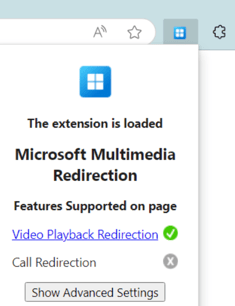
3. Verify that Call Redirection is active on Ringover
Check the browser extension icon to confirm whether your Ringover calls are being redirected directly to your local device or passing through the AVD intermediary.
- Open Ringover in Microsoft Edge or Google Chrome inside your remote session
- Click the Microsoft Multimedia Redirection extension icon in the top-right corner of your browser toolbar
- Check the icon state and Call Redirection status:
- Green check mark (Blue icon border — "The extension is loaded"): Call Redirection is active. Your Ringover calls are routed directly from your local device.
- No green check mark (Grey icon — "not loaded"): Redirection is not active. Your audio is still passing through the AVD / remote session intermediary, which may cause latency.
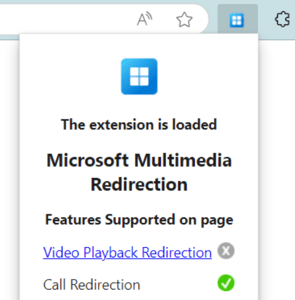
4. Place a test call in Ringover and verify that the extension icon updates to show an active redirected call
⚠️ Mozilla Firefox is not supported for Microsoft Multimedia Redirection. You must use Microsoft Edge or Google Chrome to redirect Ringover calls.
⚠️ If the extension icon shows an error state indicating it failed to load, uninstall and reinstall the browser extension or the Remote Desktop Multimedia Redirection Service, then restart your browser and try again.
🎉 You now know how to set up and verify Microsoft Multimedia Redirection (MMR) for Ringover and can enjoy smoother, low-latency calls in Azure Virtual Desktop and Windows 365!