The Ringover integration with Zapier allows you to automate your workflows by connecting your telephony system to over 8,000 applications (CRMs, support tools, team messaging apps). Even if your tool doesn't appear directly on the Ringover dashboard, you can add it using Zapier.
Ringover Integration with Zapier
To integrate Ringover with Zapier, please follow these steps.
Prerequisites
- A Ringover Business or Advanced account.
- Administrator access to the Ringover account.
- A Zapier account (an administrator account is recommended for initial setup).
1. Activation & Authentication
To activate your Zapier integration:
- Go to your Ringover Dashboard > Store > Integrations.
- Search for "Zapier" and click Activate.
- Once activated, click the Configure button or the Zapier icon to display your credentials.
- Copy your API Token (authentication key), if you don't have an account.
- Click on the invitation link provided in the interface and then "Accept and Build a Zap".
2. Setting up your first Zap
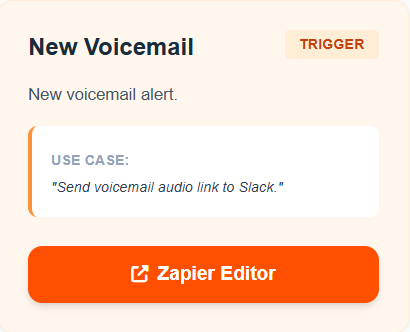
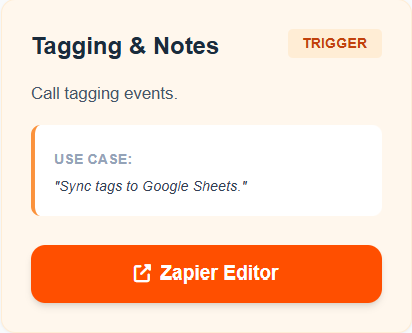
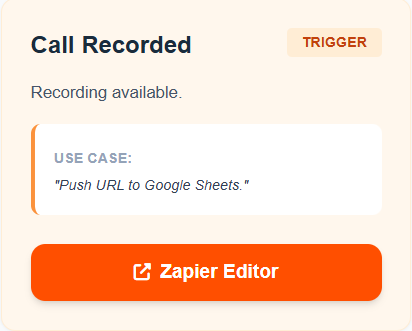
Set up your workflow by clicking on the triggers you want to use.
1. Choose your trigger
The trigger is the event in Ringover that will start the action (e.g., "When a call ends...").
- Click on one of the available options.
- Edit the title and/or description.
- Then click "Test" to access the Zapier workflow page with the information already filled in.
Call triggers
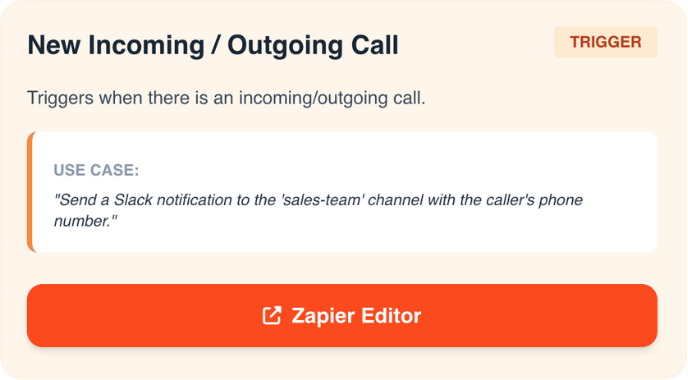 |
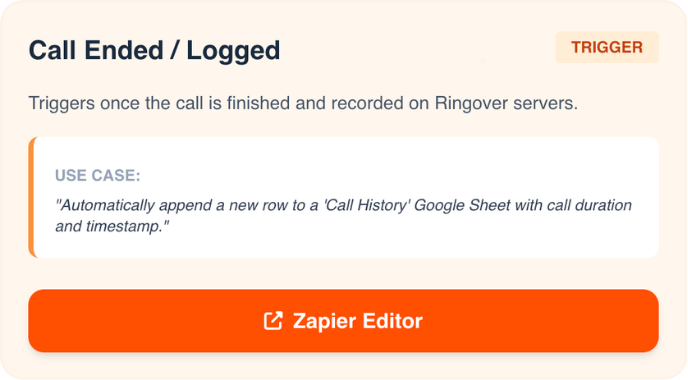 |
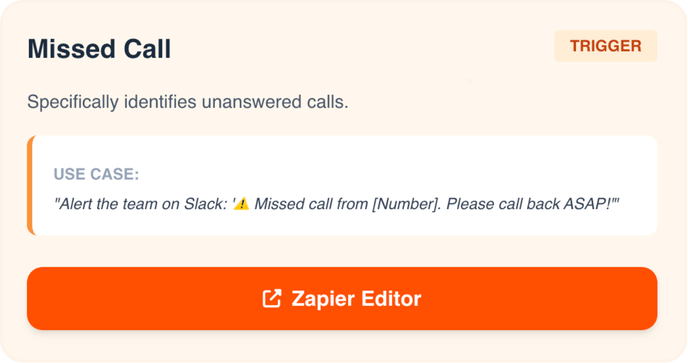 |
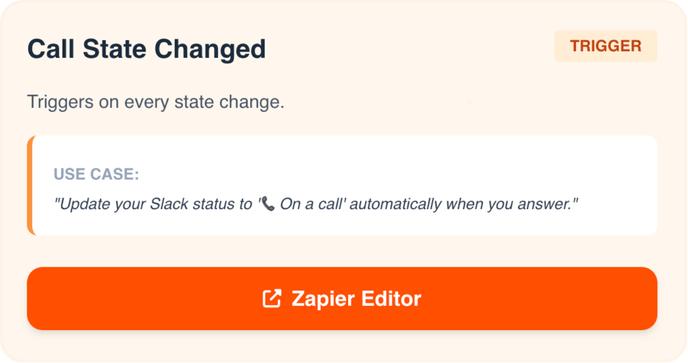 |
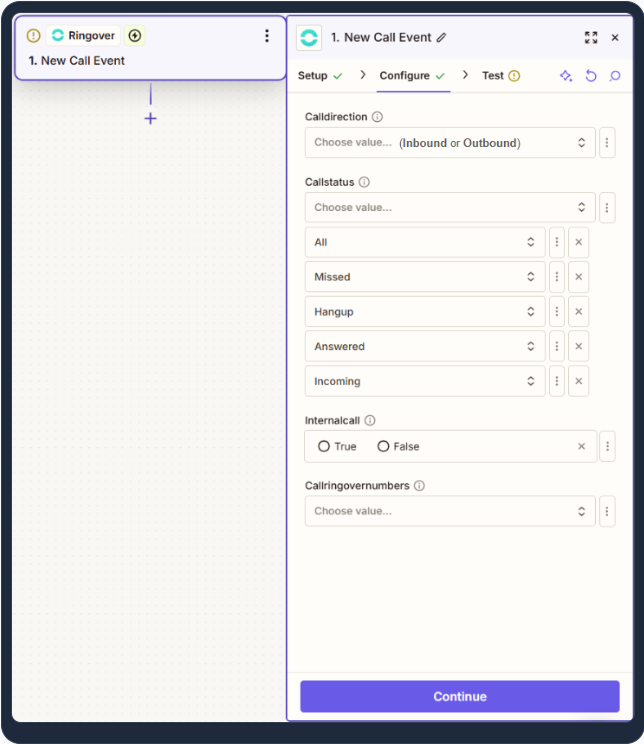
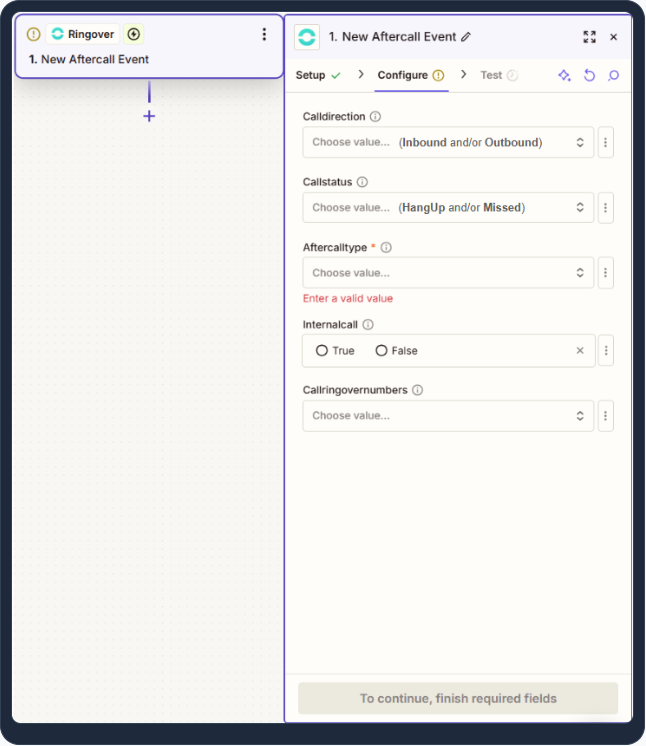
Configuration preview:
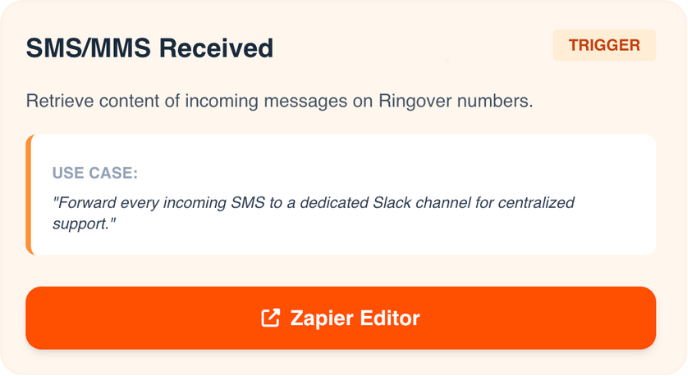
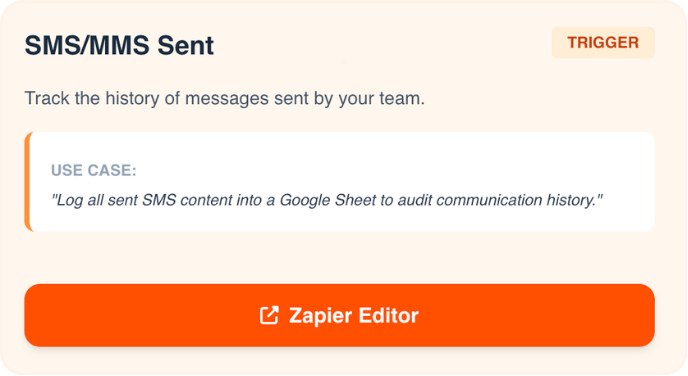
SMS triggers
 |
 |
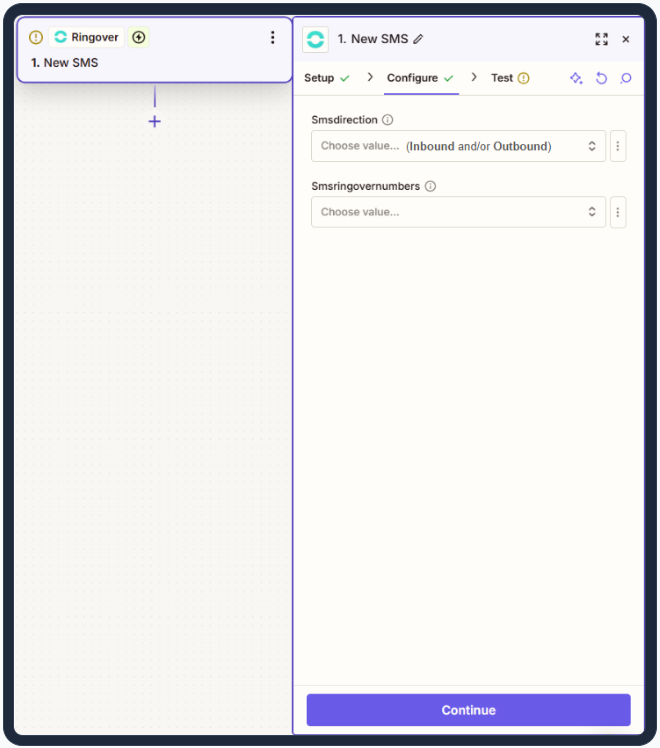
Configuration preview:
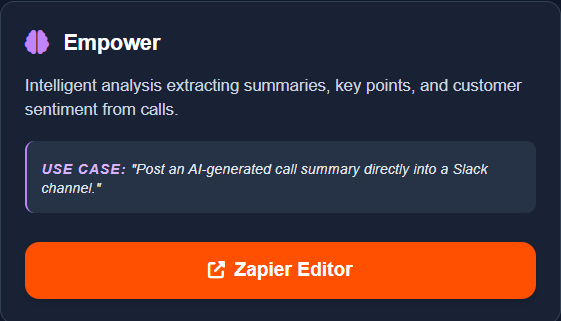
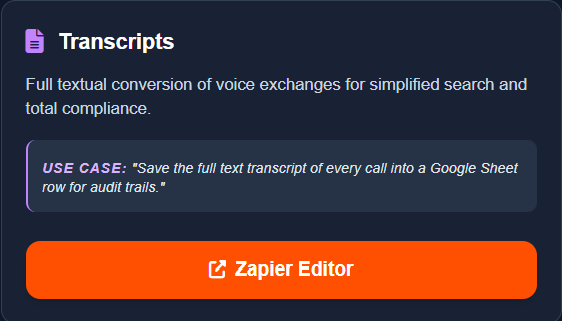
Empower insights (AI) and Call content triggers
 |
 |
 |
 |
 |
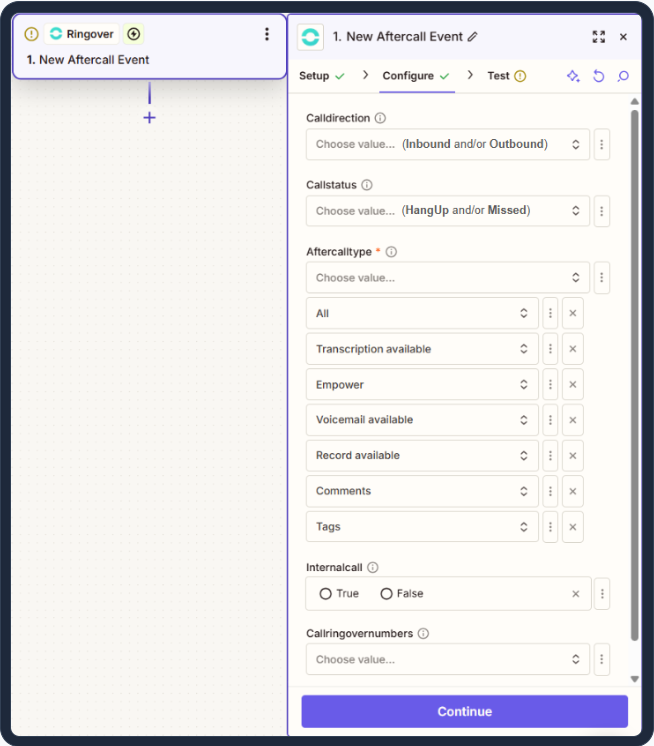
Configuration preview:
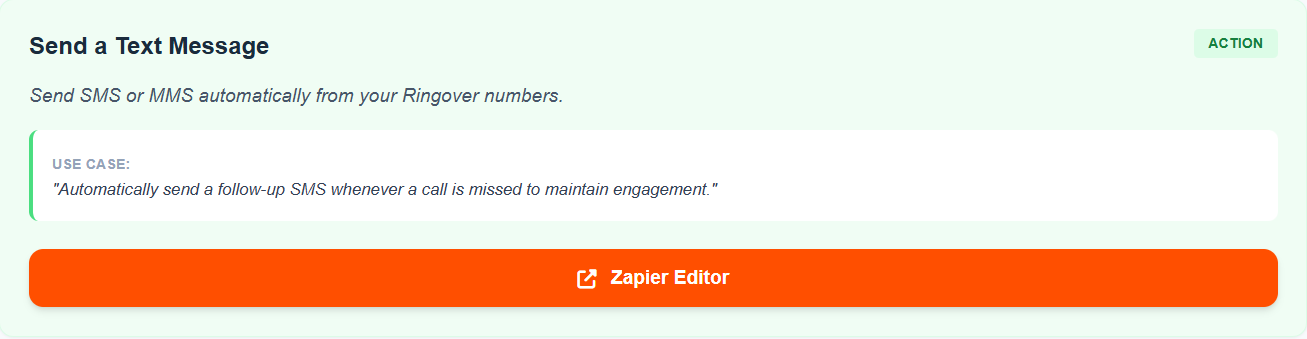
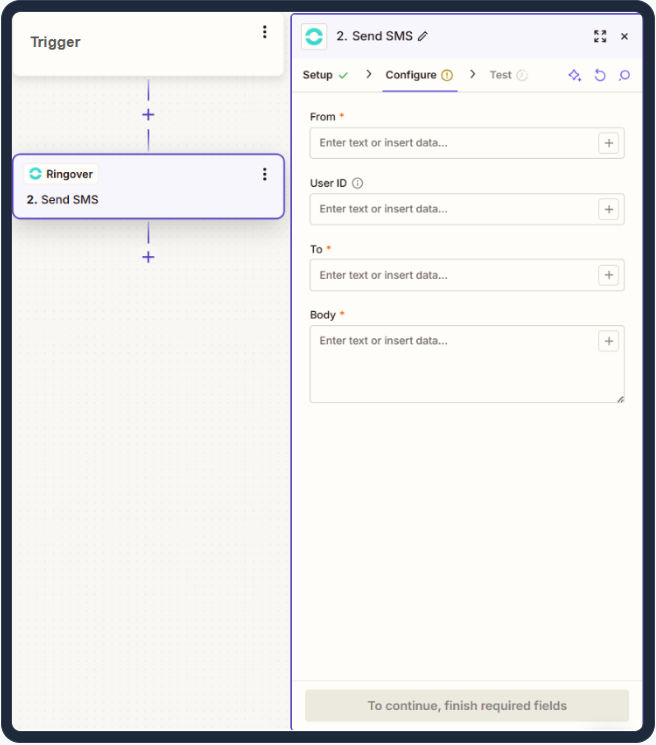
2. Or choose your action
Configuration preview:
3. Workflow activation
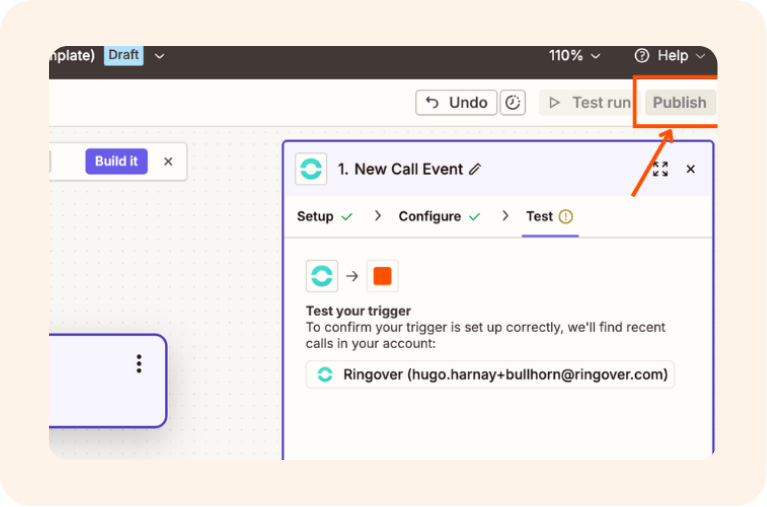
- After testing, click publish to activate your workflow.