
This guide explains how to connect your Ringover numbers to HubSpot Help Desk so HubSpot can create and manage tickets from calls received through your Ringover calling channel.
Prerequisites
Before connecting Ringover numbers to HubSpot Help Desk, make sure you have:
- ✅ Installed and connected the Ringover ↔ HubSpot integration
- ✅ Admin access to your HubSpot account
- ✅ Access to HubSpot Service Hub / Help Desk
- ✅ At least one Ringover number available to connect
- ✅ The integrated dialer with remote calling window
- ✅ The required permissions to manage Help Desk channels in HubSpot
👉 Related articles:
- How to link Ringover with HubSpot CRM?
- Ringover Integration in HubSpot - User Guide
- Ringover app on the HubSpot Marketplace
What does this connection do?
Connecting Ringover as a calling provider in HubSpot Help Desk allows you to receive and manage calls as part of your Help Desk ticketing process.
Once a Ringover number is connected to Help Desk:
- Calls received on the connected number can be logged in HubSpot Help Desk
- HubSpot applies the ticket pipeline, stage, and priority settings configured during setup
- Support teams can manage call-related requests directly from Help Desk
Step 1: Go to Help Desk settings
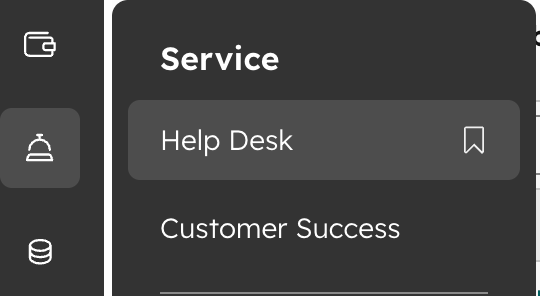
In the left sidebar, go to Service → Help Desk.
Step 2: Open HubSpot settings
In your HubSpot account, click the settings icon in the top navigation bar.

Step 3: Open Channels
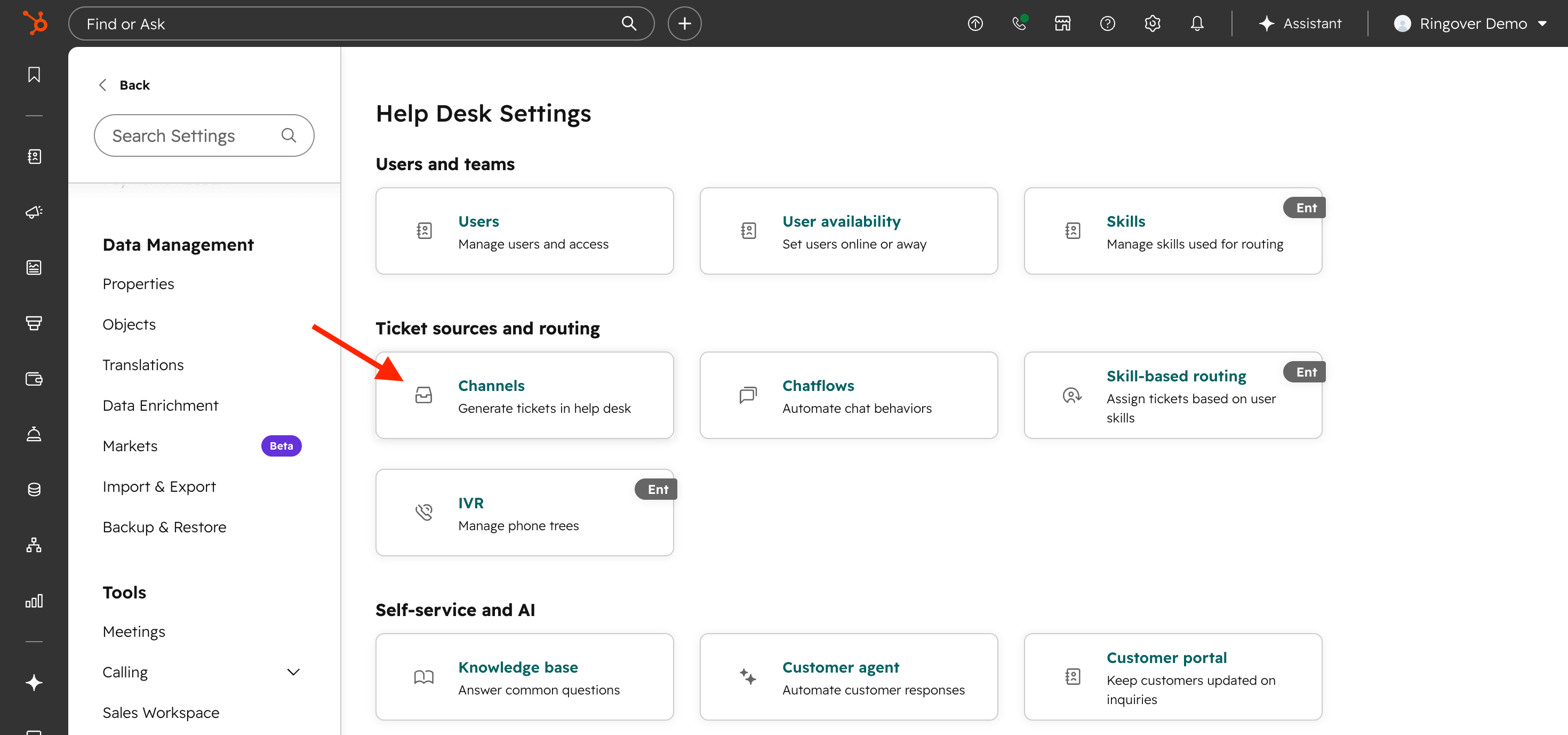
In Help Desk Settings, under Ticket sources and routing, click Channels.
Step 4: Connect a new Ringover calling channel
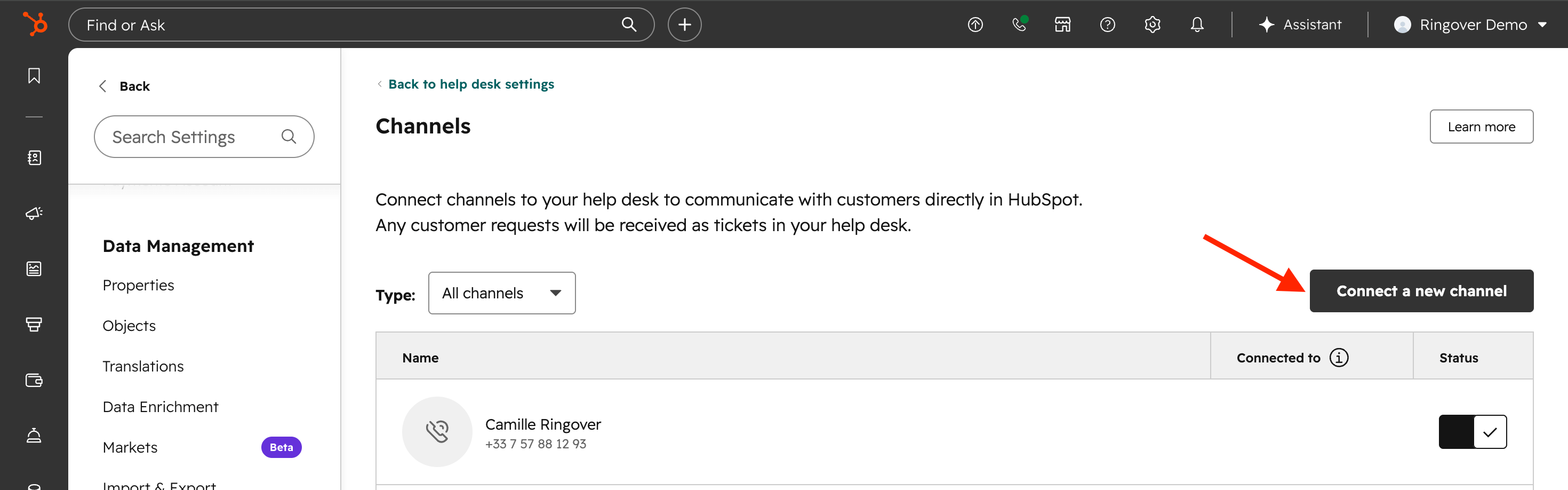
On the Channels page, click Connect a new channel.
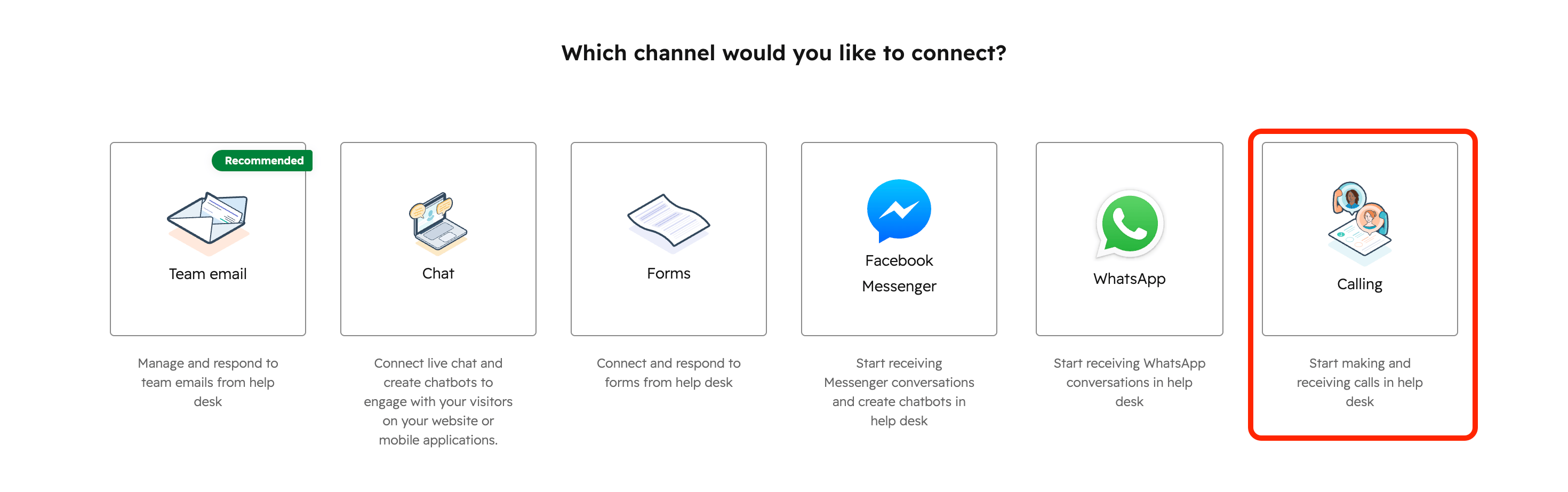
When HubSpot asks which channel you would like to connect, select Calling.
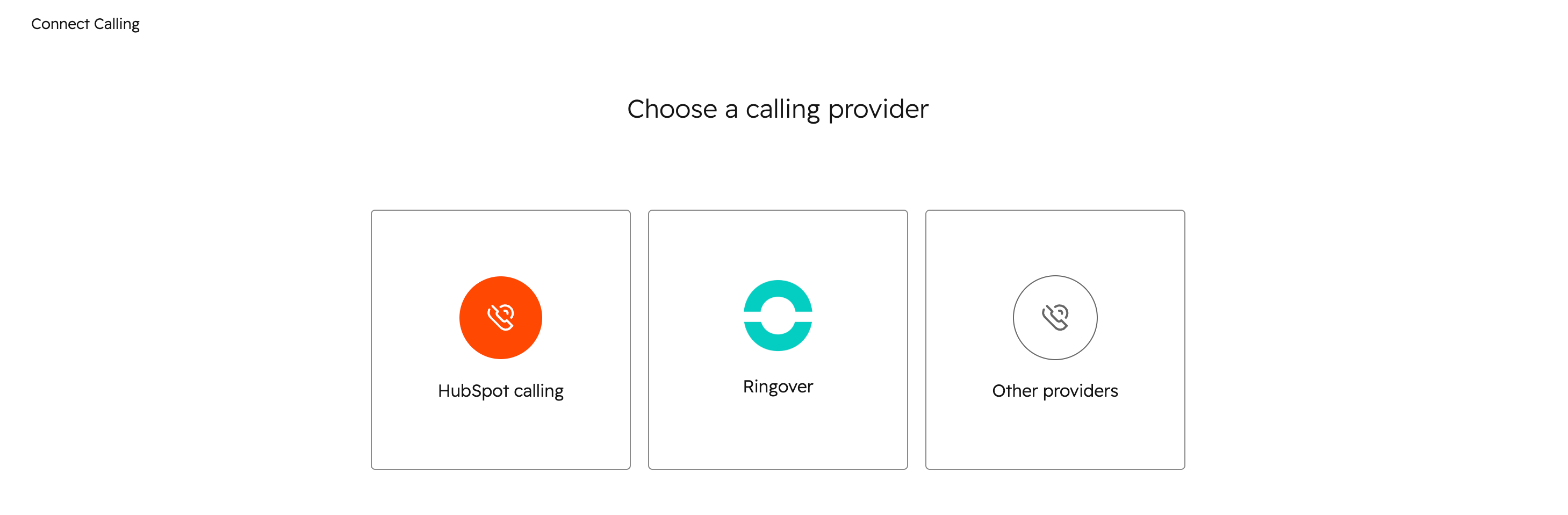
On the Choose a calling provider screen, select Ringover.
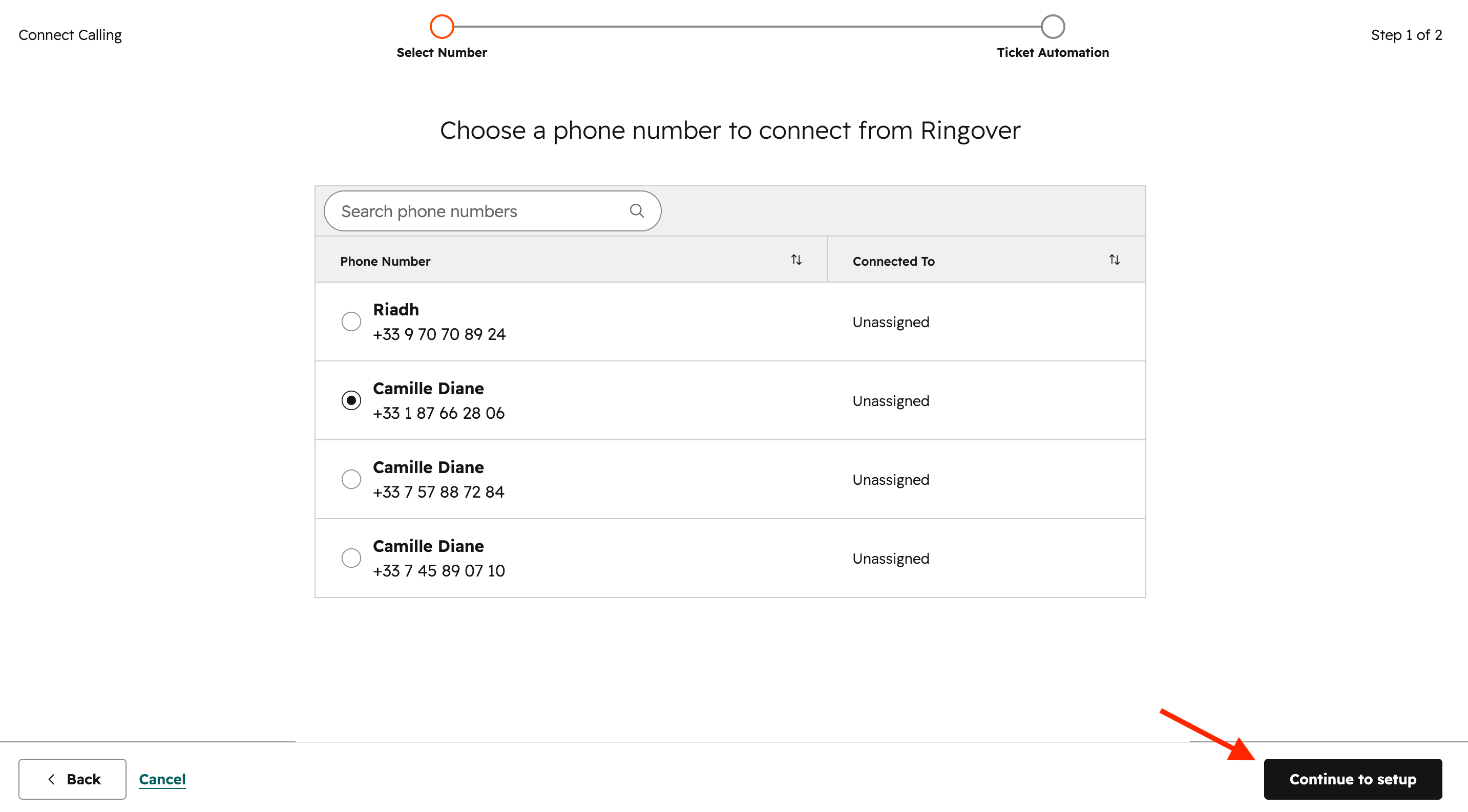
Step 7: Choose the Ringover number to connect
Select the Ringover phone number you want to connect to HubSpot Help Desk.
Once selected, click Continue to setup.
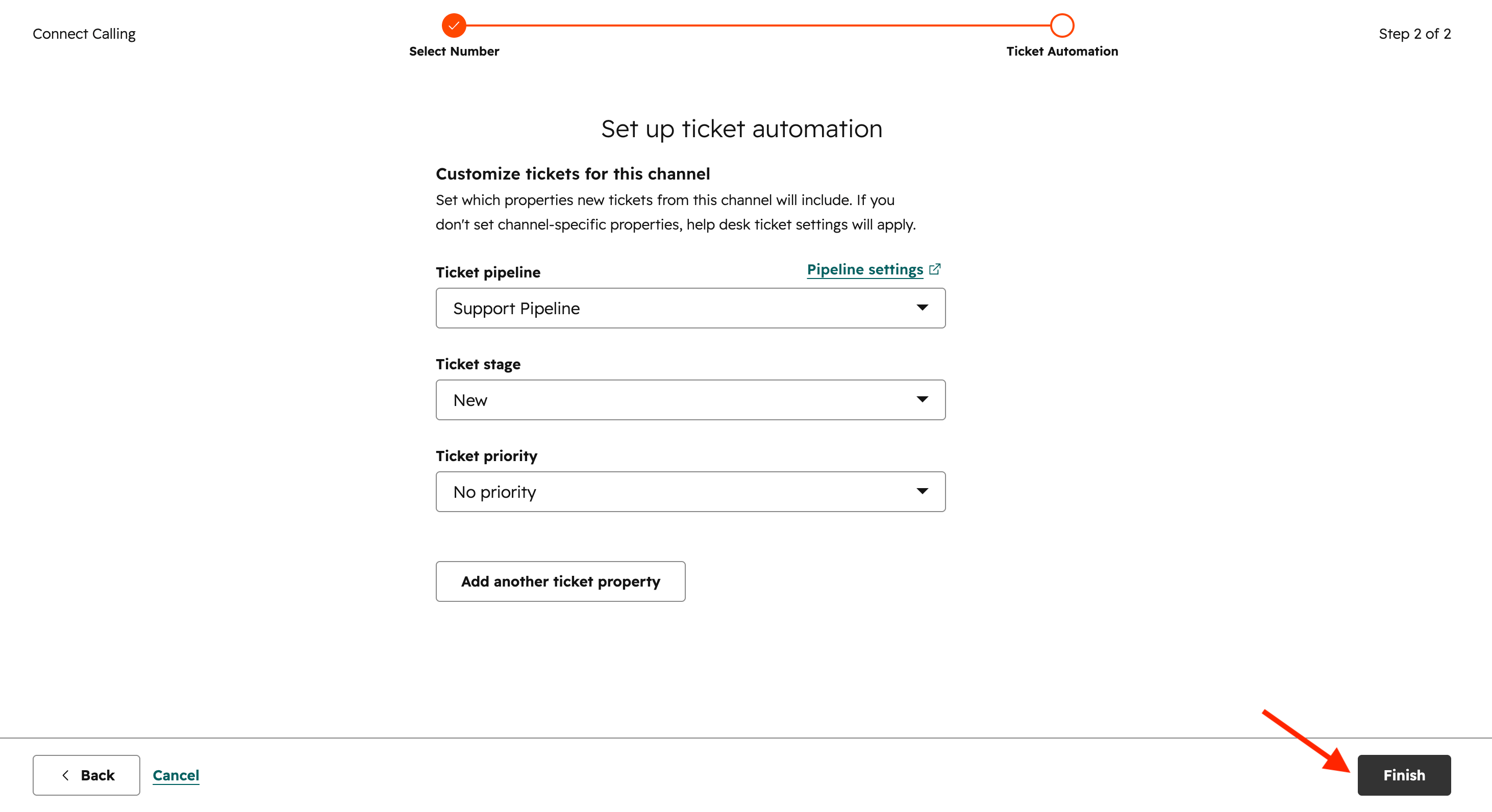
Step 8: Set up ticket automation
Choose how HubSpot should create tickets for calls received through this Ringover channel.
You can configure:
- Ticket pipeline: select the pipeline where new tickets should be created
- Ticket stage: choose the default stage for new tickets
- Ticket priority: select a default priority, if needed
You can also click Add another ticket property to define additional ticket fields for this channel.
When everything is configured, click Finish.
Step 9: Confirm the connection
HubSpot confirms that Calling is connected to Help Desk.
That’s it! 🎉 Your Ringover number is now successfully connected to HubSpot Help Desk.
From now on, every inbound call -whether answered or missed- will automatically generate a ticket in your Help Desk, based on the configuration you defined. This ensures your support team can track and manage all call interactions directly within HubSpot.
You can click “See sample call” to preview how calls are logged, or “Connect another channel” if you want to add more numbers.
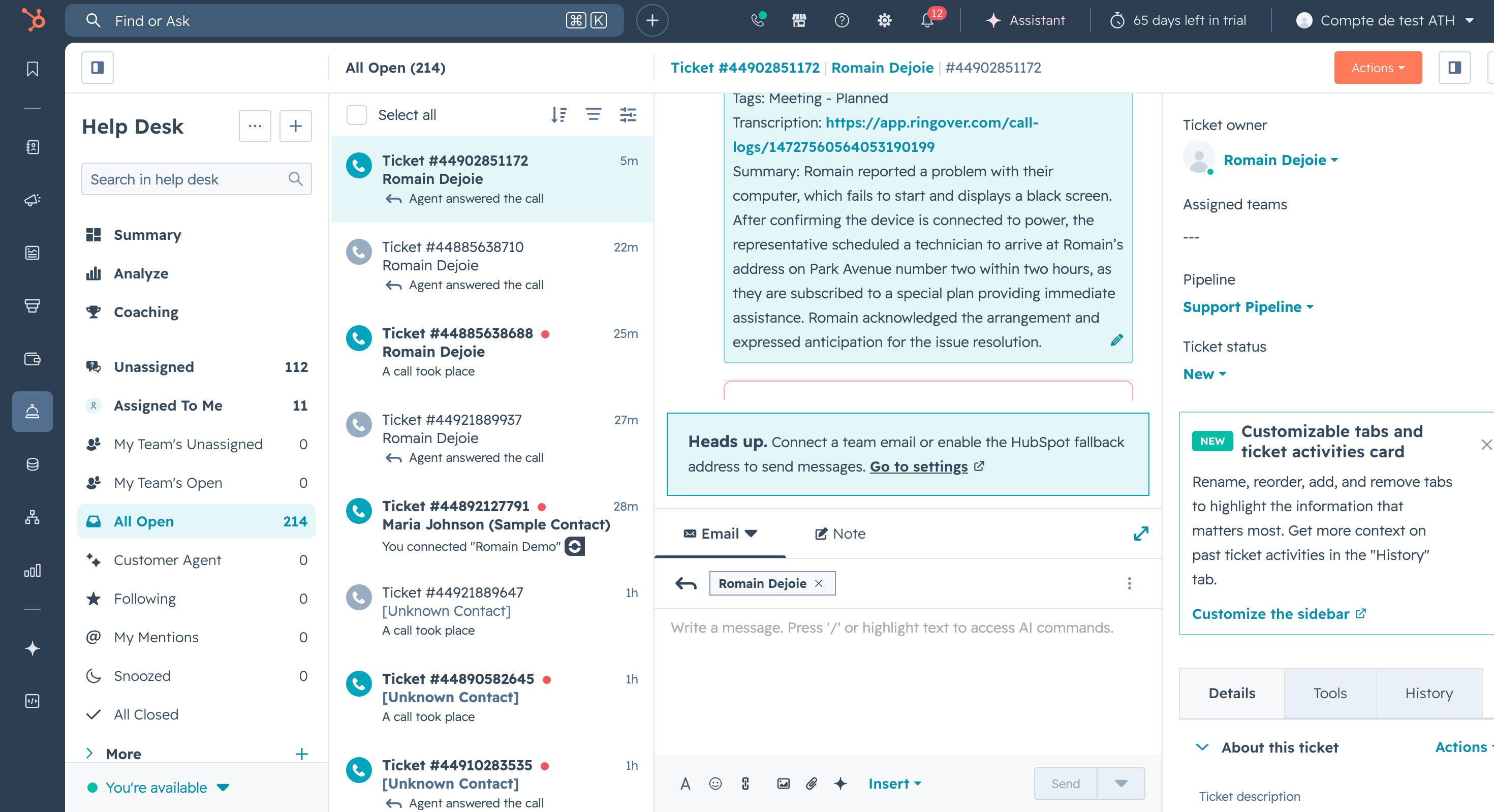
Example of a created ticket for an inbound call: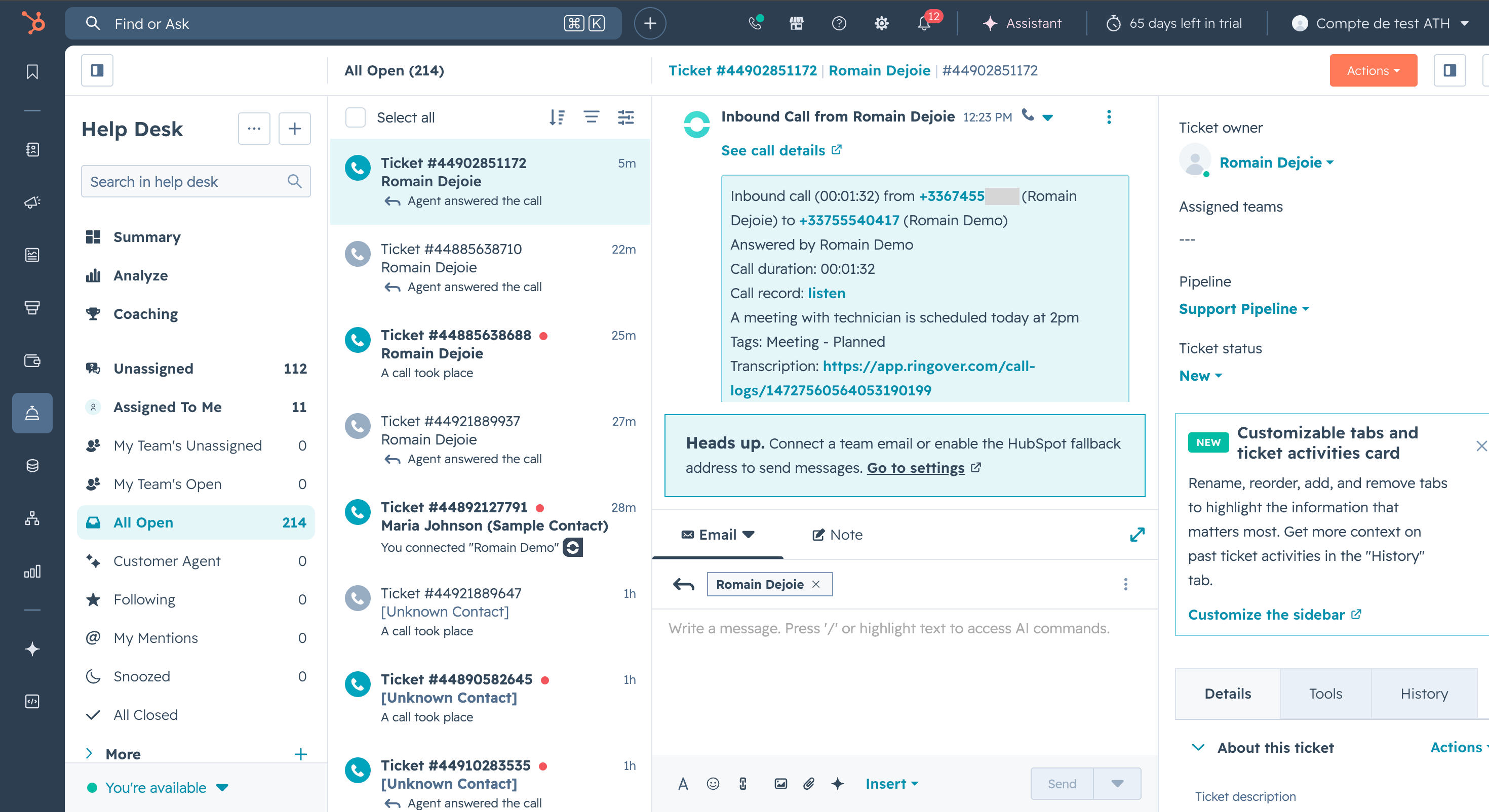
The ticket comes along with a summary:
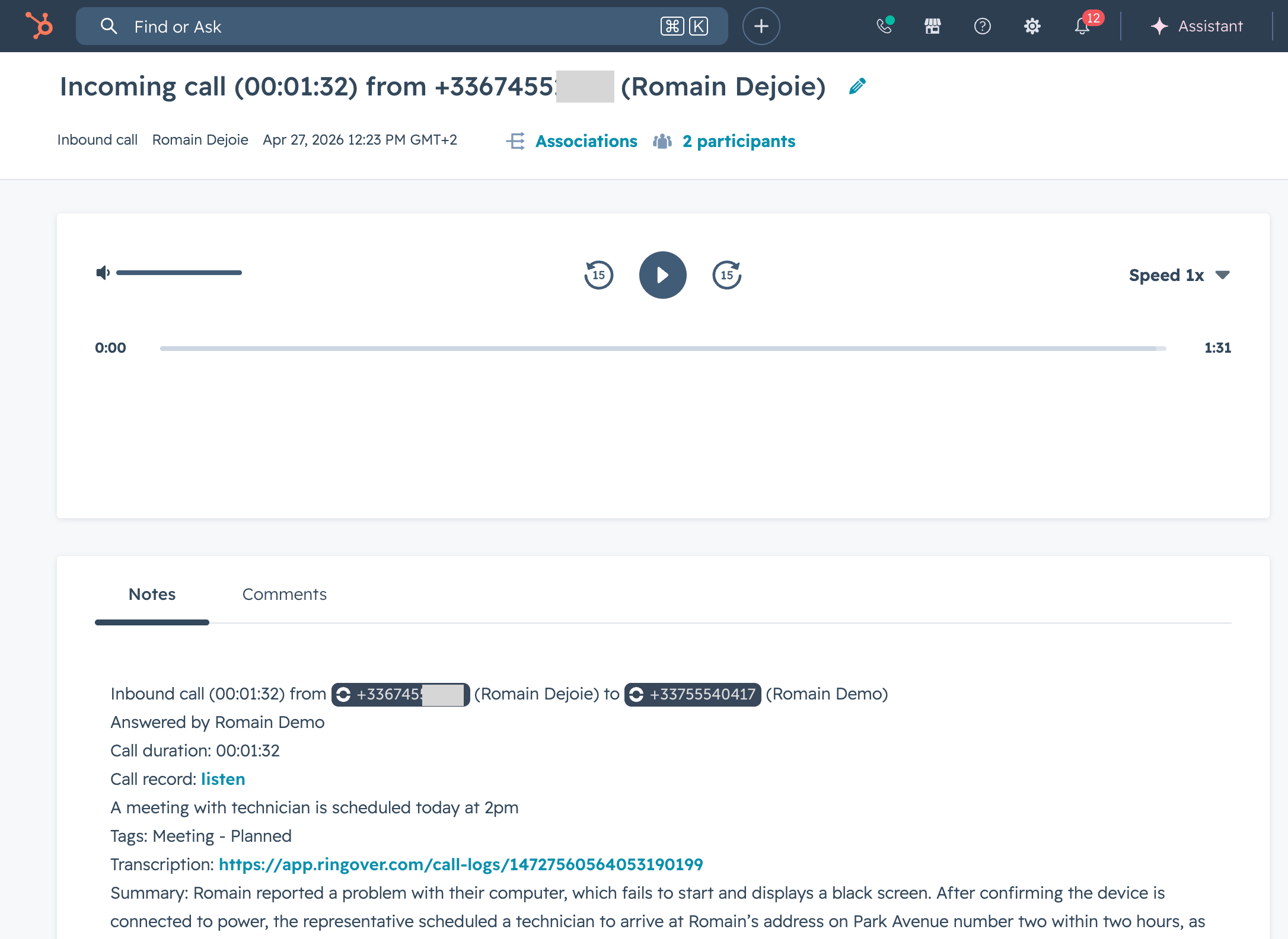
You can click on 'See call details' to open the complete call log:
Important notes
- Only Ringover numbers displayed during setup can be connected to HubSpot Help Desk.
- Ticket creation is managed from HubSpot Help Desk for numbers connected through this channel.
- Both incoming answered calls and incoming missed calls will generated tickets in Help Desk, as predefined by HubSpot.
- If you connect several Ringover numbers, repeat the setup for each number you want to use in Help Desk.
- Make sure your ticket pipeline and ticket stage match your support process before finishing the setup.
Best practices
- Use a dedicated Ringover number for Help Desk support calls.
- Choose a clear ticket pipeline and stage for incoming support requests.
- Test the setup with a sample inbound call before deploying it to your support team.
- Review created tickets regularly to make sure calls are routed and logged as expected.
FAQ
Q2. Does Help Desk work with the Ringover web app phone?
No. HubSpot currently only supports its integrated dialer with a remote calling window. This means you need to handle incoming calls directly within HubSpot for them to generate Help Desk tickets.
Q2. Can I create Help Desk tickets only for answered calls?
No. HubSpot currently does not allow restricting ticket creation to answered calls only, altough a workaround can be applied (see Q4 below).
Q3. Why are multiple tickets created for IVR missed calls?
If a call rings multiple agents via IVR and is not answered, HubSpot may create multiple tickets. This is expected behavior but it can be configured (see Q4 below).
Q4. How can I avoid tickets for missed calls?
You have two workarounds:
- Do not use a Help Desk calling channel. Instead, log calls and use workflows to create tickets only when the call outcome is “connected”.
- Keep the Help Desk channel and use workflows to automatically close or update tickets from missed calls.